How to Disable the WordPress Admin Menu Bar on the Frontend When Logged In
Why is the admin bar a problem?
Log into any WordPress site and visit the frontend. There it is: a black toolbar spanning the top of the page, offering links to the dashboard, the current page’s edit screen, and whatever else WordPress and your plugins decide to put there.
For a solo site admin, the toolbar is handy. For everyone else who’s logged in (subscribers, customers, members, students) it’s confusing clutter. On a WooCommerce store, a logged-in customer sees admin links they can’t use. On a membership site, subscribers see a toolbar that has nothing to do with their experience. If you manage multiple WordPress sites, this becomes a recurring annoyance across your entire portfolio.
And then there’s the design problem. The admin bar adds 32 pixels of fixed positioning to the top of every page. Custom themes with fixed headers, sticky navigation, or precise spacing get pushed down. Fullscreen hero sections have a black bar on top that doesn’t match the site’s branding.
What are the three ways to disable the frontend admin bar?
Per-user toggle
WordPress provides a per-user setting: go to Users → click a user → uncheck “Show Toolbar when viewing site.” This works for individual users but doesn’t scale. You’d need to edit every user profile, and new users get the toolbar enabled by default.
Theme functions filter
Add this to your theme’s functions.php:
// Disable admin bar for all non-administratorsadd_filter('show_admin_bar', function () { return current_user_can('manage_options');});This keeps the bar for admins and hides it for everyone else. It’s a code change that needs to be in your theme (or a custom plugin), and it needs to be replicated across every site. If you’re already editing wp-config.php for other things, WordPress debug constants covers the related configuration options.
Plugin approach
Several plugins exist to manage admin bar visibility by role. Each one is another dependency to maintain across your WordPress portfolio. You can also block plugin installs entirely with a wp-config.php constant if you want to lock things down further.
Why is this challenging across multiple sites?
The frontend admin bar setting is easy to configure on one site but tedious across many. The first three approaches above all need to be applied individually:
- Per-user toggles don’t transfer between sites
- Theme function changes only apply to the theme they’re in
- Plugins need installing and configuring on each site
For agencies managing 20+ WordPress sites, each with its own theme and user base, keeping this consistent requires either meticulous documentation or a centralised management tool. We wrote more about this in how to manage multiple WordPress sites like a pro.
How does mySites.guru handle this?
mySites.guru’s snapshot has a toggle for “Disable the menu bar on the frontend when logged in.” Flip it, and the admin bar is hidden for all logged-in users on that site. If you change your mind, you can toggle it back with one click.
Under the hood, mySites.guru deploys a must-use plugin with this filter:
add_filter('show_admin_bar', '__return_false');Must-use plugins load before regular plugins and can’t be deactivated from the WordPress admin, so the setting sticks regardless of theme changes or plugin conflicts. You don’t need to touch code or manage yet another plugin.
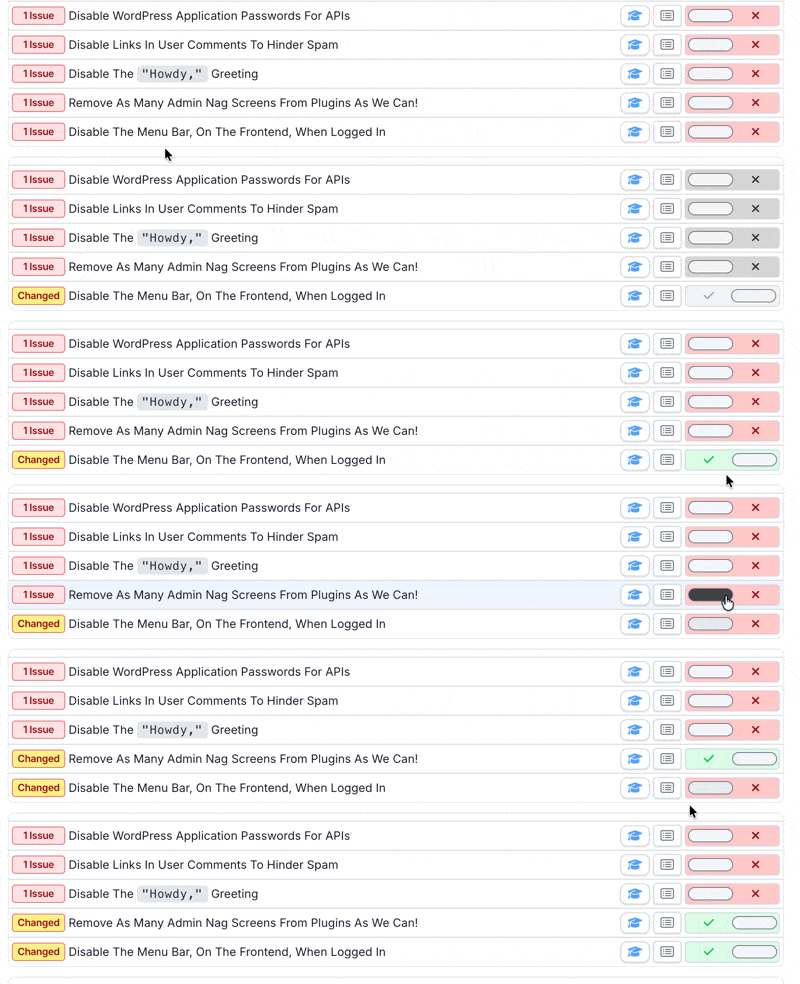
Instead of adding a filter to each theme or clicking through user profiles, you toggle it once per site from the mySites.guru dashboard. The tool page shows the current state of this setting across all your WordPress sites at a glance:
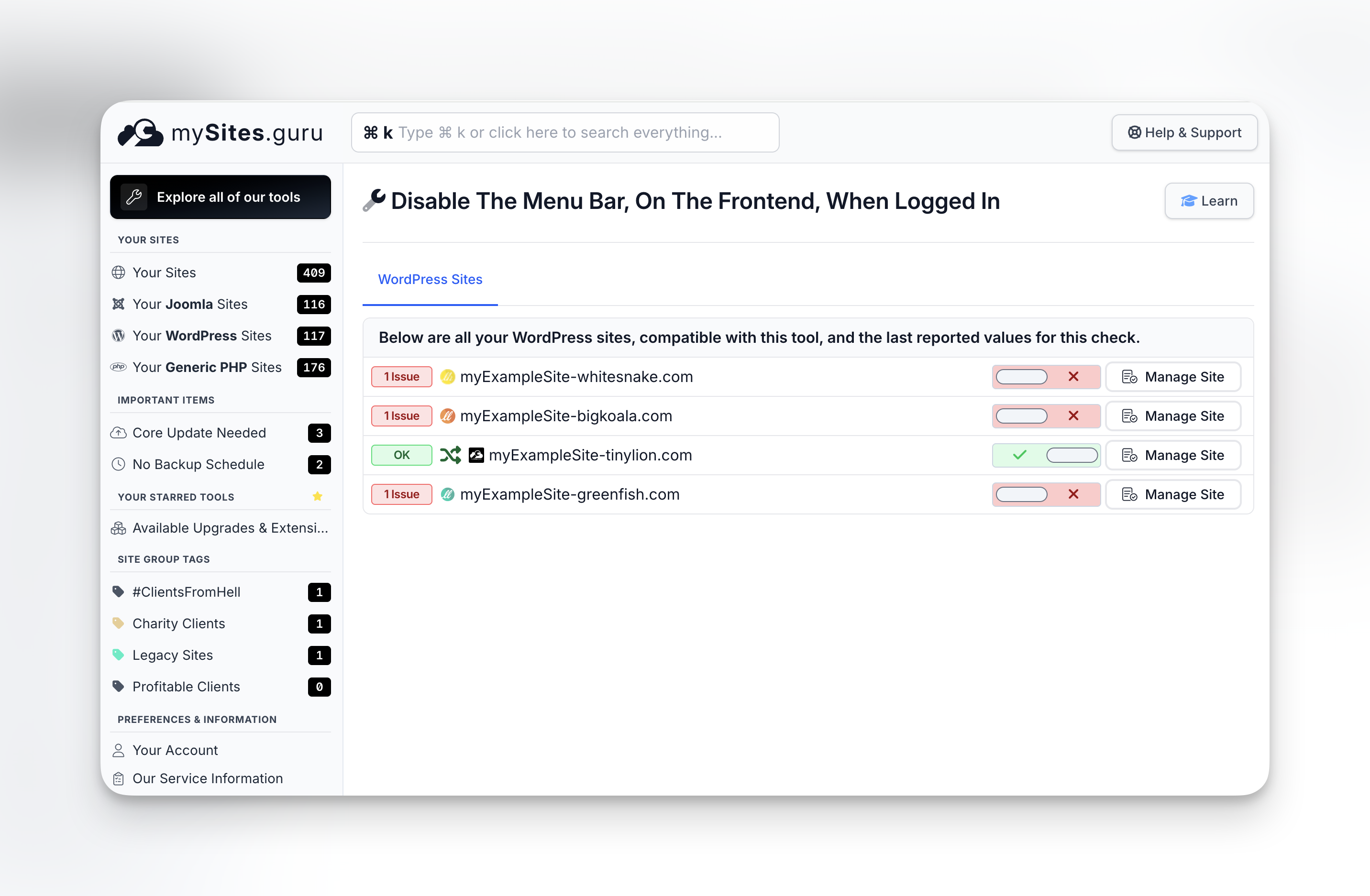
Snapshot monitoring tracks the setting going forward, so if a theme update or plugin re-enables it, you’ll know.
The same dashboard handles related settings like removing the WP logo from the admin bar, stopping automatic updates, and monitoring plugin vulnerabilities.
What about removing the WordPress logo from the admin bar?
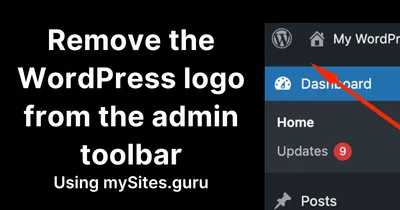
This is a different thing from hiding the bar entirely. The WordPress logo in the admin bar links to WordPress.org resources and visually identifies the CMS. On white-label client sites, you probably want it gone. mySites.guru has a one-click toggle to remove the WP logo from both the frontend and backend toolbar.
When should you disable the frontend admin bar?
Disable for non-admins when:
- Running a membership or e-commerce site where customers log in
- The theme’s design conflicts with the 32px admin bar offset
- Clients are confused by admin links they can’t use
- You want a clean, branded frontend experience
Keep enabled when:
- Only administrators log into the site
- Content editors need quick access to the “Edit Page” link from the frontend
- The site has few logged-in users and the convenience outweighs the clutter
For most client sites managed by agencies, disabling the frontend admin bar for non-admin roles is the right default.
Further reading
- show_admin_bar() function reference — Official WordPress developer docs for the function that controls admin bar visibility.
- show_admin_bar filter hook — The recommended way to hide the admin bar, documented with usage examples.
- is_admin_bar_showing() function reference — Check whether the admin bar is currently displayed; useful for conditional logic in themes.
- WordPress Hooks API — How actions and filters work in WordPress, for context on the show_admin_bar filter approach.