How to Check Your Joomla Database Security with mySites.guru
Your Joomla site’s database holds everything that matters. User accounts, passwords, content, configuration, session tokens, extension settings. If an attacker gets read access, they own the site. Write access, they own the server.
The database is also one of the most commonly misconfigured parts of any Joomla installation. Default table prefixes that automated tools know how to target. Root database users with unrestricted access. Database users that can see every database on the server. Backup tables full of historical data that nobody remembers creating. Schema mismatches from botched updates. Action logs growing without bounds.
The mySites.guru snapshot tool checks for all of these automatically. The Database Integrity section of the snapshot runs six distinct checks on every connected site:
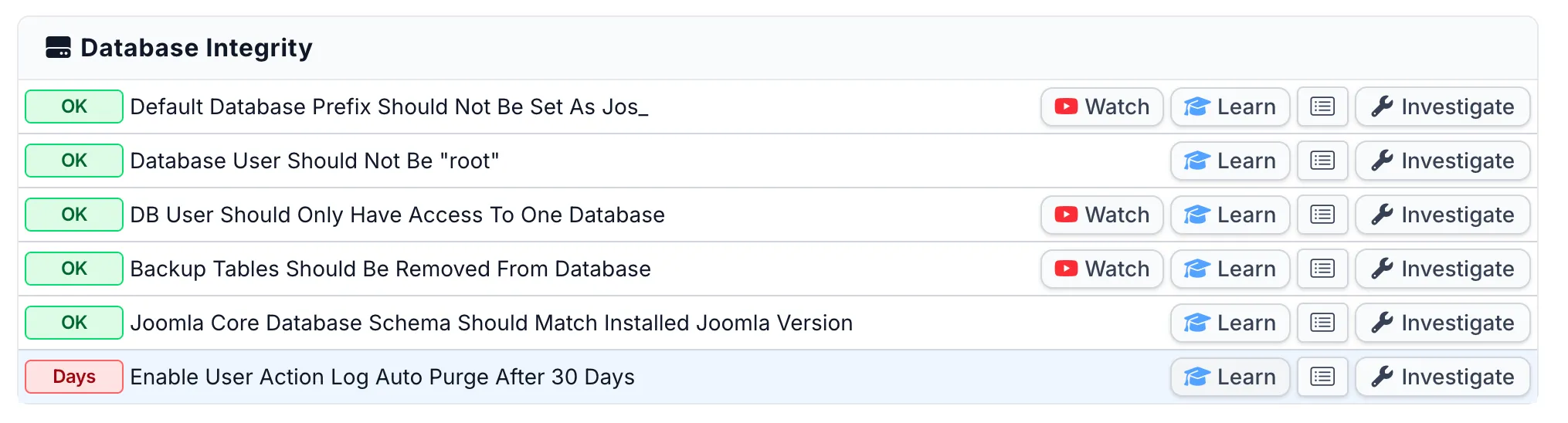
Each check links to a Watch button (video walkthrough), a Learn button (best practice explanation), and an Investigate button that takes you straight to the issue on that specific site. For Joomla sites, most checks also include a Fix This For Me button that applies the fix remotely with a single click. When you need to see a single check across all your sites at once, the pivot view shows every connected site’s status for that check on one screen:
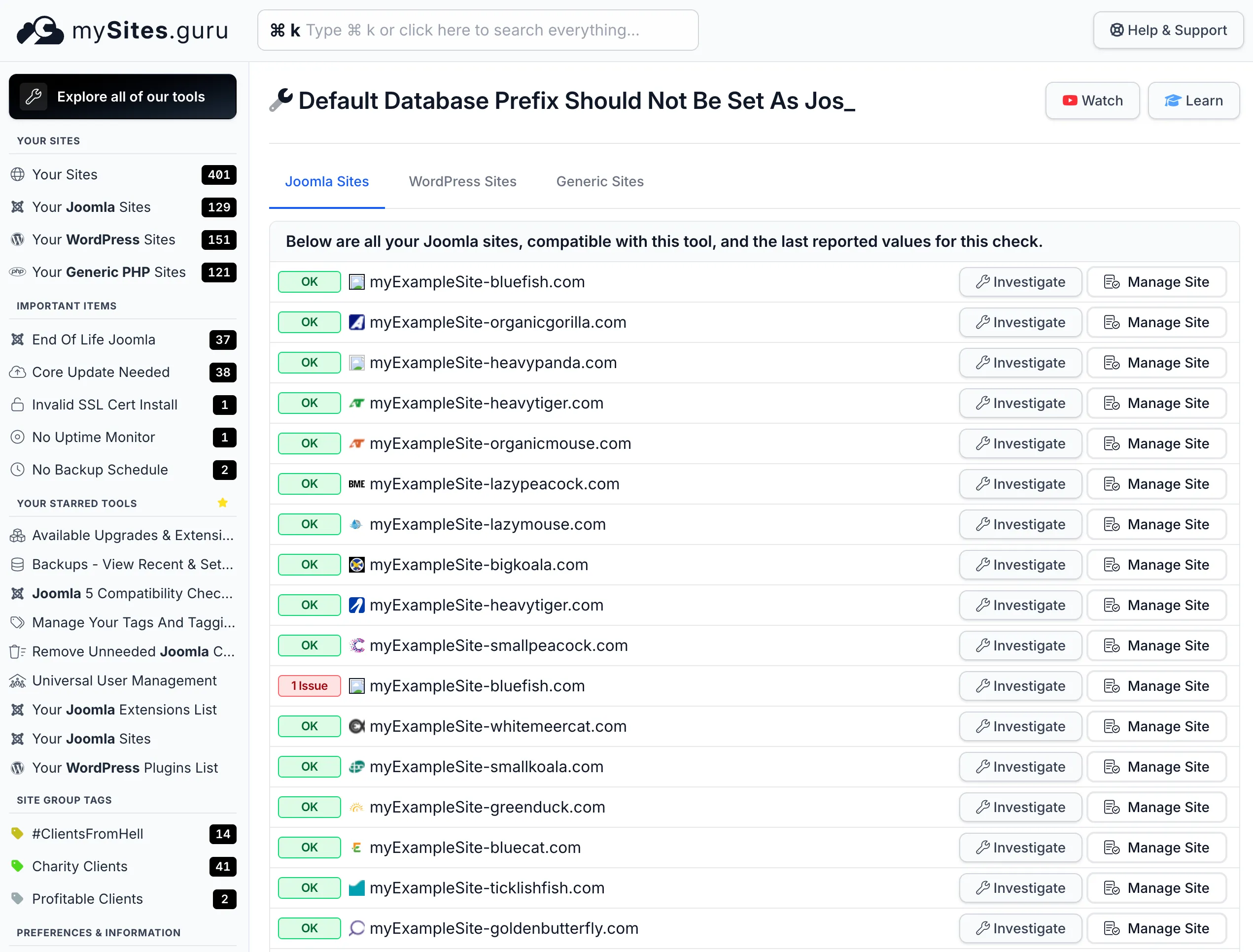
If you manage 10, 50, or 500 sites, this is how you spot the outliers without logging into each server individually.
This post walks through every database integrity check, explains why each one matters, and gives you the exact steps to fix each issue.
Why Database Security Gets Overlooked
Most Joomla administrators focus on the visible attack surface: keeping extensions updated, running security audits, scanning for hacked files and backdoors, and reviewing security headers.
But the database sits behind the scenes. You don’t interact with it directly during normal site management. It was configured once during installation and never revisited. The installer picked a prefix, the hosting panel created a user with whatever privileges it felt like granting, and everyone moved on.
The decisions made during a five-minute installation have permanent security implications, and almost nobody goes back to review them.
When you manage multiple Joomla sites, the odds of database misconfiguration go up fast. Different hosts have different defaults. Different eras of Joomla had different installation behaviours. Some hosts create database users with full administrative privileges because it’s easier than figuring out the minimum required set.
The Default Table Prefix Problem
Joomla versions before 1.7 used jos_ as the default database table prefix during installation. That means your users table would be jos_users, your sessions table jos_session, your extensions table jos_extensions, and so on.
Joomla has generated a random prefix during installation since version 1.7 (released in 2011). But if you’re managing older sites, sites that were migrated from earlier versions, or sites where someone typed jos_ manually during setup, that default prefix is still there.
This matters because SQL injection attacks need to know your table names to extract data. If a site uses jos_users as the users table, attackers don’t need to guess. They already know. Automated attack tools and scripts target jos_users, jos_session, and jos_extensions by default. Changing your prefix to something custom, say x7k9_ or mguru_, means those pre-built payloads hit tables that don’t exist and return nothing useful.
Tim Davis from Basic Joomla Tutorials covers this exact issue in his Maintenance Monday stream. It’s a clear walkthrough of why the default prefix is a problem and how to change it:
The video above shows an older version of the mySites.guru interface. We've since redesigned the dashboard, but the database checks work the same way.
Changing the table prefix is not a substitute for fixing SQL injection vulnerabilities. A determined attacker who can inject SQL can usually enumerate your table names regardless of prefix. But it stops the vast majority of automated attacks, which are the ones most sites actually face. Defense in depth means stacking imperfect barriers, and each one filters out a portion of threats.
What mySites.guru checks
The snapshot reads your site’s configuration.php and checks the $dbprefix value. If it’s jos_, the tool flags it as a warning. If you’ve set a custom prefix, it passes.
How to fix it
Option 1: Use mySites.guru (recommended)
Click the Investigate button on the flagged check to see your site’s current prefix. For Joomla sites, click Fix This For Me and mySites.guru will generate a random prefix, rename every table in the database, and update configuration.php automatically. No manual SQL needed. If you manage dozens of sites, use the pivot view to see which sites still have jos_ across your entire portfolio in one screen.
Option 2: Use Admin Tools
If you have Akeeba Admin Tools installed, it includes a database table prefix changer. It handles renaming all tables and updating the configuration automatically. This is a solid approach because it accounts for edge cases like tables created by third-party extensions that might not follow standard naming conventions.
Option 3: Manual change via phpMyAdmin
- Take a full database backup first. This is non-negotiable.
- Open phpMyAdmin (or your preferred database management tool).
- For each table starting with
jos_, run:RENAME TABLE jos_tablename TO newprefix_tablename; - Update
configuration.phpon the server: changepublic $dbprefix = 'jos_';topublic $dbprefix = 'newprefix_'; - Clear your Joomla cache and verify the site loads correctly.
A few rules for choosing a good prefix to save you headaches with some webhosts and configurations - trust us!
- Use 3-5 random characters followed by an underscore (e.g.,
a8x2_) - Stick to lowercase letters and numbers only, no special characters
- Start with a letter, not a number
- Don’t use your site name, domain, or anything guessable
- Don’t use
joomla_,jml_, or any other obvious Joomla-related prefix
If you're installing a new Joomla site, the installer already generates a random prefix by default (since Joomla 1.7 in 2011). If you see jos_ on a site, it either predates that change or someone manually typed it in during setup.
The Root Database User
If your Joomla site connects to the database as the root MySQL user, you have a serious problem.
The root user has unrestricted access to every database on the server. Not just your Joomla database, but every single one. If a vulnerability in any Joomla extension allows an attacker to execute arbitrary SQL, they can read, modify, or delete data from every database on the server. They can create new database users. They can grant themselves permanent access. They can dump every table from every application sharing that MySQL instance.
This is the database equivalent of running your web server as the system root user.
Why it happens
Shared hosting panels often create a single database user per hosting account and give it access to all databases under that account. On some budget hosts, the installation wizard pre-fills “root” as the database username because the hosting environment uses it.
Self-managed servers tend to be worse. Developers setting up a quick test environment use root because it works and they’ll “fix it later.” They never fix it later. The test environment becomes production, and root stays in configuration.php for years.
What mySites.guru checks
The snapshot reads the $user value from your site’s configuration.php. If the database username is root, the tool flags it as a critical warning.
How to fix it
Option 1: Use mySites.guru (recommended)
Click the Investigate button on the flagged check to see the exact database username. For Joomla sites, the investigation page includes a credentials form where you can enter new database credentials, test them against the server, and apply the change to configuration.php remotely. No SSH or FTP required. Use the pivot view to instantly see which sites across your portfolio are still running as root, so you can prioritise the worst offenders.
Option 2: Fix manually
- Log into your hosting control panel or MySQL directly.
- Create a new database user with a strong, unique password.
- Grant that user access only to the Joomla database, nothing else.
- Assign only the required privileges (covered in the next section).
- Update
configuration.phpwith the new username and password. - Verify the site works correctly.
- If no other applications use root, change the root password and restrict root to localhost-only access.
If you have direct MySQL access, here’s the command to create a properly scoped user. On shared hosting, your control panel (cPanel, Plesk, DirectAdmin, etc.) will handle this through its GUI instead - typically in three separate steps: create the user, assign privileges to the user, then add the user to the database.
CREATE USER 'joomla_user'@'localhost' IDENTIFIED BY 'strong_random_password_here';GRANT SELECT, INSERT, UPDATE, DELETE, CREATE, DROP, ALTER, INDEX ON joomla_database.* TO 'joomla_user'@'localhost';FLUSH PRIVILEGES;Replace joomla_user, strong_random_password_here, and joomla_database with your actual values. The @'localhost' restriction ensures this user can only connect from the local machine, not remotely.
If your Joomla site is on shared hosting, check with your host about database user permissions. Some hosts don't give you direct MySQL access to create users, so you'll need to use their control panel instead. The principle is the same: one user per database, minimum required privileges.
One Database User, One Database
Even with a dedicated (non-root) database user, there’s a subtler problem: that user might have access to multiple databases on the same server.
This happens more often than you’d expect. Hosting panels frequently create a single database user and grant it access to every database under your account. If you run three Joomla sites on the same server, all three might share the same database user. If one site gets compromised through an extension vulnerability, the attacker can read and modify the databases of the other two sites as well.
Tim Davis has a memorable take on this in his Maintenance Monday stream: No Database Threesomes in Joomla. He walks through how to check if your database user can access multiple databases and how to create separate users for each site. If a hack occurs on one site whose database user can see other databases, the attacker can view those databases too, change admin passwords directly, and compromise every site on that server. We have seen over 100 databases on a single server all hacked from one compromised site. Total compromise, from a single weak point.
What mySites.guru checks
The snapshot connector connects to your MySQL server using your site’s database credentials and runs SHOW DATABASES, filtering out system databases (information_schema, performance_schema, mysql, test). If the user can see more than one database, the check fails. This is the same test an attacker would use after gaining SQL access through a vulnerability.
How to fix it
Option 1: Use mySites.guru (recommended)
Click the Investigate button to see exactly how many databases the user can access. For Joomla sites, the investigation page includes the same credentials form as the root user check: enter a new dedicated username and password, test them, and apply the change to configuration.php remotely. Use the pivot view to see which sites across your portfolio have this problem.
Option 2: Fix manually
Create a separate database user for each Joomla site on your server. Using the MySQL command from the root user section above, the key is the ON joomla_database.* part: that restricts the user to a single database. Repeat for each site with a different username, password, and database name.
-- Site ACREATE USER 'site_a_user'@'localhost' IDENTIFIED BY 'password_a';GRANT SELECT, INSERT, UPDATE, DELETE, CREATE, DROP, ALTER, INDEX  ON site_a_db.* TO 'site_a_user'@'localhost';
-- Site BCREATE USER 'site_b_user'@'localhost' IDENTIFIED BY 'password_b';GRANT SELECT, INSERT, UPDATE, DELETE, CREATE, DROP, ALTER, INDEX  ON site_b_db.* TO 'site_b_user'@'localhost';
FLUSH PRIVILEGES;
Then update each site’s configuration.php to use its dedicated user.
Excessive Database Privileges (Best Practice)
Even with a dedicated user that only accesses one database, that user might have far more privileges than Joomla needs. This isn’t one of the six automated snapshot checks, but it’s a critical part of database security that you should review manually alongside the snapshot results.
Joomla needs these MySQL privileges to function:
- SELECT - read data from tables
- INSERT - add new rows (content, users, sessions, etc.)
- UPDATE - modify existing rows
- DELETE - remove rows
- CREATE - create new tables (needed during extension installation)
- DROP - remove tables (needed during extension uninstallation)
- ALTER - modify table structure (needed during updates)
- INDEX - create and drop indexes (needed during updates)
Some extensions also require:
- CREATE TEMPORARY TABLES - for complex queries that use temp tables
- LOCK TABLES - for backup extensions that need consistent snapshots
Ten privileges at most. Yet many hosting panels grant database users privileges they should never have:
- FILE - read and write files on the server filesystem through SQL. An attacker with this privilege can read
/etc/passwd, write a PHP backdoor to the webroot, or exfiltrate yourconfiguration.php, all through SQL queries. - PROCESS - view all running queries from all users, including those containing passwords or sensitive data.
- SUPER - bypass privilege restrictions, kill other users’ queries, change global server settings.
- GRANT OPTION - grant any privilege the user has to other users. An attacker can create new users with full access.
- SHUTDOWN - shut down the MySQL server entirely.
If a SQL injection vulnerability is discovered in any Joomla extension on your site, the damage an attacker can do is directly proportional to the privileges your database user holds. With just the required set, they can read and modify data in your Joomla database. Bad, but recoverable. With FILE privilege, they can drop a backdoor on your filesystem. With SUPER, they can take over the database server.
How to check and fix
To see what privileges your user currently has:
SHOW GRANTS FOR 'joomla_user'@'localhost';If the output includes dangerous privileges, revoke them:
REVOKE FILE, PROCESS, SUPER, GRANT OPTION, SHUTDOWN ON *.* FROM 'joomla_user'@'localhost';FLUSH PRIVILEGES;If the output shows GRANT ALL PRIVILEGES, your user has everything, including the dangerous ones. The cleanest fix is to create a new user with only the required privileges (using the command from the root user section) and update configuration.php to use it.
On shared hosting, you may not be able to run REVOKE directly. Most hosting control panels (cPanel, Plesk, DirectAdmin) have a database user privilege editor in their interface. Look for your database section, find the user, and uncheck everything except SELECT, INSERT, UPDATE, DELETE, CREATE, DROP, ALTER, INDEX, CREATE TEMPORARY TABLES, and LOCK TABLES.
The ALL PRIVILEGES trap
Many guides and StackOverflow answers casually recommend GRANT ALL PRIVILEGES when setting up a database user. It’s the easy path where everything works and you never get a “permission denied” error. But ALL PRIVILEGES includes FILE, PROCESS, SUPER, and everything else. It’s the second-worst option after using root directly.
If you see ALL PRIVILEGES in your grants output, treat it the same as any other over-privileged configuration: create a new user with explicit minimum privileges and switch to it.
Backup Tables Cluttering Your Database
When you run the Joomla installer into a database that already contains tables (from a previous installation, for example), the installer offers to back up the existing tables by renaming them with a bak_ prefix. So jos_users becomes bak_jos_users, jos_content becomes bak_jos_content, and so on. Open phpMyAdmin on a long-running Joomla site and you might see dozens of these bak_ tables sitting alongside the live ones.
The problem is that nobody cleans them up afterward. The installer creates them, the site works fine, and the backup tables sit there indefinitely.
Tim Davis covers the cleanup process in detail: Remove BAK_ Backup Tables From Your Joomla Database. He walks through both automated and manual approaches to finding and removing these tables safely.
Why backup tables are a security risk
Backup tables contain historical copies of your data. Your jos_users table has your current user records with current (hopefully hashed) passwords. A backup table from two years ago has the user records from two years ago, potentially with weaker password hashes if you’ve upgraded your hashing algorithm since then. It might also contain accounts for users who have since been deleted.
If an attacker gains read access to your database through SQL injection, backup tables give them:
- Historical user data - email addresses, usernames, and password hashes from previous periods
- Old configuration data - API keys, SMTP credentials, or other sensitive settings stored in the database
- Migration artifacts - data from a previous CMS or an earlier Joomla version that might contain information you thought was deleted
Beyond the security angle, backup tables consume disk space. On sites with large content tables or extensive user bases, backup tables can double or triple your database size. This slows down database operations, increases backup time, and on some hosts pushes you into a higher billing tier.
What mySites.guru checks
The snapshot connector runs SHOW TABLES on your database and looks for any table with a name starting with bak_. This is the prefix Joomla’s installer creates when you install over an existing database and choose to back up the old tables. If any bak_ tables exist, the check fails.
How to fix it
Option 1: Use mySites.guru (recommended)
Click the Investigate button to see the full list of bak_ tables on that site. Click Fix This For Me and mySites.guru will drop all the backup tables remotely. No need to open phpMyAdmin or run SQL manually. Use the pivot view to see which sites across your portfolio have leftover backup tables.
Option 2: Fix manually
- Open phpMyAdmin or your preferred database tool.
- Confirm the tables flagged are actually backups and not tables created by a legitimate extension. Check the table structure: if it mirrors an existing core or extension table, it’s almost certainly a backup.
- Take a fresh database backup before deleting anything (yes, the irony is noted).
- Drop the backup tables:
DROP TABLE bak_jos_users;DROP TABLE bak_jos_content;DROP TABLE bak_jos_extensions;- Verify the site works normally afterward.
Don't delete tables you can't identify. Some extensions create tables with non-obvious names. If you're unsure whether a table belongs to an active extension, check the extension's documentation or search for the table name in the extension's source code before dropping it.
Preventing future backup table accumulation
- Configure your backup extension (Akeeba Backup or similar) to store backups as files, not as additional database tables
- After running database migrations, include table cleanup as part of your post-migration checklist
- If you’re manually duplicating tables before making changes, set a calendar reminder to remove them within a week
- Run the mySites.guru snapshot periodically. Schedule it to run weekly or monthly, and it will catch new backup tables before they accumulate
Database Schema Should Match Installed Joomla Version
When Joomla updates between versions, it runs database migration scripts that add new tables, add columns to existing tables, change column types, and update indexes. If an update fails partway through, or if someone restores a database backup from an older version without re-running migrations, the database schema can end up out of sync with the installed Joomla code.
A schema mismatch can cause subtle bugs. Extension installs might fail silently. Admin pages might throw errors when trying to access columns that don’t exist. In some cases, Joomla’s built-in update process gets stuck because it thinks a migration already ran when it didn’t.
What mySites.guru checks
The snapshot connector loads Joomla’s com_installer Database model and compares the current schema version (stored in the #__schemas table) against the latest schema version available in Joomla’s migration files. If the versions don’t match, the check fails. On Joomla 4 and later, it also compares the com_admin extension version against the installed Joomla version to catch partial updates.
How to fix it
Option 1: Use mySites.guru (recommended)
Click the Investigate button to see the current vs expected schema version numbers and any schema errors. Click Fix This For Me and mySites.guru will run the missing migration scripts remotely. The pivot view shows you which sites across your portfolio have schema mismatches, so you can batch your fixes.
Option 2: Fix via Joomla’s built-in tool
Joomla includes a built-in database repair tool. In the Joomla administrator:
- Go to System > Maintenance > Database
- Joomla will compare the expected schema against the actual database
- Select any items marked as needing attention
- Click Update Structure
If the built-in tool can’t resolve the issue (rare, but it happens with heavily customized sites), you may need to manually apply the missing SQL from Joomla’s migration files in administrator/components/com_admin/sql/updates/mysql/.
Always back up your database before running schema fixes.
Enable User Action Log Auto Purge
Joomla’s User Action Log component tracks administrator activity: who logged in, who changed what article, who installed which extension. It’s a useful audit trail, but the log table grows over time. Without automatic purging, the #__action_logs table can grow to hundreds of thousands of rows on busy sites, slowing down database operations and backups.
What mySites.guru checks
The snapshot connector reads the logDeletePeriod parameter from the PLG_SYSTEM_ACTIONLOGS plugin in the #__extensions table. The check passes only if the value is exactly 30. If it’s set to a different number, disabled, or not configured, the check fails and shows the current value (or “Days” if no value is set). This is a Joomla 3.9+ check only.
How to fix it
Option 1: Use mySites.guru (recommended)
Click the Investigate button to see the current purge setting. Click Fix This For Me and mySites.guru will set the value to 30 days remotely. Use the pivot view to see which sites across your portfolio need this configured.
Option 2: Fix via Joomla admin
- In the Joomla administrator, go to System > Plugins
- Search for “Action Log - User Actions”
- Open the plugin settings
- Set Days to delete log entries after to 30 (or whatever retention period you need)
- Make sure the plugin is enabled
For sites where you need longer retention (compliance requirements, client audit trails), set a longer period. The point is to have some limit rather than letting the table grow without bounds.
Putting It All Together: A Database Security Checklist
Here’s the complete set of database integrity checks you should apply to every Joomla site you manage:
1. Table prefix
- Is it something other than
jos_? - Is it random and non-guessable?
- Does it end with an underscore?
2. Database user
- Is it a dedicated user (not root)?
- Does it have a strong, unique password?
- Is it restricted to connecting from localhost only?
3. Single database access (mySites.guru check)
- Does the database user only have access to one database?
- Is each site on the server using its own dedicated user?
4. Backup tables (mySites.guru check, Joomla only)
- Are there leftover
bak_tables in the database?
5. Schema integrity (mySites.guru check, Joomla only)
- Does the database schema version match the installed Joomla version?
6. Action log purge (mySites.guru check, Joomla 3.9+ only)
- Is the User Action Log plugin configured to auto-purge at 30 days?
7. Privileges (manual check)
- Are only the required privileges granted? (SELECT, INSERT, UPDATE, DELETE, CREATE, DROP, ALTER, INDEX, and optionally CREATE TEMPORARY TABLES and LOCK TABLES)
- Are dangerous privileges absent? (FILE, PROCESS, SUPER, GRANT OPTION, SHUTDOWN)
- Is
ALL PRIVILEGESnot being used?
8. Configuration protection (manual check)
- Is
configuration.phpset to 444 (read-only) permissions? - Is the database password unique and not reused elsewhere?
Run the mySites.guru snapshot on your connected sites to check items 1-6 automatically. For items 7-8, you’ll need to verify manually. For sites that fail multiple checks, prioritise fixing them in order: root user first (critical), then single-database access (critical), then table prefix (medium), then backup tables and schema (maintenance).
Checking Multiple Sites at Once
If you manage dozens or hundreds of Joomla sites, checking database security manually on each one would take forever. This is where mySites.guru’s snapshot tool earns its keep.
Run a snapshot across all connected sites with a single click, or schedule them to run automatically on whatever cadence makes sense. The pivot view (shown above) lets you pick any single check and see every site’s status on one screen, so you can focus your time on the sites that actually need attention.
The snapshot captures over 100 checks per site, and the database integrity checks covered in this post are just one category. You’ll also get checks for security headers, file permissions, core file integrity, PHP configuration, dangerous leftover files, and much more. Combined with a full security audit that scans for hacked files and backdoors, you get a thorough picture of each site’s security posture.
For each flagged issue, the tool links to a best practice explanation so your team members and clients understand why the recommendation matters, not just what to change.
A Note for WordPress Site Managers
The underlying risks are identical for WordPress. The default table prefix is wp_ instead of jos_, and the table names are different, but automated tools target wp_users and wp_options just as readily as they target jos_users and jos_extensions.
The mySites.guru snapshot runs three of the same database checks on WordPress sites: default wp_ prefix detection, root user warnings, and single-database access checks. WordPress also gets a Pending Database Migrations check (comparing the code’s expected $wp_db_version against the stored db_version option) instead of the Joomla schema check. The backup tables and action log purge checks are Joomla-specific.
Note that WordPress database fix tools currently require manual action - the remote Fix This For Me buttons are available on Joomla sites only. If you manage both Joomla and WordPress sites from the mySites.guru dashboard, the snapshot will still flag the issues on WordPress so you know what needs attention.
Learn More: Basic Joomla Tutorials
If you prefer video walkthroughs, Tim Davis runs the Basic Joomla Tutorials YouTube channel with hundreds of Joomla maintenance and security videos. The three videos linked throughout this post cover the database topics in detail:
- Don’t Use the Default JOS_ Database Table Prefix in Joomla - why the default prefix is a target and how to change it
- No Database Threesomes in Joomla - why each site needs its own database user with access to only one database
- Remove BAK_ Backup Tables From Your Joomla Database - finding and safely removing orphaned backup tables
Tim’s Maintenance Monday streams are a solid resource for anyone managing Joomla sites professionally.
Beyond the Snapshot: Defense in Depth
Database security checks are one layer in a multi-layered security strategy. They complement other practices:
- Keep Joomla and extensions updated. Most SQL injection vulnerabilities are in outdated extensions. Mass updates from the mySites.guru dashboard keep everything current with minimal effort.
- Run regular security audits. The deep audit scans every file in your webspace against thousands of known malware patterns, and the AI-powered malware analysis can identify obfuscated threats that signature-based scanning misses.
- Set up real-time alerts. File change and login monitoring catches suspicious activity the moment it happens, before an attacker has time to establish persistence.
- Protect configuration files. Your
configuration.phpcontains your database credentials in plain text. It should be readable only by the web server user, not writable, and not accessible from the web. The mySites.guru snapshot checks file permissions as part of its standard run, and the hidden files tool can surface configuration files that have been copied or backed up to accessible locations. - Use strong, unique passwords everywhere. The database password in
configuration.phpshould be unique to that site. Password reuse across sites means a compromise on one site compromises them all. - Check your Joomla email config. A compromised site is often used to send spam. Verify your email configuration works so you’ll notice if something changes.
Get Started
If you’re already a mySites.guru subscriber, run a snapshot on your sites and check the Database Integrity section in the results. Fix whatever is flagged, starting with the most critical issues.
Not using mySites.guru yet? Start with a free audit to see what the tool finds on your site. It takes under two minutes to connect a site and run the first snapshot. You might be surprised at what’s been sitting in your database configuration since the day the site was installed.
For agencies and freelancers managing client sites, the pricing plans scale with the number of connected sites. Every plan includes unlimited snapshots and audits across all your sites, database integrity checks included, no add-on required.
Further Reading
- MySQL 8.4 Security Guidelines - Official MySQL documentation on securing your database server, including user management, network access, and encryption.
- OWASP Database Security Cheat Sheet - Guidance on database hardening for MySQL, PostgreSQL, and other platforms, with specific configuration recommendations.
- Change the Default Joomla Database Prefix - Step-by-step walkthrough of changing the jos_ prefix on existing Joomla installations.
- The Prefix Has Nothing To Do With Telephony - Joomla Magazine article on the history and purpose of database table prefixes in Joomla.
- Basic Joomla Tutorials - Tim Davis’s YouTube channel with hundreds of Joomla tutorials, including the Maintenance Monday security series.
Database security is covered in our Joomla Agency Handbook.