How to Clean Up Dangerous Files Left on Your Joomla Web Server
You finished the migration. You ran the backup. You exported the database so you could import it on the staging server. And then you moved on to the next task, because there are always more tasks.
Those files are still sitting on your server. The ZIP archive of the old site. The SQL dump with every user’s email address and hashed password. The PHP error log that’s been growing for three years, recording every database connection string and file path on your server.
Nobody remembers they’re there. But anyone with a browser can download them.
This is one of the most common and most overlooked security problems on Joomla sites. Not a code vulnerability or a zero-day exploit - just files that should never have been left in a publicly accessible directory, forgotten and exposed to anyone who knows where to look.
How mySites.guru Finds These Files
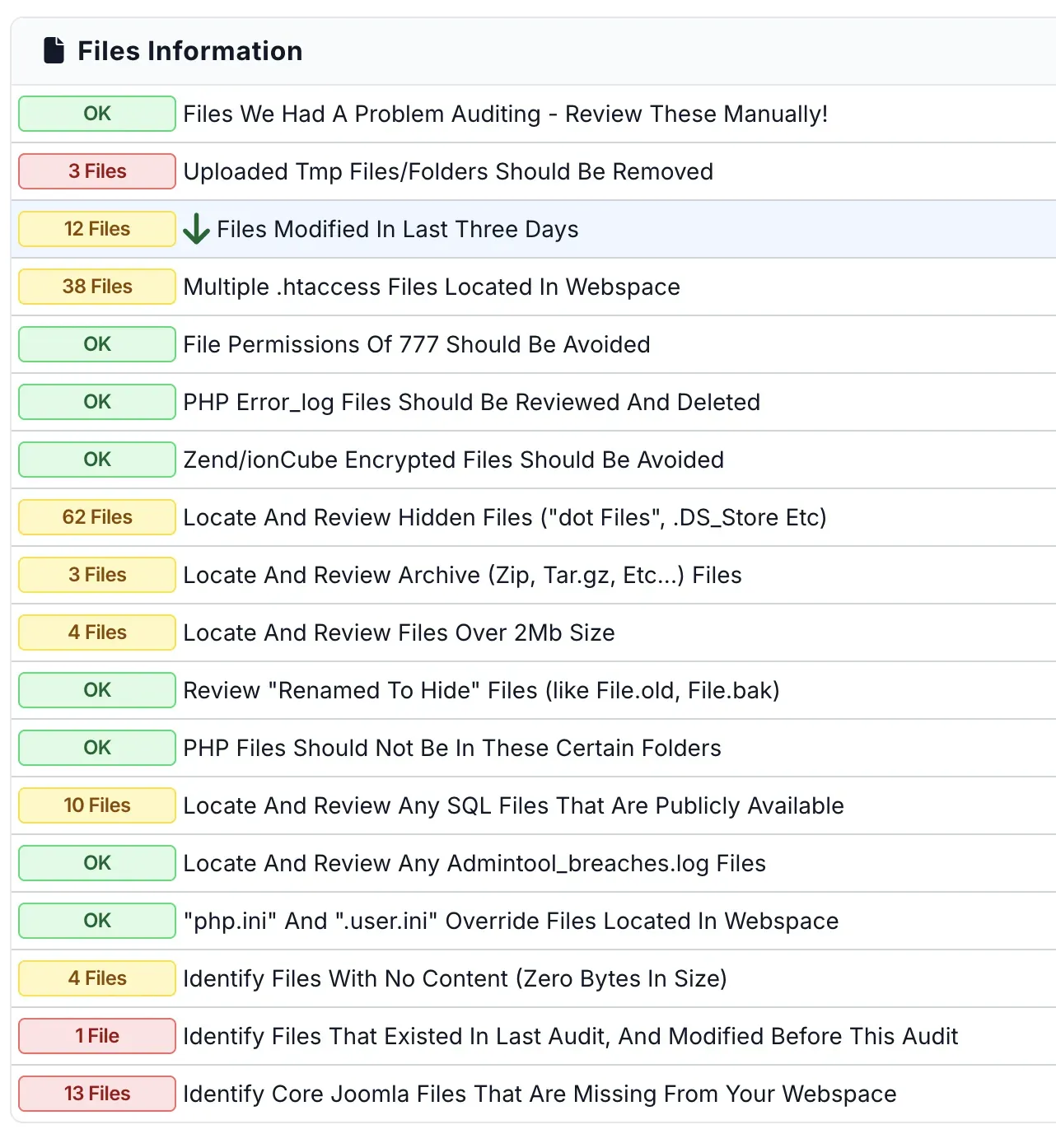
When you run a security audit on any site connected to mySites.guru, the audit engine scans every file in your webspace and classifies them. Several audit tools specifically target dangerous file types:
Archive Files Tool
The archive files tool counts every archive file on your site: ZIP, TAR, TAR.GZ, GZ, RAR, JPA, JPS, and other compressed formats. The audit result shows a count with a colour-coded badge:
- Green - no archive files found
- Yellow/Red - archive files detected, investigation recommended
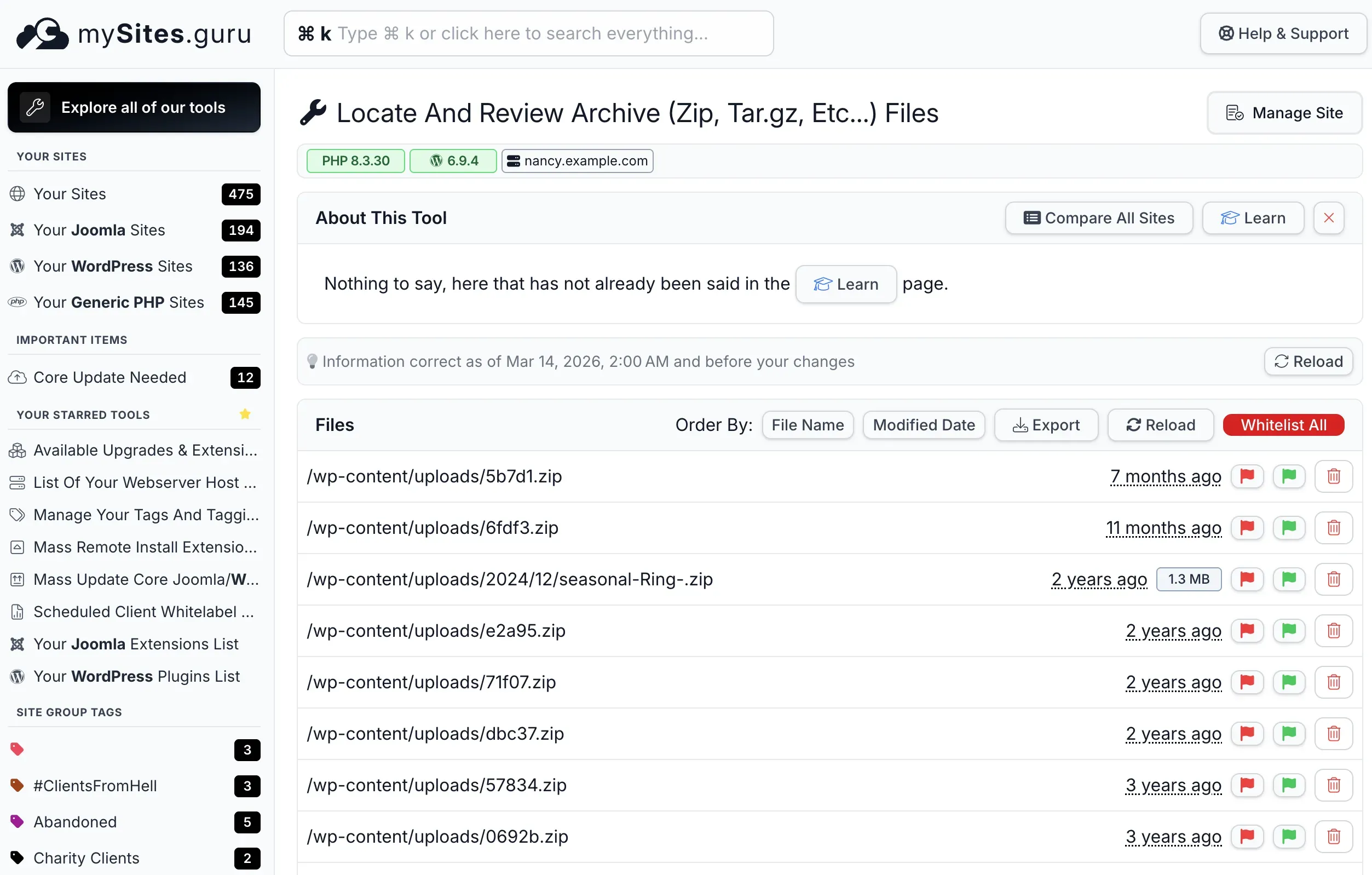
Click through to see the full list with file paths, sizes, and modification dates. This is where you’ll spot the migration archive from two years ago, the Akeeba backup someone forgot to delete, or the mystery ZIP file in /tmp/ that you’ve never seen before. Some ZIP files are legitimate - if your site offers downloadable resources, those archives are intentional and should stay. The tool helps you distinguish between files you put there on purpose and ones that were left behind by accident.
SQL Dump Files Tool
SQL dumps get their own dedicated tool because of the severity of the data they expose. Any file with a .sql extension (or .sql.gz, .sql.zip) is flagged and listed. Not every .sql file is a database dump. Joomla itself ships with hundreds of .sql files in its core - schema creation scripts, migration scripts, and upgrade queries used during installation and updates. Extensions and WordPress plugins include them too. Those are normal and expected. But a file called backup-2024-03.sql or joomla_db.sql.gz in your site root is a different story entirely, and the tool makes it easy to tell the difference by showing file paths, sizes, and modification dates.
PHP Error Logs Tool
The error log tool finds PHP error log files throughout your webspace. These often have predictable names (error_log, php_errorlog, php_errors.log) but the tool catches them regardless of naming because it identifies them by content pattern, not just filename.
Large Files Tool
Files over 2MB are flagged separately. This catches oversized error logs that have grown unchecked, large backup archives, database dumps, and other files that shouldn’t typically exist in a web application’s directory structure. A 400MB file in your webspace is almost never legitimate application code. It’s a backup, a log, or something that doesn’t belong there.
Running This Across All Your Sites
If you manage multiple Joomla sites, checking each one manually would take hours. With mySites.guru, every scheduled audit automatically scans all your connected sites for these file types.
You can also pivot on any audit tool to see every site’s result for that specific check on a single page. Click “Locate And Review Any SQL Files” and you’ll see which of your 500+ sites have SQL dumps sitting in their webspace, with an Investigate button to drill straight into the details.
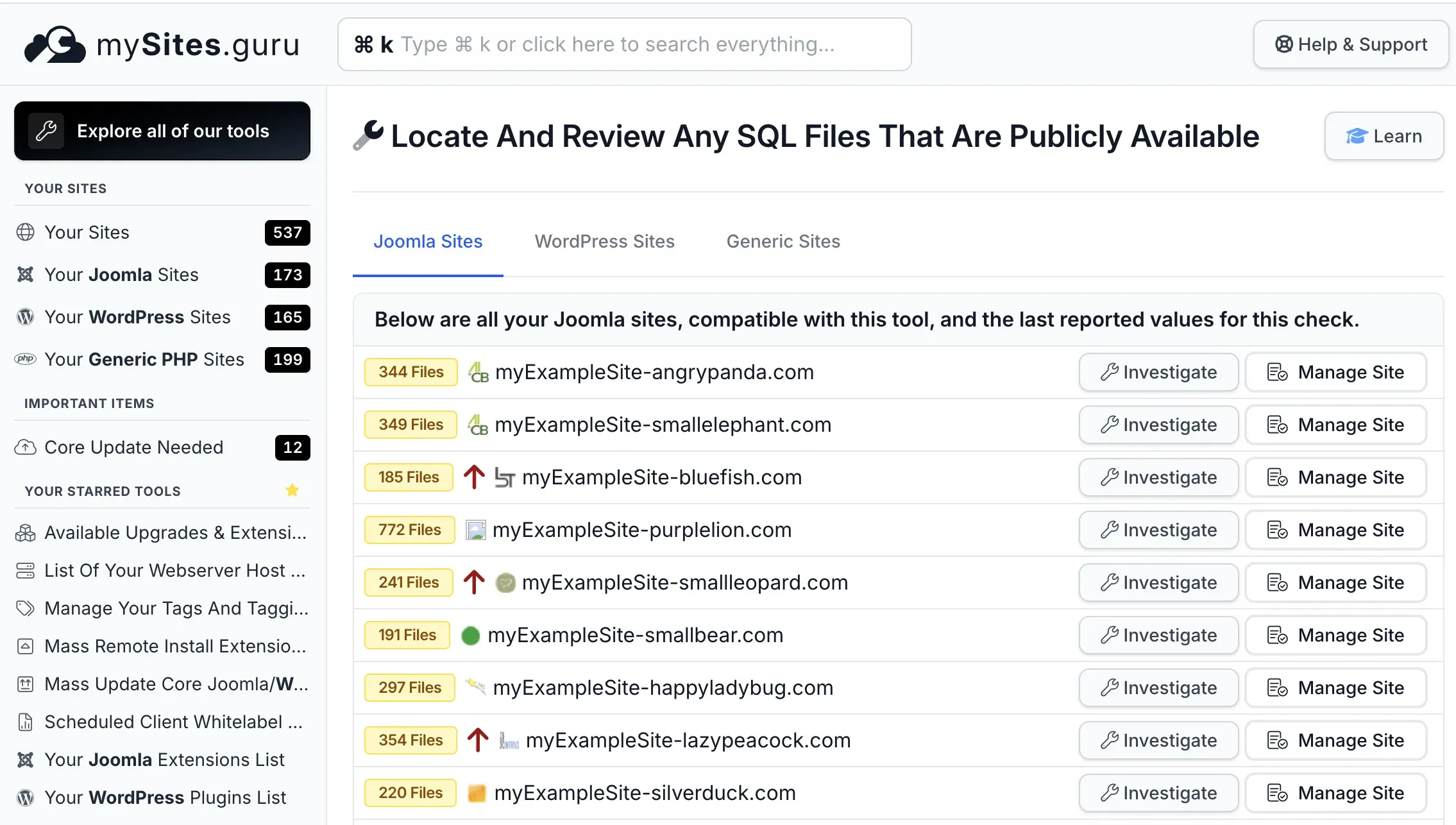
The dashboard view makes patterns obvious. If one site has archive files and the rest don’t, that’s a one-off cleanup task. If half your sites have PHP error logs, you’ve got a systemic configuration issue worth addressing at the hosting level.
The Files You Forgot About
These are the file types that mySites.guru flags as dangerous, and why each one matters.
Archive Files (ZIP, TAR.GZ, RAR, JPA)
Archive files are the most common offender. They end up on web servers for all sorts of legitimate reasons (site migrations, manual backups, extension installations, staging environment setup) and then they just stay there.
The problem is simple: any file in your document root is accessible via HTTP. If you have a file called backup-2024-11-15.zip in your site root, anyone can download it by visiting https://yoursite.com/backup-2024-11-15.zip. No authentication required. No special access needed. Just a direct URL to a file that probably contains your entire site, including configuration.php with your database password, your SMTP credentials, and every secret your Joomla installation knows about.
This is not theoretical. The OWASP Web Security Testing Guide specifically lists backup archives as a test case for penetration testers because they’re found on production servers so frequently. Automated scanners probe for common backup filenames as part of their standard reconnaissance. Files like site.zip, backup.tar.gz, joomla.zip, database.sql.gz, and variations with dates are checked routinely.
Akeeba Backup users face an additional risk. By default, Akeeba stores its backup archives in /administrator/components/com_akeeba/backup/. The directory is protected by a .htaccess file on Apache servers, but that protection doesn’t exist on Nginx or LiteSpeed unless you’ve configured it manually. And even on Apache, a misconfigured .htaccess or a server migration that dropped the file means those archives (your entire site in a single downloadable package) are exposed. This is precisely why Akeeba’s own documentation tells you to download the backup and delete it from the server. Most people skip that second step.
The same applies to any backup tool. If your backup workflow leaves archive files on the server, you’re carrying risk for as long as those files exist.
SQL Database Dumps
SQL dump files are arguably worse than archives, because they’re plain text. (For a deeper look at securing the database itself, including user privileges, table prefixes, and backup table cleanup, see our Joomla database security guide.) No decompression needed. An attacker who downloads your .sql file can open it in any text editor and immediately see:
- Every user account in your Joomla installation, including usernames, email addresses, and password hashes
- Administrator credentials - if your admin password hash is weak, it can be cracked offline in minutes
- Email addresses for newsletter subscribers, contact form submissions, and registered users
- Unpublished articles, draft pages, and configuration data stored in extension tables
- Table names, column names, and relationships that reveal exactly what extensions you run and how your site is built
SQL dumps end up on servers for the same reasons archives do. You exported the database for a migration. You ran mysqldump from the command line to create a quick backup before an upgrade. You downloaded a copy to work on locally and forgot to delete it from the server. Your hosting panel’s backup tool dropped a .sql file into your home directory and you never noticed.
A file called joomla_db.sql or database-backup.sql sitting in your document root is a data breach waiting for someone to request the URL.
PHP Error Logs
PHP error logs are the silent information leak that almost nobody thinks about. When PHP encounters an error (a deprecated function call, a failed database connection, an undefined variable) it writes the details to a log file. On many shared hosting configurations, that log file lives right in your webspace, often named error_log or php_errorlog, sitting in whatever directory the error occurred in.
Over time, these logs accumulate a significant amount of sensitive information:
- Full server file paths, revealing your hosting account structure, username, and directory layout
- Database connection errors that log the hostname, username, and sometimes the password used in the connection attempt
- API keys and tokens, if an API call fails and the key was passed as a function parameter
- Extension names and versions from deprecation warnings and compatibility errors
- Stack traces that reveal how your code works internally
The PHP documentation explains how error_log and log_errors control where these files are written. The default behavior on most shared hosting is to write errors to a file in the current directory, which means you can end up with error_log files scattered throughout your webspace: one in your site root, one in /administrator/, one in /components/com_whatever/, and so on. Each one is publicly downloadable unless your server is configured to block access.
A PHP error log might not sound as dramatic as a database dump, but it gives an attacker exactly the intelligence they need to plan a targeted attack against your specific server configuration.
Old Backup Files and Renamed Originals
Then there are the ad-hoc backup files that developers create during troubleshooting. You’ve done this. Everyone has. You rename configuration.php to configuration.php.bak before editing it, just in case. You copy index.php to index.php.old before making changes. You duplicate .htaccess as .htaccess.backup before modifying redirect rules.
Your web server knows that configuration.php is a PHP file and executes it server-side, so its contents are never exposed to browsers. But configuration.php.bak? That’s not a PHP file. The server treats it as plain text and serves it directly. Anyone who requests https://yoursite.com/configuration.php.bak gets to read your database password, your FTP credentials, your secret salt, your SMTP password - everything in that file, rendered as plain text in their browser.
This applies to any file that’s been renamed with an extension the server doesn’t process:
configuration.php.bakconfiguration.php.oldconfiguration.php.saveconfiguration.php~(Vim backup files)wp-config.php.bak(on WordPress sites you also manage).htaccess.backup
These renamed files are trivially easy to find. Automated scanners check for common backup extensions on known filenames as part of every standard scan. If you’ve ever created one and forgotten to delete it, it’s been discoverable by anyone running basic recon against your server.
Why These Files Exist in the First Place
Nobody puts a database dump on a production server and thinks “this is a great idea.” These files accumulate through perfectly reasonable workflows that just happen to leave dangerous artifacts behind.
Migrations are the biggest culprit. Moving a Joomla site from one server to another typically involves creating an archive of the files, exporting the database, uploading both to the new server, and importing. The import is done, the site works, everyone moves on, and the archive and SQL dump sit on the new server indefinitely.
Manual backups before upgrades are another common source. Before running a major Joomla update, a cautious admin might create a quick database dump or file archive, just in case the update goes wrong. The update works fine, and the backup becomes invisible clutter. Over time, these accumulate. We’ve seen sites with a dozen old backup archives spanning years of updates, each one a complete snapshot of the site at that point in time, including whatever vulnerabilities existed then.
Development and staging workflows leave artifacts too. Developers working directly on production (it happens, even when we all know it shouldn’t) create temp files, SQL dumps for testing, archive packages for deployment. Files with names like test.sql, staging-dump.sql.gz, old-site.tar.gz, or site-before-redesign.zip are surprisingly common.
Hosting control panels sometimes contribute by storing backups in subdirectories of your document root. cPanel, Plesk, and DirectAdmin all have backup tools that can create archives in locations that are web-accessible. If the panel’s default backup directory overlaps with your document root, those backups are publicly downloadable.
PHP error logs grow silently because they’re a byproduct of normal operation. Every time a visitor triggers a PHP error (a missing image in a template, a deprecated function in an old extension, a database timeout during heavy traffic) the log file gets another entry. Nobody notices until the file is 500MB and eating into disk space.
The Real-World Attack Scenario
Here’s how an attacker actually exploits these files.
Step 1: Discovery. The attacker runs a scanner against your domain. The scanner tries common filenames (backup.zip, site.zip, database.sql, db.sql, error_log, dump.sql, configuration.php.bak) and checks the HTTP response code. A 200 means the file exists and is downloadable. A 403 means it exists but access is denied (still useful intelligence). A 404 means it’s not there. This takes seconds.
If your server has directory listing enabled (Apache’s mod_autoindex with Options +Indexes), the attacker doesn’t even need to guess filenames. They can browse your directories like a file manager and see everything. The mySites.guru audit checks for this too, and directory listing should always be disabled on production servers.
Google dorking (using search operators like inurl:backup.sql or filetype:sql inurl:wp-content) used to be another common discovery method. Google has been restricting these queries in 2025 and 2026, filtering out more sensitive results and returning fewer “interesting” matches. That’s a welcome change, but it only reduces one discovery vector. Direct filename scanning against your server doesn’t depend on Google at all, and that’s still the primary way attackers find these files.
Step 2: Extraction. The attacker downloads whatever they found. A SQL dump gives them your user table immediately. An archive file gives them everything: they extract it locally and start reading your configuration.php. A PHP error log gives them file paths, extension names, and server details that inform the next phase of the attack.
Step 3: Exploitation. With database credentials from configuration.php, the attacker connects directly to your database if the MySQL port is exposed (or if they’re on the same shared hosting server). With admin password hashes from the SQL dump, they run an offline cracking tool and weak passwords fall in seconds. With knowledge of your exact extension versions from error logs, they search for known vulnerabilities in those specific versions.
Step 4: Access. The attacker logs in as an administrator using cracked credentials, or accesses the database directly, or exploits a vulnerability they identified from the intelligence gathered. At this point your site is compromised, and the initial point of entry wasn’t a bug in your code. It was a file you forgot to delete.
This entire chain can happen within minutes. There’s no “hacking” in the Hollywood sense. It’s just downloading files that shouldn’t be publicly accessible and reading what’s inside them.
What to Do When You Find These Files
Finding dangerous files is only useful if you actually deal with them. Here’s the priority order:
1. SQL Dumps - Delete Immediately
There is no reason for a SQL dump file to exist in your webspace. None. If you need database backups (and you do), they should be stored offsite: on a local machine, in cloud storage, or through a backup service that stores backups outside your document root. Delete every .sql file from your webspace right now.
If the SQL dump was downloadable and you don’t know for how long, assume the data has been compromised. Change your database password. Change your Joomla admin passwords. If the dump contained user data, you may have notification obligations depending on your jurisdiction.
2. Archive Files - Delete or Move
Archive files belong in offsite storage, not in your webspace. Download them to your local machine first if you need them, then delete them from the server.
If you must keep an archive on the server temporarily (during an active migration, for example), move it above the document root where it’s not web-accessible. On most hosting setups, your document root is something like /home/username/public_html/. Files placed in /home/username/ (one level up) are not accessible via HTTP.
If that’s not possible, create a .htaccess file in the directory containing the archive:
<FilesMatch "\.(zip|tar|gz|rar|jpa|jps|sql)$"> Require all denied</FilesMatch>This blocks HTTP access to those file types in that directory. But this is a band-aid - the files should still be moved offsite and deleted as soon as possible.
3. PHP Error Logs - Delete and Reconfigure
Delete all error_log files from your webspace. Then fix the configuration so they don’t come back.
In your php.ini or .user.ini, set the error log path to a location outside your document root:
log_errors = Onerror_log = /home/username/logs/php_errors.logIf you’re on shared hosting and can’t modify php.ini, add this to your .htaccess:
php_value error_log /home/username/logs/php_errors.logThe key is to keep logging enabled (you need error logs for debugging) but write them somewhere that isn’t publicly accessible. If your host doesn’t allow you to specify a custom log path, at minimum add a .htaccess rule to block direct access to error log files:
<FilesMatch "^(error_log|php_errorlog|php_errors\.log)$"> Require all denied</FilesMatch>4. Backup/Renamed Files - Delete
Files like configuration.php.bak, configuration.php.old, .htaccess.backup, and similar renamed copies should be deleted immediately. They contain sensitive configuration data in a format that the server will serve as plain text.
If you need to keep backup copies of configuration files, store them outside the document root or on your local machine. Never keep them in the webspace with a non-PHP extension.
5. Verify After Cleanup
After deleting the files, run another audit to confirm they’re gone. This sounds obvious, but we’ve seen cases where file permissions prevented deletion via FTP, or where a cron job recreated the files minutes after they were removed. The follow-up audit confirms the cleanup actually worked.
Also check that your hidden files are clean - attackers sometimes use dot-prefixed filenames to hide backup files and SQL dumps in plain sight.
Prevention: Stop These Files From Accumulating
Cleaning up once is necessary. Preventing the problem from recurring is better.
Use Offsite Backups
Stop creating backups that live on the same server as your site. Use a backup tool that stores archives offsite, whether that’s cloud storage, a remote server, or a local machine. mySites.guru’s backup feature stores backups outside your webspace, so there’s never an archive file sitting in a publicly accessible directory.
If you use Akeeba Backup, configure it to use a remote storage profile (Amazon S3, Dropbox, Google Drive, or any other supported backend) and enable the option to delete the local archive after successful transfer.
Create a Post-Migration Checklist
Every time you migrate a site, the final step should be deleting the migration artifacts from the destination server. The archive file, the SQL dump, any temporary files created during the import - all of it. Make this part of the process, not an afterthought.
Configure PHP Error Logging Properly
Set up your PHP error log path once, correctly, and this problem goes away permanently. Point errors to a log file outside your document root and set up log rotation so the file doesn’t grow indefinitely.
Schedule Regular Audits
The best defense against forgotten files is regular, automated scanning. Schedule your mySites.guru audits to run weekly or monthly, and review the results. Files that shouldn’t be there will be flagged before they become a problem.
Block Dangerous Extensions at the Server Level
Add a server-wide rule to block downloads of common dangerous file types. In your root .htaccess:
<FilesMatch "\.(sql|sql\.gz|sql\.zip|tar|tar\.gz|tgz|jpa|jps|bak|old|save|swp|swo)$"> Require all denied</FilesMatch>This won’t protect you from every possible filename, but it covers the most common patterns and adds a safety net for files that slip through other preventive measures. If your site legitimately serves downloadable ZIP files (product manuals, resource packs, etc.), remove zip from the list or scope the rule to specific directories rather than the whole site. The point is to block by default and allow by exception, not the other way around.
The Joomla-Specific Risks
Joomla sites face some specific challenges with leftover files.
The configuration.php Problem
Joomla’s configuration.php is one of the most sensitive files on any web server. It contains database credentials, the secret salt used for session security, SMTP passwords, FTP credentials (if configured), and the temp and log directory paths. A renamed copy of this file (configuration.php.bak, configuration.php.old, configuration.php.dist) serves all of those secrets as plain text.
The Joomla Security Centre has published advisories about configuration file exposure, and penetration testing tools like DirBuster and Gobuster include configuration.php.bak in their default wordlists. This is one of the first things any scanner checks for on a Joomla site.
Akeeba Backup Archive Exposure
As mentioned earlier, Akeeba Backup’s default storage directory is inside administrator/components/com_akeeba/backup/. On Apache with the default .htaccess, this directory is protected. But protection depends on:
- The
.htaccessfile existing and being intact - Apache being configured to process
.htaccessfiles (AllowOverridenot set toNone) - The server actually being Apache (Nginx and LiteSpeed ignore
.htaccessentirely)
If any of those conditions aren’t met, every backup archive Akeeba has ever created on that site is downloadable. We’ve seen sites with dozens of JPA archives spanning years of backups, all publicly accessible, totalling gigabytes of complete site snapshots.
Extension Installation Packages
When you install a Joomla extension from a ZIP file, the package is sometimes left in the /tmp/ directory. Joomla is supposed to clean these up, but it doesn’t always succeed, especially if the temp directory path is wrong or permissions are off. Over time, /tmp/ accumulates installation packages that reveal exactly which extensions you run and at what versions. That’s useful intelligence for an attacker looking for known vulnerabilities.
The mySites.guru audit’s fluff files tool can clean up some of this debris automatically after Joomla updates, but the /tmp/ directory is worth checking manually during your periodic review.
This Isn’t Only a Joomla Problem
Everything in this guide applies equally to WordPress sites. The file types are the same (ZIP archives, SQL dumps, PHP error logs, renamed config files), the risks are the same, and the cleanup process is identical. The only difference is the filenames: wp-config.php.bak instead of configuration.php.bak, and wp-content/ instead of /administrator/.
WordPress sites accumulate the same dangerous artifacts from migrations, manual backups, and developer troubleshooting. If anything, WordPress sites are targeted more often because there are more of them, which means automated scanners have longer wordlists of common WordPress backup filenames to try.
mySites.guru runs the same file-level security audit on WordPress sites as it does on Joomla. The archive files tool, SQL dump detection, error log finder, and large files tool all work across both platforms. If you manage multiple WordPress sites alongside your Joomla sites, every audit covers both, and the dashboard shows results for all your sites in one place.
How This Connects to Your Broader Security Posture
Leftover files aren’t an isolated problem. They’re usually a symptom of a broader gap in operational discipline, and that gap tends to show up in other areas too.
If archive files and SQL dumps are sitting on your server, what else has been overlooked? Are your Joomla extensions up to date? Is your PHP version current? Are your security headers configured correctly? Are there hidden files that need investigation?
The mySites.guru best practice checks cover all of these areas in a single audit. Dangerous files are one category among many, and addressing them alongside everything else is what turns a one-off cleanup into an ongoing security practice.
If you manage dozens or hundreds of Joomla sites, this compounds fast. One forgotten archive on one site is a manageable risk. Forgotten archives across 50 sites, accumulated over years of migrations and updates, is a systemic exposure that you probably don’t even know the full extent of until you scan everything.
Further Reading
- Review Old Backup and Unreferenced Files for Sensitive Information - OWASP’s full testing guide for finding backup files and unreferenced resources on web servers
- Joomla Security Checklist: Hosting and Server Setup - Official Joomla documentation on server-level security configuration
- PHP error_log Configuration - PHP manual reference for controlling where error logs are written
- Best Practices to Secure Your Joomla Website - Joomla Community Magazine guide covering file permissions, configuration protection, and more
Take Action Now
If you’ve read this far and you’re thinking “I should probably check my servers,” you’re right. You should.
Already using mySites.guru? Run an audit on your sites and look at the archive files, SQL dumps, and error logs results. Clean up whatever you find. Then schedule regular audits so you catch new files before they become a long-term exposure.
Not using mySites.guru yet? Run a free audit on any Joomla or WordPress site, no credit card, no commitment. The audit will tell you exactly what’s sitting on your server that shouldn’t be.
Want a thorough review? Check the full feature list to see everything mySites.guru covers, or reach out to Phil directly if you’d like a hand going through your results.
The files are already there. The question is whether you find them before someone else does.
Part of our complete security guide for agencies.