How to Compare Joomla Templates Across All Your Sites

When you manage a handful of Joomla sites, keeping track of which template each one uses is simple enough. You probably remember off the top of your head. But once you cross into double digits, or triple, that casual mental inventory falls apart fast.
Which sites are still on Cassiopeia? Did you finish migrating that client from Protostar to a commercial template after the Joomla 4 upgrade? Is anyone still running an old version of the Astroid Framework that needs patching? These are the kinds of questions that eat up entire afternoons when you have to log into each site’s administrator panel to find the answer.
The Active Theme and Template List tool in mySites.guru puts all of that information on a single page. Every connected site, its active template or theme, the version number, and the author - searchable, filterable, and exportable as CSV. No logging into admin panels. No spreadsheets maintained by hand. No guessing.
Why Are Joomla Templates Code, Not Decoration?
Most people think of templates as a cosmetic layer. Pick some colours, choose a layout, maybe adjust a few spacing values, and you are done. That thinking is wrong.
A Joomla template is PHP, HTML, CSS, and JavaScript executing on your server on every single page load. It handles output rendering, menu logic, module positioning, responsive breakpoints, asset loading, and often bundles its own framework with thousands of lines of code. A complex commercial template can have more code than some extensions. It is not arranging prettiness - it is code that happens to produce prettiness.
And code needs maintenance. Code has bugs. Code has security vulnerabilities. Code has dependencies that go end-of-life. When you install a template and forget about it because “it’s just the design,” you are leaving unmaintained code running on a production server. You would never do that with a plugin or component, but people do it with templates constantly because the word “template” sounds harmless.
If you manage 50 sites and each one has a template with its own framework, that is 50 installations of code that need version tracking, update management, and security monitoring. Treat templates the way you treat every other piece of software on the server: know what version is running, know when updates are available, and patch vulnerabilities immediately.
Why Joomla template visibility matters across a portfolio
Templates carry the same risks as any other extension. A template with a security vulnerability is just as dangerous as a plugin with one - sometimes more so, because templates tend to get less attention during routine maintenance.
The Astroid Framework vulnerability in early March 2026 was a perfect case study. CVE-2026-21628 scored a CVSS 10.0 - the maximum possible severity - and affected every version of the Astroid Framework before 3.3.11. Attackers used it to install backdoor plugins and inject hidden SEO spam into affected sites without ever needing to log in.
The agencies that responded fastest were the ones that could answer one question immediately: “Which of my sites are running an Astroid-based template?” If you had to log into each site to check, you were already behind.
That was not an isolated incident. Over the years, Joomla template frameworks and their bundled components have been hit by directory traversal flaws, SQL injection reports, and file upload bypasses. Some affected the template code directly; others targeted companion components or media managers that ship alongside the template. The common thread is always the same: if you do not know which sites are running the affected framework, you cannot respond fast enough.
Template management is about knowing what code is running across your entire portfolio so you can act fast when something goes wrong.
Beyond security, template visibility helps with:
- Standardisation - Confirming all client sites have been migrated to your preferred template framework after a major CMS upgrade
- Documentation - Producing an accurate inventory for internal records, client handovers, or compliance requirements
- Version tracking - Spotting sites that are running outdated template versions when the developer has released updates
- Audit readiness - Having a single source of truth for what is deployed where, without relying on memory or manual records
What Is the Active Theme and Template List Tool?
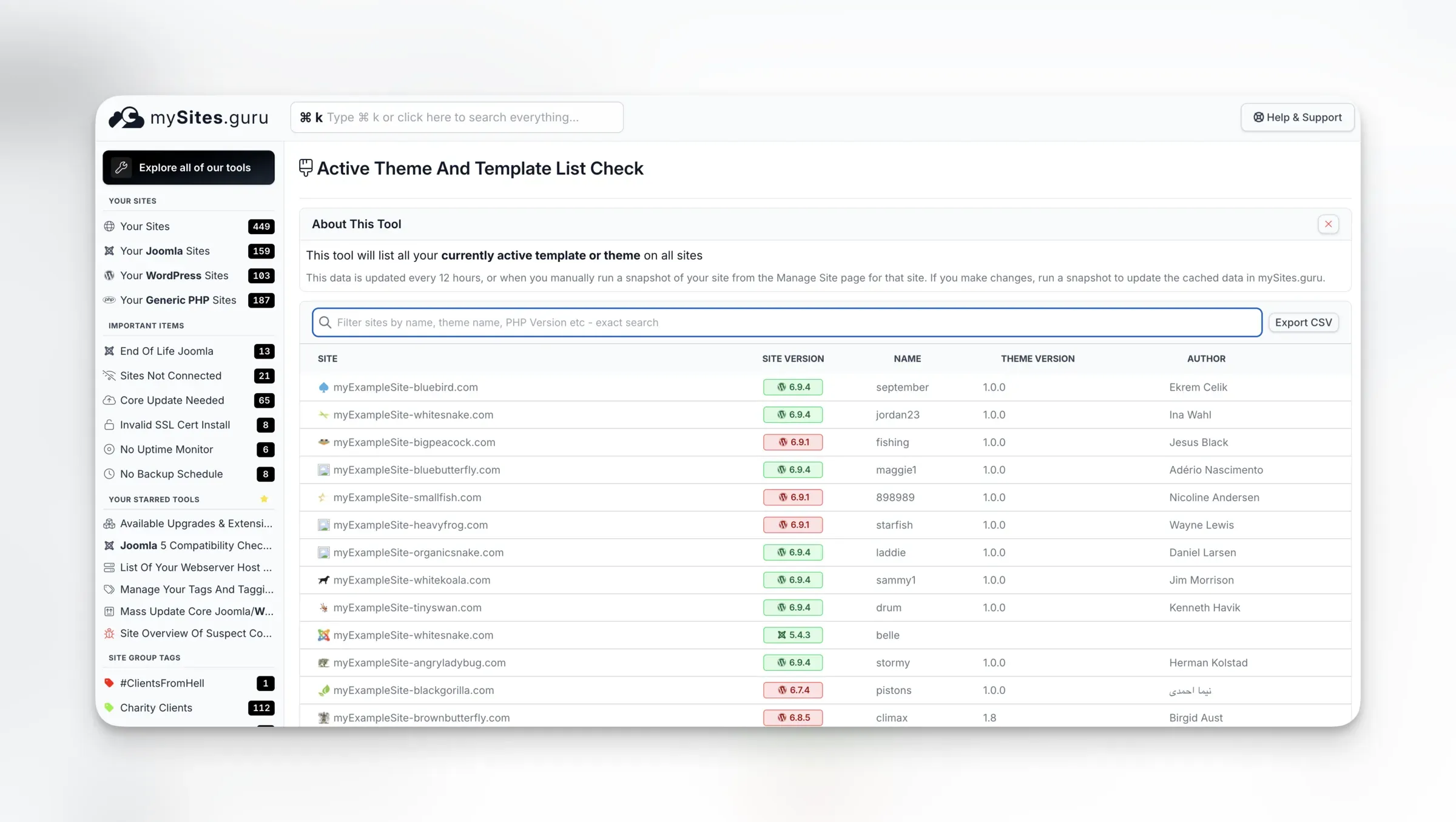
The template list tool lives in the Tools section of your mySites.guru dashboard. It pulls data from the latest snapshot of every connected site and presents it in a single table.
What the table shows
Each row in the table represents one connected site. The columns are:
- Site - The site name and URL, displayed as a clickable link to the site’s management page in mySites.guru
- Site Version - The CMS version running on that site (e.g., Joomla 5.3.1, WordPress 6.8), displayed with a colour-coded badge
- Name - The name of the currently active template (Joomla) or theme (WordPress)
- Theme Version - The version number of the active template or theme
- Author - The developer or company that created the template
This gives you a complete at-a-glance view of what every site in your portfolio is running - without clicking through to individual admin panels or expanding any dropdowns.
Searching and filtering
At the top of the table is a search box that filters the results in real time. You can search by:
- Site name or URL - Find a specific client’s site quickly
- Template name - Type “Astroid” to see every site using an Astroid-based template, or “Cassiopeia” to find sites still on the Joomla default
- PHP version - Filter by PHP version to cross-reference template compatibility
- Platform - Filter by Joomla or WordPress to see only one CMS type
The search is an exact-match filter, so it narrows results as you type. If you need to find all sites running a particular template, you can type the template name and see the filtered list in under a second.
Note
The template data is updated every 12 hours by the automated snapshot, or whenever you manually trigger a snapshot from the Manage Site page. If you have just changed a template on a site, run a snapshot to update the data in mySites.guru before checking the list.
Exporting to CSV
Next to the search box is an Export CSV button. One click and you get a downloadable CSV file containing:
| Column | Description |
|---|---|
site_url | The full URL of the site |
site_version | The CMS version (e.g., 5.3.1) |
site_platform | The platform type (Joomla or WordPress) |
theme_name | The active template or theme name |
theme_version | The template or theme version number |
theme_author | The developer or company name |
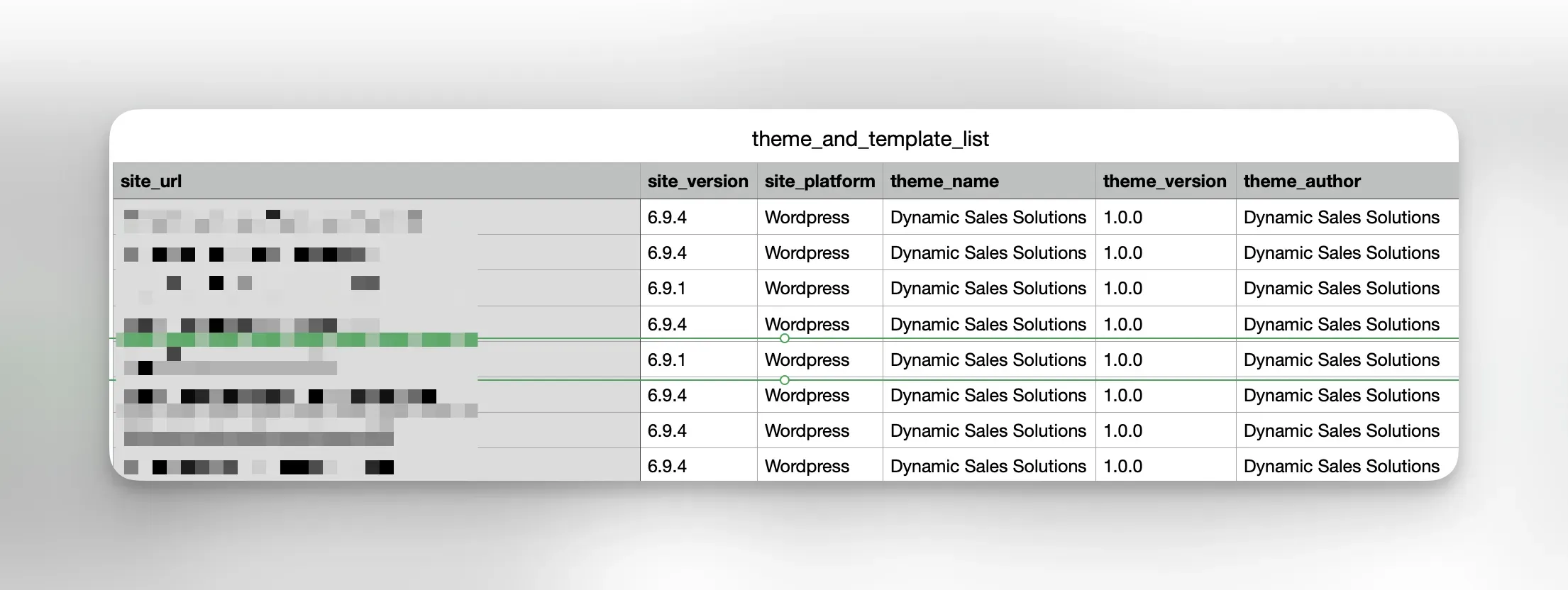
This CSV is ready to drop into a spreadsheet, import into a project management tool, or attach to a client report. For agencies that need to document their infrastructure for compliance or handover purposes, this single export replaces hours of manual data gathering.
You can also incorporate this data into your white-label client reports for a polished, professional deliverable.
How Do You Spot Sites on Default or Legacy Joomla Templates?
One of the most common template management tasks is identifying sites that are still running a default CMS template. In Joomla, that means Cassiopeia (Joomla 4 and 5) or Protostar (Joomla 3). These templates are functional but generic, and for most professional sites they should have been replaced with something purpose-built long ago.
mySites.guru includes an automated snapshot check specifically for this. The “Default Template Used” check flags any site where the active template is one of Joomla’s built-in defaults. It appears as an issue in the site’s snapshot results, with a clear recommendation to switch to a custom template.
This check runs automatically every 12 hours alongside the other 140+ snapshot checks. You do not need to remember to look for it - the system surfaces it for you.
Why default templates are worth flagging
Default templates are not necessarily insecure, but they do create several practical problems:
- Recognition - Visitors and search engines associate default templates with unfinished or unmaintained sites. It does not inspire confidence.
- Feature limitations - Default templates lack the layout options, performance optimisations, and customisation hooks that commercial template frameworks provide.
- Upgrade risk - When Joomla releases a new major version, the default template often changes entirely. Sites still on the old default face a harder migration path.
- Client perception - If you are managing sites for clients, a default template suggests the project was not completed properly. It reflects on your agency’s work.
The template list tool makes it trivial to scan for default templates across your entire portfolio. Type “Cassiopeia” in the search box, and every site still running it appears immediately. From there, you can prioritise which ones to migrate first.
How Do You Manage Joomla Templates During CMS Migrations?
Major CMS upgrades are when template management gets genuinely complicated. Joomla 3 to Joomla 4 required a complete template change for most sites - the old template system was fundamentally different. Joomla 4 to Joomla 5 was smoother, but template compatibility still needed verifying. And now with Joomla 6 on the horizon, the cycle is about to repeat.
During these transitions, the template list tool becomes your progress tracker.
Before the migration
- Open the Active Theme and Template List and export the CSV - this is your baseline
- Filter by the old platform version to see which sites still need upgrading
- Note which templates are in use and check with each template developer for compatibility with the new CMS version
- Use the extension management tool to check for template framework updates that add compatibility
During the migration
- After upgrading each site, run a manual snapshot to refresh the template data
- Check the template list to confirm the new template is active and the version number is correct
- Use the search box to filter for the old template name - any remaining results are sites that still need attention
After the migration
- Export a fresh CSV as your post-migration baseline
- Compare it against the pre-migration export to verify every site was updated
- Archive both CSVs for your records
This structured approach prevents the most common migration mistake: thinking you have finished when there are still a handful of sites left on the old template. The template list gives you an objective answer instead of relying on your memory of which sites you have already touched.
Using the template list for security response
When a template vulnerability is disclosed, response time is everything. The template list tool gives you the fastest possible path from “there is a vulnerability” to “these are the sites I need to patch.”
The workflow for a template security event
- Identify the affected template - Check the vulnerability disclosure for the template name and affected versions
- Search the template list - Type the template name in the search box to see every site in your portfolio using it
- Check versions - The Theme Version column tells you immediately which sites are running a vulnerable version
- Prioritise and act - Start with the most critical or publicly visible sites, then work through the rest
- Push the update - If the template developer has released a patch, use the mass package installer to push it to all affected sites at once
- Verify - Run snapshots on the updated sites and check the template list again to confirm the new version is showing
This entire process takes minutes, not hours. Compare that to logging into each admin panel individually, navigating to the template manager, checking the version, downloading the update, installing it, and moving on to the next site. At scale, the time savings are enormous.
The recent Astroid Framework vulnerability (CVE-2026-21628) affected every version before 3.3.11. Agencies using mySites.guru could identify all affected sites in seconds using the template list and extension search, then push the update to all of them at once using the mass package installer.
We covered the Astroid vulnerability in detail when it dropped. If you want to hear about security issues like these as they happen, subscribe to the newsletter or sign up for mySites.guru to get vulnerability alerts directly in your dashboard.
Does the Template List Cover WordPress Themes?
While this article focuses on Joomla - because Joomla template management across large portfolios is a particularly underserved need - the template list tool covers WordPress sites equally well.
WordPress themes appear in the same table with the same columns: theme name, version, and author. The CSV export includes a site_platform column so you can distinguish between Joomla templates and WordPress themes when processing the data.
This is especially useful for agencies that manage a mixed portfolio of Joomla and WordPress sites. Instead of checking two different systems or maintaining separate inventories, everything is in one place. The mySites.guru dashboard was built for exactly this kind of cross-platform visibility.
For WordPress specifically, the same default theme warning applies. Sites running Twenty Twenty-Five (or any of the annual default themes) are flagged by the snapshot, just as Joomla sites running Cassiopeia are flagged.
Integrating template data into your workflow
The template list connects to other parts of mySites.guru that help you act on the information.
Combined with extensions management
Templates do not exist in isolation. A Joomla template built on the Astroid Framework depends on that framework being installed and up to date. A template built on the Helix3 or T4 framework has the same dependency.
The extensions management tool lets you search for these frameworks by name and see every site that has them installed, along with the version number. Cross-referencing this with the template list gives you a complete picture: which template is active, and which underlying framework it depends on.
This is how you spot a site that has been upgraded to a new template but still has the old template’s framework installed and potentially vulnerable. The template list shows the active template; the extensions list shows everything installed, whether active or not.
Combined with site information
The site information dashboard provides the broader context for each site: PHP version, CMS version, server environment, SSL status, and more. When you spot a site on an old template version in the template list, you can check the site information to understand why - maybe it is running an older PHP version that cannot support the latest template release, or the CMS version has not been updated either.
Combined with client reports
If you send regular reports to clients, the template data feeds into the information available for your white-label reports. You can document exactly which template is in use, confirm it is up to date, and demonstrate that you are actively managing the site’s infrastructure - not just keeping the content fresh.
Combined with the snapshot
Every template data point in the list comes from the automated snapshot. The snapshot runs 140+ checks across every connected site, twice a day. The template list is just one view of that data. Other snapshot checks that relate to templates include:
- Whether the site is using a default template (flagged as an issue)
- Whether the
robots.txtfile is blocking the/templates/or/media/directories from search engines (which prevents Google from accessing CSS and images) - The overall configuration health of the site, which can be affected by template settings
Real-world scenarios
Scenario 1: Template framework update across 80 sites
You receive an email from a template developer announcing a new version with a security patch. You need to know which sites are running that template and which version they are on.
- Open the template list in mySites.guru
- Type the template name in the search box
- The filtered list shows 23 of your 80 sites are using that template
- The Theme Version column shows 19 are on the old version, 4 have already been updated
- Click Export CSV to document the current state
- Use the mass package installer to push the update to the 19 remaining sites
- Run snapshots and check the template list again - all 23 now show the new version
- Export another CSV for your records
Total time: about 10 minutes. Without mySites.guru, that same task would involve logging into 80 admin panels just to identify the 23 affected sites, before you even start updating.
Scenario 2: Client portfolio handover
You are taking over management of 35 Joomla sites from another agency. You need to document exactly what is deployed on each site.
- Connect all 35 sites to your mySites.guru account
- Wait for the initial snapshots to complete (or trigger them manually)
- Open the template list and export the CSV
- Open the extensions list and note the template frameworks in use
- Cross-reference with the site information dashboard for PHP versions and CMS versions
- Attach all three exports to your handover documentation
You now have a complete, accurate inventory without having logged into a single admin panel.
Scenario 3: Standardising templates after acquisition
Your agency has acquired a smaller agency, and you want to standardise all sites onto your preferred template framework. You need to know what is currently in use across both portfolios.
- Connect the acquired agency’s sites to your mySites.guru account (there is no limit on the number of sites you can add)
- Open the template list and search for your preferred template framework - these sites are already standardised
- Search for other template names to identify the ones that need migrating
- Export the CSV and sort by template name to group the migration work
- Work through the list site by site, updating the template list as you go
The template list becomes your migration project tracker. As each site is migrated, it moves from the “old template” search results to the “new template” search results.
How Is the Data Collected?
The template data comes from the mySites.guru snapshot, which runs automatically twice daily on every connected site. The snapshot is fast - it completes in milliseconds - and collects over 140 data points about each site’s configuration.
For Joomla sites, the snapshot reads the active template assignment from the site’s configuration. It captures the template name, version number, and author as reported by the template’s manifest file.
For WordPress sites, the snapshot reads the active theme information from the WordPress database, capturing the same data points: theme name, version, and author.
This data is stored in mySites.guru and made available through the template list tool, the CSV export, and the individual site management pages. It is refreshed every 12 hours automatically, or immediately when you trigger a manual snapshot.
Note
The snapshot is distinct from the full audit. The snapshot checks configuration and settings in milliseconds. The audit inspects every file and line of code on the webspace, so it takes longer but catches things like malware in template files.
What Are Common Joomla Template Management Mistakes?
Managing templates across a large portfolio is straightforward when you have the right tooling. Without it, these mistakes happen regularly:
Not tracking template versions
Installing a template and never checking whether the developer has released updates is surprisingly common. Template updates contain bug fixes, performance improvements, and - critically - security patches. The template list makes version tracking automatic rather than something you have to remember to do.
Leaving old templates installed
After migrating a site to a new template, the old template often remains installed. It is not active, so it does not affect the front end, but the files are still on the server. If those files contain a vulnerability, they can still be exploited. The template list shows the active template; the extensions management tool shows all installed templates, including inactive ones.
Assuming all sites use the same template
In a large portfolio, it is easy to assume consistency where there is none. A site might have been set up by a different team member, or a client might have changed their template without telling you. The template list provides the ground truth, replacing assumptions with data.
Not documenting template choices
When a team member leaves, their knowledge of which templates are deployed where goes with them. The CSV export from the template list creates an instant, accurate record that does not depend on any individual’s memory.
Ignoring the default template warning
The snapshot check for default templates is there for a reason. Default templates are fine for development and testing, but they should not be running on production client sites. If the warning keeps appearing and you keep ignoring it, you are accepting unnecessary risk and presenting an unprofessional appearance to your clients’ visitors.
Getting started
If you already have a mySites.guru account with connected sites, the template list is available right now in your Tools section. The data populates automatically from your latest snapshots - there is nothing extra to configure or enable.
If you do not have an account yet, sign up on the pricing page and start connecting your Joomla and WordPress sites. The snapshot runs on each site as it is connected, and the template data appears in the list as soon as the snapshot completes. mySites.guru supports unlimited sites at a flat monthly rate - there is no per-site charge, so you can add your entire portfolio without worrying about costs scaling with your business.
For a broader look at everything mySites.guru offers beyond template management, check out the features page or read about the full dashboard experience.
Further reading
- Joomla Template Management Portal - Official Joomla documentation covering the template manager, assignments, and core template workflows
- Sucuri Joomla Security Guide - Security hardening guide covering vulnerability protection and access control for Joomla deployments
- 8 Tips to Improve Joomla Template Security - Practical template-specific security hardening including file permissions, directory listing prevention, and file change monitoring
Template management is covered in our Joomla Agency Handbook.