How to Verify Your Joomla Site's Email Configuration Actually Works
Your Joomla site sends emails every day. Contact form submissions, user registration confirmations, password resets, admin notifications. You probably assume it all just works.
It might not be working at all. And the worst part: Joomla won’t tell you when it stops.
There’s no warning banner. No error log entry (in most configurations). No dashboard alert. Your contact form will happily accept submissions, show the “thank you” message, and silently drop the email into a void. Your customer thinks they’ve reached out. You think nobody’s contacted you in weeks. Both of you are wrong.
I’ve seen agencies lose leads for months before someone finally called and said “I submitted your form three times and never heard back.” That’s when you discover the hosting provider changed the SMTP port in January and nobody updated the Joomla configuration.
The rest of this post covers Joomla’s email system, the mistakes that break it most often, and how to stop relying on manual checks.
How does mySites.guru automate email verification?
Every time mySites.guru runs a security audit on your Joomla site, the very first thing it does is send a test email.
The audit uses your site’s own configured mail settings (whatever you’ve set in Global Configuration) to send a short email to AuditMailerTest@myjoomla.io. The myjoomla.io domain is left over from the service’s original name, before WordPress support was added. The server receiving these emails isn’t a traditional SMTP server. It’s a lightweight PHP service that accepts the incoming email, converts it to JSON, and sends it back to the mySites.guru platform for processing.
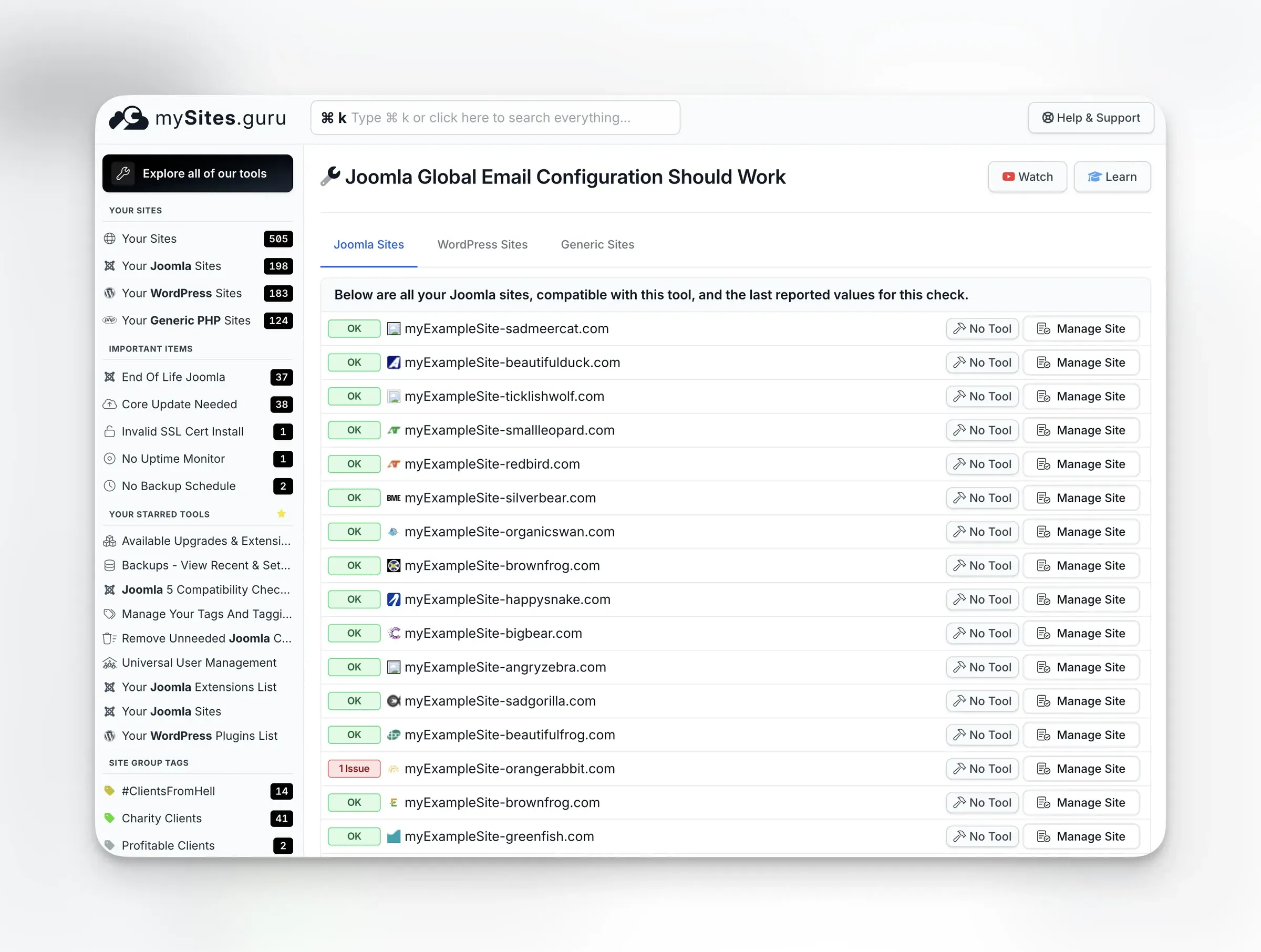
If the email arrives, your audit shows a green “OK” status for the Email Configuration check. If it doesn’t arrive, you get a red “Issue” flag with a clear message: “We never received an email we attempted to send back to us from your Joomla site.”

This is a real email delivery test, not a config check
mySites.guru doesn't just look at your settings and say "these look right." It actually sends an email from your site and waits for it to arrive. If the email doesn't get through, neither would your contact form submissions or user notifications.
Tim Davis from Basic Joomla Tutorials put together a walkthrough of the email configuration check and the other Joomla Configuration audit results. Worth watching if you want to see what the audit output looks like in practice:
Check out his full mySites.guru playlist on YouTube for more walkthroughs of the audit tools.
What happens when the test fails
A failed email test means your site cannot send email. Not just to the mySites.guru test address, but to anyone. The test uses the same mail settings and same code path that your contact forms, user registrations, and admin notifications use. If the test email fails, everything fails.
The audit results page shows you exactly what was tested and links to documentation explaining what to check. You can also see the trend: whether email was working on the previous audit and has now broken, or whether it’s been failing for a while.
If you manage multiple sites, the pivot page shows the email configuration check result for every connected site on one screen. Sites with broken email show up immediately so you can fix them before anyone notices.
Scheduling regular email checks
You can schedule audits to run automatically on a daily, weekly, or custom schedule. Each audit includes the email test, so you get notified the moment email delivery breaks. No need to remember to test manually. No more discovering three months later that nobody’s been receiving your contact form emails.
Combined with the site information dashboard, you can see email status alongside every other health indicator for all your sites in one view.
Detecting mass mailer scripts
A broken email configuration is one problem. A hacked site sending spam is a much bigger one.
When attackers compromise a Joomla site, one of the most common things they do is plant PHP scripts that send mass emails. These scripts bypass Joomla’s mail configuration entirely, using their own SMTP connections or calling mail() directly. Your site becomes a spam relay without your knowledge.
The mySites.guru audit includes a dedicated Mass Mailers check that scans your entire webspace for non-core PHP files containing email-sending code. It looks for calls to mail(), PHPMailer, SwiftMailer, and other common patterns. Core Joomla files are excluded, so it only flags files that shouldn’t be there.
If the check finds something, you’ll see a red “Mailers” label with the count of suspicious files. You can drill into the tool to see exactly which files were flagged and inspect their contents. The same audit also runs full hack detection, scanning every line of code in your webspace for malicious patterns, including hidden dot-files that a manual review would never catch.
WordPress sites get the same test
This isn’t just a Joomla thing. mySites.guru runs the same email delivery test on WordPress sites too. The audit uses WordPress’s wp_mail() function to send a test message to the same AuditMailerTest@myjoomla.io address. If your WordPress site relies on the default PHP mail() function (which most do out of the box), the test will often fail because many hosts block it or the emails end up in spam.
Most WordPress sites need an SMTP plugin like WP Mail SMTP, FluentSMTP, or Post SMTP to send email reliably. The mySites.guru email test catches the sites where that plugin is missing, misconfigured, or where the SMTP credentials have gone stale. The same scheduling, trend tracking, and mass mailer detection all apply to your WordPress sites just as they do to Joomla.
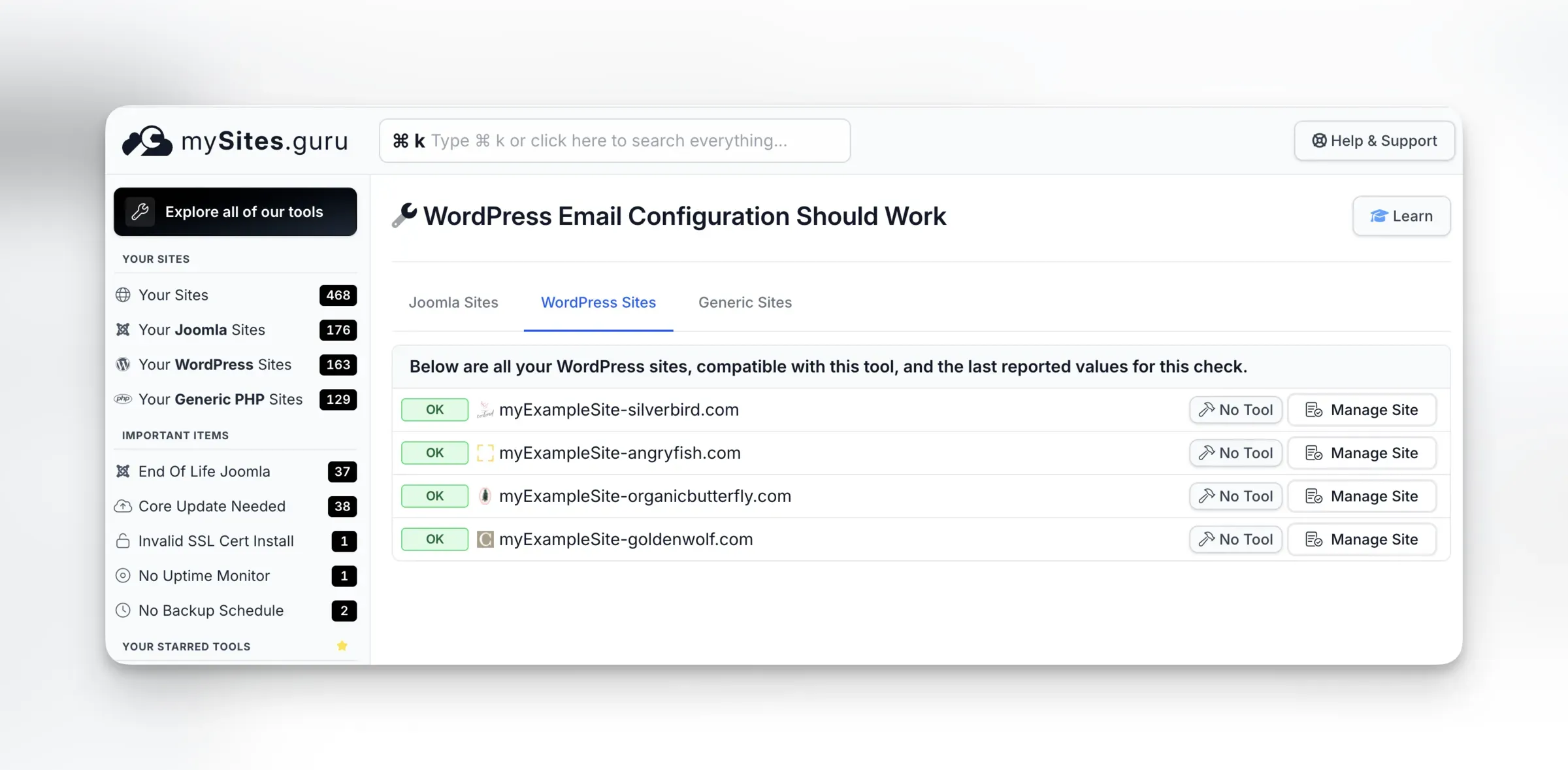
The same pivot page works for WordPress too. Switch to the WordPress Sites tab and you’ll see the email check result for every WordPress site in your account:
How does Joomla send email?
Before you can troubleshoot email, you need to understand the three ways Joomla can send it. Each one has different failure modes and different things that go wrong.
PHP Mail (the default)
When you install Joomla, the mailer is set to PHP Mail by default. This uses PHP’s built-in mail() function, which hands the email off to whatever mail transfer agent (MTA) is configured on the server, usually Sendmail or Postfix.
The problem with PHP Mail is that you’re entirely dependent on the server’s mail configuration. You have no control over authentication, no encryption, and no visibility into whether the email was actually accepted. Many shared hosting providers disable mail() entirely. When they do, Joomla silently fails. No error. No bounce. Nothing.
Sendmail
The Sendmail option lets you specify the path to the Sendmail binary on the server (default /usr/sbin/sendmail). It shares all the same problems as PHP Mail: no authentication, no encryption, no delivery feedback. Don’t use either option unless the server administrator has specifically configured the MTA to relay through an authenticated SMTP service.
SMTP (the right choice)
SMTP is the only option that gives you real control. You specify a mail server hostname, port, authentication credentials, and encryption method. Joomla connects directly to the SMTP server and hands off the email using a proper authenticated session.
It’s also the only method that gives you logging. With PHP Mail and Sendmail, emails leave the server and you have no visibility into whether they were accepted, bounced, or silently dropped. SMTP providers log every message, so you can see exactly what was sent, when, and whether it was delivered.
This is what you should be using. Full stop.
SMTP is not just for "advanced users"
Every Joomla site should use SMTP. PHP Mail and Sendmail are legacy options that offer no authentication, no encryption, and no delivery tracking. If your contact form matters to your business, configure SMTP properly.
What do Joomla’s email settings mean?
All email configuration lives in System > Global Configuration > Server tab in the Joomla admin. Here’s what each setting does and what can go wrong with it.
Mailer
Dropdown with three options: PHP Mail, Sendmail, or SMTP. As covered above, choose SMTP.
From Email
The email address Joomla puts in the From: header of every email it sends. If this address doesn’t match the domain of your SMTP server (or at least a domain you’ve authorized via SPF/DKIM), receiving servers will flag your emails as suspicious.
Common mistake: Setting this to a generic address like admin@gmail.com or leaving it as the default admin@example.com. Your emails will land in spam or be rejected outright.
From Name
The display name that appears alongside the From Email address. Usually your site name or business name. This is cosmetic but matters for trust. Emails from “Joomla! powered site” look unprofessional and get ignored.
SMTP Host
The hostname of your SMTP server. Common examples:
smtp.gmail.com(Google Workspace)smtp.office365.com(Microsoft 365)smtp.postmarkapp.com(Postmark)email-smtp.eu-west-1.amazonaws.com(Amazon SES)mail.yourdomain.com(cPanel/hosting provider)
Common mistake: Using localhost when the server doesn’t have a local SMTP service running, or using an IP address that gets blocked by the receiving server’s firewall.
SMTP Port
The port number for the SMTP connection. The correct port depends on the encryption method:
- Port 587 - STARTTLS (the modern standard, use this)
- Port 465 - Implicit TLS/SSL (older but still supported by many providers)
- Port 25 - No encryption (blocked by most hosting providers and ISPs, never use this for authenticated mail)
Common mistake: Using port 25 because “it’s the SMTP port.” Port 25 is for server-to-server relay, not authenticated client submission. Most hosting providers block outbound port 25 entirely. Use 587.
SMTP Security
The encryption method: None, SSL/TLS, or STARTTLS. Always use STARTTLS (port 587) or SSL/TLS (port 465). Never use None.
Common mistake: Setting this to None because “it’s just internal mail.” Even on internal networks, unencrypted SMTP exposes your credentials in plain text to anyone sniffing the network.
SMTP Authentication
Whether the SMTP server requires a username and password. Almost every SMTP server requires authentication. The only exception is some internal relay servers on managed hosting, but even those are increasingly requiring auth.
SMTP Username and Password
Your SMTP credentials. These are typically not the same as your email login, especially with services like Gmail (which requires an App Password or OAuth), Amazon SES (which uses IAM credentials), and Postmark (which uses API tokens).
Common mistake: Using your personal email password. If your Joomla site is ever compromised (and every Joomla 4 version was exploitable for configuration file exposure except the latest few) the attacker gets your email password too.
Never reuse personal email credentials
If you can see test emails from AuditMailerTest@myjoomla.io in your personal mail client's sent folder, it means you're using your personal account credentials in Joomla. That's a security risk you should fix today.
What are the seven most common Joomla email configuration mistakes?
After years of running security audits across tens of thousands of Joomla sites, these are the problems I see over and over again.
1. Using PHP Mail on a server that blocks it
Many shared hosting providers disable PHP’s mail() function to prevent spam abuse. When they do, Joomla’s PHP Mail option silently fails. You get no error, no bounce, nothing. The form submission goes through, the email vanishes.
Fix: Switch to SMTP. Always.
2. Wrong SMTP port after a hosting migration
You migrate to a new host, restore your Joomla backup, and everything looks fine. Except the new host uses port 587 instead of port 465, or vice versa. Your SMTP credentials might even be correct, but the port mismatch means the connection never establishes.
Fix: Check with your new host which port they support. Test the connection explicitly.
3. SMTP password changed by the hosting provider
Hosting providers periodically rotate passwords, especially on shared hosting. When they do, your Joomla SMTP password becomes invalid. Some providers notify you. Many don’t.
Fix: Use a dedicated transactional email service (Postmark, Amazon SES, Mailgun) where you control the credentials and get notified of any changes.
4. From address doesn’t match SPF/DKIM records
Your site sends email from info@yourdomain.com but the SMTP server is smtp.thirdpartyservice.com. The receiving server checks the SPF record for yourdomain.com, doesn’t find the third-party service’s IP address listed, and either rejects the email or dumps it in spam.
Fix: Add the SMTP service’s SPF include to your domain’s DNS. Set up DKIM signing. Consider adding a DMARC policy too. Your email service provider will have documentation on exactly what DNS records to add.
5. SSL certificate mismatch on the SMTP server
You connect to mail.yourdomain.com on port 465, but the SSL certificate on the mail server is issued to server42.hostingprovider.com. PHP’s OpenSSL extension rejects the connection because the certificate doesn’t match the hostname.
Fix: Either use the hostname that matches the certificate (ask your host what it is) or switch to a proper email service where certificate management is handled for you.
6. Using “Send Copy to Submitter” and getting flagged as spam
Joomla’s contact form has a Send Copy To Submitter option that forwards a copy of the form submission to whatever email address the visitor entered. Spammers abuse this by submitting the form with a victim’s email address, making your site the spam source.
Fix: Disable Send Copy to Submitter globally. mySites.guru’s snapshot checks this setting automatically.
7. Plaintext passwords enabled in Joomla
Older Joomla versions can be configured to email new users their password in plain text. Apart from being a terrible security practice, these emails are more likely to be flagged by spam filters because they contain sensitive-looking content.
Fix: Disable the plain text password setting. mySites.guru’s snapshot checks this too and can toggle it off with one click.
How to manually test your Joomla email
If you suspect email is broken, here’s how to confirm it without waiting for a real form submission.
Method 1: Joomla’s built-in mass mail
Go to Users > Mass Mail Users in the Joomla admin. Select the Super Users group, type a test subject and body, and send. Check your inbox (and spam folder). If you get the email, your configuration works for sending to your own address at least.
The limitation: this only tests sending to addresses you already know work. It doesn’t tell you whether emails to other domains are being delivered or rejected.
Method 2: Create a test contact form submission
Fill in your own site’s contact form using a different email address (a Gmail or Outlook.com address you control). Check whether you receive the form submission email. Check whether the submitter receives a copy (if that option is enabled).
This exercises the full contact form pipeline, not just the raw mail function.
Method 3: Check the mail queue and server logs
If you have SSH access, run mailq to check for stuck messages. Check /var/log/mail.log or /var/log/maillog for errors like Connection refused (wrong port or firewall), Authentication failed (wrong credentials), Relay access denied (unauthorized From address), or Certificate verification failed (SSL mismatch).
Method 4: Use an external SMTP testing tool
Tools like SMTPer.net let you test SMTP connections from outside your server. Enter your SMTP host, port, credentials, and encryption method, and it will tell you exactly what’s happening at each step of the connection.
Why isn’t manual testing enough?
The problem with all of these manual tests is that they only tell you email works right now. They don’t tell you when it stops working tomorrow because your hosting provider changed something, your SSL certificate expired, or your SMTP service rotated your API key.
Email configuration is one of those things that works perfectly until it doesn’t, and when it breaks, nobody notices until the damage is done.
You need automated, ongoing testing. That’s exactly what the mySites.guru audit handles for you.
How do you set up a dedicated transactional email service?
I strongly recommend using a dedicated transactional email provider instead of your hosting provider’s built-in SMTP. You get centralised activity logs showing every email your site sent, when it was delivered, and whether it bounced. The sending infrastructure has actively managed IP reputation, so your emails actually land in inboxes instead of spam folders. Bounce handling is built in, so bad addresses get flagged instead of silently failing.
Your hosting provider’s mail server shares its IP with hundreds of other customers. If one of them sends spam, the IP gets blacklisted and your emails stop arriving too. Dedicated providers maintain clean IP pools and actively monitor reputation, which is something your $10/month shared host simply doesn’t do.
Postmark
Postmark is purpose-built for transactional email (not marketing email). It provides excellent deliverability, detailed delivery tracking, and bounce management. To use Postmark with Joomla, set SMTP Host to smtp.postmarkapp.com, port 587 with STARTTLS, and use your Postmark Server API Token as both the username and password. Your From Email must be a verified sender address in Postmark.
Amazon SES
Amazon SES is the cheapest option at scale. It requires more setup (IAM users, DKIM verification, moving out of the sandbox) but costs fractions of a penny per email.
Google Workspace / Microsoft 365
If you’re already paying for Google Workspace or Microsoft 365, you can technically use their SMTP servers, but I’d think twice about it. Google has deprecated “Less Secure Apps” (basic username/password authentication) and now requires OAuth 2.0 for SMTP access. Neither Joomla nor WordPress supports OAuth for sending emails natively, so you’d need App Passwords (which Google may further restrict) or a third-party plugin that handles the OAuth flow. Microsoft 365 has similar restrictions in the pipeline.
This is another reason I recommend a dedicated transactional email service like Postmark or Amazon SES. They use standard SMTP credentials that just work, without OAuth headaches or provider-imposed sending limits.
Which DNS records affect email delivery?
Even with perfect SMTP settings, your emails can still fail if your DNS records aren’t set up correctly. SPF, DKIM, and DMARC are a whole topic on their own, and getting them wrong can be worse than not having them at all. I’ll give a brief overview here, but if you’re not familiar with email authentication records, spend some time with the DMARCLY guide before making changes.
SPF (Sender Policy Framework) is a DNS TXT record that lists which IP addresses and services are allowed to send email for your domain. If your SMTP provider isn’t included, receiving servers will reject or spam-flag your messages. DKIM (DomainKeys Identified Mail) adds a cryptographic signature to outgoing emails that the receiving server verifies against a public key in your DNS. DMARC ties SPF and DKIM together and tells receiving servers what to do when a message fails both checks.
All three need to be correct and consistent with each other. A misconfigured SPF record can block legitimate email. A missing DKIM signature can tank your deliverability even if SPF passes. And a DMARC policy set to p=reject before you’ve verified everything will silently drop real messages.
Get DNS right before you change DMARC policy
Start with p=none to monitor. Use MXToolbox to verify your SPF and DKIM records are correct before moving to p=quarantine or p=reject. Allow up to 48 hours for DNS propagation after any changes.
A complete Joomla email health checklist
Use this checklist to verify your Joomla site’s email configuration from top to bottom:
- Mailer set to SMTP - Not PHP Mail, not Sendmail
- SMTP host is correct - Matches your email provider’s documented hostname
- SMTP port is 587 - With STARTTLS encryption (or 465 with SSL/TLS)
- SMTP authentication enabled - With dedicated credentials (not personal email)
- From Email matches your domain - And that domain has SPF/DKIM records authorizing the SMTP server
- From Name is your business name - Not “Joomla! powered site”
- Send Copy to Submitter is disabled - To prevent spam abuse
- Plaintext passwords disabled - Joomla should never email passwords in the clear
- SPF DNS record exists - Includes your SMTP provider
- DKIM DNS record exists - Provided by your SMTP service
- DMARC DNS record exists - Set to at least
p=quarantine - Test email actually arrives - Not just “config looks right” but verified delivery
If you manage more than a handful of sites, running through this list manually on each one is impractical. That’s exactly what mySites.guru’s audit and snapshot tools are built for: automated checks across all your connected sites, with best practice enforcement and trend tracking so you can see when something changes.
Troubleshooting: Joomla email was working and now it isn’t
Everything was fine last week and now nothing sends. Here’s a systematic approach to diagnosing it.
Step 1: Check if the problem is Joomla or the SMTP server. Try sending an email through your SMTP service’s web interface or API directly. If that works, the problem is in Joomla’s configuration. If that also fails, the problem is with the SMTP service itself.
Step 2: Check for recent changes. Did you update Joomla? Update a plugin? Change hosting? Move servers? Any of these can alter mail settings or break an existing connection. Check your mySites.guru audit history; the quick snapshot shows what changed between snapshots.
Step 3: Verify credentials. Log into your SMTP service’s dashboard and confirm your credentials are still valid. Check for expiration notices, IP allowlist changes, or account suspensions.
Step 4: Check server-level blocks. Some hosting providers block outbound SMTP connections (especially on port 25, but sometimes on 465 and 587 too). Contact your host and ask if they’ve changed their firewall rules.
Step 5: Check DNS records. Use MXToolbox to verify your SPF, DKIM, and DMARC records are still intact. Domain transfers, DNS provider changes, or accidental record deletions can break email authentication overnight.
Step 6: Check for blacklisting. If your server’s IP address has been blacklisted due to spam (possibly from another site on the same shared hosting), your emails will be rejected by many receiving servers. Use MXToolbox’s blacklist check to see if your IP appears on any major blocklists.
How do you manage email configuration across multiple sites?
If you run an agency with dozens or hundreds of Joomla sites, keeping track of email configuration across all of them is a pain. Each site has its own SMTP settings, its own DNS records, its own potential failure points.
mySites.guru was built for exactly this scenario. Every scheduled audit runs the email delivery test across all your connected sites automatically, and the site information dashboard shows the result alongside 140+ other checks. You can see at a glance which sites have working email and which don’t, track when a previously working configuration breaks, and share the results with clients through automated white-label reports. Unlimited sites on a single subscription, so there’s no per-site cost as your portfolio grows.
Further reading
- Joomla SMTP Mail and Gmail Configuration - Official Joomla documentation on configuring SMTP mail settings
- How to Implement DMARC/DKIM/SPF - Comprehensive guide covering SPF, DKIM, and DMARC setup with step-by-step instructions
- Transactional Email Best Practices - Postmark’s guide to authentication, design, and monitoring for transactional email
- Best Email Deliverability Tools - Review of inbox placement testing and spam checking tools
Get started
If you’re not sure whether your Joomla sites can actually send email right now, run a free audit. It takes less than a minute to connect your site, and you’ll get a clear pass/fail result for email delivery along with dozens of other security and configuration checks.
You might be surprised what you find.
Email configuration checks are covered in our Joomla Agency Handbook.