Is My WordPress Site Hacked? How to Check and What to Do Next
Something is off with your WordPress site. Maybe it’s redirecting to a casino. Maybe Google is showing a “This site may be hacked” warning. Maybe your hosting provider just sent you a threatening email about malware.
Before you panic, you need to figure out what’s actually happening. Not every weird behaviour means you’ve been hacked, but ignoring real signs can turn a small problem into a total mess.
Hack or false alarm?
Some symptoms point to a hack. Others are just a broken plugin or a hosting hiccup. Knowing the difference saves you hours chasing the wrong problem.
Strong indicators of a hack
These almost always mean someone has tampered with your site:
- Unexpected redirects - Your site sends visitors (or just mobile visitors, or just Google visitors) to spam, pharmacy, or gambling sites
- New admin users you didn’t create - Check Users > All Users for accounts you don’t recognise
- Modified core files - WordPress core files (wp-includes, wp-admin) have been changed from their original versions
- Google Safe Browsing warnings - Google shows “This site may harm your computer” in search results
- Strange files in unexpected places - PHP files in your uploads folder, files with random names in wp-content, or hidden files starting with a dot
- SEO spam injection - Your site shows pharmaceutical or gambling content to search engines but looks normal to you
- Hosting provider notifications - Your host detected malware or suspended your account
Things that look like a hack but usually aren’t
These cause confusion but typically have innocent explanations:
- Site is slow or down - More likely a hosting issue, bad plugin, or traffic spike
- Admin panel looks different - A plugin or theme update changed the UI
- Emails going to spam - Usually a DNS/SPF/DKIM configuration problem
- 404 errors on pages - Broken permalinks after a migration or plugin conflict
- White screen of death - Almost always a PHP error from a plugin or theme conflict
How to confirm a WordPress hack in 5 minutes
Don’t guess. Check.
Step 1: Scan your files
The fastest way to confirm a hack is to scan every file on your server against known malware patterns. Surface-level scanners that only check a few pages miss most infections - you need file-level scanning.
mySites.guru’s malware scanner checks every file in your webspace against 2,000+ regex patterns and 14,000+ known-bad file hashes. Most scanners only check what your site outputs to a browser. This one reads the actual files on disk, which is where the malware lives.
You can run a free audit with no credit card required.
Step 2: Check your admin users
Log into WordPress and go to Users > All Users. Sort by role and look for any Administrator accounts you don’t recognise. Hackers often create backdoor admin accounts with innocent-sounding names.
If you manage multiple sites, mySites.guru’s snapshot makes this easier. Every site audit shows exactly how many super users exist, how many lack two-factor authentication, and flags any accounts that look suspicious - across all your sites at once, without logging into each one individually.
If you can’t log in at all, that’s another strong indicator - the attacker may have changed your password or locked you out.
Step 3: Check Google’s view of your site
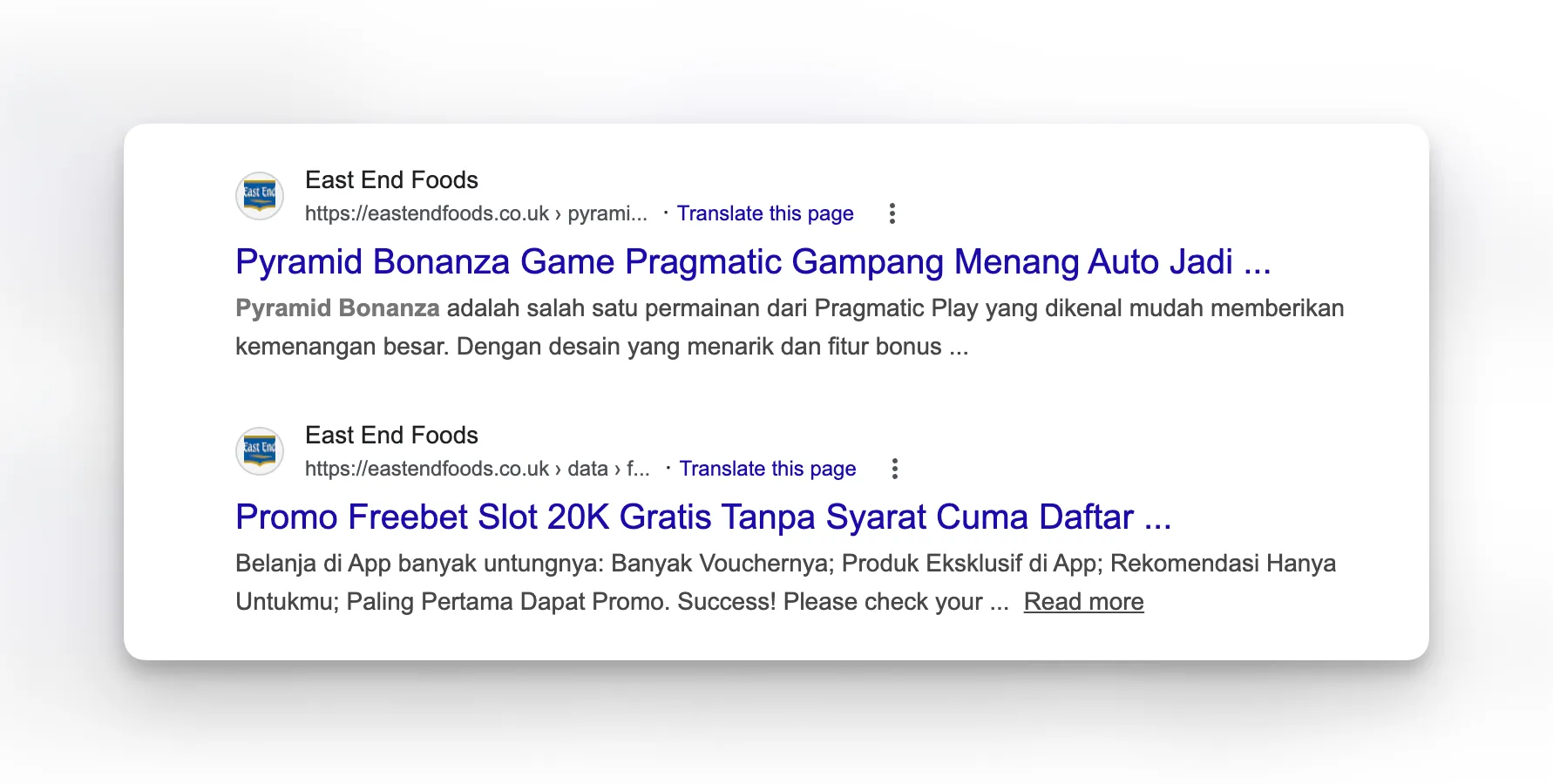
Search Google for site:yourdomain.com and scan the results. If you see pages about pharmaceuticals, gambling, or products you don’t sell, your site has been injected with SEO spam. This type of hack is invisible to you when you visit the site normally because the malware only shows the spam content to search engine crawlers.
Step 4: Review recently modified files
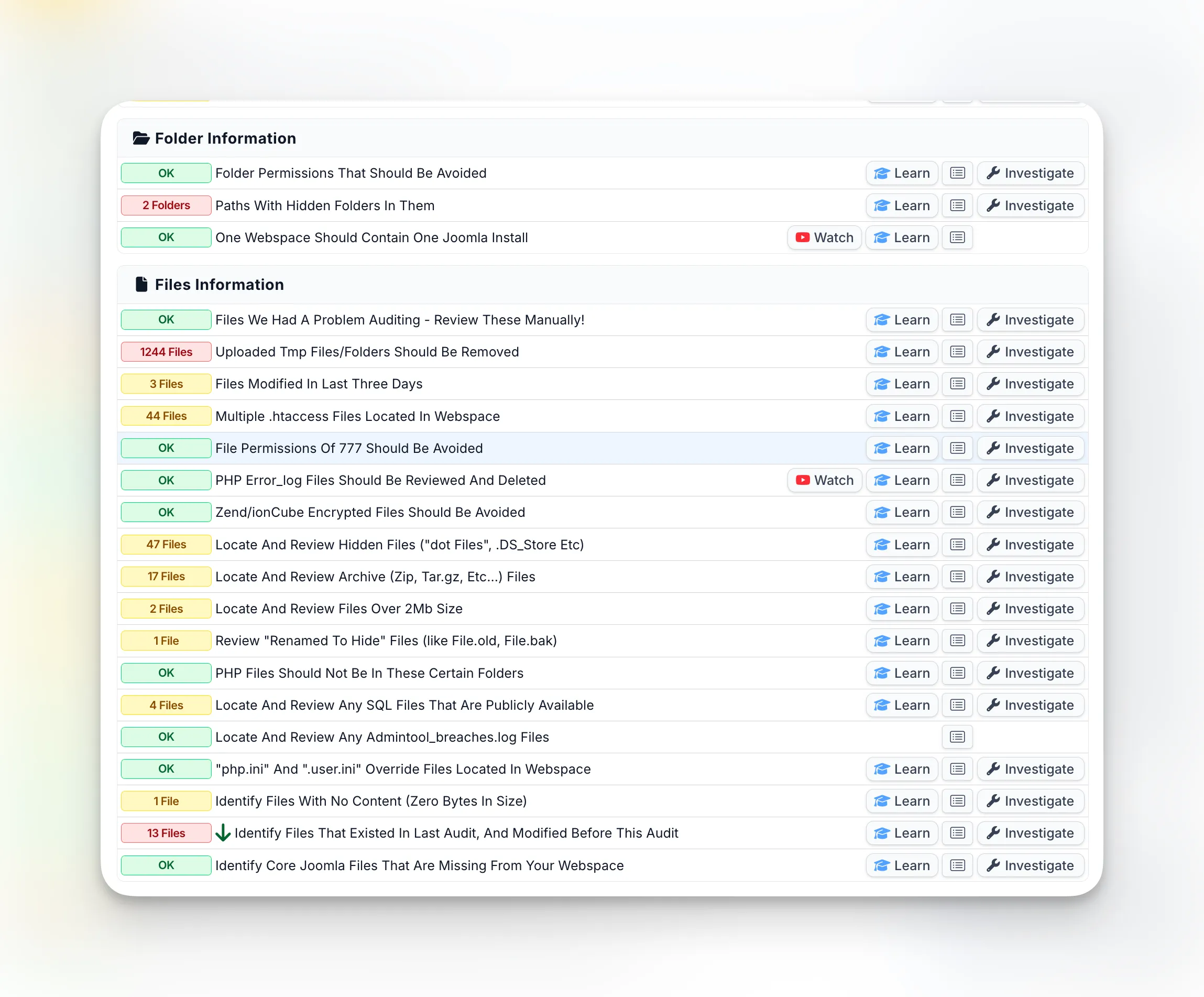
Check which files on your server were modified recently. If core WordPress files or files in wp-content have modification dates that don’t match your last update, something changed them.
The mySites.guru audit includes a full set of file and folder diagnostic tools that automate this work. It flags files modified in the last three days, finds hidden files and folders, locates archive files left behind by attackers, spots PHP files in directories where they shouldn’t exist, identifies renamed files (like file.old or file.bak) that hackers use to stash backdoors, and checks for files that existed in a previous audit but were modified since. Each finding has an “Investigate” button that lets you drill straight into the file.
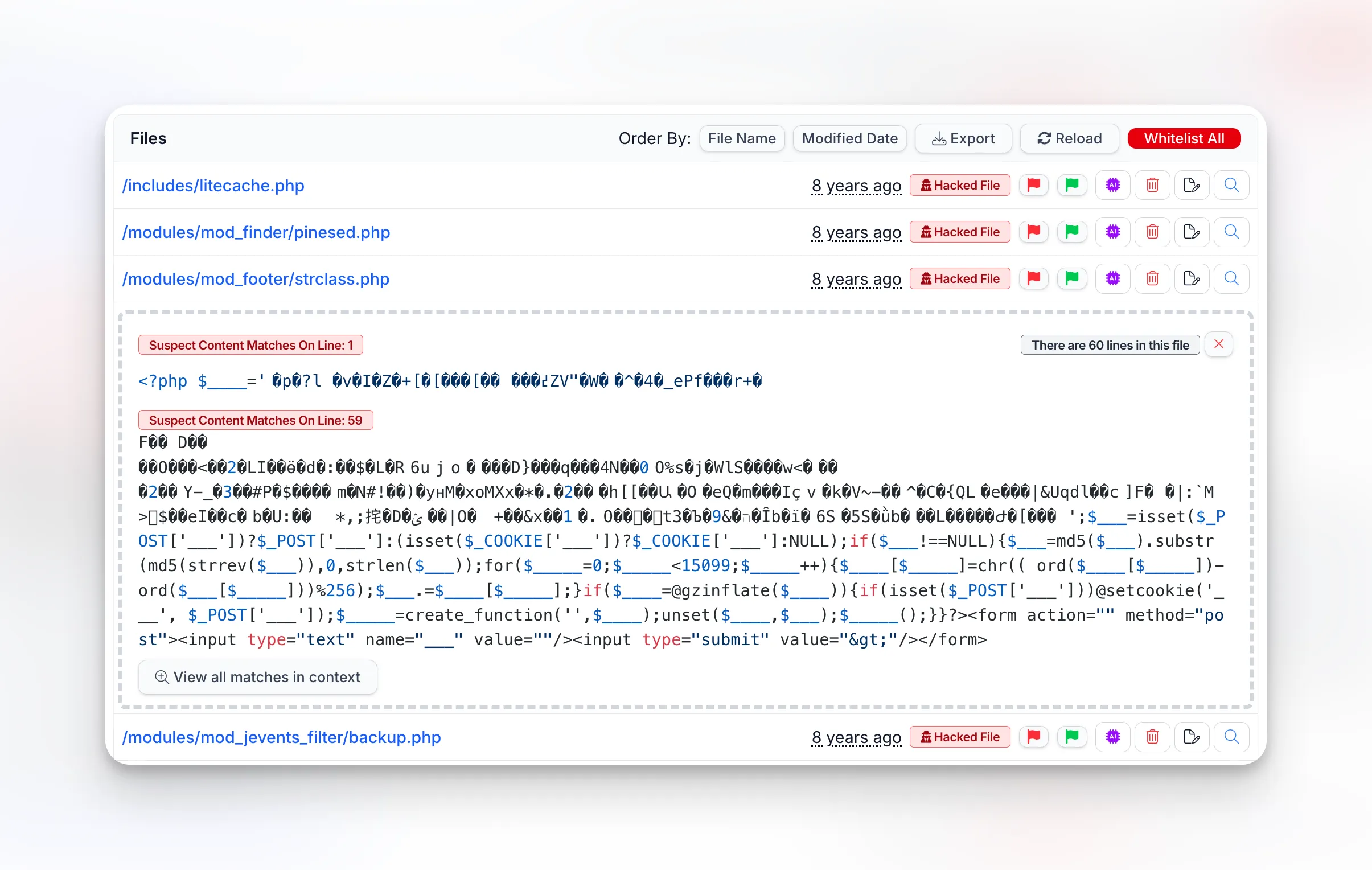
The mySites.guru suspect content tool flags files that contain suspicious code patterns - things like base64-encoded payloads, eval() calls processing external input, or obfuscated function names designed to avoid detection.
What should you do in the first 24 hours?
If your scan confirms a hack, move fast. The longer malware stays on your site, the more damage it does to your search rankings and reputation.
1. Change every password
Right now. All of them:
- WordPress admin password
- FTP/SFTP credentials
- Database password (update wp-config.php to match)
- Hosting control panel password
- Any API keys stored in wp-config.php
mySites.guru’s one-click admin login means you don’t need to remember passwords for every site - but the attacker might have your old credentials, so change them all regardless.
2. Document what you find
Before you start deleting files, take note of what’s been compromised. mySites.guru’s suspect content tool does this for you - it lists every flagged file with the exact matching lines, the threat type, and when the file was last modified. If a file looks suspicious but you’re not sure what it does, the AI-powered malware analysis can explain it in plain English with one click.
This record matters because it tells you how the attacker got in, which you need to know to prevent reinfection.
3. Remove the malware
For each compromised file, you have two options:
- Core files (wp-admin, wp-includes): Replace them with clean copies from wordpress.org. mySites.guru can compare your core files against the originals and restore them with a single click - no FTP needed.
- Theme and plugin files: Compare against the original versions. If the file shouldn’t exist at all (random PHP files in your uploads folder, for example), delete it.
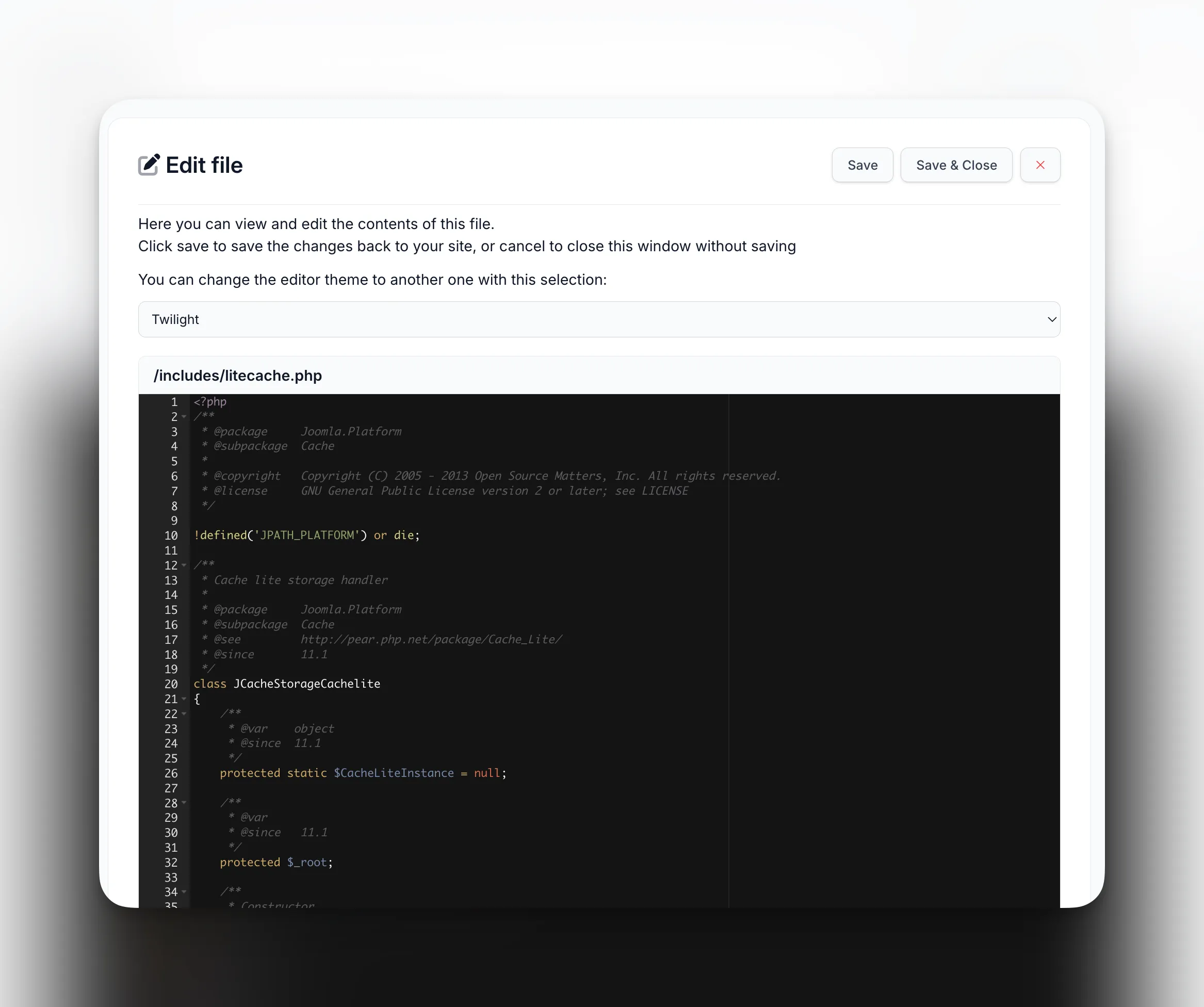
mySites.guru also has a built-in file editor that lets you view and edit any file on your server directly from the dashboard. When the audit flags a suspicious file, you can open it, inspect the code, remove the malicious content, and save it back - all without needing FTP or SSH access.
Our step-by-step guide covers the full cleanup process using mySites.guru’s tools.
4. Find and remove backdoors
Most people stop after removing the visible malware. That’s why they get hacked again a week later.
Attackers plant backdoor files in places you wouldn’t normally look, specifically so they can get back in after cleanup:
- Inside legitimate-looking plugin files
- In your theme’s functions.php (buried among real code)
- As dot-files (.htaccess modifications, hidden PHP files) that FTP clients don’t even show you
- In the uploads directory disguised as images
mySites.guru’s deep security audit catches these because it checks every single file against 20,000+ regex patterns and 14,000+ known-bad file hashes. It doesn’t just check the obvious locations - it scans your entire webspace, including the hidden files and folders that most tools skip.
5. Update everything
After cleanup, update WordPress core, all plugins, and all themes to their latest versions. If you manage multiple sites, mySites.guru’s bulk update tool lets you push updates across all of them from one dashboard. Remove any plugins or themes you’re not using - deactivated plugins are still attackable.
Check your plugins against known vulnerabilities. mySites.guru’s vulnerability alerting cross-references every plugin on your site against CVE databases and alerts you when a plugin has a known security hole - so you can patch it before it gets exploited again.
6. Set up monitoring
A clean site today can be compromised again tomorrow if you’re not watching it. mySites.guru gives you several layers of ongoing protection:
- Real-time file change alerts - get notified the moment any monitored file changes or an admin logs in
- Scheduled security audits - automate daily or weekly scans so you don’t have to remember to run them
- Uptime monitoring - know within minutes if your site goes down, which can be an early sign of a new attack
- Automated snapshots - twice-daily checks of 140+ configuration settings so you can spot anything that changes unexpectedly
Why do hacked WordPress sites keep getting reinfected?
Incomplete cleanup is the number one culprit. Miss one backdoor file and the attacker walks right back in.
But even a perfect cleanup fails if you don’t fix the entry point. If a vulnerable plugin got you hacked and you clean the malware but leave the plugin at the same version, you’ll get hit through the same hole again. Same goes for weak passwords - if your admin account is still using “password123”, brute-force bots will find it.
When should you get professional help?
You can handle most WordPress hacks yourself with the right scanning tools. But consider getting professional help if:
- Your hosting provider has suspended your account and won’t reinstate it
- The hack involves a database injection (not just file modifications)
- Your site has been compromised for weeks or months and you’re unsure of the full scope
- You’re seeing signs of a targeted attack rather than an automated one
mySites.guru’s AI-powered malware analysis can help you understand exactly what each flagged file does, making it easier to decide whether to clean or delete it.
If you’d rather hand the whole thing to someone who’s done it hundreds of times, the fix.mySites.guru service covers the full cleanup - finding the entry point, removing every backdoor, updating everything, and locking the site down. One flat fee, no surprises.
How do you harden your WordPress site after cleanup?
Cleaning up the malware is half the job. The other half is understanding what’s actually running on your server and making sure it’s configured properly. Most site owners have no idea what’s under the hood - debug mode left on, outdated PHP versions, missing security headers, exposed log files. These are the gaps attackers walk through.
mySites.guru runs 140+ best-practice checks on every site, twice a day. It flags the stuff you’d never think to check manually:
- PHP version and configuration - Running an outdated or end-of-life PHP version is an open invitation. The snapshot tool shows you exactly which version each site runs and whether it meets current requirements.
- Debug mode - WordPress debug constants left enabled on production sites leak error paths, database credentials, and internal file structures to anyone who knows where to look.
- Security headers - CSP, HSTS, X-Frame-Options, and Permissions-Policy defend against XSS, clickjacking, and protocol downgrade attacks. The snapshot checks all eight headers on every scan.
- SSL certificates - Track every certificate’s expiry date and get alerted before it lapses. An expired cert kills trust and can tank your rankings.
- Hidden files - Dot-files and dot-folders that FTP clients and file managers don’t show you. Hackers love these blind spots.
- Disk space - Server disk monitoring catches partitions filling up before your site crashes. A full disk also prevents log rotation, which masks future attacks.
- Updates - Keep core, plugins, and themes current. Use bulk updates across multiple sites and remove anything you’re not actively using - deactivated plugins are still attackable code.
- Access control - Strong, unique passwords for every admin account. Role-based permissions so team members only have the access they need. On client sites, block plugin installs from the WordPress admin so nobody introduces untested code.
- File monitoring - Real-time alerts when any monitored file changes or an admin logs in, plus scheduled security audits running daily or weekly so you catch issues before they become incidents.
Fix the hack, yes - but also understand your server’s configuration and apply best practice across every site you manage. That’s what stops the next attack.
Scan your site now
Catching a hack on day one is a 30-minute fix. Discovering it three weeks later, after Google has flagged your site and your rankings have tanked, is a different problem entirely.
Run a free security audit on your WordPress site. No credit card, takes about a minute, scans every file on the server.
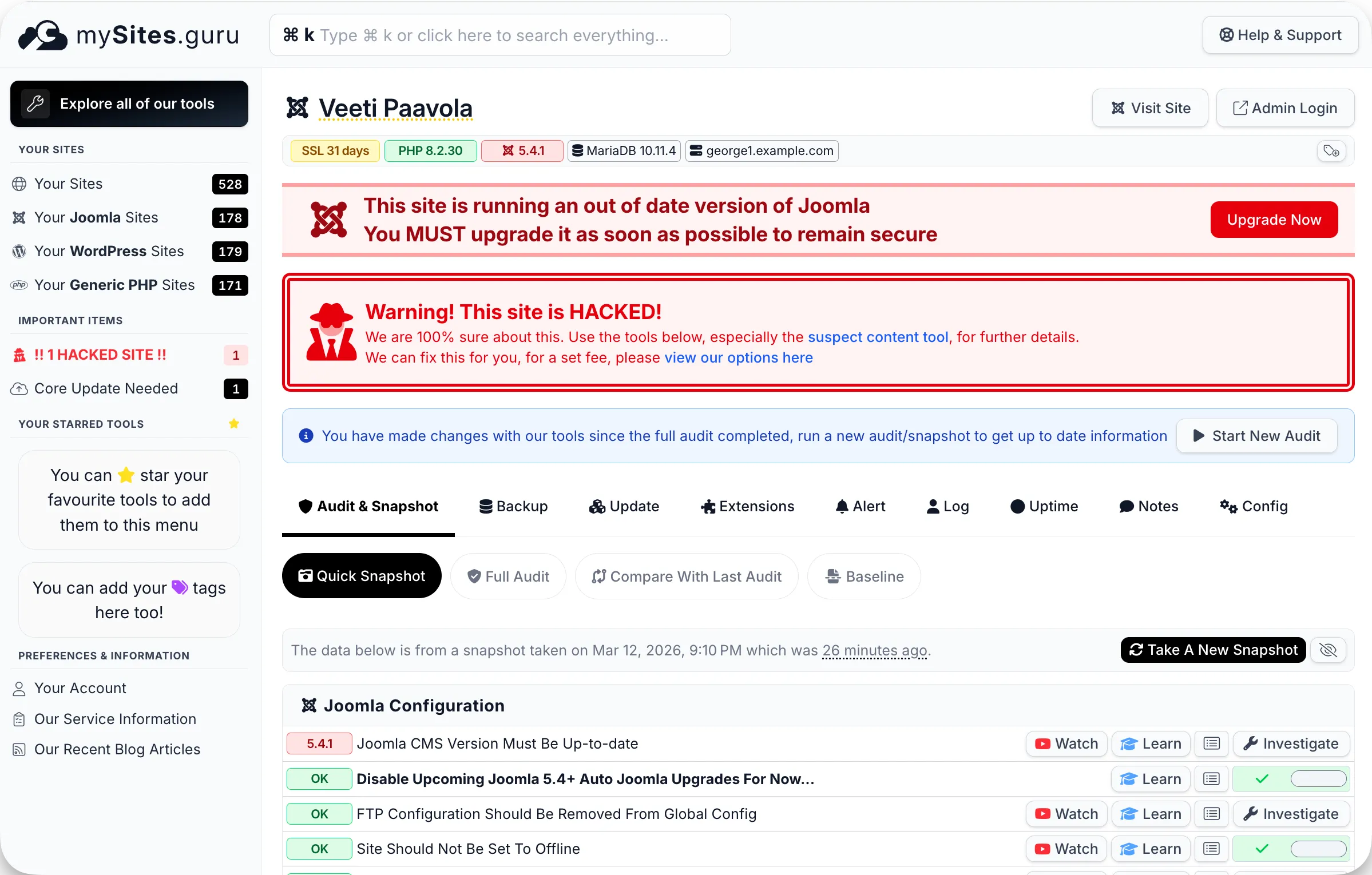
If you manage multiple WordPress sites, mySites.guru scans and monitors all of them from one dashboard - £19.99/month, no per-site fees.
For the full picture, see our complete security guide for agencies.