Joomla's Compat Plugin Is a Crutch, Not a Fix
Every major Joomla release ships with a backward compatibility plugin. It maps old, deprecated class names to their new equivalents so extensions that haven’t been updated keep working. Most site owners leave it enabled and never think about it again.
The compat plugin is a safety net with an expiry date. Each version gets removed in the next major release. plg_behaviour_compat (the Joomla 4 compatibility layer) shipped with Joomla 5 and is completely gone in Joomla 6. If any of your extensions still rely on those old class names, your site breaks on upgrade with a fatal error and a white screen.
mySites.guru now tracks compat plugin status across all your connected sites. You can see at a glance which sites still have the compat layer enabled, and toggle it remotely to test readiness - without logging into each site individually.
What Do the Joomla Compat Plugins Actually Do?
There are two distinct plugins, each covering a different generation of deprecated code:
plg_behaviour_compat (Joomla 5 only, removed in Joomla 6)
This plugin provides class aliases for over 400 deprecated Joomla 4 class names. When an extension calls JPlugin, JTable, JFactory, JRegistry, JModelAdmin, or any of the other legacy names that have existed since Joomla 1.0, the compat plugin redirects those calls to the Joomla 5 namespaced equivalents. It also handles ES5 JavaScript asset fallbacks and removed asset compatibility.
It has three independently toggleable options:
classes_aliases- maps old class names to new ones (enabled by default). This one adds ~500+ PHP function calls per request and is the hardest to turn off safely.es5_assets- loads ES5 fallback JavaScript (enabled by default). Over 1000 lines of JSON data per request. Safe to disable on most sites.removed_asset- provides compatibility for removed JS/CSS assets (enabled by default). Minimal overhead (~15 lines of JSON). Also safe to disable.
plg_behaviour_compat6 (Joomla 5.4+, Joomla 6, Joomla 7)
This is the newer compat plugin, introduced in Joomla 5.4 to give developers time to prepare for Joomla 6. It specifically covers three things removed from the J6 core:
\Joomla\CMS\Input\*namespace (replaced by\Joomla\Input\*from the Framework)\Joomla\CMS\Filesystem\*package (replaced by\Joomla\Filesystem\*)- The
JPATH_PLATFORMconstant (replaced by_JEXEC)
It has two options:
classes_aliases- maps deprecated class names (disabled by default)legacy_classes- provides full legacy class implementations for Input, Filesystem, and Application (enabled by default)
On new Joomla 6 installations, this plugin is installed but disabled by default, on the assumption that fresh installs don’t carry legacy code.
Same pattern as before: the compat plugin arrives one minor version before the major release and gets removed in the version after that.
Why Is the Joomla 5 Compat Plugin Called “compat6”?
The naming trips people up. The “6” in plg_behaviour_compat6 refers to the Joomla version it makes your code compatible with, not the version it runs on. It provides the deprecated J5 classes so your old code works on Joomla 6.
Same logic for the original: plg_behaviour_compat provides deprecated J4 classes so old code works on Joomla 5. There’s no number because it was the first one.
| Plugin name | Runs on | Provides | So your old code works on |
|---|---|---|---|
plg_behaviour_compat | Joomla 5 | J4 class aliases | Joomla 5 |
plg_behaviour_compat6 | Joomla 5.4+, 6, 7 | J5 class aliases | Joomla 6 |
Why Leaving the Compat Plugin Enabled Is Technical Debt
When the compat plugin is doing its job, everything looks fine. Your site works, your extensions work, nobody complains. But underneath, you’re accumulating technical debt:
plg_behaviour_compat is gone in Joomla 6. If you upgrade to J6 with extensions that still need it, those extensions break immediately. The class doesn’t exist anymore, full stop.
The sneaky part: because the compat plugin rewrites class references on the fly, there’s no log entry or warning that an extension is using deprecated code. Everything passes the Joomla pre-update check. Everything looks ready for the next version. Then you upgrade and find out it wasn’t.
Smaller extension developers often don’t realise they have a problem either. They test on Joomla 5 with the compat plugin enabled (it’s on by default), their extension works, they ship it, and nobody notices the dependency on deprecated classes until a client tries to run it on J6.
There’s also a minor performance cost. The compat plugin runs on every request, loading class maps and checking aliases. Not huge, but unnecessary for extensions that have been properly updated.
Check Compat Plugin Status Across All Your Joomla Sites
We’ve added compat plugin tracking to the Joomla 6 Technical Requirements tool. The new Compat Plugin column shows the enabled/disabled state for every connected site at a glance:
- Green “Disabled” means the compat plugin is off and your site runs without the compatibility layer
- Yellow “Enabled” means the compat plugin is still active, so some extensions may depend on it
- Grey “N/A” means the plugin doesn’t apply to that Joomla version (e.g., J4 sites)
This is included in all mySites.guru subscriptions at no extra cost. Connect unlimited sites and check them all from one screen.
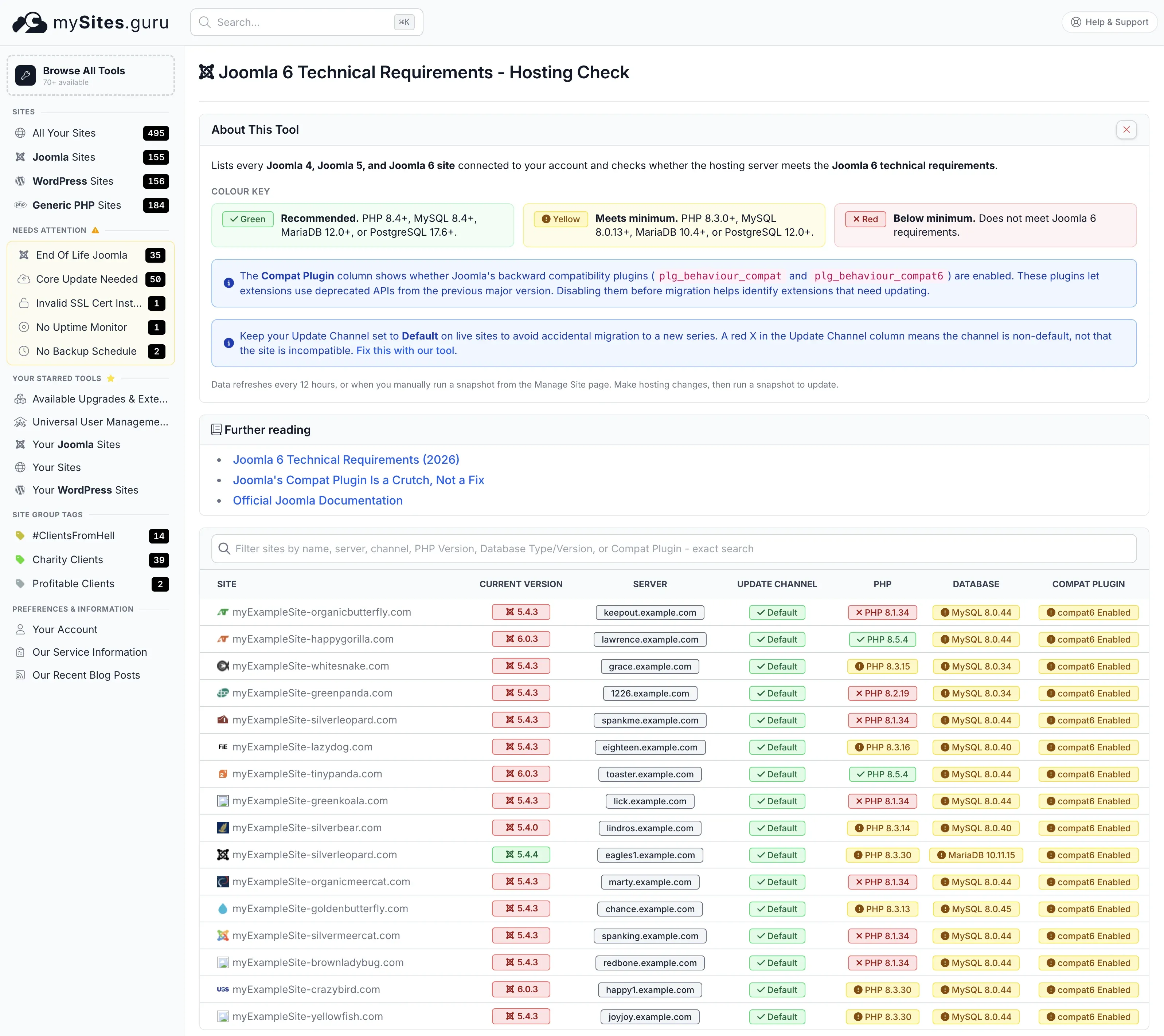
See compat plugin status for all your Joomla sites
Open Joomla 6 Compatibility Checker Open Joomla 5 Compatibility Checker
Colour-codes every connected Joomla site's PHP version, database version, update channel, and compat plugin status. You need to be logged in.
Toggle Compat Plugins Remotely from mySites.guru
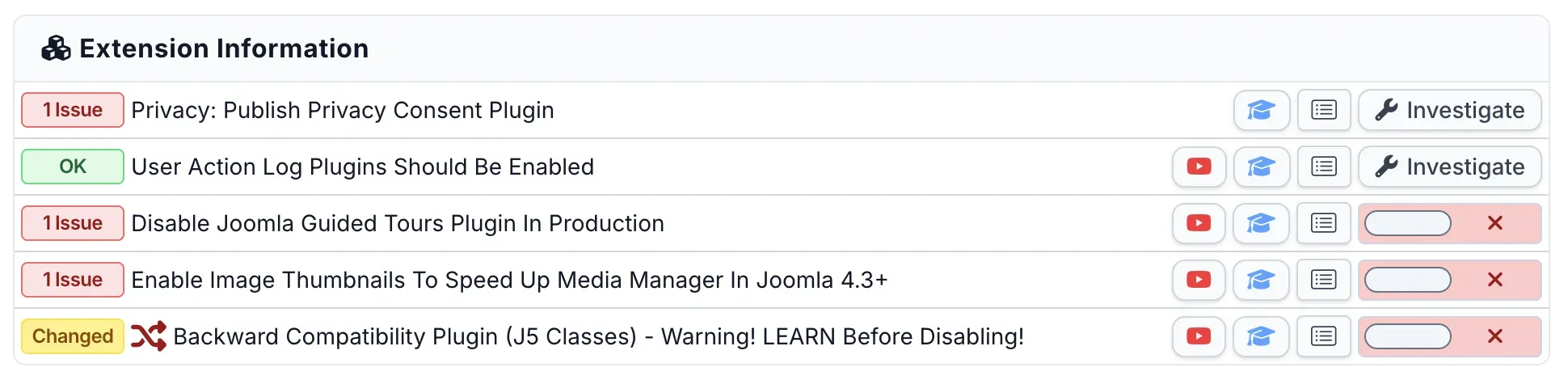
Beyond the overview page, there are two standalone audit checks under Extension Information on each site’s manage page:
- Backward Compatibility Plugin (J4 Classes) - tracks
plg_behaviour_compaton J5 sites - Backward Compatibility Plugin (J5 Classes) - tracks
plg_behaviour_compat6on J5.4+ and J6 sites
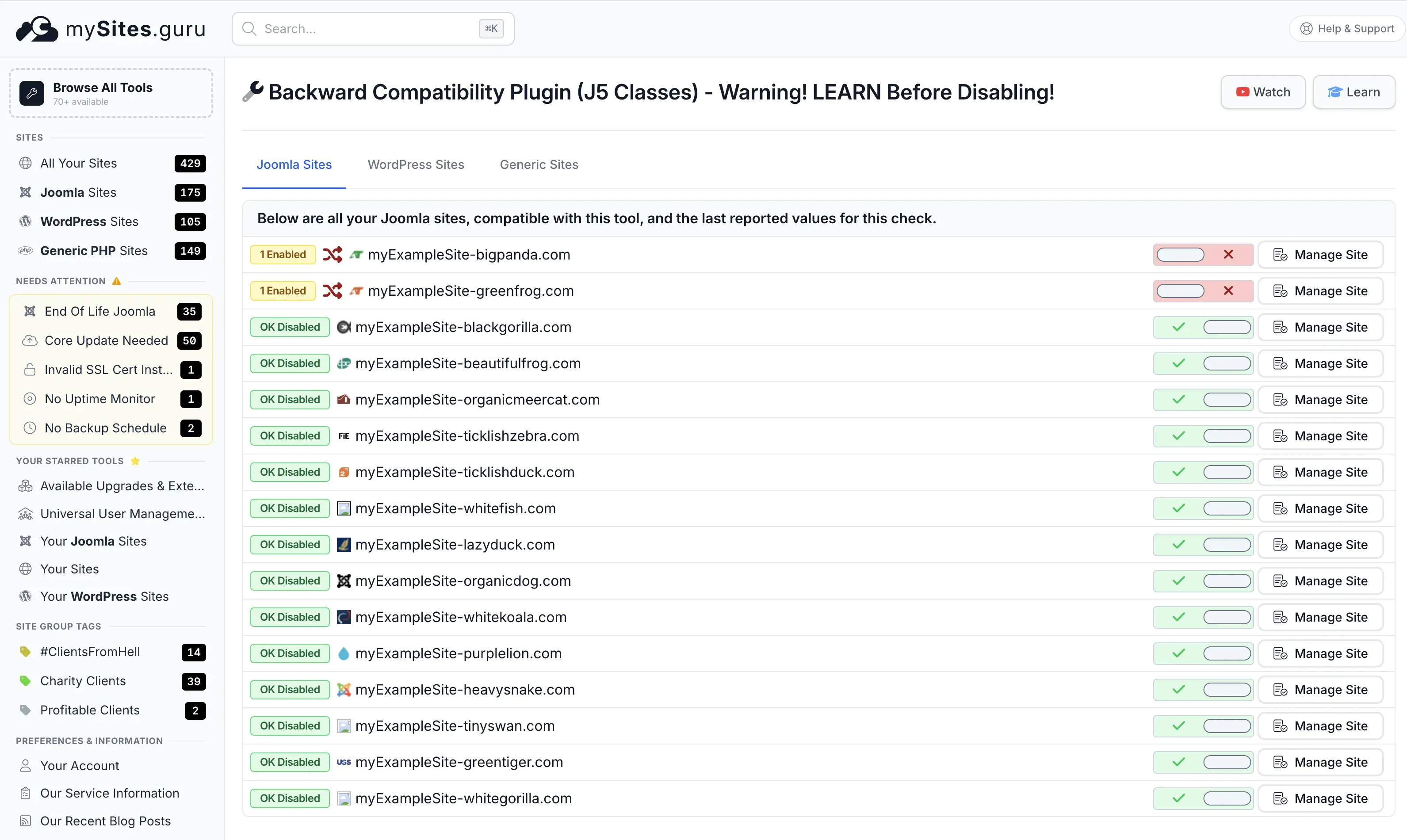
Both let you toggle the plugin on or off remotely. No need to log into the Joomla admin or touch the database. If you’re testing J6 readiness across multiple client sites, you can disable the compat plugin, check what breaks, and re-enable it all from one place.
There’s also a pivot page that shows the compat plugin status across every connected Joomla site on one screen, with toggle switches to enable or disable each one directly:
Warning
Disabling the compat plugin may crash your site if any extension still depends on deprecated classes. Always test on a staging copy first, or be prepared to re-enable it quickly using the same toggle.
How to Test Whether Your Extensions Need the Compat Plugin
The only reliable way to know is to disable it and see what breaks. Do this safely:
- Make a staging copy of your site. Never test this on production first.
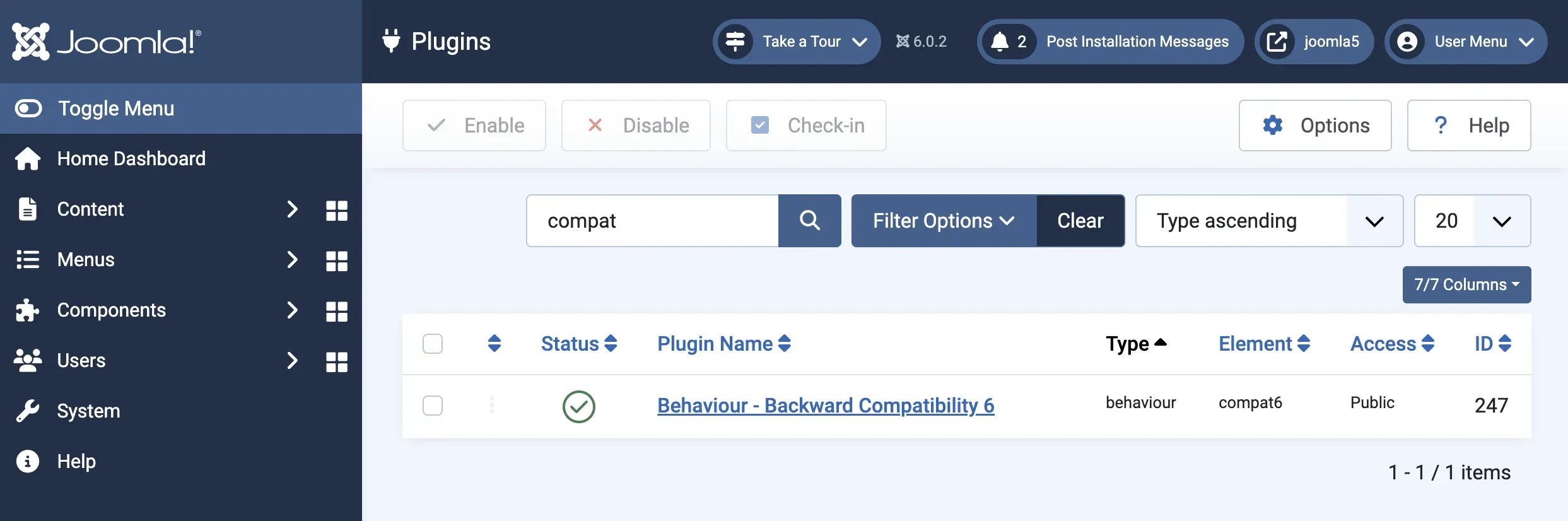
- Disable the compat plugin from the Joomla admin (Extensions > Plugins > search for “compat”) or remotely via mySites.guru’s toggle.
- Test every page and feature. Visit the frontend, the admin panel, and trigger any scheduled tasks or AJAX features. Check forms, search, and any custom functionality.
- Check the error logs. The typical error is
An error has occurred: 0 Class 'JPlugin' not foundor similar withJTable,JFactory,JRegistry, etc. The class name in the error tells you exactly what deprecated API the extension is calling. - Identify the extension. The stack trace in the error log shows which extension file triggered the error. That extension needs updating. Tip: you may need to enable debug mode and set error reporting to Maximum in Joomla’s Global Configuration first, otherwise you’ll just see a generic error page. Also check if your template has a custom
error.phpfile that hides the real error behind a visitor-friendly page. Temporarily rename or remove it while testing so Joomla’s core error handler shows the raw stack trace instead.
If everything works with the plugin disabled, you’re clear. If something crashes, you now know exactly which extensions need attention.
What to Do When an Extension Needs the Compat Layer
You’ve disabled the compat plugin, your site crashed, and the error log says Class 'JFactory' not found in a third-party extension. Now what?
If the extension has an update available, install it. Most actively maintained extensions were updated for Joomla 5 native compatibility years ago. Check the developer’s site or the Joomla Extensions Directory.
If there’s no update, contact the developer and point them to the Joomla migration documentation. The changes are usually straightforward, just replacing old class names with namespaced equivalents. JFactory becomes Joomla\CMS\Factory, JPlugin becomes Joomla\CMS\Plugin\CMSPlugin, and so on.
If the extension is abandoned, find an alternative. An extension that still uses Joomla 4 class names in 2026 is not being maintained, and you shouldn’t depend on it for production. The manage all your extensions tool in mySites.guru can help you audit what’s installed across your sites.
If it’s your own custom code, update the class references yourself. The Joomla project maintains a complete mapping of old class names to new namespaced versions. Most replacements are a find-and-replace job.
How to Recover If Your Site Crashes After Disabling Compat
If you disabled the compat plugin on a live site (we said not to) and it’s now showing a white screen, you have three ways to get it back:
Option 1: Use mySites.guru (Fastest)
If the site is still connected to mySites.guru, use the remote toggle in the audit tool to re-enable the plugin. The connector communicates directly with the database, so it works even when the Joomla frontend is down.
Option 2: Edit the Database Directly
Connect to your database with phpMyAdmin, Adminer, SSH, or your host’s control panel (cPanel, Plesk, etc.):
UPDATE `#__extensions`SET `enabled` = 1WHERE `element` = 'compat' AND `folder` = 'behaviour';For the Joomla 6 compat plugin (plg_behaviour_compat6):
UPDATE `#__extensions`SET `enabled` = 1WHERE `element` = 'compat6' AND `folder` = 'behaviour';Replace #__ with your actual table prefix (usually jos_ or whatever you set during installation).
Option 3: Edit the configuration.php File (Emergency)
If you can’t access the database at all, you can temporarily put Joomla into offline mode by editing configuration.php and setting $offline = true. This gives you access to the admin login page where you can re-enable the plugin. Change it back to false after.
You Must Disable plg_behaviour_compat Before Upgrading to Joomla 6
This is worth calling out separately: Joomla requires that you disable the compat plugin before upgrading from J5 to J6. If your site breaks when you disable it, that’s Joomla telling you something isn’t ready. Re-enable it, fix the incompatible extensions while still on J5, and then try the upgrade again.
Extensions that were commonly reported as needing the compat plugin (as of 2024, most have since been updated): Convert Forms / NRFramework (Tassos), Acymailing (Acyba), Dropfiles/Droppics (JoomUnited), LSCache (LiteSpeed), and Ecwid. If you’re running any of these, make sure you’re on the latest version before disabling.
The Joomla Compat Plugin Migration Timeline
The lifecycle of Joomla’s compat plugins follows a predictable pattern:
| Plugin | Introduced | Covers | Removed |
|---|---|---|---|
plg_behaviour_compat | Joomla 5.0 | Joomla 4 deprecated classes | Joomla 6.0 |
plg_behaviour_compat6 | Joomla 5.4 | Joomla 5 deprecated classes | Joomla 7 (expected) |
If you’re running Joomla 5 today with the compat plugin enabled, you have until your Joomla 6 upgrade to sort it out. If you’re already on Joomla 6, the J4 compat layer is already gone - any extensions that needed it either broke during the upgrade or were updated beforehand.
For Joomla 6 sites, the plg_behaviour_compat6 plugin gives you a similar grace period for J5 deprecated classes until Joomla 7 arrives.
Joomla gives you one major version cycle to update your code. After that, the safety net disappears.
How to Prevent Accidental Joomla Version Jumps
While you’re testing compat plugin readiness, make sure your production sites aren’t set to accidentally upgrade to the next major version. The update channel controls which versions Joomla offers. Check out our guide on how to prevent accidental Joomla version jumps to lock your sites to the current series until you’re ready.
You can also check the update channel status for all your sites on the same Joomla 6 Compatibility page that now shows compat plugin status.
Watch: Joomla Backward Compatibility Plugin Explained
Tim Davis from Basic Joomla Tutorials covered the backward compatibility plugin back in 2024, but the fundamentals haven’t changed. If you prefer video over text, this is still a solid walkthrough of what the plugin does and why it matters:
Check out his full mySites.guru playlist on YouTube for more walkthroughs of the audit tools.
Further Reading
- Compatibility Plugin (J4 to J5) - Joomla Programmers Documentation - official mapping of deprecated J4 classes
- Compatibility Plugins (J5 to J6) - Joomla Programmers Documentation - official mapping of deprecated J5 classes
- The Backward Compatibility Plugin and Why You Should Switch It Off - Joomla Magazine - Joomla community perspective
- Joomla 5.4 to 6.0 Upgrade Notes - Joomla Documentation - full migration planning guide