mySites.guru supports login with Passkeys
Passwords are the worst part of logging in to anything. You know it. We know it. So we added passkey support to mySites.guru - mainly for security, but also to make logging in a lot easier - no more passwords to remember!
What is a passkey?
A passkey is a replacement for typed passwords. Instead of remembering (or more likely, forgetting) a string of characters, your device creates a pair of cryptographic keys when you register. One stays on your device, locked behind your fingerprint, face, or screen PIN. The other goes to the server. When you log in, the two keys do a handshake and you’re authenticated. You never type anything.
The important bit: the private key never leaves your device. It can’t be copied, emailed, pasted into a phishing form, or found in a data breach. If someone steals the server’s database, they get the public key, which is useless on its own.
Passkeys are built on the FIDO2 and WebAuthn standards, developed by the FIDO Alliance. The Alliance is an industry group formed in 2012 with one goal: kill passwords. Its members include Apple, Google, Microsoft, Amazon, and hundreds of other companies. They wrote the spec that makes passkeys work the same way across every browser and operating system. When you register a passkey on mySites.guru, you’re using the same open protocol that Google, GitHub, and PayPal use for their logins. Nothing proprietary, nothing locked to a single vendor.
What actually happens when you use a passkey at mySites.guru
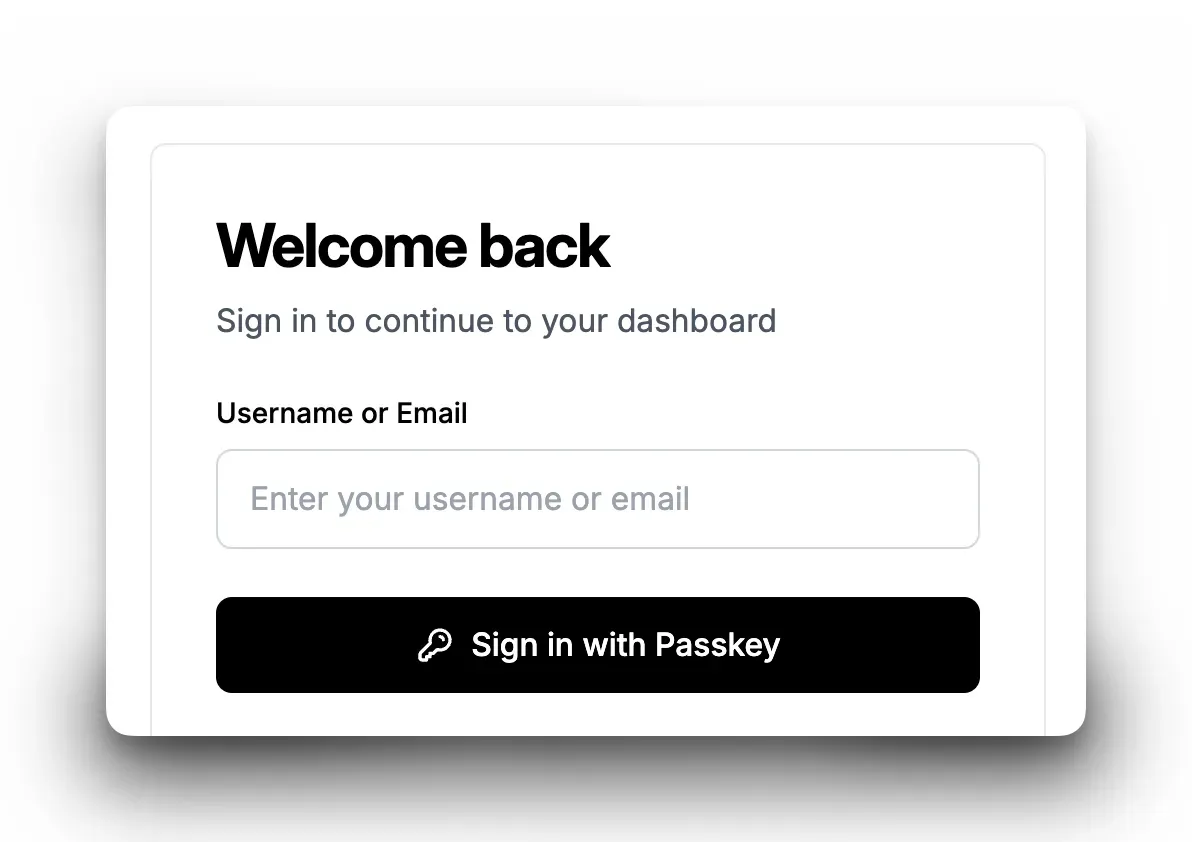
You enter your username, and click the “Sign in with Passkey” button, your device asks for your fingerprint or face, and you’re in. No typing. No paste-from-password-manager dance. No “was it the one with the capital letter and the exclamation mark?”
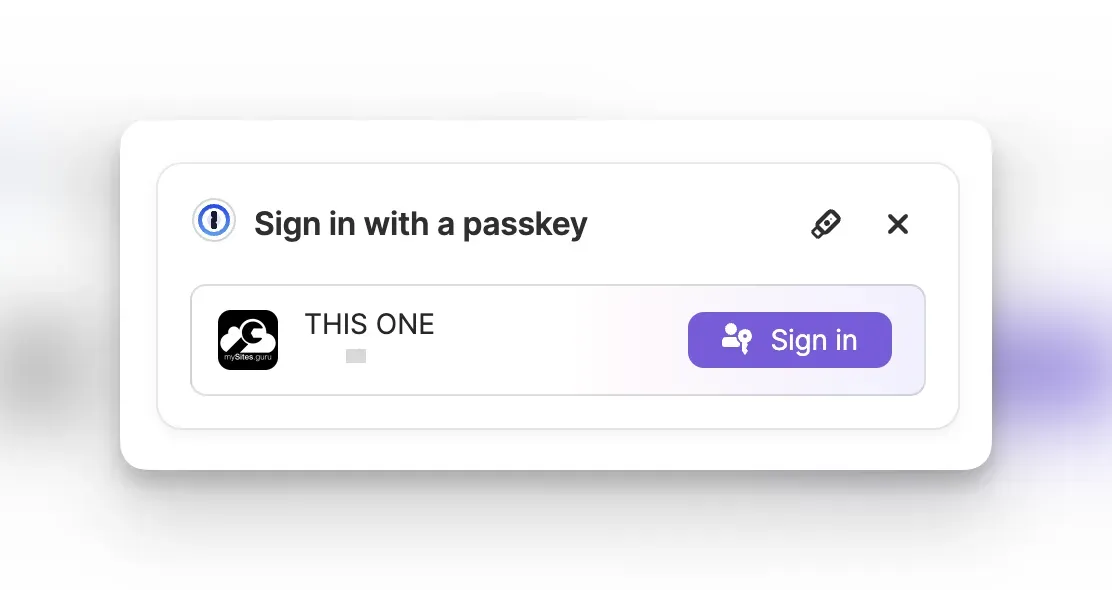
If you are using 1Password, you can use the browser extension to register and sign in with passkeys. It works on Mac, Windows, Linux, iOS, and Android, so your passkeys follow you everywhere without being tied to a single platform’s ecosystem.
Under the hood, your device holds a private cryptographic key that never leaves it. The server only sees the public half. There’s nothing to intercept, nothing to leak in a database breach, and nothing that works on a phishing site pretending to be us.
Why this matters if you manage client sites
Although our service has a long session time, if you logout and are logging in to mySites.guru several times a day to check on client sites, the speed difference is noticeable. But the real win is security.
If you have team members on your account, you no longer have to wonder whether Dave from accounting is reusing his Gmail password for your site management dashboard. His passkey is tied to his device and the mysites.guru domain. Can’t be reused, shared, or phished.
What’s supported
Anything that speaks WebAuthn/FIDO2:
- Face ID and Touch ID on Apple devices (syncs via iCloud Keychain)
- Fingerprint or face unlock on Android (syncs via Google Password Manager)
- Windows Hello - fingerprint, face, or PIN
- Hardware security keys like YubiKey 5 or Google Titan
Setting it up
Go to your Account page and look for the WebAuthn Authentication section. Click Register new WebAuthn device or Passkeys, authenticate with your device, and you’re done.
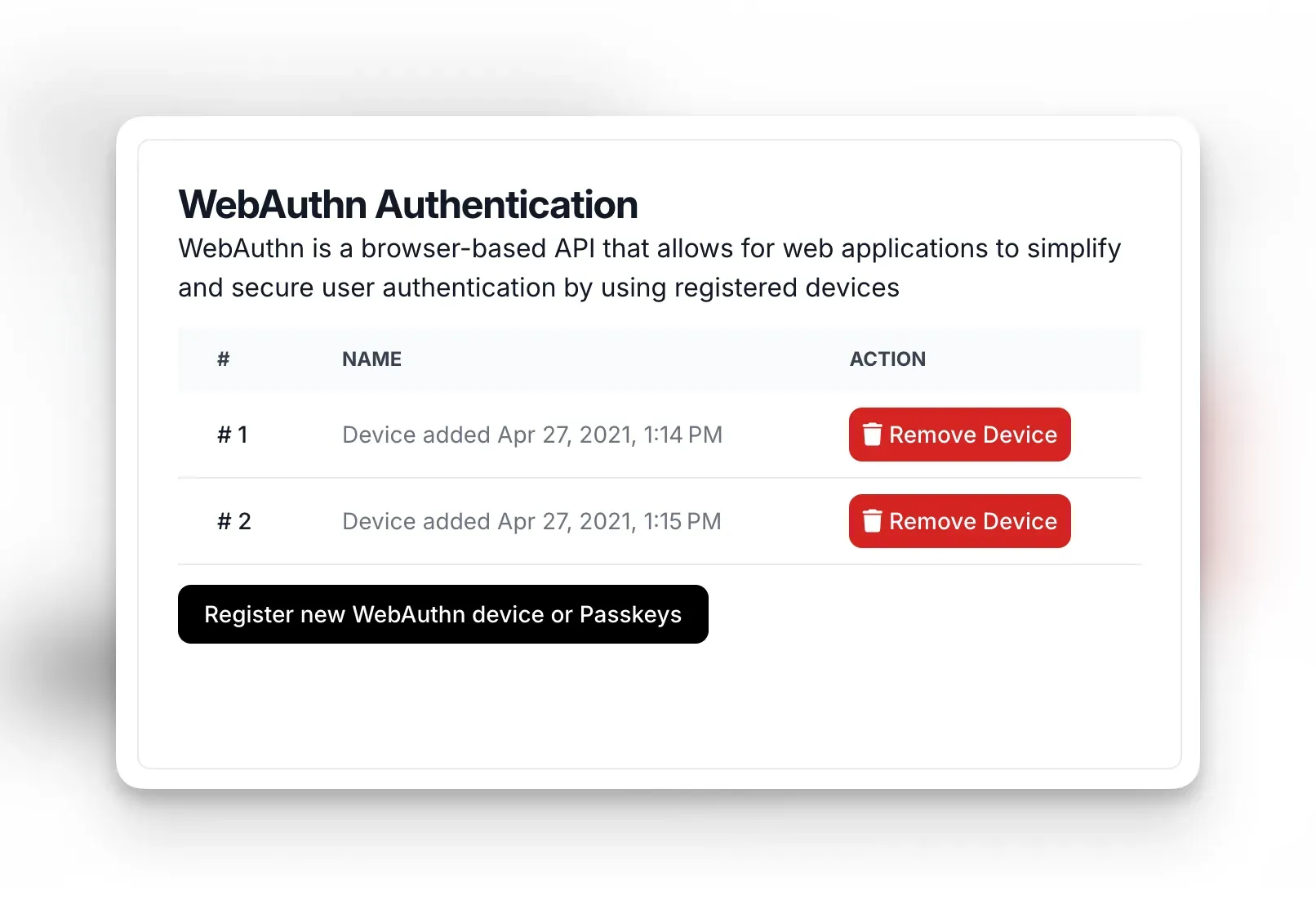
You can register multiple passkeys if you use several devices. Next time you log in, you’ll see the “Sign in with Passkey” button on the login screen.
Your password still works as a fallback - passkeys are an additional login method, not a replacement.
How passkeys compare to 2FA
Two Factor Authentication adds a second step after your password (usually a 6-digit code). Passkeys skip the password step entirely and authenticate you in one action. Both are better than a password alone, but passkeys are faster and resistant to phishing in a way that SMS and TOTP codes aren’t.
If an attacker tricks you into entering your password and 2FA code on a fake site, they can replay both within seconds. A passkey won’t authenticate against a fake domain at all - the cryptography simply doesn’t work unless the domain matches.
Listed on the passkey directories
mySites.guru is listed on passkeys.directory and passkeys.com as a service that supports passkey login. If you’re checking whether a tool you use supports passkeys, those two sites maintain up-to-date lists. We’re on both.
We recommend 1Password

If you’re not already using 1Password, you should be. We use it ourselves and it’s the best way to manage passkeys across devices.
1Password stores your passkeys alongside your passwords, credit cards, and secure notes in one encrypted vault. Their browser extension handles passkey registration and login automatically - when mySites.guru prompts for a passkey, 1Password picks it up. It works on Mac, Windows, Linux, iOS, and Android, so your passkeys follow you everywhere without being tied to a single platform’s ecosystem.
Where 1Password really pays off for agencies is sharing. You can create shared vaults for your team, so if someone needs access to a shared account (not mySites.guru - use team accounts for that - but the dozens of other services your agency depends on), you don’t end up with passwords in Slack DMs or shared Google Docs. Everything stays encrypted and auditable.
It also generates strong unique passwords for the sites that don’t support passkeys yet, which in 2026 is still most of them. If you’re managing 50+ client sites and their associated hosting accounts, DNS providers, CDNs, and email services, a password manager isn’t optional. 1Password is the one we’d pick.
Every plan, every account
Passkeys are available on all plans, including team member accounts. There’s nothing extra to pay for. Combined with one-click admin login to your connected sites and real-time login alerts, you’ve got a pretty solid security setup.
FIDO® and the stylized FIDO logo are trademarks (registered in numerous countries) of FIDO Alliance, Inc. The passkey icon is a trademark of FIDO Alliance, Inc.
Account security is covered in depth in our agency security guide.