How to Remove the WordPress Logo from the Admin Bar with One Click
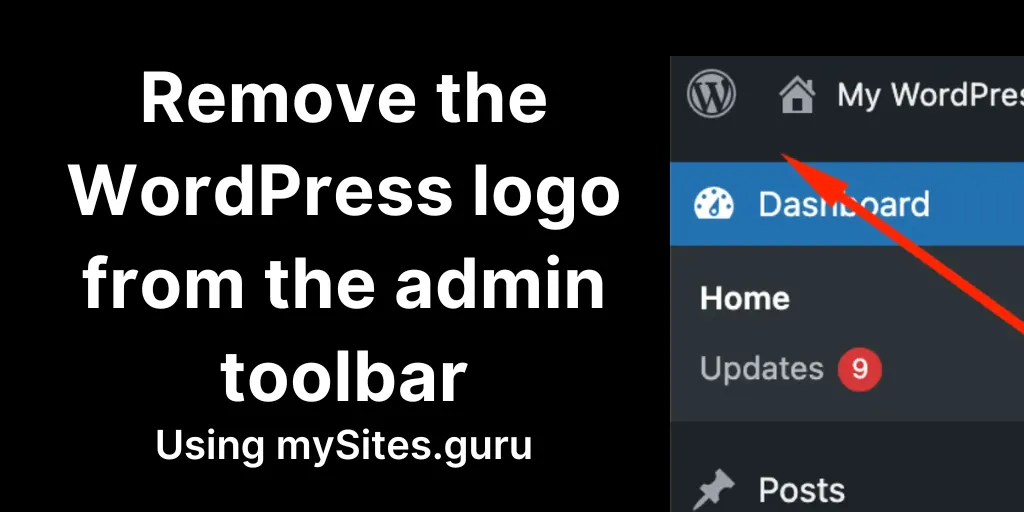
The WordPress logo in the admin bar
Every WordPress installation displays the WordPress logo in the top-left corner of the admin toolbar. Hovering over it reveals a dropdown menu linking to WordPress.org, documentation, support forums, and a feedback page.
For WordPress developers and site administrators, these links are occasionally useful. For clients, content editors, and end users, they’re a source of confusion and a missed branding opportunity.
Why remove it?
White-label client delivery
If you build WordPress sites for clients, the admin interface is part of what you’re delivering. A WordPress logo in the admin bar says “this is WordPress” when you might want it to say “this is your website’s management panel.” Removing the logo is a standard white-labelling step alongside custom login pages and branded dashboard widgets. Pair it with white-label client reports and the result is a fully branded experience from login to reporting.
Reduced confusion
Non-technical users click things. The WordPress logo menu links to WordPress.org, which is irrelevant to someone who just needs to publish a blog post or update a product listing. Removing it eliminates a distraction and keeps users focused on the tools they actually need.
Cleaner interface
Fewer controls in the admin bar reduce visual noise. It’s a small thing, but it makes the admin panel feel intentional rather than out-of-the-box.
Marginal performance
The WordPress logo menu includes HTML, CSS, and JavaScript for the dropdown. Removing it saves a small amount of page weight. On individual page loads it’s negligible, but across thousands of admin page views per month on a busy multi-user site, it adds up.
Removing it manually
The standard approach is a function in your theme or a must-use plugin:
add_action('wp_before_admin_bar_render', function () { global $wp_admin_bar; $wp_admin_bar->remove_menu('wp-logo');});This removes the WordPress logo node from the admin bar for all users. You can wrap it in a capability check if you want admins to still see it.
The manual approach works fine for a single site. For a portfolio of sites with different themes, you’d need to add this to each site’s theme or create a must-use plugin for each server. That’s where managing multiple WordPress sites from a single dashboard pays off.
How mySites.guru handles it
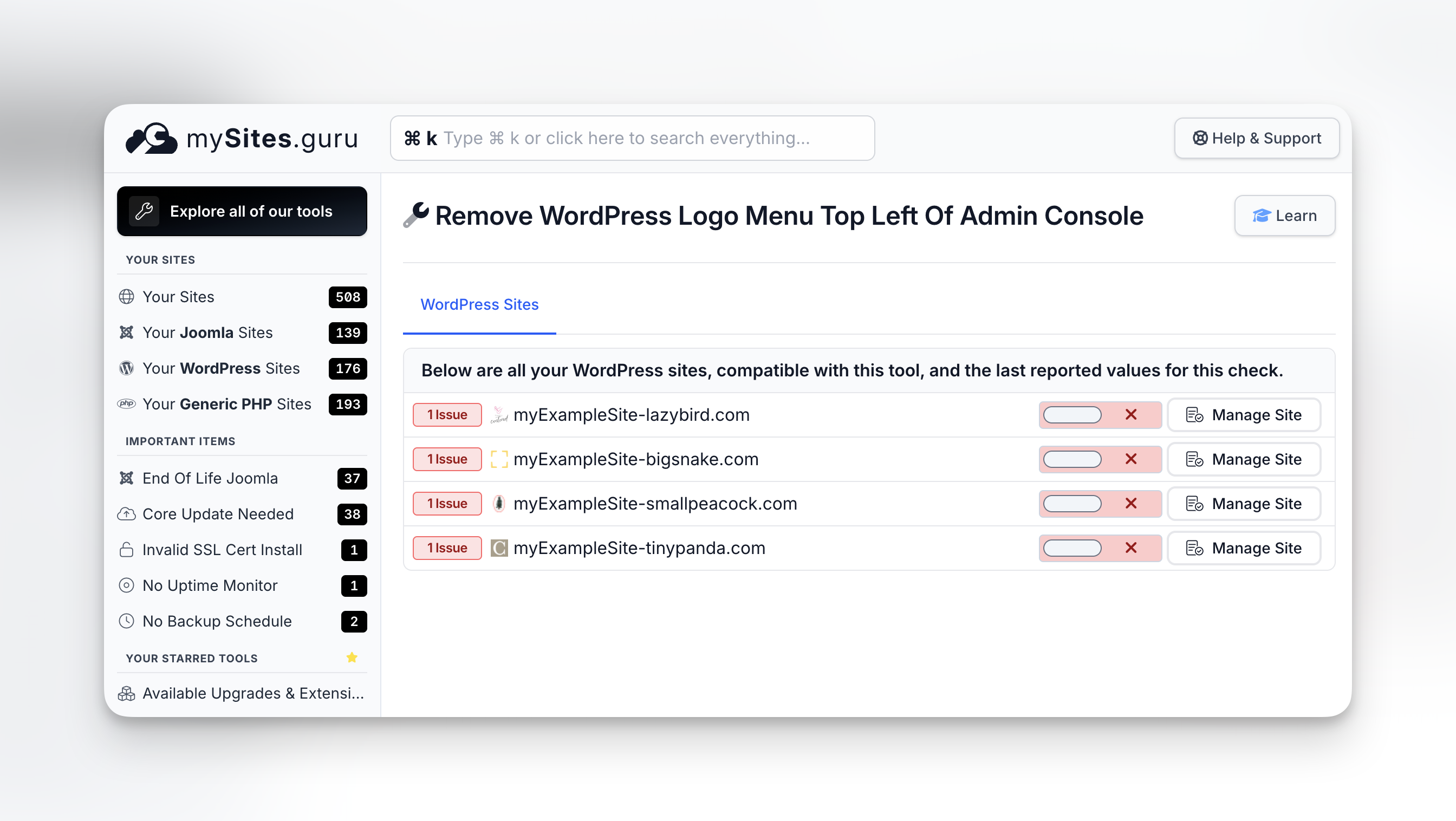
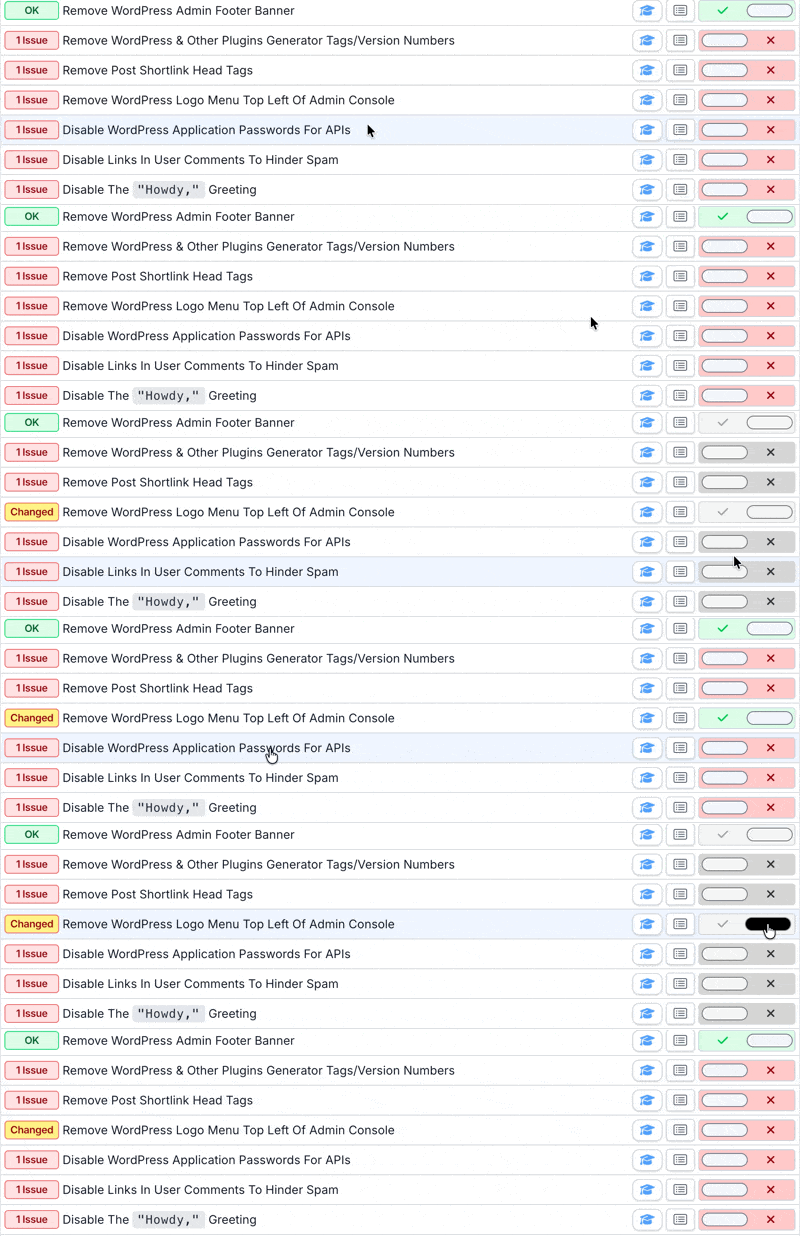
mySites.guru’s WordPress Configuration audit checks whether the WordPress logo is still showing in the admin bar. If it is, click fix and the connector removes it. The change survives WordPress core updates and theme switches because it’s handled by the connector plugin, not theme code. It works the same way as the one-click toggles for debug constants - the dashboard flags the issue and you fix it without editing files.
Want it back for development? Toggle it on again from the dashboard.
Part of a broader customisation workflow
Removing the WordPress logo is often one step in a series of admin customisations:
- Custom login page - brand the login screen with your logo and colours
- Remove WordPress logo from admin bar - handled by mySites.guru
- Custom dashboard widgets - replace default WordPress news and events with your own content
- Custom admin footer - replace “Thank you for creating with WordPress” with your own text
- Disable the frontend admin bar for non-admins - covered in the companion post
mySites.guru handles the WordPress logo removal from this list. For the others, you’d typically use a white-label plugin or custom theme functions. But having the logo removal available as a one-click audit fix means one less thing to configure manually on each new site. The same one-click pattern applies to other WordPress cleanup tasks, like removing the default Sample Page and Hello World post.
Who benefits most
Agencies delivering WordPress sites to clients, freelancers who want a polished admin experience, enterprise deployments with corporate branding requirements, and membership platforms where logged-in users see the admin bar.
If you want a consistent branded admin experience across multiple WordPress sites without maintaining custom code on each one, this is an easy win. For more on managing your WordPress workflow efficiently, see how to manage multiple WordPress sites like a pro.