How to Stop Automatic Updates in WordPress with One Click
What’s the problem with WordPress automatic updates?
WordPress introduced automatic background updates in version 3.7. The idea was sound: keep sites patched without relying on site owners to apply updates by hand. For small personal blogs, it works fine most of the time.
For anyone managing client sites, running WooCommerce stores, or operating sites where uptime matters, automatic updates are a different problem entirely.
What can go wrong:
- Major version upgrades ship with database schema changes, new default behaviors, and deprecated functions. Plugins that worked yesterday might throw errors today.
- Plugin and theme updates triggered automatically can introduce bugs, change layouts, or conflict with other plugins.
- Updates during peak traffic can cause temporary downtime while the update runs, especially on shared hosting.
- No rollback - if an update breaks something at 3am, your site sits broken until someone notices and fixes it.
The WordPress ecosystem moves fast. Plugin authors push updates frequently, and not every release is well-tested against every combination of other plugins and themes. Automatic updates mean you’re trusting that every update, from every source, will work perfectly on your specific site configuration.
What is the WordPress AUTOMATIC_UPDATER_DISABLED constant?
WordPress controls automatic updates through the AUTOMATIC_UPDATER_DISABLED constant in wp-config.php. When set to true, it disables all automatic background updates (core, plugins, themes, and translations). This is one of several WordPress debug and configuration constants that control site behaviour.
To set it manually, you’d SSH into your server, open wp-config.php, and add:
define('AUTOMATIC_UPDATER_DISABLED', true);Then repeat that for every WordPress site you manage, remember which ones you’ve changed, and make sure nobody reverts the change during a WordPress upgrade.
For a single site, it’s a two-minute task. For 30 sites, it’s a headache. For 200 sites, it’s a full afternoon.
How does mySites.guru disable WordPress automatic updates in one click?
mySites.guru’s WordPress Configuration audit reads AUTOMATIC_UPDATER_DISABLED from wp-config.php on every connected site during each snapshot. If auto-updates are still enabled, the audit flags it.
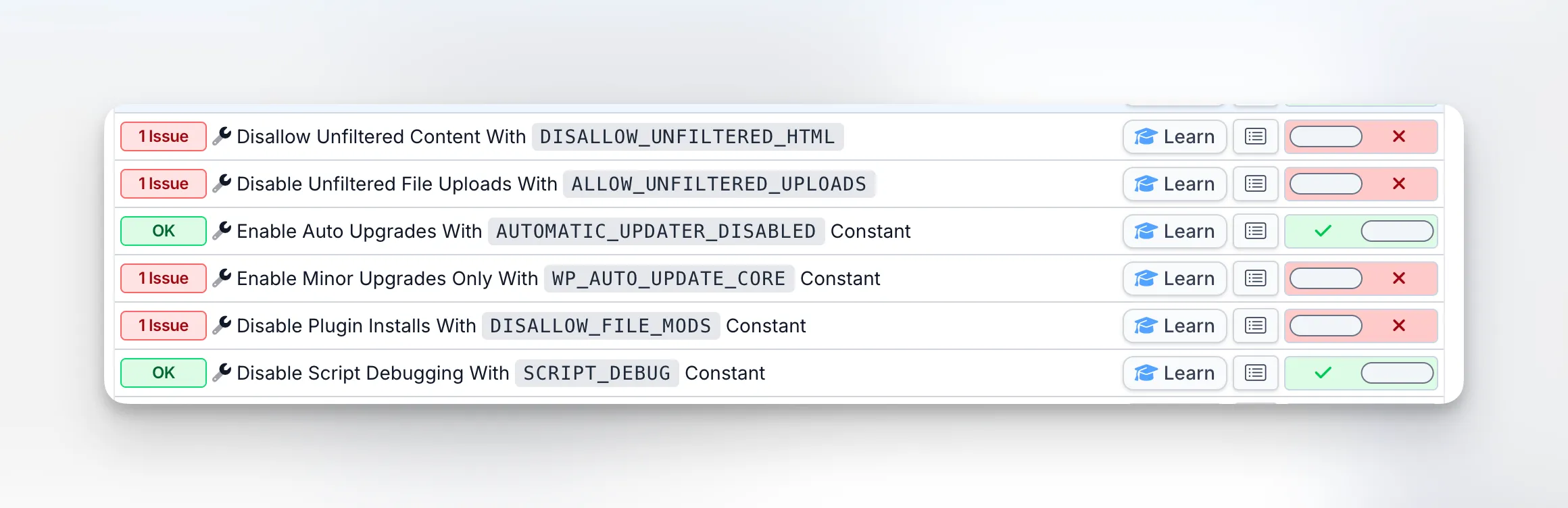
Click the fix button, and the connector plugin sets the constant to true on the remote site. The next snapshot confirms it stuck. If someone (or something) reverts the change later, the audit catches it again.
You can see the auto-update status of every WordPress site on one screen. No individual admin logins, no spreadsheets. If you’re managing multiple WordPress sites, this alone saves hours of repetitive work.
How do WordPress filter hooks give you granular update control?
The wp-config.php constants are the quickest way to disable auto-updates, but WordPress also provides filter hooks that give you more granular control. You can add these to your theme’s functions.php or a custom plugin (hat tip to Jeff Starr at DigWP for the thorough rundown):
add_filter('automatic_updater_disabled', '__return_true');add_filter('auto_update_core', '__return_false');add_filter('auto_update_plugin', '__return_false');add_filter('auto_update_theme', '__return_false');add_filter('auto_update_translation', '__return_false');Each filter targets a specific update type, so you can mix and match. For example, you could disable plugin and theme auto-updates while still allowing translation packs to update silently.
For even finer core update control, WordPress offers three filters that break core updates into categories:
allow_dev_auto_core_updates- development/nightly buildsallow_minor_auto_core_updates- security and maintenance releases (e.g. 6.4.1 to 6.4.2)allow_major_auto_core_updates- major version jumps (e.g. 6.4 to 6.5)
If you want to go further and stop WordPress from even checking for updates (saving HTTP requests on every admin page load), you can remove the check actions entirely:
remove_action('admin_init', '_maybe_update_core');remove_action('admin_init', '_maybe_update_plugins');remove_action('admin_init', '_maybe_update_themes');This is more aggressive than the filters above - it prevents WordPress from contacting the update servers at all, so you won’t see available updates in the dashboard until you manually trigger a check. Use this only if you have another system (like mySites.guru) monitoring update availability for you.
Is there a better approach with WordPress minor updates only?
Disabling all automatic updates is one extreme. The other extreme is leaving everything on auto-pilot. There’s a middle ground that works better for most professional setups.
WordPress has a separate constant called WP_AUTO_UPDATE_CORE that lets you allow only minor (security/patch) updates while blocking major version upgrades. We’ve written a detailed guide to enforcing minor-only WordPress updates that covers the constant, how it interacts with AUTOMATIC_UPDATER_DISABLED, and how mySites.guru manages both.
Setting it to 'minor' means WordPress will still auto-apply security patches (like 6.4.1 to 6.4.2) but won’t jump from 6.4 to 6.5 without your involvement. This is especially relevant with WordPress 7.0 arriving April 9, 2026, which raises the PHP minimum to 7.4 and MySQL minimum to 8.0 - you don’t want sites auto-updating to a version their server can’t run. Use our WordPress 7 technical requirements checker to see which sites are ready.
You can use both constants together for fine-grained control:
- Disable the full auto-updater to stop WordPress from updating plugins and themes automatically
- Enable minor-only core updates to still receive security patches
This gives you the safety net of security patches without the risk of untested major upgrades breaking your sites.
How do you manage updates deliberately?
Disabling automatic updates isn’t the same as ignoring updates. You still need to keep WordPress, plugins, and themes current; you’re just choosing to do it on your terms.
With mySites.guru, you can:
- See available updates across all connected sites in one place
- Spot which sites are behind on core, plugin, or theme versions
- Apply updates when you’re ready, not when WordPress decides to
- Get vulnerability alerts when a plugin has a known security issue
Keeping plugins up to date also reduces your attack surface. Outdated plugins are the number one way WordPress sites get compromised, and mySites.guru’s vulnerability scanner cross-references your installed versions against threat databases twice a day. When you’re ready to push updates across your portfolio, the bulk update WordPress tool lets you apply them to many sites at once without logging into each one.
The workflow shifts from “hope nothing breaks overnight” to “review what’s available, test if needed, apply when ready.”
How do you prevent unwanted WordPress plugin installs?
Controlling updates is half the equation. The other half is making sure nobody installs untested plugins on your managed sites in the first place.
If you give clients wp-admin access, there’s nothing stopping them from installing a random plugin that conflicts with your carefully maintained stack. mySites.guru can detect and block unauthorized plugin installs so you stay in control of what runs on each site. You should also remove default content like the Sample Page and Hello World post that ships with every WordPress install - it’s another cleanup step the configuration audit handles automatically.
Who should disable WordPress automatic updates?
If you manage WordPress sites for clients or run sites where reliability matters, you need control over when updates happen. Specifically:
- Agencies managing client portfolios - a broken client site at 2am is a support ticket and a reputation hit
- WooCommerce stores - a plugin conflict during checkout means lost revenue
- Membership sites - downtime means paying members can’t access content
- High-traffic sites - updates during peak hours cause unnecessary load
For personal blogs with no revenue impact, automatic updates are probably fine. For everything else, take control. If you’re juggling more than a handful of sites, read our guide on how to manage multiple WordPress sites like a pro for a broader look at the tools and workflows that make this manageable.
What about the Joomla equivalent?
If you manage Joomla sites alongside WordPress, Joomla 5.4+ and 6.0 introduced a similar feature: automated core upgrades that apply patches without admin action. mySites.guru lets you disable those from the same dashboard, so you have consistent update control across both CMS platforms.
Further reading
- How to Disable All Automatic Updates - Jeff Starr’s comprehensive guide covering constants, filter hooks, and granular core update controls.
- Upgrading WordPress — Automatic Background Updates - Official WordPress documentation on how background updates work and how to configure them.
- wp-config.php Constants - Full reference for every constant you can set in wp-config.php, including update-related ones.
- WP_Automatic_Updater Class Reference - Developer documentation for the class that handles all automatic background updates in WordPress core.
For the complete auto-update strategy, see our CMS updates guide.