How to Stop Any Plugin Installs in WordPress Admin
Why the WordPress admin lets anyone install code
Out of the box, any WordPress administrator can install plugins and themes directly from the WordPress dashboard. They can also upload ZIP files containing arbitrary PHP code, and edit existing plugin and theme files through the built-in code editor.
For a single-user blog, this is convenient. For a professionally managed site with multiple admin users, it’s a gaping security hole. If an attacker has already used this to compromise your site, here’s how to confirm the hack and respond.
Consider what “install a plugin” really means in WordPress: it’s uploading and executing arbitrary PHP code on your web server. The WordPress plugin directory has quality guidelines, but the upload functionality accepts any ZIP file - including ones downloaded from random websites, received via email, or crafted by an attacker.
The security case for DISALLOW_FILE_MODS
Compromised admin accounts
The most common WordPress hack path is a stolen or brute-forced admin password, not a zero-day exploit. Once an attacker has admin access, installing a malicious plugin is the fastest way to establish a persistent backdoor.
With DISALLOW_FILE_MODS enabled, even a compromised admin account can’t install plugins, upload themes, or edit PHP files through the WordPress interface. The attacker still has admin access (which is bad), but they can’t escalate from “can manage content” to “can execute arbitrary code on the server.”
Unauthorized installations
On sites with multiple admins - common in agencies, marketing teams, and organizations - there’s always someone who wants to install “just one more plugin” without testing it. Maybe it’s a social sharing widget, maybe it’s a page builder, maybe it’s something they found in a blog post.
Every plugin added to a WordPress site is code that needs to be maintained, updated, and security-audited. Uncontrolled plugin installations lead to bloated, slow, vulnerable sites.
Supply chain attacks
Compromised plugins in the WordPress directory are a recurring problem. When a legitimate plugin is sold to a new developer who pushes a malicious update, sites with auto-updates enabled install the malicious version automatically. You can disable automatic updates entirely as a first line of defence. With DISALLOW_FILE_MODS on, even if auto-updates are enabled at the WordPress level, the file modification is blocked. If you also manage Joomla sites, be aware that Joomla 5.4+ has its own automated core updates that should be reviewed and disabled for the same reasons.
Setting DISALLOW_FILE_MODS manually
Add this line to wp-config.php:
define('DISALLOW_FILE_MODS', true);This immediately:
- Removes the Plugin Editor and Theme Editor from the admin menu
- Hides the “Add New” button on the Plugins and Themes screens
- Blocks plugin and theme uploads through the admin
- Prevents automatic updates from modifying files (note: this is more aggressive than
AUTOMATIC_UPDATER_DISABLED)
The manual process for multiple sites: SSH into each server, edit wp-config.php, verify the change, repeat. And keep checking that nobody has removed it.
How mySites.guru manages DISALLOW_FILE_MODS
mySites.guru’s WordPress Configuration audit reads DISALLOW_FILE_MODS from wp-config.php on every connected site. If it’s not set to true, the audit flags it.
Click fix, and the connector sets it.
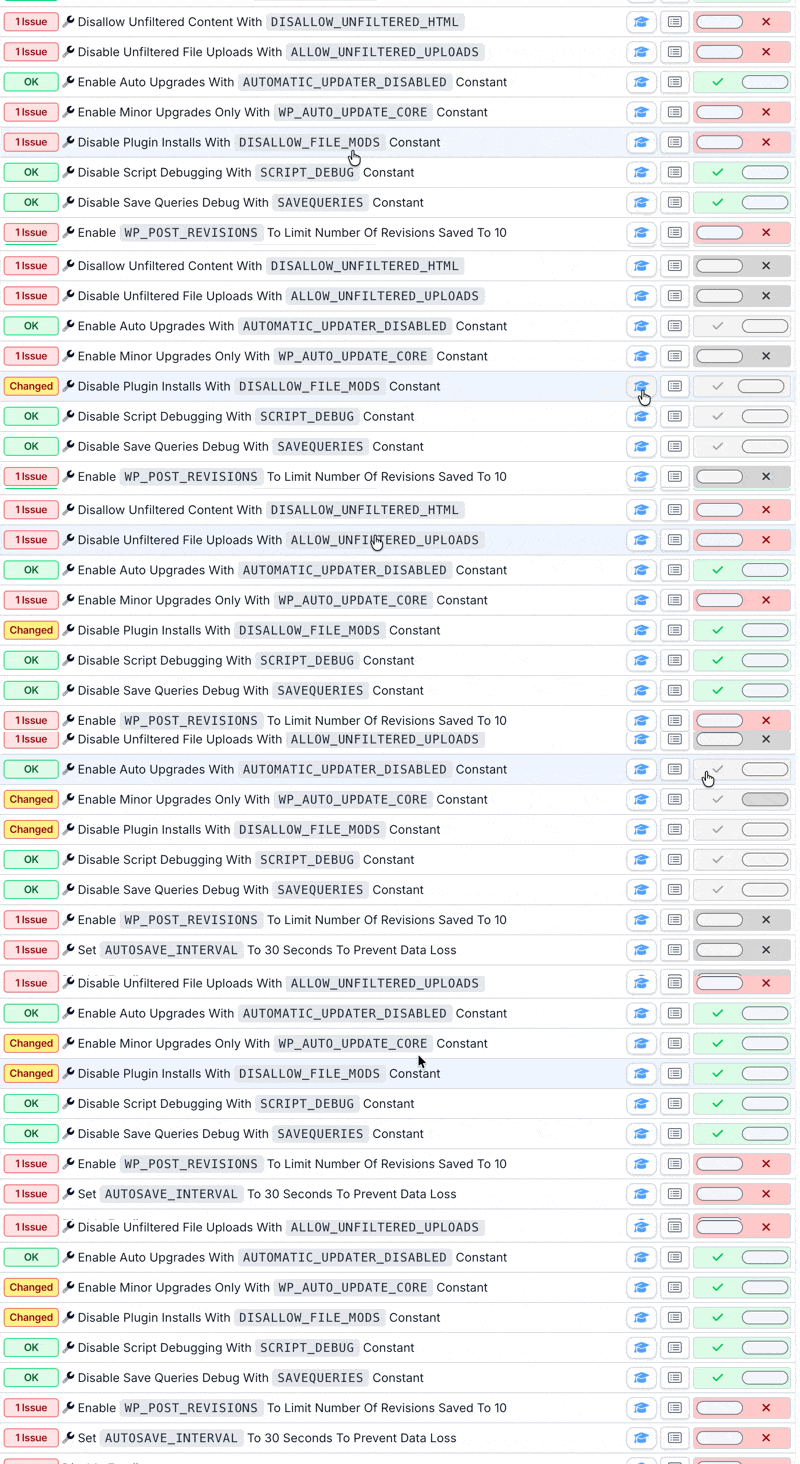
You can also view this constant across all your WordPress sites at once and toggle each one individually from the all-sites tool view.
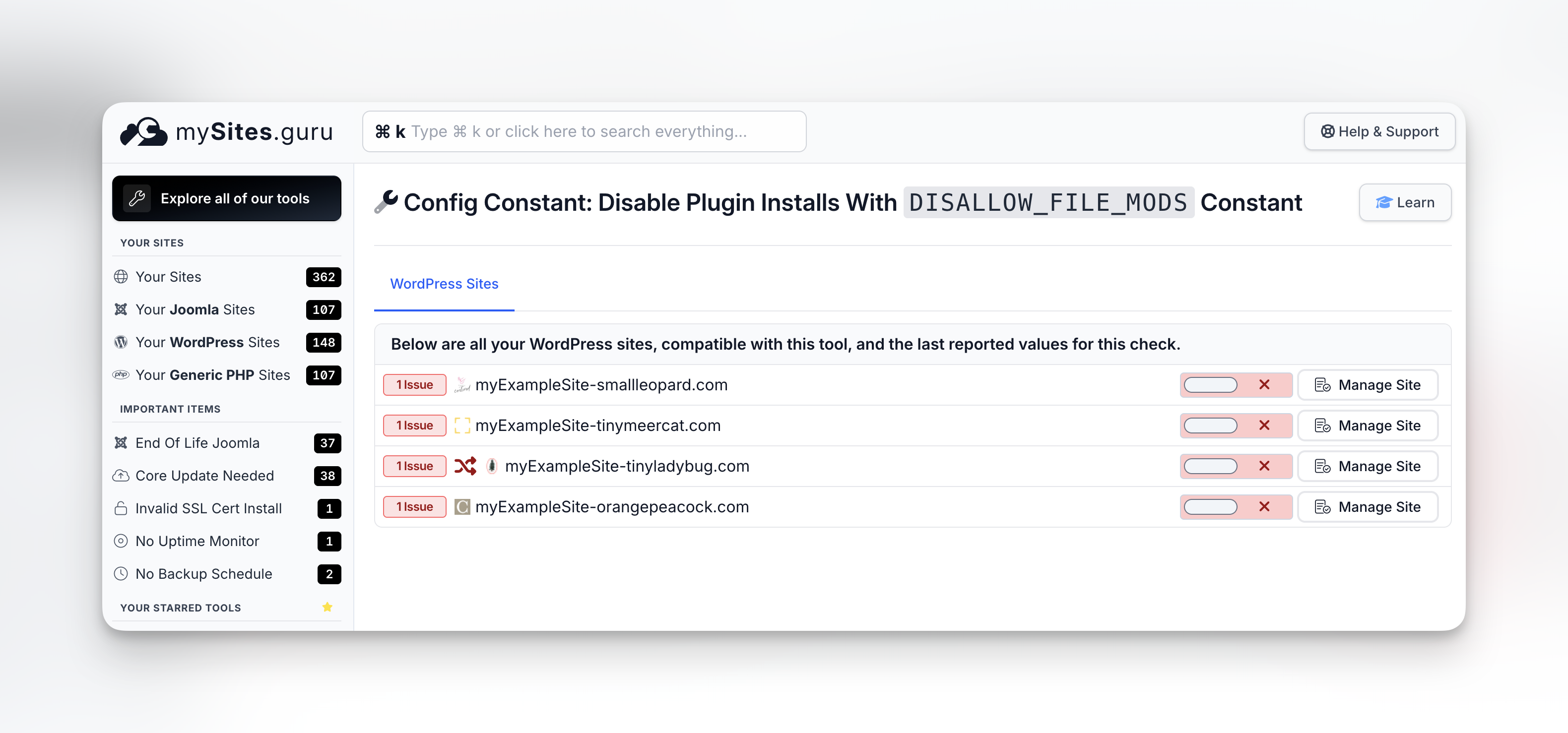
If the constant gets removed later (WordPress upgrade, another admin, hosting provider auto-configuration), the next snapshot catches it again. It works the same way as the one-click toggles for debug constants and removing the WordPress logo from the admin bar - the dashboard flags the issue and you fix it without editing files.
But how do I update plugins then?
If you block file modifications in the admin, how do you keep plugins and themes updated?
Several options:
WP-CLI - the command-line tool for WordPress isn’t affected by DISALLOW_FILE_MODS. You can run wp plugin update --all via SSH.
SFTP/SSH deployment - upload updated plugin files directly to the server, bypassing the WordPress admin entirely.
mySites.guru - the connector plugin operates at a level that can apply updates independently of the WordPress admin interface. You manage updates from the mySites.guru dashboard while keeping the WordPress admin locked down. For the full workflow, see how to manage multiple WordPress sites like a pro.
DISALLOW_FILE_MODS separates two concerns that WordPress normally bundles together:
- Content management - creating pages, writing posts, managing users (still works)
- Code management - installing plugins, editing themes, modifying PHP files (blocked)
On a well-managed site, different people (or systems) handle these two concerns. Content editors don’t need to install plugins. Plugin updates happen through a controlled process, not through the WordPress admin UI.
Don’t forget ALLOW_UNFILTERED_UPLOADS
There’s a related constant that’s more dangerous in practice: ALLOW_UNFILTERED_UPLOADS. When set to true, it lets administrators upload any file type through the WordPress media library - PHP files, executables, anything.
WordPress normally restricts uploads to safe file types like images, PDFs, and documents. ALLOW_UNFILTERED_UPLOADS removes that restriction entirely. Some developers enable it to upload SVGs or custom font files, then forget to turn it off.
If an attacker compromises an admin account on a site with unfiltered uploads enabled, they can upload a PHP backdoor directly through the media uploader. No plugin installation needed, no theme editor required - just drag and drop a .php file into the media library.
define('ALLOW_UNFILTERED_UPLOADS', false);Keep this set to false (or better yet, don’t define it at all - false is the default). If you need SVG uploads, use a plugin that sanitises SVG files rather than opening the door to every file type.
mySites.guru’s WordPress Configuration audit checks this constant alongside DISALLOW_FILE_MODS. If unfiltered uploads are enabled on any of your sites, you’ll see it flagged and can disable it with one click.
Part of a defence-in-depth strategy
Locking down file modifications works best alongside other hardening steps: disabling XML-RPC, limiting post revisions, closing the unauthenticated database repair endpoint, enforcing minor-only core updates, removing leftover default content like the Sample Page and Hello World post, and enforcing strong passwords with 2FA.
mySites.guru’s audit checks all of these in the same snapshot. You see your security posture across every site on one screen, and any configuration drift gets caught automatically. For more on what the audit covers, see the best practice guide.
This is one of several hardening measures in our agency security guide.