Hidden Files Lurking on Your Web Server
You know what’s great about files that start with a period? They’re invisible. Your FTP client hides them. Your cPanel file manager hides them. Even ls on the command line hides them unless you remember to add -a.
Hackers know this too.
The Dot-File Blind Spot
Every web server has files that start with a dot - .htaccess, .htpasswd, .user.ini. These are normal. They control how your server behaves, who can access what, and how PHP runs.
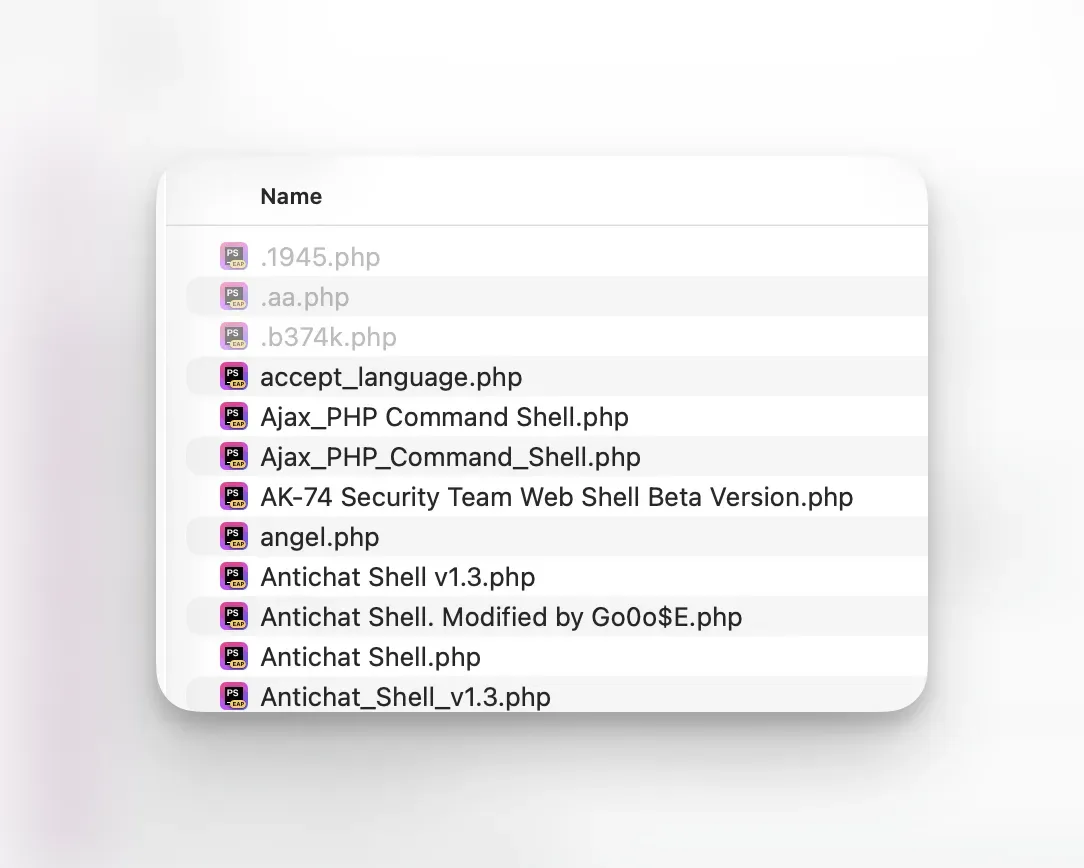
If a hacker drops a file called .joomla.class.php or .wordpress.class.php into a random subdirectory three levels deep, you’ll probably never see it. Not in your file manager, not during a casual browse through FTP, not ever. That file could sit there for years, redirecting your visitors to a spam site or giving the attacker a backdoor to walk right back in whenever they feel like it. If any of this sounds familiar, our WordPress malware scanner can check every file in your webspace - and if you already know something is wrong, the WordPress hacked guide walks you through what to do next.
We’ve seen this on real sites. Hidden dot-folders too, like a .cache or .tmp directory planted by an attacker, full of phishing kits or mailer scripts. The dot prefix keeps them invisible on most hosting panels, so they survive cleanups and updates because nobody knows they’re there.
How mySites.guru Finds Them
When you run a security audit on any connected site, mySites.guru scans every file on your webspace and flags anything with a dot-prefixed name. The hidden files check looks through the full file index for any path containing /. - catching dot-files and dot-folders at every level of your site.
The audit dashboard shows your hidden files count with a simple badge:
- Green - zero hidden files found (uncommon, but possible on minimal installs)
- Yellow - hidden files detected, review recommended
It’s a yellow warning, not a red alarm. The tool lists every file with a dot-prefix - legitimate or not. It doesn’t try to decide what’s safe and what isn’t. That’s your call. Some of these files will be perfectly normal (.htaccess, .htpasswd), some will be developer junk (.gitkeep), and some might be malware. The point is to make sure you actually know what’s there, because you can’t make that judgement on files you’ve never seen.
If something looks suspicious, other mySites.guru tools can help - the suspect content scanner and AI malware analysis will flag known backdoor patterns, so the same file might turn up across multiple tools. That overlap is deliberate. Different tools catch different things from different angles.
Drilling Into the Results
Click through from the audit result and you’ll get the full list of every hidden file on the site, sorted by last modified date (newest first). For each file you can see:
- The full file path
- When it was last modified
- File size (flagged if unusually large)
- File permissions (flagged if they’re not standard 644)
This is where it gets useful. You’ll probably see a handful of .htaccess files - one in the root, maybe one in /administrator/ or /wp-admin/, and that’s expected. But if you see a .htaccess in /images/stories/ or a .php dot-file buried in /wp-content/uploads/2019/03/, that’s worth a closer look. The suspect content tool can scan its contents for known malware patterns and confirm whether it’s a known backdoor.
The tool paginates results (100 at a time with “Load another 100” or “Show All”), and you can export everything to CSV if you need to share the findings with a client or keep a record.
Hidden Folders Are Just as Bad
The audit also counts hidden folders separately. A dot-prefixed folder like /.bak or /.old can contain an entire toolkit - file managers, mailer scripts, SEO spam pages - all completely invisible to anyone casually browsing the server.
Attackers also disguise backdoors as legitimate file types. The Astroid Framework attack drops PHP code inside SVG image files - they pass basic file type checks but execute as PHP on the server.
These hidden folders can survive for years. Site owners clean up after a hack, reinstall core files, change passwords, and feel safe. But that .tools folder three directories deep? Still there. Still accessible. Still a way back in. If you find something that shouldn’t be there, our guide to fixing a hacked site walks you through what to do without destroying the evidence.
It’s Not Always Hackers - Developers Do This Too
Not every hidden file is malware. Some of the dot-files on your site were put there by legitimate extension developers who made questionable decisions.
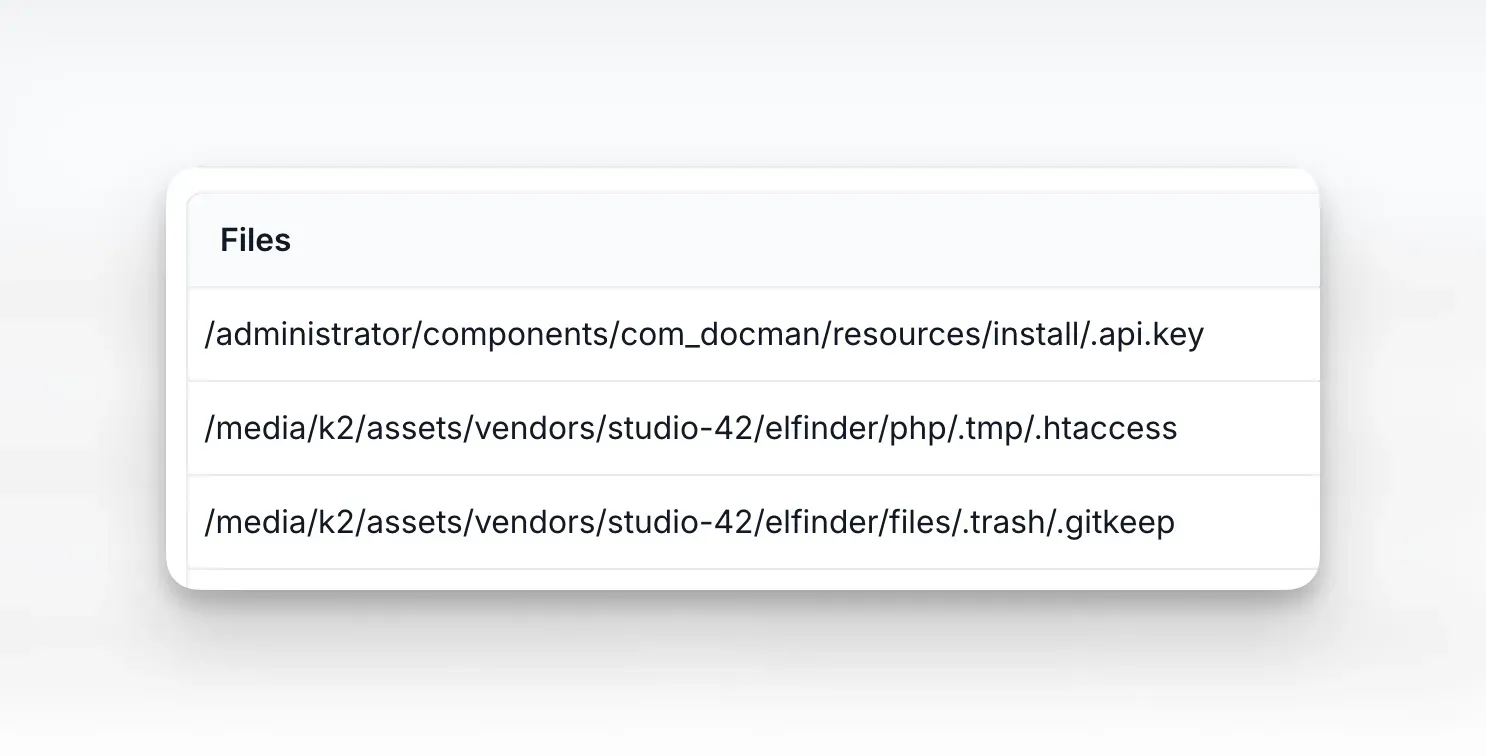
Take .gitkeep files. These are development artifacts - empty placeholder files that developers use to force Git to track otherwise-empty directories. They serve zero purpose on a production web server. Yet plenty of extensions ship with .gitkeep files scattered throughout their directory trees because nobody bothered to exclude them from the release package. They’re harmless, but they’re clutter, and they tell you the developer’s build process needs work.
Then there’s the truly stupid stuff. We’ve seen extensions ship with .api.key files - actual API credentials stored in a dot-file on the assumption that the dot prefix somehow makes it secure. It doesn’t. Anyone who knows the path can request it directly in a browser. The dot prefix only hides files from directory listings, not from direct access. Hiding secrets by putting a dot in front of the filename is like hiding your house key under the doormat and calling it a security system.
.htaccess files inside third-party extensions are another common find. Some are legitimate (restricting direct PHP execution in upload directories), but others are leftover development config that the developer forgot to remove. An .htaccess inside a .tmp or .trash folder deep in an extension’s vendor directory is a sign that the extension is shipping its entire development tree rather than a clean production build.
The point is: even when these files aren’t malicious, they’re still worth knowing about. They reveal the quality of the code you’re running, and occasionally they expose things that genuinely shouldn’t be publicly accessible.
The .well-known folder
One dot-folder you’ll almost certainly see is /.well-known/. This one is legitimate - it’s an IETF standard that services use to discover things about your site. Let’s Encrypt puts its domain validation challenges in /.well-known/acme-challenge/. Apple uses /.well-known/apple-app-site-association for universal links. Security researchers look for /.well-known/security.txt.
So why mention it here? Because attackers know you expect this folder to exist, and they abuse that. We’ve seen sites where someone planted a PHP shell inside /.well-known/acme-challenge/ because it’s a directory that already has to be publicly accessible for SSL renewals to work. Nobody questions traffic to /.well-known/ in their access logs.
If you see files inside /.well-known/ that aren’t plain text challenge tokens or JSON config files, especially anything ending in .php, take a closer look. The folder is supposed to be boring. If it isn’t, that’s a problem.
Why .htaccess deserves extra attention
We deliberately flag .htaccess files - yes, we know they’re usually fine. But .htaccess is one of the most powerful files on an Apache server. A malicious one can:
- Redirect all your traffic to a spam or phishing site
- Block search engine crawlers from indexing your real content
- Serve different content to Googlebot than to real visitors (cloaking)
- Password-protect directories the attacker has planted files in
- Execute PHP in directories where it shouldn’t run (like
/uploads/)
One .htaccess in the wrong place can undo every other security measure you’ve put in place. Reviewing all of them periodically is just good practice.
What You Should Do With the Results
- Review every dot-file that isn’t
.htaccess. If you don’t recognize it, look at what’s inside. If you’re not confident reading PHP, the AI malware analysis tool can tell you within seconds whether a file is malware or a false positive - Count your
.htaccessfiles. Most sites have 1-3 legitimate ones. If you have 15, something is off - Check modification dates. A
.htaccessmodified last week that you didn’t touch? Red flag. Better still, set up real-time file modification alerts so you’re notified the moment a file changes - Look for dot-folders. Legitimate ones are rare outside of development environments
- Compare between audits. If your hidden file count suddenly jumps, dig in immediately
Still not sure what you’re looking at? Drop Phil a message and he’ll point you in the right direction. If you’d rather have someone go through the whole site for you, you can book a paid consultancy review at fix.mySites.guru.
Running This Across All Your Sites
If you manage dozens or hundreds of sites, doing this manually on each one would take days. With mySites.guru, every scheduled audit automatically counts hidden files across all your connected sites. You can configure how often those audits run - daily, weekly, or monthly - and spot anomalies at a glance from the dashboard without logging into a single server.
You can also view the hidden files results for every site on a single page at the all-sites hidden files tool. Each site shows its hidden file count with an Investigate button to drill into the details, and a Manage Site button to jump straight to that site’s dashboard. Tabs let you switch between your Joomla, WordPress, and Generic PHP sites.
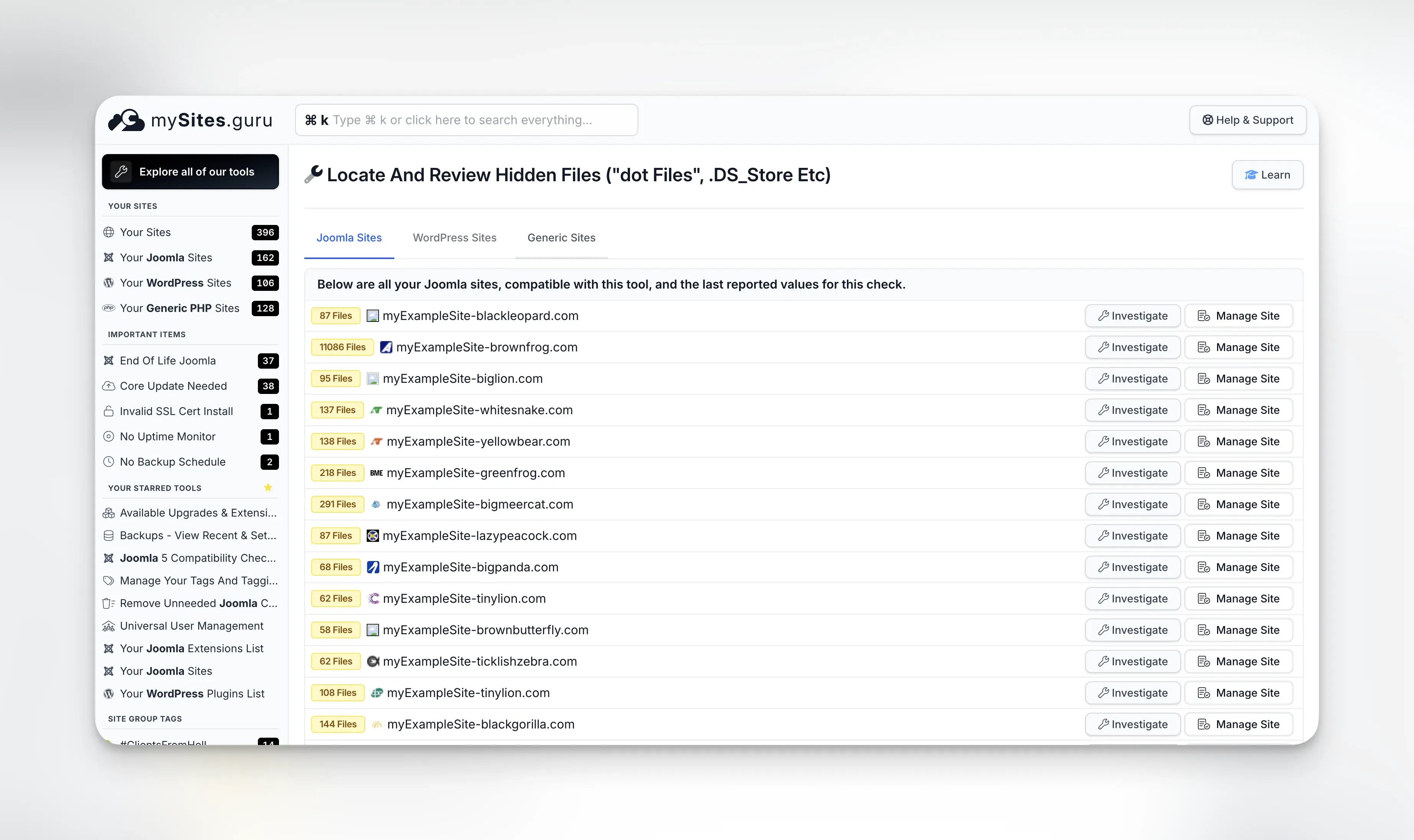
The hidden files tool works on Joomla, WordPress, and any PHP application connected to mySites.guru. Same scan regardless of platform.
Get Started
Already a mySites.guru subscriber? Run an audit on any site and look for the Hidden Files result in the Files Information section. Click through to review what’s lurking on your server.
Not using mySites.guru yet? Start a free trial and connect your first site in under two minutes. The first audit usually surfaces a few surprises.
Learn more in our WordPress and Joomla security guide.