Unlimited Backup Schedules With Cron Syntax
The screenshots below are from an older version of the interface. We've since redesigned the dashboard, but the process works the same way.
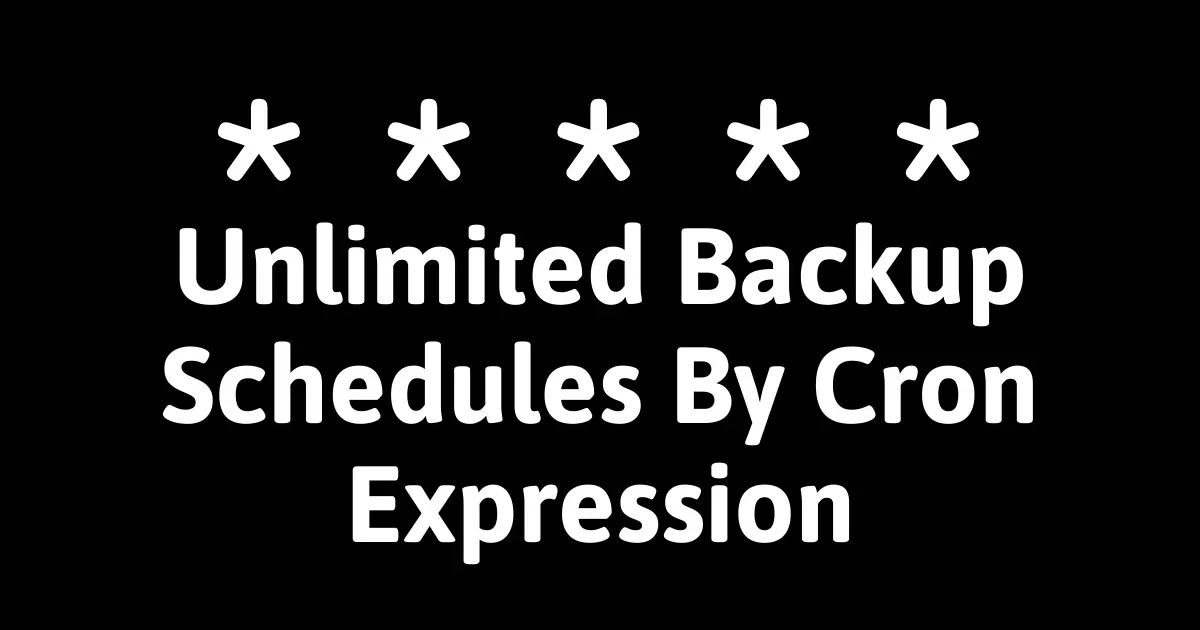
mySites.guru lets you create unlimited backup schedules, each defined with a cron expression. You pick the timing, the frequency, and which Akeeba Backup profile to use - per schedule.
Example Schedules
- Daily morning - back up using the “Default Backup Profile” and save on the server every morning
- Nightly FTP - send a backup to FTP every evening
- Weekly offsite - send a backup to Amazon Glacier once a week on Tuesday
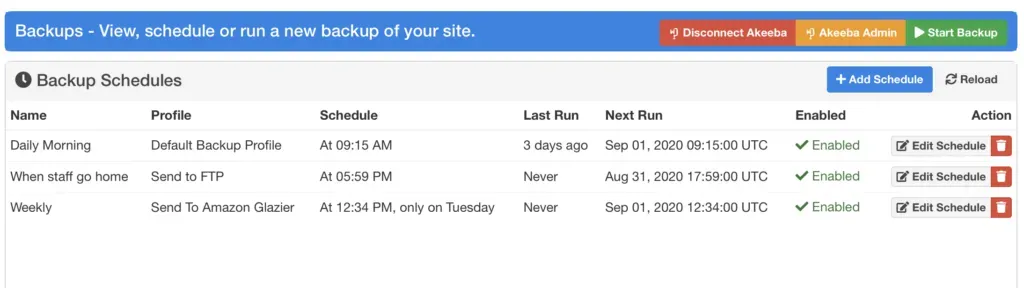
Cron Expression Syntax
Cron syntax is a standard way of defining when a scheduled event should run. If you’ve ever configured a server, you’ve probably seen it.
If you want a deep dive, see the Wikipedia article on cron expressions - but most agencies using mySites.guru will already be familiar with cron.
Cron has 5 segments: * * * * * (a star means “every”). So * * * * * means every minute of every day - probably not what you want for backups.
You can adjust the syntax for granular control. Some examples:
- Daily at 09:15 UTC -
15 9 * * * - Weekly on Tuesday at 12:34 UTC -
34 12 * * 2(the2represents Tuesday, where 0 = Sunday) - Monthly on the 26th at 04:36 UTC -
36 4 26 * *
Different Backup Profiles Per Schedule
You can specify a different Akeeba Backup profile for each schedule. This means you can run a daily on-server backup, a weekly off-server backup, and a monthly Amazon S3 backup - all at the same time.
If you’re already using Akeeba Backup Professional, this is where those extra profiles actually become useful.
Powered by Akeeba Backup
Akeeba Backup Professional is the backup solution we’ve integrated with since day one. We use their API directly and recommend their tools to every customer.
💡 Recommendation
If you're new to Joomla or WordPress and need a solid backup solution, pick up a subscription to Akeeba Backup Professional - and grab Admin Tools Professional while you're there.
mySites.guru also supports the All-in-One WP Migration backup plugin for WordPress.
How Often Should You Back Up?
When we migrated existing backup schedules to cron syntax, here’s what we saw across our user base:
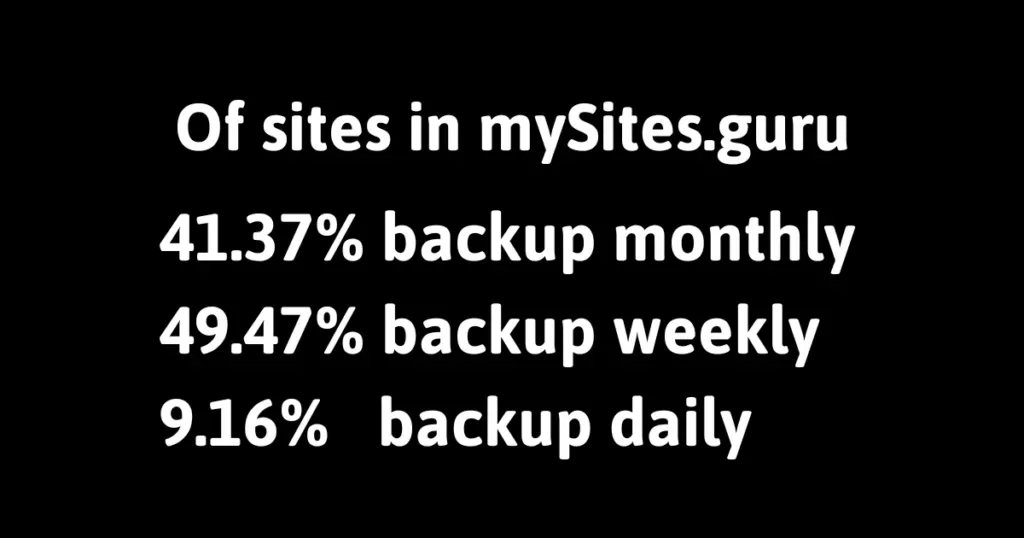
Take a backup before any major changes, and set a frequency that matches your risk appetite. The gap between your backups is the amount of data you stand to lose - keep that gap as small as practical.
Where to Store Your Backups
Don’t store backups on the same server as your website. A single datacenter fire or server compromise could wipe out both your site and its backups in one go.
Akeeba Backup Professional supports Amazon S3, FTP, Google Drive, and other remote storage services. Most of them cost almost nothing.
For a broader look at scheduling backups, audits, and updates, see our dedicated scheduling guide.
What About Existing Schedules?
If you had backup schedules configured before the switch to cron syntax, those were automatically migrated. We took your selected profile number and daily/weekly/monthly setting, looked at the date of your last backup, and generated an equivalent cron expression.