WordPress 7 Technical Requirements Check: Is Your Hosting Ready?
WordPress 7.0 lands on April 9, 2026, and it raises the floor: PHP 7.2 and 7.3 are gone, MySQL 8.0 is the new minimum. If you manage a handful of WordPress sites, checking each one manually is tedious. If you manage dozens or hundreds of WordPress sites, it’s not realistic.
The WordPress 7 Compatibility Checker in mySites.guru scans every connected WordPress site and shows you exactly which ones meet the new requirements and which don’t. Connect unlimited sites to your account and check them all from one screen. It’s included in all mySites.guru subscriptions at no extra cost.
Check all your WordPress sites for 7.0 compatibility
Open WordPress 7 Compatibility Checker
Colour-codes every connected site's PHP version, database version, and auto-update status against the WordPress 7.0 requirements.
What Does the WordPress 7 Hosting Check Show?
The tool lists every WordPress site connected to your account. For each one, you see:
- The currently installed WordPress version
- Which hosting server the site runs on (hostname)
- Whether
AUTOMATIC_UPDATER_DISABLEDis set in wp-config.php - PHP version, colour-coded against the 7.0 requirements
- Database version (MySQL or MariaDB), also colour-coded
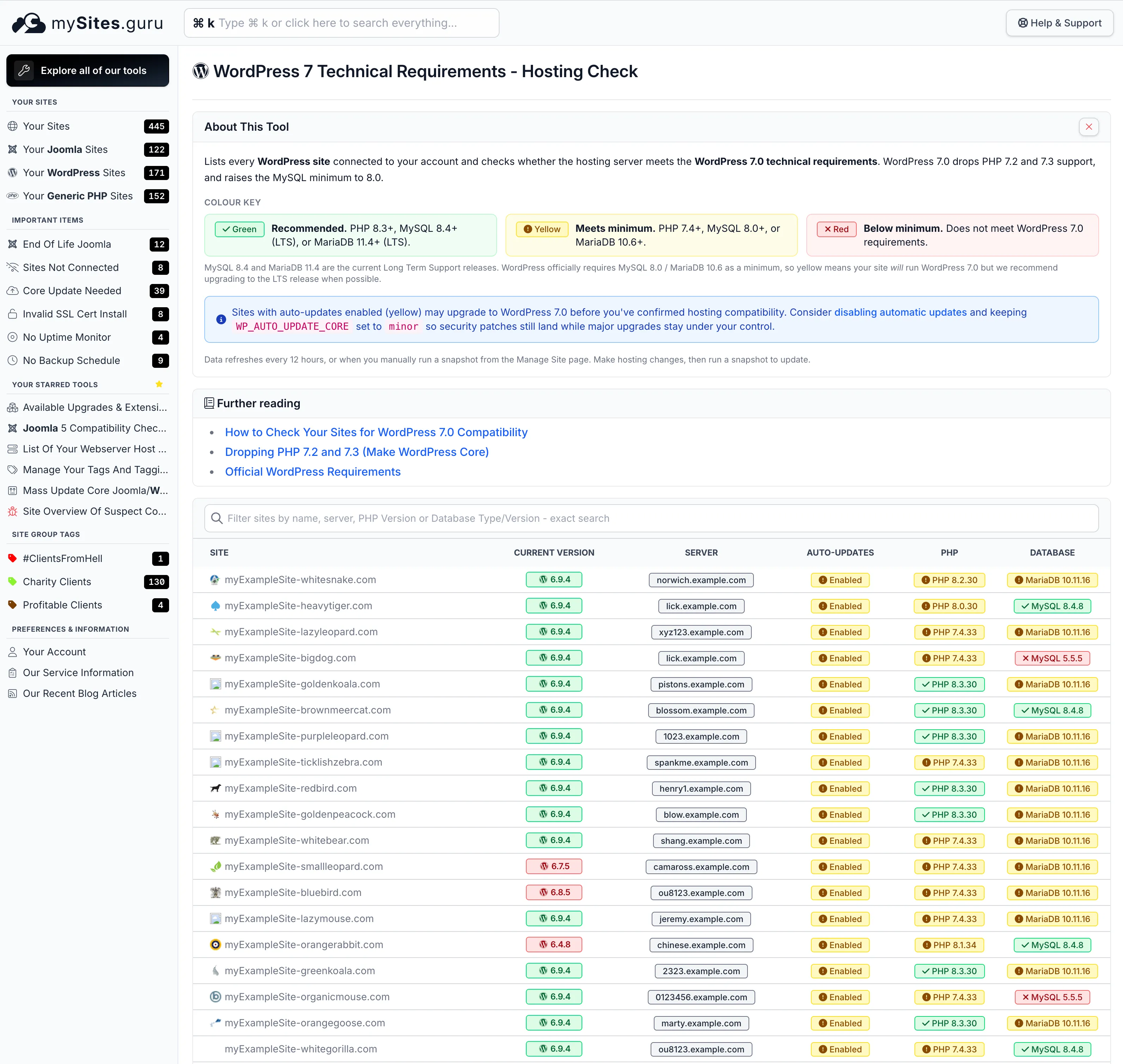
Red means below minimum. Yellow means it meets the minimum but not the recommended version. Green means the recommended version or better. Sites that need action stand out immediately.
How Does the Colour Coding Work?
The tool uses three tiers:
| Colour | PHP | MySQL | MariaDB |
|---|---|---|---|
| Recommended | 8.3+ | 8.4+ (LTS) | 11.4+ (LTS) |
| Minimum | 7.4 - 8.2 | 8.0 - 8.3 | 10.6 - 11.3 |
| Below minimum | < 7.4 | < 8.0 | < 10.6 |
Yellow means your site will run WordPress 7.0, but we recommend upgrading to the current Long Term Support releases (MySQL 8.4 or MariaDB 11.4) when you can. WordPress officially requires MySQL 8.0 / MariaDB 10.6 as the floor.
If you’ve used our Joomla 6 compatibility checker or Joomla 5 compatibility checker, you’ll recognise the format. Same approach, adapted for the WordPress 7 requirements.
Where Do I Find the WordPress 7 Compatibility Checker?
The quickest way is the keyboard shortcut: press c then 7 (lowercase c, then the number 7).
You can also open the command palette with Cmd+K (or Ctrl+K on Windows/Linux), type “wordpress 7” or “compat”, and press Enter.
Or go straight to the URL: https://manage.mysites.guru/en/tools/wordpress7/compatibility (you need to be logged in).
The tool also appears on the tools selector page alongside all the other diagnostic tools.
What Does the Auto-Updates Column Tell Me?
WordPress has a built-in automatic updater controlled by the AUTOMATIC_UPDATER_DISABLED constant in wp-config.php. The tool checks this for every site:
- Green (Disabled) means auto-updates are off. You control when WordPress 7.0 gets applied.
- Yellow (Enabled) means auto-updates are on. The site may upgrade to 7.0 on its own before you’ve verified hosting compatibility.
Why Does mySites.guru Recommend Disabling Auto-Updates?
WordPress auto-updates sound sensible until you’re responsible for client sites, WooCommerce stores, or anything where downtime costs money:
- A major version upgrade like 7.0 ships with database changes, new defaults, and deprecated functions. Plugins that worked yesterday can throw errors today.
- Plugin and theme auto-updates can break layouts, conflict with other plugins, or introduce bugs without warning.
- Updates during peak traffic cause temporary downtime, especially on shared hosting.
- There’s no built-in rollback. If an update breaks something at 3am, the site stays broken until someone notices.
The 6.9 to 7.0 jump is exactly the kind of upgrade you want to control. We saw what happens when you don’t: WordPress 6.9.2 crashed websites that had auto-updates enabled. A site on PHP 7.3 won’t get 7.0 at all (WordPress blocks it), but a site on PHP 7.4 with an untested plugin stack could auto-upgrade and break before you’ve had a chance to test anything.
What we recommend: set AUTOMATIC_UPDATER_DISABLED to true to stop all background updates, then set WP_AUTO_UPDATE_CORE to minor so security patches (like 7.0.1, 7.0.2) still apply automatically. Point releases land on their own, major version jumps wait for you.
mySites.guru can disable auto-updates across all your sites with one click per site from a single screen. No SSH, no editing wp-config.php on every server. You can also enforce minor upgrades only if you want a middle ground. And if you’re curious what other wp-config constants are worth understanding, we wrote a guide to WordPress debug constants that covers the full set.
What Are the WordPress 7 Minimum Technical Requirements?
WordPress 7.0 raises two floors from WordPress 6.9:
- PHP minimum moves from 7.2.24 to 7.4. PHP 8.3+ is recommended.
- MySQL minimum moves from 5.5.5 to 8.0. MySQL 8.4 LTS is recommended.
- MariaDB 10.6 minimum (unchanged from 6.9’s recommended). MariaDB 11.4 LTS is recommended.
Sites that don’t meet the PHP or MySQL minimum won’t be offered the WordPress 7.0 update. They stay on the 6.9 security branch until the hosting is upgraded. For the full breakdown of what changed and why, see our WordPress 7.0 requirements post.
What If My Host Doesn’t Meet the Minimum?
If your hosting provider is still running PHP 7.2 or MySQL 5.7, that’s a bigger problem than WordPress compatibility. MySQL 5.7 extended support from Oracle ended in October 2023. PHP 7.2 reached end-of-life in November 2020. Running either in 2026 means your server has known, unpatched security vulnerabilities regardless of what CMS is on it.
Most hosts let you change PHP versions from cPanel or Plesk without a support ticket. MySQL upgrades are usually on the host’s side. If they haven’t upgraded to MySQL 8 by now, the Joomla 5 MySQL 8 migration wave already pressured most providers to move, so check with your host. If they still can’t offer MySQL 8, it might be time to switch.
Use the compatibility checker to filter by server hostname. That groups all your sites on the same host together, so you can see at a glance which hosting providers need attention. Once hosting is sorted, you can upgrade all your WordPress sites from one dashboard rather than logging into each one individually.
Questions?
If anything’s unclear, reach out through the contact form.
A few other things worth sorting before April 9: plugin vulnerability alerting catches security issues across your portfolio, locking down plugin installs prevents clients from adding untested plugins right before a major upgrade, and SSL certificate monitoring makes sure expired certs don’t add to the chaos during the transition.