WP_AI_SUPPORT: Disable WordPress 7 AI Across Every Site
New in mySites.guru: WP_AI_SUPPORT toggle
The WordPress Configuration audit now detects whether WordPress 7.0+ AI features are enabled on every connected site, and lets you flip WP_AI_SUPPORT off (or back on) with one click per site.
WordPress 7.0 “Armstrong” shipped on 20 May 2026 with the new AI Client baked into core, and three featured provider connectors (Anthropic, Google, and OpenAI) available out of the box at Settings - Connectors. If you manage client sites, every WordPress site you look after is now wired for generative AI unless you explicitly turn it off.
mySites.guru’s WordPress Configuration audit now picks up the WP_AI_SUPPORT constant during every snapshot and flags any connected site where AI features are still enabled. One click flips the wp-config.php define on the remote site. If you manage hundreds of WordPress sites, you can work through the whole portfolio from one screen rather than SSHing into each server.
One-Click WP_AI_SUPPORT Toggle Across Your Portfolio
mySites.guru’s WordPress Configuration audit reads WP_AI_SUPPORT from wp-config.php on every connected WordPress site during each snapshot. If the constant is undefined or set to anything other than false, the audit flags the site as “AI on”.
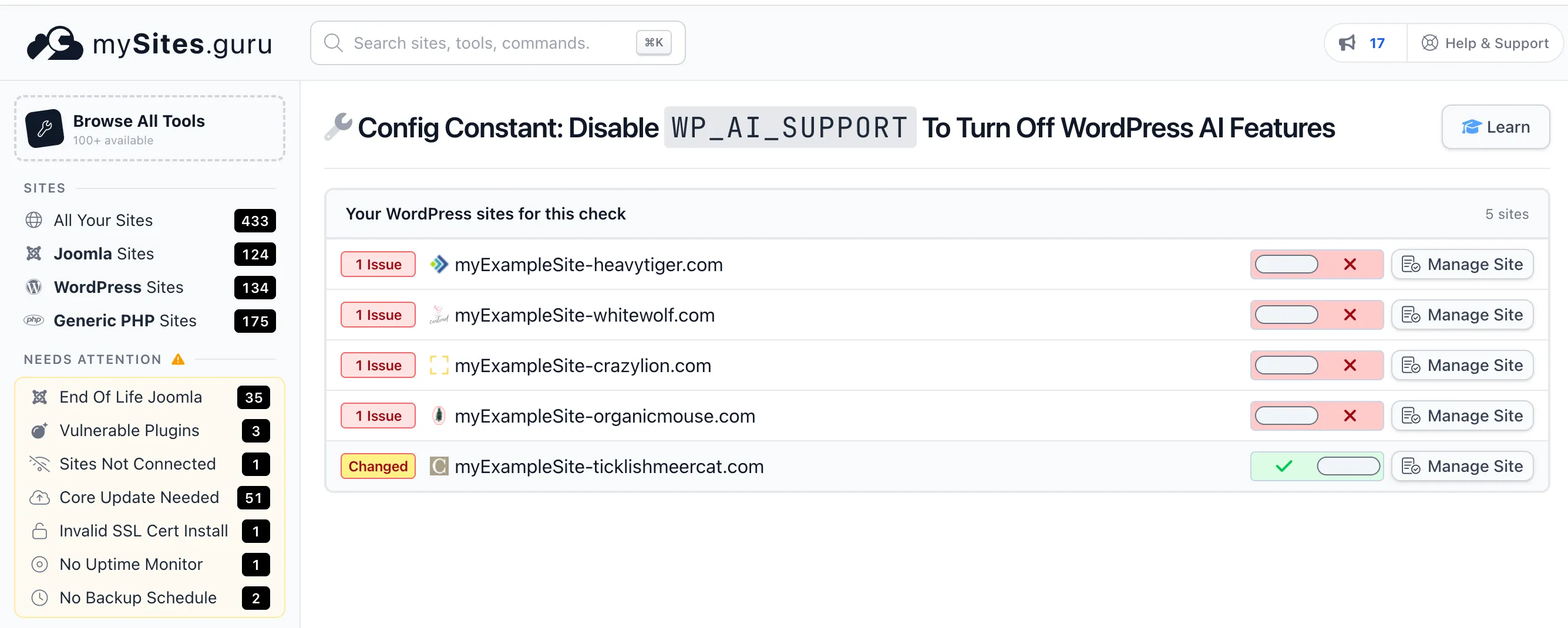
Click the fix button. The connector plugin writes define('WP_AI_SUPPORT', false); into wp-config.php on the remote site using the same wp-config writer it already uses for AUTOMATIC_UPDATER_DISABLED, WP_DEBUG_DISPLAY, and FORCE_SSL_LOGIN. The next snapshot confirms the change stuck.
If someone (or something) reverts the define later - a host migration, a wp-config rebuild, a careless edit - the next audit catches it and you can flip it back.
You can see the WP_AI_SUPPORT status of every WordPress site in your portfolio on one screen. No individual admin logins, no spreadsheets, no SSH. This is the same pattern as stopping automatic updates with one click or enforcing minor-only WordPress core upgrades - one constant, one toggle, applied across the whole portfolio.
What is the difference between WP_AI_SUPPORT and the wp_supports_ai filter?
WordPress 7.0 gives you two ways to disable AI features, and the difference matters in practice.
WP_AI_SUPPORT is a wp-config.php constant. It is read at the top of wp_supports_ai(), before any filter or plugin gets a chance to run. If you define it as false, nothing else can override that. It is the equivalent of pulling the plug at the wall.
The wp_supports_ai filter runs later in the request lifecycle. Any plugin can hook it and return true or false at runtime. The community-maintained Turn Off AI Features plugin uses this approach at filter priority 1000. It works, but it depends on the plugin remaining installed and being the highest-priority hook on the filter. Another plugin hooking later at priority PHP_INT_MAX could undo it.
For a multi-site portfolio, the constant is the safer choice. It is harder for another plugin to undermine, it lives in a file most editors don’t touch, and it leaves a clear audit trail. The mySites.guru toggle writes the constant, not the filter.
Tip
The mySites.guru WordPress Configuration audit also tracks WP_DEBUG_DISPLAY, FORCE_SSL_LOGIN, AUTOMATIC_UPDATER_DISABLED, DISALLOW_FILE_EDIT, and other wp-config constants. Set up one site, and the same audit runs on every connected site automatically.
Unrelated to mySites.guru’s Malware Analysis AI
No. mySites.guru’s AI-powered malware analysis runs on our infrastructure, analyses suspect files we have already flagged with traditional pattern matching, and never sends your editorial content anywhere. WP_AI_SUPPORT controls a completely separate thing: WordPress core’s built-in generative AI features, which run inside wp-admin and can be wired to third-party providers by anyone with admin access.
Disabling WP_AI_SUPPORT on your sites has no effect on mySites.guru’s own audit and malware analysis features. They use different code paths, run on different servers, and are governed by our own privacy policy.
How do I check WP_AI_SUPPORT status across every site I manage?
If you are already on mySites.guru, open any connected WordPress site, go to the WordPress Configuration audit, and look for the WP_AI_SUPPORT row. Green means AI is disabled, red means it is still on. To compare across the whole portfolio, click “Compare All Sites” on the audit row - you get one screen with every site’s WP_AI_SUPPORT status, sortable and filterable.
If you are not on mySites.guru yet, run a free audit on a single site. The audit will tell you whether WP_AI_SUPPORT is defined, what value it is set to, and what the wp_supports_ai() runtime result is. From there you can either install the connector on the rest of your sites for ongoing monitoring, or use the audit output as a one-off check.
For agencies running large WordPress portfolios, the audit pairs well with our bulk WordPress update and vulnerability scanner tools. The same one-screen-per-portfolio pattern applies to updates, security headers, plugin status, and now AI features.
Manual wp-config.php Edit for Single Sites
If you only manage one or two sites, the manual approach is straightforward. SSH into the server, open wp-config.php, and add the define above the “stop editing” comment:
define( 'WP_AI_SUPPORT', false );

/* That's all, stop editing! Happy publishing. */
Save and exit. The constant takes effect on the next request - no service restart, no cache clear, nothing to flush. From the admin or WP-CLI you can verify with:
var_dump( wp_supports_ai() ); // bool(false)If wp_supports_ai() still returns true, check three things: that the file you edited is the one WordPress actually loads (some hosts use a separate config like GridPane’s user-configs.php), that the define is above the stop editing comment, and that no plugin is hooking the wp_supports_ai filter with a higher priority and returning true.
For more on managing wp-config.php settings, see our guide to WordPress debug constants, which covers WP_DEBUG, WP_DEBUG_DISPLAY, and friends.
WP_AI_SUPPORT and Why It Matters
WP_AI_SUPPORT is a wp-config.php constant introduced in WordPress 7.0. When defined as false, it disables the entire WordPress AI Client site-wide before any plugin or filter gets a chance to override the decision.
The core function that gatekeeps everything is wp_supports_ai(), defined in wp-includes/ai-client.php:
function wp_supports_ai(): bool {
    if ( defined( 'WP_AI_SUPPORT' ) && ! WP_AI_SUPPORT ) {
        return false;
    }
    return (bool) apply_filters( 'wp_supports_ai', true );
}
Plugins that integrate the WordPress 7 AI client are expected to call this function first. If it returns false, they skip their AI prompts entirely - no API requests, no admin UI, no background processing. Core uses the same check internally to gate AI provider connector registration.
The default behaviour, with no constant defined and no filter hooked, is that wp_supports_ai() returns true. AI is on unless someone says otherwise.
Important
WordPress 7.0 does not ship an admin UI toggle to disable AI globally. The only ways to turn it off are the wp-config constant, the wp_supports_ai filter, or a plugin that wraps one of those.
Why disable WordPress AI features at all?
If your sites have a real, agreed use case for AI in editorial or admin workflows, leave it on. For most agencies and hosting providers, the reasons to disable AI by default come down to a handful of recurring patterns:
- Client contracts and NDAs. Many client agreements explicitly forbid sending content to third-party AI providers without prior approval. With AI on by default, an editor can wire up a connector without anyone reviewing the contract.
- Data-protection compliance. GDPR and UK GDPR require a documented lawful basis before personal data is processed by an AI model. The EDPB’s Opinion 28/2024 on AI models and the EDPS 2025 generative AI guidance both put the burden on the controller to document what gets sent where. Disabling AI removes the need to make that case for every site.
- Editorial and content-authenticity policies. Journalism, academic, and legal-content sites often need to certify that no AI was used in the content pipeline. WP_AI_SUPPORT gives you an auditable server-level off switch.
- Cost containment. Paid connector accounts get hit whenever an editor experiments with AI. Disabling the feature removes the risk of unexpected API bills.
- Reducing surface area. Sites that have no need for AI features get less admin-side JavaScript, fewer settings panels, and no inert connector listings on Settings - Connectors.
You can always re-enable AI for a specific site later by removing the define. Disabling it by default and opting sites in is the lower-risk posture for a multi-site portfolio.
Further reading
- Introducing the AI Client in WordPress 7.0 - the Make Core dev note that explains the architecture and the rationale behind
wp_supports_ai(). - Introducing the Connectors API in WordPress 7.0 - the companion post on how AI providers plug into WordPress, including the three featured connectors.
- WordPress 7.0 Field Guide - the full release reference, including the AI integration sections.
- Turn Off AI Features - the community plugin that wraps the
wp_supports_aifilter for site owners who would rather not edit wp-config.php. - EDPB Opinion 28/2024 on AI models - the European Data Protection Board’s December 2024 opinion on processing personal data in AI systems.
Frequently Asked Questions
What is WP_AI_SUPPORT?
Is AI enabled by default in WordPress 7.0?
How do I disable WordPress 7 AI features completely?
Can mySites.guru disable WP_AI_SUPPORT on multiple WordPress sites?
Will disabling WP_AI_SUPPORT break my site?
Should I disable AI on every WordPress site I manage?
What is the difference between WP_AI_SUPPORT and the wp_supports_ai filter?
Does WordPress 7.0 phone home for AI on activation?
 Written and edited by a human, with AI assistance. Our approach to AI