A Web File Manager for Your Joomla and WordPress Sites
Touching a live site’s disk has, until now, meant leaving the tool built for security audits and reaching for a completely different, unaudited channel instead: SFTP credentials to dig up, a separate client cPanel login to remember, a five-minute fix that stops being five minutes the moment you have to go and find the tool for it first.
A file manager built into the same dashboard closes that gap. There’s no separate app to open and no fresh credential to request, borrow, or forget to revoke later, so a quick permission fix or a one-line edit stays a quick permission fix instead of turning into a ticket that sits in a queue until someone remembers the client’s FTP password. For an agency running mySites.guru across dozens or hundreds of sites, that’s real time back, not just tidiness: one login already behind two-factor authentication, one jailed connection to the site instead of a raw FTP account with no audit trail of its own, and one activity log that already knows who touched what and when, rather than whatever your host’s own logging happens to catch. Checking a file, fixing a typo, or pulling a suspicious upload off a site stays inside the same window you were already working in, which is what actually makes it quick.
What the New File Manager Does
mySites.guru now includes a full web-based file manager for your connected Joomla and WordPress sites: browse folders, preview and edit files, upload new ones, create folders, rename things, change permissions, and delete files and folders, all from inside the dashboard you already use for audits, backups and updates. It talks to your site through the same connector every other mySites.guru tool already uses, so there is nothing new to install. The result is close to having full FTP access to every site you manage, but fully integrated: no separate client, no credentials to keep track of, and available any time with two taps of f (for File Manager) on the keyboard.
Not the same File Manager you might already know
If you’ve used mySites.guru to fix a hacked site, you’ve probably already clicked “edit” or “delete” on a single flagged file inside an audit’s results. That single-file action still works exactly as it did. This is different: a full browser for your entire site root that needs its own permission, not just the files an audit has flagged.
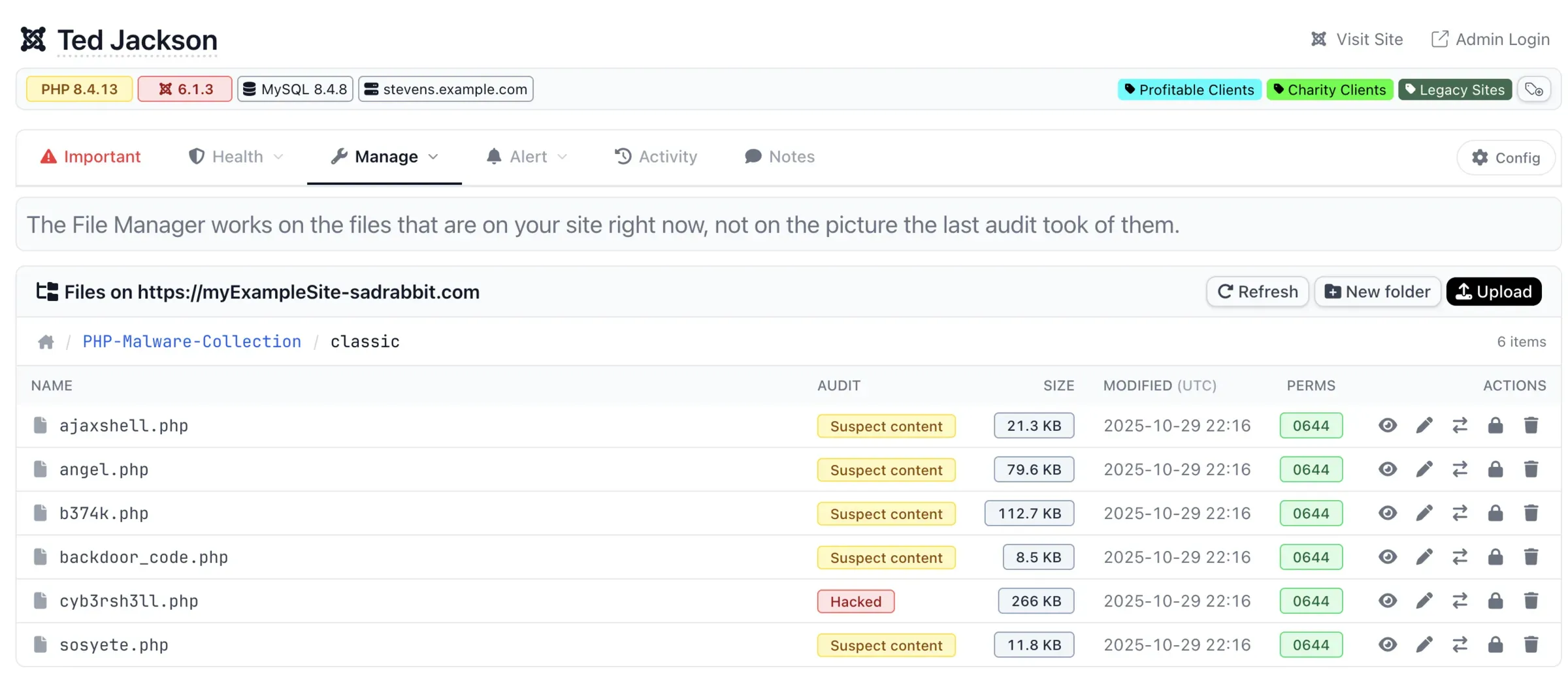
The two tools share the same audit data, so browsing straight into a folder that already has flagged files shows exactly what the audit found: a red “Hacked” badge on something the suspect-content model already recognises as malicious, amber “Suspect content” badges on the rest. You don’t lose the audit’s judgement just because you’ve opened the general-purpose browser instead of the flagged-file list.
It is off by default, per site, and available on Joomla 3, Joomla 4, Joomla 5, Joomla 6 and WordPress. Sites connected with the Generic PHP connector don’t have the file manager’s connector endpoint yet, so the feature stays hidden for them until one exists.
Now on Joomla 3 and Joomla 4 as well
We have now backported the File Manager to Joomla 3 and 4 sites with additional security and controls for those end of life versions on end of life PHP versions.
It shipped first for Joomla 5, Joomla 6 and WordPress. Joomla 3 is the single largest group of sites we look after, so a tool for keeping an eye on a site’s files was missing from exactly the sites most likely to need it.
Where to Find It in mySites.guru
It lives in the same side menu as the tools you already use. Open a connected site and look for the Manage group: File Manager sits there alongside Backup, Update, Extensions and User Manager.
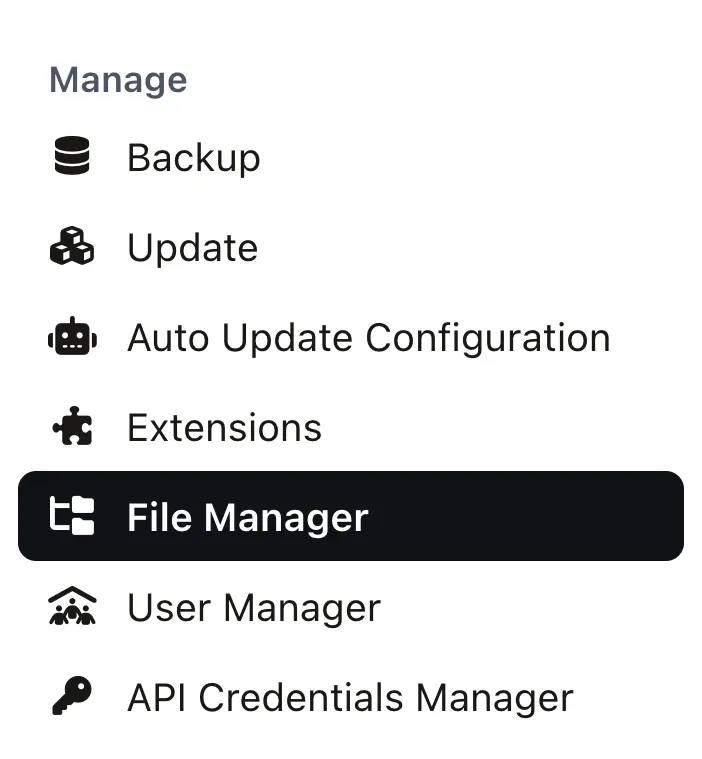
There’s no separate app to install and no new part of the dashboard to learn, just one more row in the menu you already use to run an update or check a backup.
Prefer the keyboard? From the Manage Site page, from any audit or tool page for that site, or from its Learn More screen, pressing f twice (keyboard shortcut: f f) jumps straight to the File Manager tab, no menu required. The full shortcut list lives on the Keyboard Shortcuts page.
Browsing, Editing, Uploading and Deleting Files
Once it’s switched on for a site, the File Manager gives you a folder tree and file listing rendered straight from the live server, with the same kind of interface you’d expect from an SFTP client, but without the client.
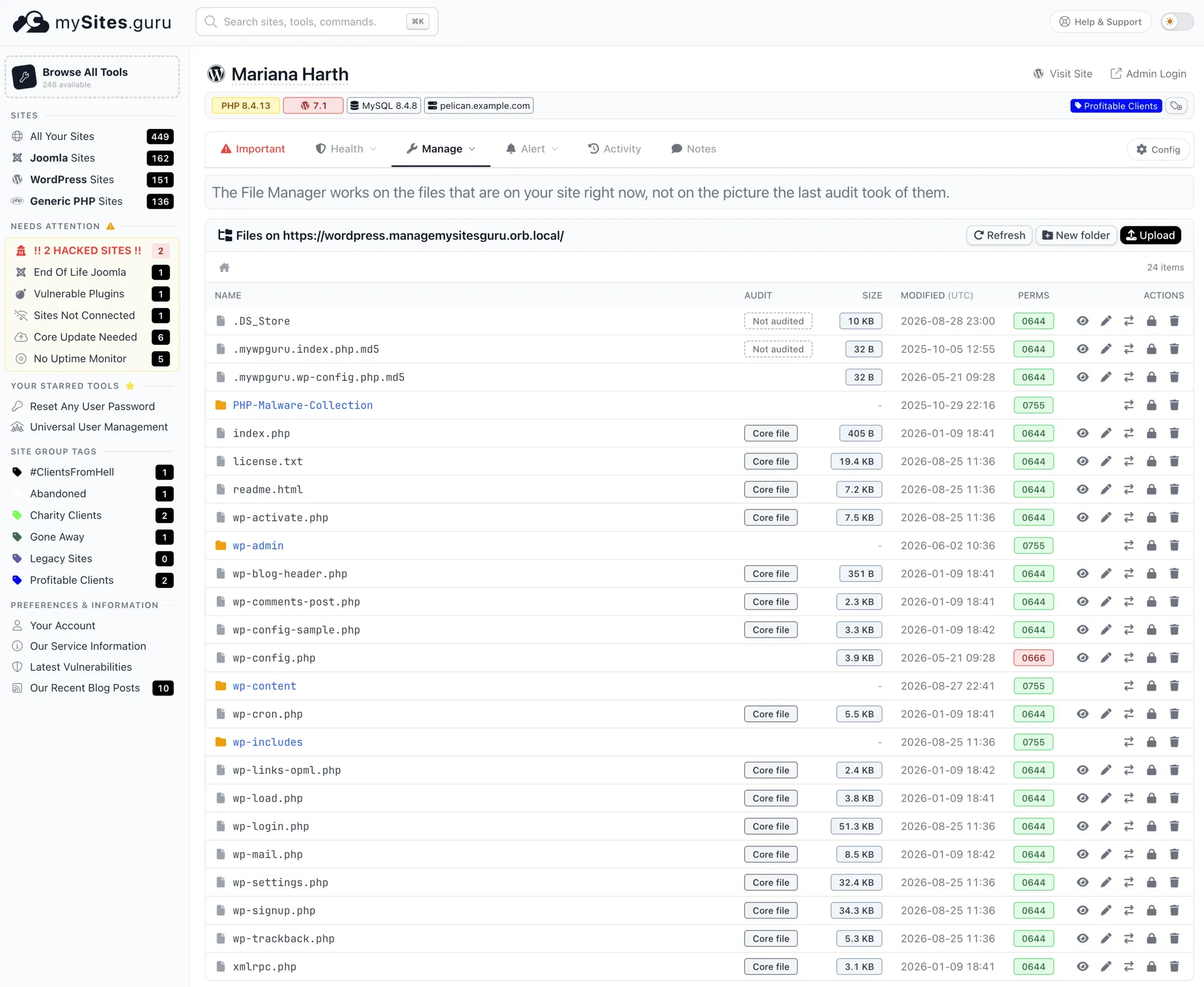
It works on the files that are actually on your server right now, not the picture your last audit took of them, which is why every row also has a live Audit column: “Core file” for something the audit already recognises as untouched, “Not audited” for anything it hasn’t seen yet, and, where it applies, the same “Suspect content” or “Hacked” flags the audit itself would show you. Permissions get the same treatment. An ordinary 0644 or 0755 renders in green; something like a world-writable 0666 on wp-config.php is flagged in red the moment the listing loads, before you’ve clicked anything.
From there:
- Off by default. Every site starts with the File Manager switched off, and it stays that way until you turn it on yourself.
- Browse and preview any folder in the webroot, with file size, permissions and modification date shown per row.
- Open and edit text-based files (PHP, JS, CSS, .htaccess, config files, templates) directly in the browser and save the change straight back to the server.
- Upload new files into any folder, or overwrite an existing one, without an SFTP client.
- Create folders and rename files or folders in place.
- Change permissions on a file or folder, the chmod action every SFTP client has, without the SFTP client. This depends on your host letting PHP itself change permissions; where a host locks that down, the option is still there but the underlying chmod call fails the same way it would from any other PHP-based tool.
- Delete files and folders, individually or as a batch.
- List the contents of a zip file before you decide whether to extract or discard it, useful for checking what a plugin or template package actually contains before it touches your live site.
Every one of those is a real command sent to your site’s connector and executed there. Nothing is simulated, and nothing is queued for later: what you see is what’s on disk right now.
What Happens When You Delete a File?
A normal delete doesn’t unlink the file. It moves it into a folder called .mysites-trash inside your own site, keeping its original path so two files with the same name don’t collide. mySites.guru’s own audit is told to ignore that folder, so trashed files don’t show up as suspect content in your next scan. From there you can put a file back, or leave it, or empty the trash for good.
The trash folder itself is locked down once something’s in it: the File Manager will not open or edit a file while it’s sitting in .mysites-trash, only move it back out or remove it for good. Force-deleting is a separate, explicit action, and anything already inside the trash is removed for good when you force-delete it rather than being trashed a second time. The trash itself is capped at 512MB per site: once it fills, the oldest batches are pruned automatically so it can’t be used to eat your disk quota.
configuration.php and wp-config.php aren’t fenced off either: you can edit or delete them like any other file, because with deletes defaulting to the trash, that’s a recoverable mistake rather than a security gap. The one file the manager will not delete, wherever it appears in the tree, is index.php, since clearing that out would break the connection this whole feature depends on.
How Do You Turn It On?
Two-factor authentication is a prerequisite, not just a checkbox on the way in. No mySites.guru account without it turned on can enable the File Manager, or even open it on a site where someone else already has. That applies per person: if a team member’s own account doesn’t have 2FA set up, granting them access to the site doesn’t get them into the File Manager, because their account doesn’t clear the gate on its own.
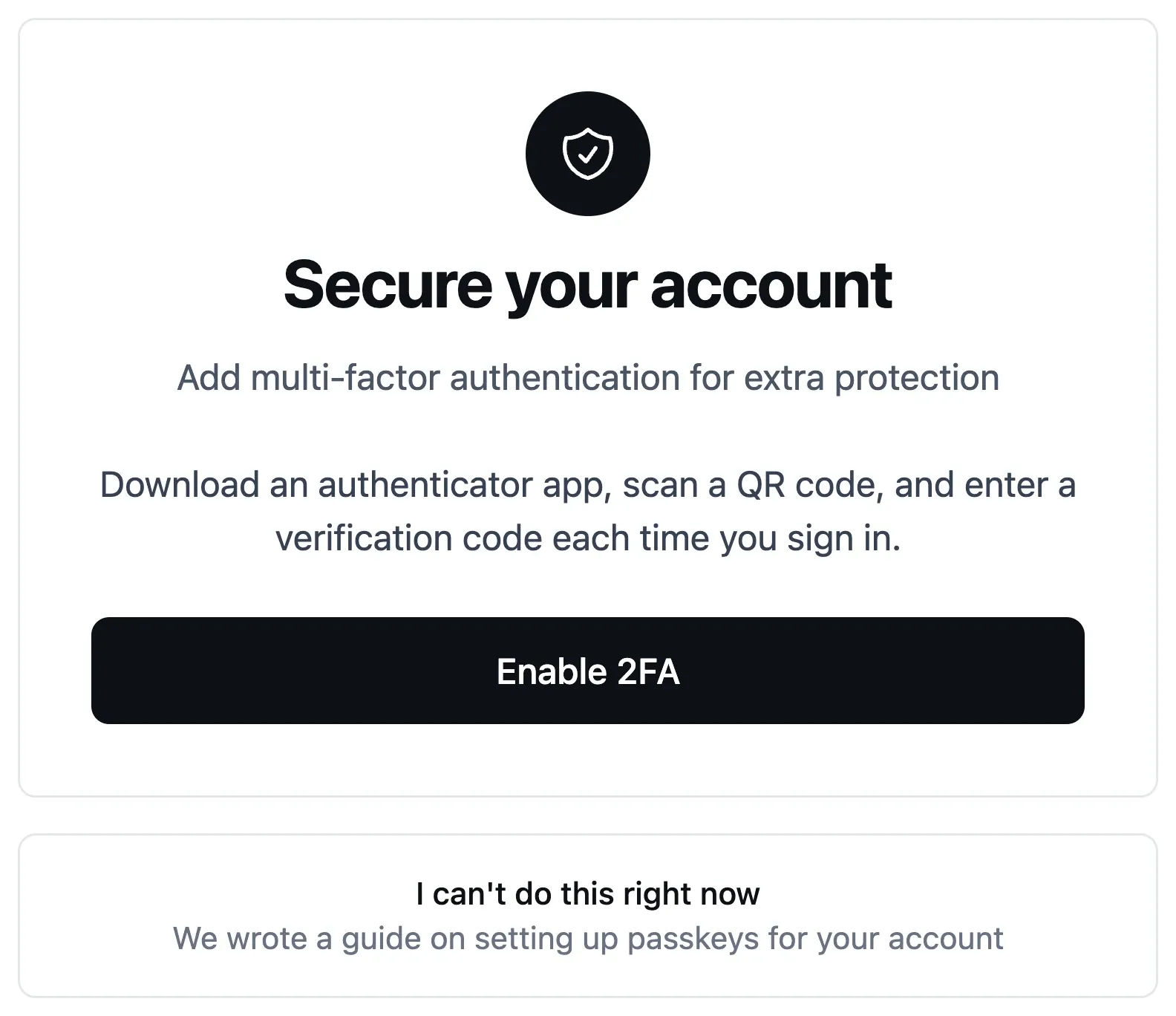
With that in place, the switch lives on each site’s File Manager tab. Before you flip it, the tab shows an off-state screen rather than the switch itself: who gets in, where it can reach, what happens when you delete something, and that every read and write is recorded, all laid out before the button that turns it on.
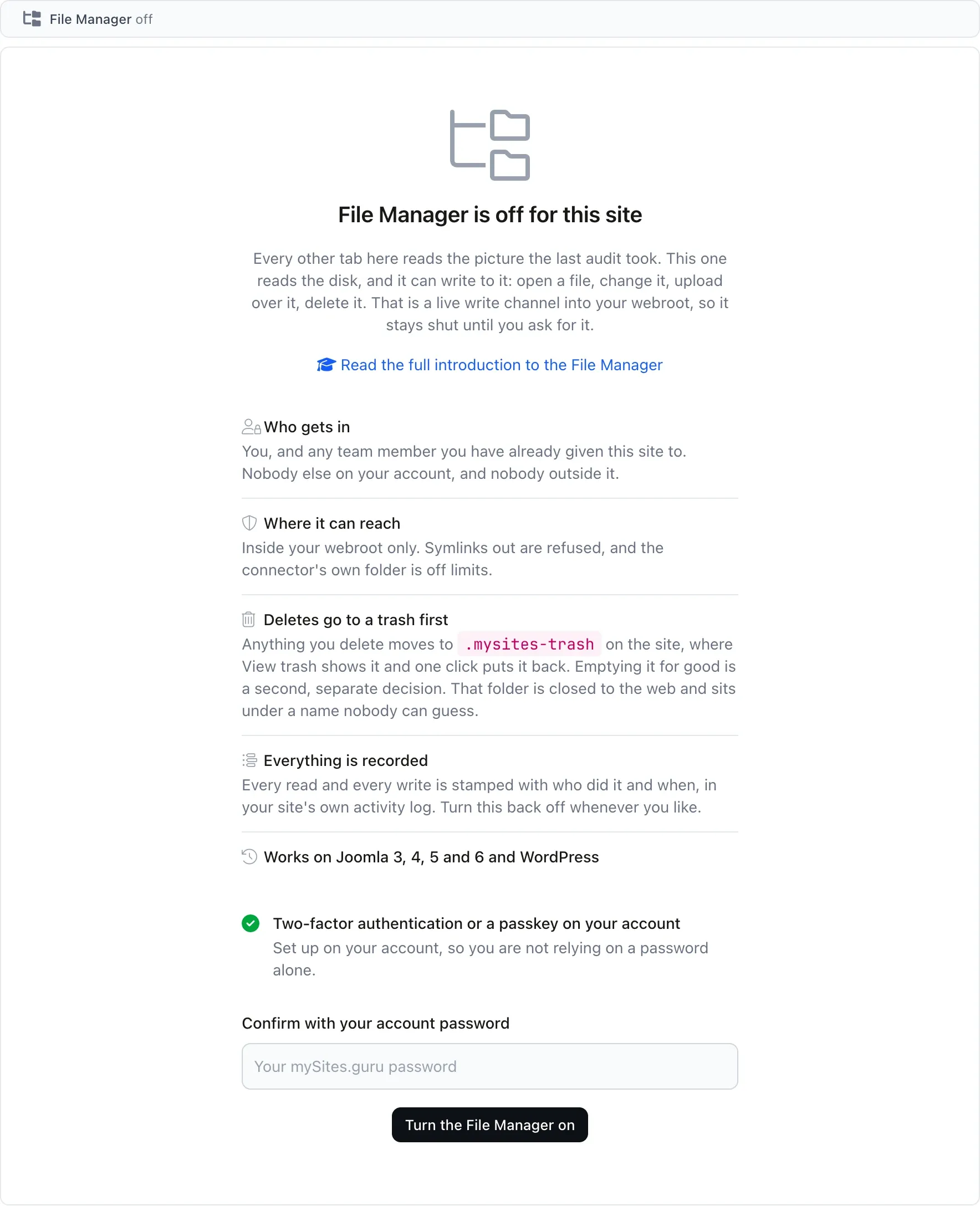
Turning it on itself takes more than one click:
- Your account password, typed again.
- A site that isn’t flagged with a broken SSL chain. If mySites.guru already knows your site is presenting an untrustworthy or spoofable TLS certificate, the File Manager stays off for an ordinary owner, on the reasoning that a connection we don’t trust isn’t one we should be writing files over either.
Turning it off again never asks for any of that, and it doesn’t happen from the File Manager tab you used to turn it on: it’s in the site’s Config pane, in the Checks and alerts card, where the File manager row shows a “Write channel is open” note under a single Turn it off button.

Closing the write channel only ever reduces risk, so it asks nothing of you beyond that one click: no password, and no signing in again. It’s still the account owner’s switch, the same as turning it on, and your files (and anything sitting in the trash) are left exactly where they were.
How the File Manager Talks to Your Site
Every request the File Manager sends travels over the same encrypted channel every other mySites.guru tool already uses: your site’s own connector, authenticated with the RSA key pair generated when you first connected it, with each request validated once through a single-use callback before the connector will act on it. There’s no separate password, no new port to open, and no additional credential to leak.
The reply travels back the same way, but with one addition specific to a tool that writes to disk: every reply is authenticated with its own HMAC before the encryption masks it. The stream cipher used for that masking has no integrity checking of its own, so without the HMAC a tampered-with reply could look like a successful one. With it, a reply that fails the check is treated as a failure, never as a partial success.
Why Every Path Is Jailed to Your Site Root
Every path the File Manager touches is resolved and checked against your site’s own root before anything happens to it, with no exceptions carved out anywhere in the code. A symlink that points outside that root is blocked rather than followed, whether you’re reading through it or trying to write through it. The connector’s own folder, which holds your site’s private key, is on a permanent deny list: the File Manager can’t read it, write to it, or show it in a folder listing, no matter how you navigate.
That jail is also why the feature was worth building carefully rather than quickly. Reviewing it turned up a real, previously unjailed path check in an older, unrelated single-file command that had existed in mySites.guru for years, reachable through the legacy “restore this flagged file” action. It’s fixed now, and the fix went out ahead of this feature rather than alongside it.
Why Uploads Are Pulled, Not Pushed
The encrypted channel every other command travels over is built for small payloads, not multi-megabyte files: pushing a file through it the same way as everything else would mean tens of thousands of individual decrypt operations for anything bigger than a few kilobytes. So uploads work the other way around.
Your browser uploads the file to mySites.guru first, where it’s staged privately with a random key and no trace of the original filename. mySites.guru then hands the connector a single-use link, valid for five minutes, pointing only at mySites.guru’s own domains. The connector fetches that file itself, over its own outbound connection, and checks the exact byte count and a SHA-256 hash of what it actually downloaded before moving anything into your site’s jail. A link to anywhere else simply wouldn’t be accepted: the connector only trusts URLs on the handful of domains it already knows.
That shape has a side benefit beyond speed. Because the connector fetches the file itself and writes it locally, the upload never arrives as an inbound HTTP request to your site. Your own server-level firewall or WAF, the kind that inspects incoming uploads and sometimes blocks a legitimate one that merely looks unusual, never sees it and never gets a chance to interfere.
Every Read and Write Gets Logged Twice
Every action the File Manager performs is written to your site’s own activity log the same way any other change would be, so if a team member deletes a file at 2am, you can see who did it and when, on your own site, independent of mySites.guru. It’s also written a second time into a separate audit table inside mySites.guru itself, regardless of whether the action succeeded or failed. Neither log depends on the other, so losing one doesn’t blind you to the other.
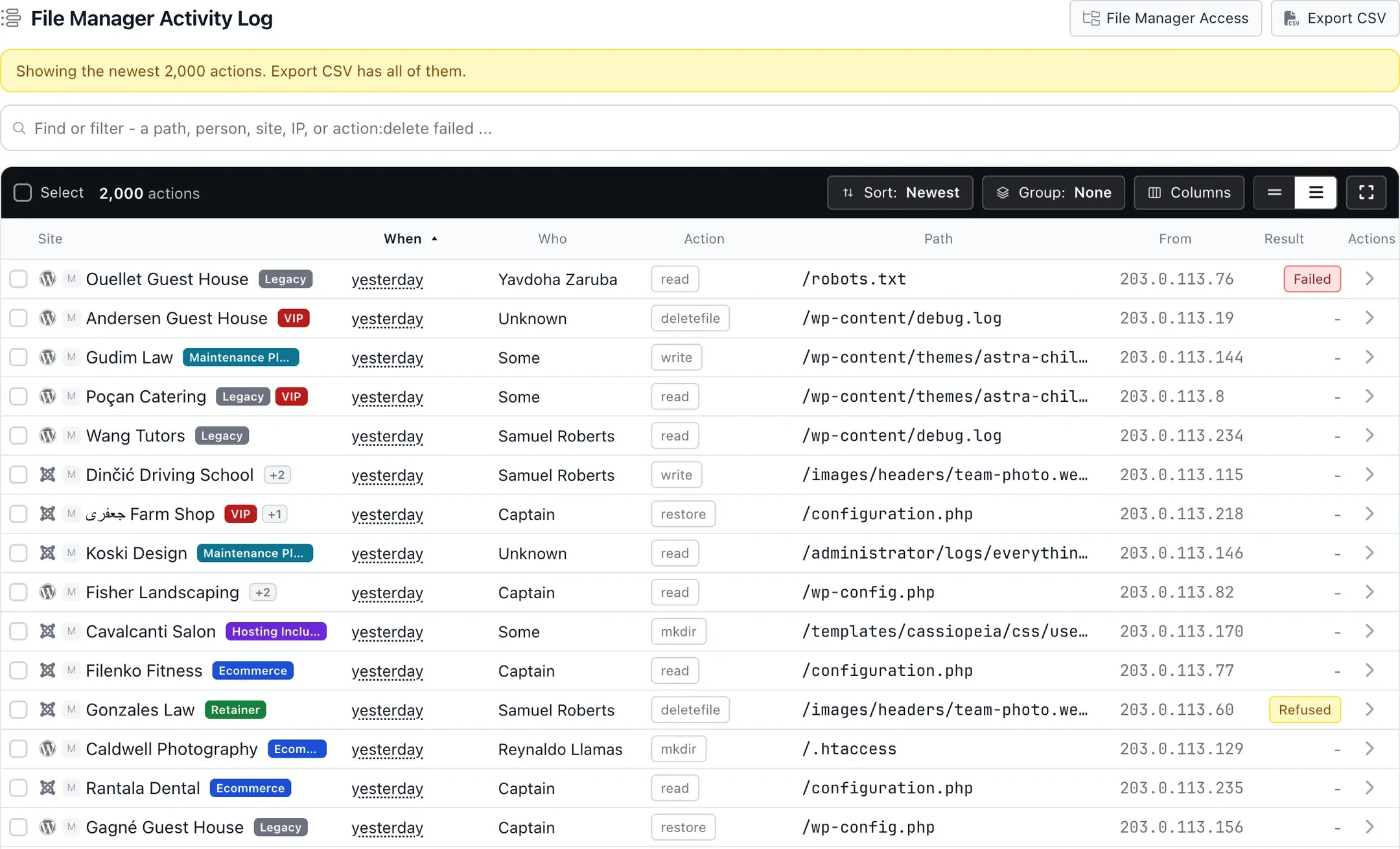
That second log is what you’d open to answer “who touched this file and when”: a plain table of who did what, to which path, from which IP address, and whether it worked. It’s a full page of its own covering every site, with a filter box, and an Export CSV button for the full history.
That mirrors the wider practice this site follows for client activity reporting: an action that touches a live site should be traceable after the fact, not just permitted at the time.
How Do You Manage It Across Dozens of Sites?
Agencies running mySites.guru rarely manage one site at a time, so the File Manager has its own switchboard: one page listing every eligible site with an on/off switch per row, plus enable-all and disable-all for the whole account. It’s restricted to the company owner, and it enforces exactly the same password and two-factor checks a single-site toggle would, just applied to however many sites you select at once.
That switchboard is also one of the results in the command palette (⌘K on Mac, Ctrl+K on Windows): start typing “file” and File Manager Access For All Sites comes up alongside every other tool.
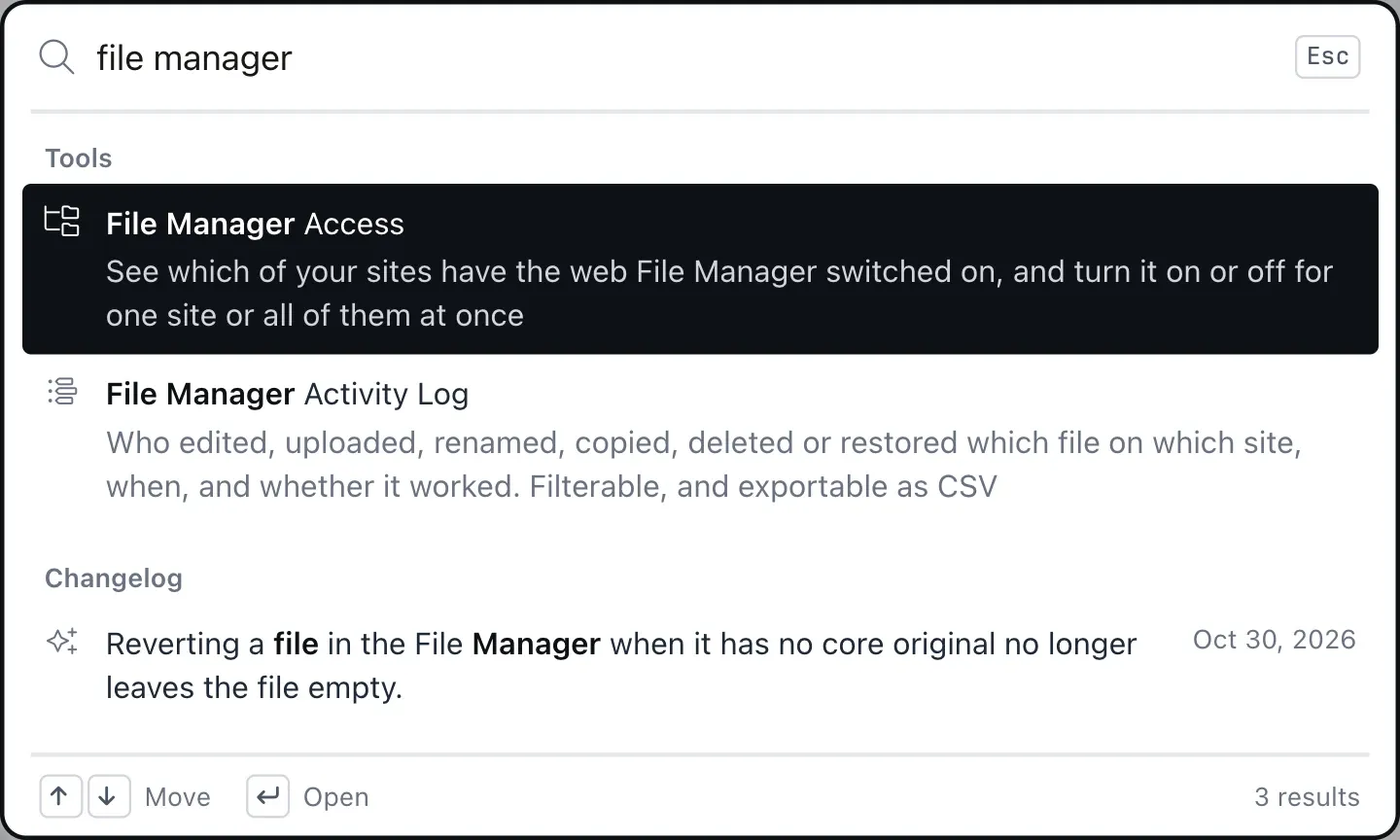
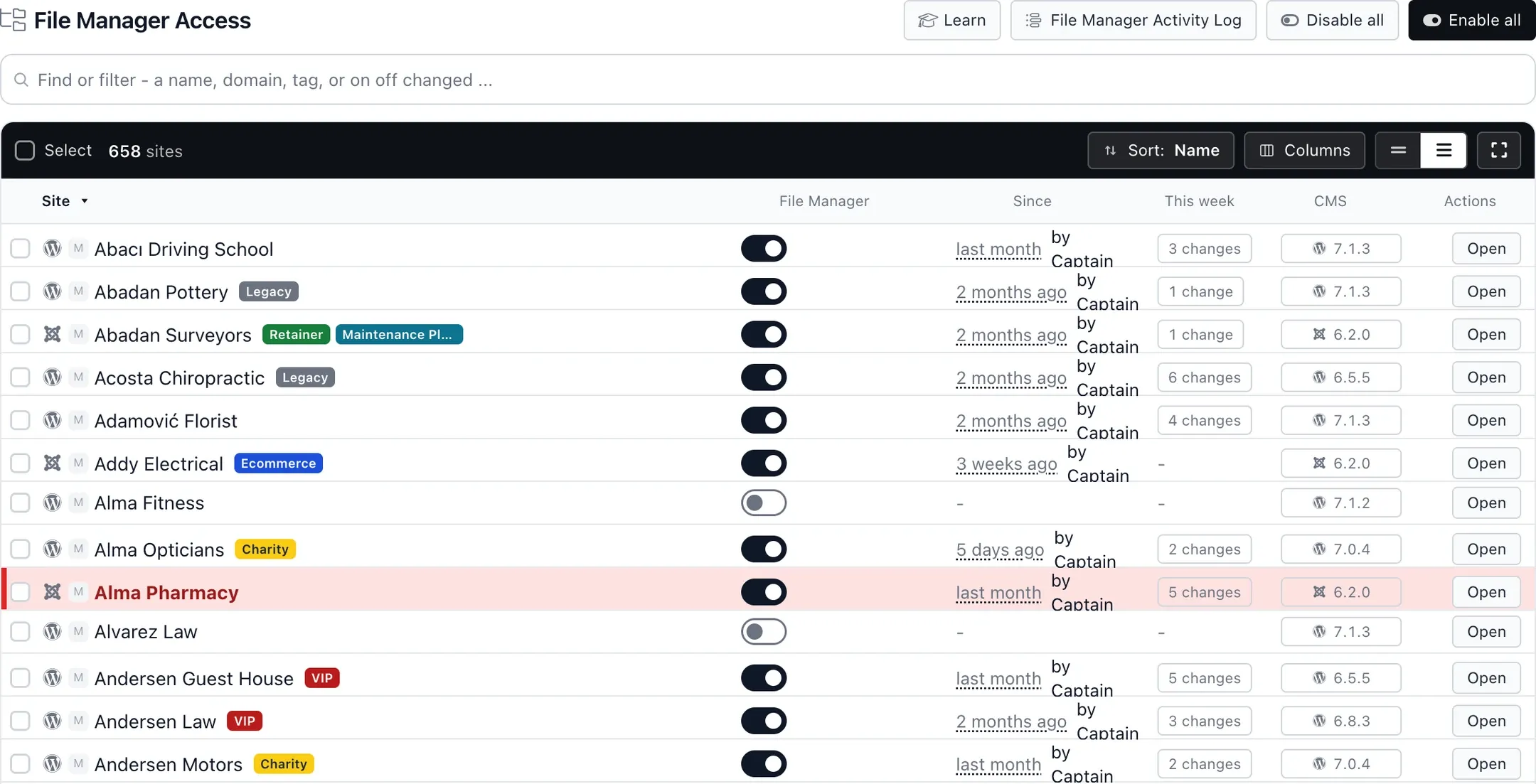
Each row has its own Open button, which drops you straight into that site’s File Manager tab without going through the site’s own Manage page first. Bookmark the switchboard itself and you’ve got one page that shows the File Manager state of every connected site at a glance, with instant access to any of their webspaces from the same list.
We’ve Disclosed RCEs in Other People’s File Managers
We didn’t build this in a vacuum. Earlier in 2026, we found and privately disclosed an unauthenticated file upload vulnerability in RSFiles!, a Joomla extension used for file downloads, where the method that actually wrote a file to disk skipped the permission and file-type checks the extension appeared to have. It’s tracked as CVE-2026-57827. A few weeks later we found a pre-authentication remote code execution flaw in the Joomla page-building extension SP Page Builder, tracked as CVE-2026-67285 and CVE-2026-67286, where an endpoint trusted a filesystem path supplied by the visitor instead of loading it from the saved page.
Both were built by vendors who believed their file-handling code was safe, and both were wrong. That’s the backdrop this feature was designed against: what does the failure mode look like when this goes wrong, and how do we make sure it can’t.
Is a Web-Based File Manager Actually Safe?
It’s a fair question to ask of any tool that reads and writes a live site’s disk, especially given how often attackers plant exactly this shape of tool as a backdoor once they’re already in. The difference here isn’t the interface, it’s what sits underneath it: every path jailed to the site root with no exceptions, every reply authenticated before it’s trusted, uploads verified by hash before they’re written anywhere, deletes recoverable by default, every action logged twice, and the whole thing off until you switch it on yourself, behind your account password and two-factor authentication.
It’s also worth measuring against the access you’ve already given mySites.guru, not against a blank sheet. Every audit already reads every file on your site. The existing suspect-content tools already let you edit or delete a single flagged file with one click. This feature is a wider door onto the same room, and it’s locked more heavily than the door you’re already using: off by default per site, confirmed again with your account password, behind two-factor authentication, and shut for an ordinary owner on a site with a broken SSL chain.
Compare that to the file editor already sitting in your own Joomla administrator or WordPress dashboard. Both ship one by default: a code editor that opens any template, theme or plugin PHP file and saves the change straight to disk, with no jail, no trash, and no second log outside whatever your host happens to keep. We tell WordPress users to turn that editor off entirely with DISALLOW_FILE_EDIT, because it’s the fastest, quietest route from a stolen admin password to running code. A compromised admin login already grants everything the File Manager does, minus every one of the guardrails this feature was built with.
One can steal ideas, but no one can steal execution or passion.
Frequently Asked Questions
Is the File Manager on by default?
If I delete a file, is it gone for good?
Which platforms support the File Manager?
Can my team see and use the File Manager?
Does mySites.guru store an FTP or SFTP password for my site?
Can the File Manager touch files outside my site's webroot?
Why build a file manager when attackers plant fake ones to get into sites?
 Written and edited by a human, with AI assistance. Our approach to AI