Slower on purpose: the new Update Queue, and why it is off by default
Select every out-of-date site, click update, walk away. It is the whole point of managing sites from one dashboard, and for most people it works fine. The bulk update Joomla page covers the whole workflow.
Then you get an account with a thousand sites on a single shared server, all of them selected, and the updates go out at once. The server does not come through that. On core updates it falls over under the load. On extension updates you can break an individual site instead, because two updates race inside the same install and neither expected company.
The new Update Queue fixes that by doing less at a time. It runs at most one update per server, and everything else waits its turn. It is opt-in, it is off unless you switch it on, and it will make your big batches take longer. That is the feature, not a side effect.
What actually goes wrong when you update everything at once
There are two separate failures here, and only one of them is about the server.
Start with that one. A Joomla or WordPress core update is not a small job: download, extract, run the post-install work, hit the database. One of those is unremarkable. Several hundred at the same moment on one box is a load spike, and shared hosting is where the sites-per-server count is highest and the resource headroom is smallest. The server goes down and it takes every site on it with it, including the ones you were not touching.
The other failure is the individual site. Two extension updates running against the same install at the same time can collide: both writing files, both touching the database, neither aware of the other. You end up with one site broken by its own maintenance.
What the Update Queue does
When queueing is on, every update you trigger joins a queue for the server that site lives on. One update runs, the rest wait, and the next starts the moment the previous one reaches a conclusion. It covers Joomla core, WordPress core, Joomla extensions and WordPress plugins, and it does not matter how you started the update: the dashboard, the API and the MCP tools all go through the same queue.
You are not left guessing what it is doing. There is a progress bar in the header while a batch is running, a page showing each server with its running job and everything queued behind it, and anything that has not started yet can be cancelled.

The pill only appears while there is something to watch. It counts finished updates against the size of the batch you started.

Because one update of any kind runs per server at a time, you also get the same-site collision fixed for free. A core update and an extension update on one site cannot overlap, because they are both in the same lane.
One lane per server, not one queue for everything
The queue is not a single global line. It is one lane per server, so a slow update on one host never holds up a completely unrelated host. Ten servers means ten updates running at once, one on each.
Hovering the pill opens the per-lane breakdown, so you can see which server is holding things up without leaving the page you are on.
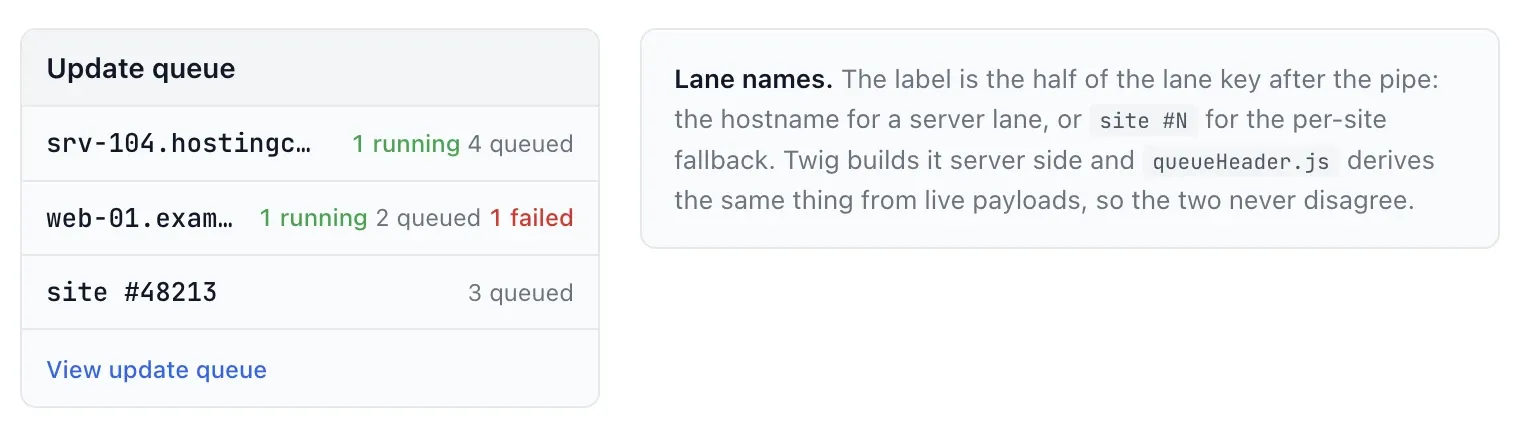
That third row is the fallback in action. Where we cannot see a hostname, the site queues under its own id rather than being lumped in with everything else.
The detail worth explaining is what identifies a server, because getting it wrong would have been worse than not building the feature. Lanes are keyed on your account plus the server hostname, never the hostname on its own.
Hostnames are not unique. Hosting companies hand out the same generic names again and again, so the same string turns up across customers who have nothing to do with each other. In our own data one such name appears on 340 sites belonging to unrelated people, and another on 403. (Both are real counts from our platform; we have changed the names here.) Had we keyed lanes on the hostname alone, one customer’s slow update would have blocked a stranger’s, and neither would have been able to work out why.
About fifteen per cent of connected sites do not report a hostname at all. Those fall back to a lane of their own, per site, which is the cautious answer: it still prevents a site colliding with itself, and it never lets one unidentifiable site block anything else.
Why is it off by default?
Because queueing is slower, and most accounts do not need it.
If you have a handful of sites, or your sites are spread across a lot of different hosts, they were never colliding in the first place. Turning queueing on for those accounts would mean waiting for a problem you do not have. It starts to matter somewhere around twenty or more sites on the same server, which is where “update everything” and “take the server down” become the same action.
There is a version of this feature that ships on by default and makes every customer’s mass update slower to protect the minority who need it. We did not want to build that one. You know your own hosting, and whether your sites are stacked on one box or scattered across twenty, far better than we can infer it. So it is a switch, and it is yours.
Note
Queueing does not add artificial delay. A single update on an idle server is admitted immediately and starts within seconds, rather than waiting for the next tick of a timer. The waiting only appears when there is something ahead of you on that server.
How do I turn it on?
Go straight to manage.mysites.guru/en/updates/queue. You can also open Tools and choose Update Queue, or press Cmd+K and use the hotkey u q.
On that page, click Enable update queueing. Three things happen: updates start queueing per server from that moment, the queue is starred in your menu so you can find it again, and the page starts showing you lanes instead of an explanation.
The setting is company-wide rather than per-user, so it applies to everyone on the account rather than just the person who flipped it. If someone else on your team turns it on, your updates queue too.
Switching it off is the same journey and takes effect immediately. Updates go back to applying the moment you ask for them, and past queue activity stays on the page.
What it does not do
It does not retry failures
A failed update is marked failed, the error is kept and shown on the queue page, and the lane moves on to the next job. Nothing tries again on its own. An update that failed once usually fails the same way twice, and automatic retries on a half-finished update are how one broken site becomes several. Read the error, fix the cause, trigger it again yourself.
It does not reorder your work
Jobs run oldest first within their lane. There is no priority scheme to learn and nothing jumps the queue.
It does not make the updates themselves any faster or slower
Each update takes exactly as long as it always did. The only thing that changes is how many of them are allowed to happen at once.
It is not a substitute for backups
Backups still matter. Queued updates are still updates. Take a backup first, the same as you would if you were applying them one at a time by hand, which in effect is now what is happening. A queue for backups is in planning too, built the same way and for the same reasons: firing every backup on one server at once is the other reliable way to flatten it.
Seeing what actually happened
The queue tells you what is running now. The Update Log tells you what happened, and we have rebuilt it at the same time.
It lists the last 500 updates applied across your sites, newest first, whether you triggered them yourself or mySites.guru applied them overnight. Each row shows the site, the extension and the version it went to, when it ran, and whether it finished or errored.
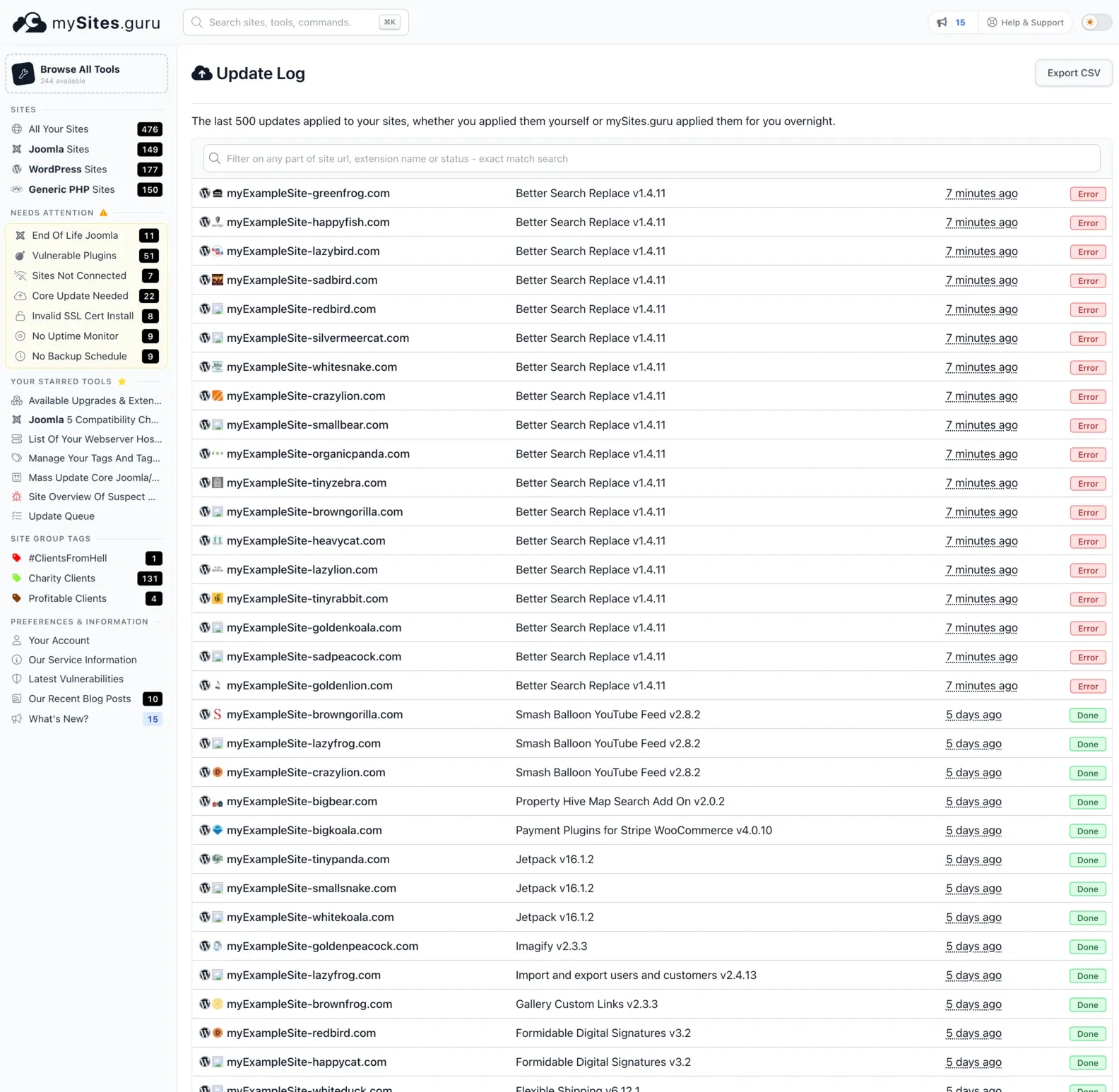
The filter matches on any part of a site URL, an extension name or a status, so “Error” pulls up every failure in one go. Check it the morning after a big batch. Updates you triggered do not always take, and this is where you find out which ones did. There is an Export CSV button if you need the list somewhere else.
It is at manage.mysites.guru/en/updates/scheduled, and unlike the queue it needs no opting in. It has always been recording; it is just far easier to read now.
Who should turn this on
Turn it on if a meaningful number of your sites share a server, and especially if you have ever had a mass update coincide with a site or a server going down. If you are on shared hosting or a reseller plan with a lot of sites on one box, this is aimed squarely at you.
Leave it off if you have a small number of sites, or if your estate is spread thinly across many hosts. You would only be adding a wait.
If you are not sure which describes you, the Servers view groups your connected sites by the server they are on, which answers the question in about ten seconds. If one server has a long list under it, you are the person this was built for.
You can also just try it. It is a toggle, it applies immediately, and switching it back is one click. Run one mass update with it on and see whether the wait bothers you more than the risk did.
Thanks
A special thank you to Adi, who has been on my case about this one for a long time and was right to keep pushing. It turned out to touch a lot of layers in mySites.guru, from the dashboard and the API through to the background workers and the database lock that makes the per-server lanes safe, and that is why it took as long as it did to get right rather than only working.
Further Reading
- How to mass upgrade Joomla and WordPress sites from one dashboard
- How to update Joomla, Joomla extensions, WordPress and WordPress plugins from mySites.guru
- How to enable Joomla extension auto updates
- Automatic updates for any Joomla extension
- Updating Joomla in the official Joomla documentation
- Updating WordPress in the WordPress developer handbook
Frequently Asked Questions
What is the Update Queue?
Why is it off by default?
How do I turn the Update Queue on?
Does it retry an update that fails?
Will queueing make my updates take much longer?
 Written and edited by a human, with AI assistance. Our approach to AI