How to Stop Clients Installing or Updating Plugins on WordPress and Joomla
A client pays you to look after their site, updates included. They also have an Administrator account on WordPress, or a Super User account on Joomla, because it is their site and they asked for one. One afternoon they install a plugin they read about, or click Update on the page builder, and the site breaks. You fix it.
The usual answers both cost something. Take the admin account away and you have an awkward conversation about whose site it is. Block installs for everyone and your own updates stop as well.
An agency customer asked us for a third option: leave the client’s admin access alone, and stop them installing and updating. That is Lock Installs & Updates, new in mySites.guru. It is set per site, and it works on WordPress and on Joomla 5, 6 and 7.
What Lock Installs & Updates Changes on a Site
Lock Installs & Updates is a per-site setting in mySites.guru that limits who can change the software on a WordPress or Joomla site. While it is on, only mySites.guru itself, the CMS’s own automatic updates and the users you have allowed can install, update, remove, activate or deactivate plugins, themes and extensions, or update core. On WordPress, WP-CLI is exempt as well.
Everyone else keeps their admin login and what goes with it. A locked-out WordPress administrator still edits content, users and settings. A locked-out Joomla Super User still has content, menus, users and most of Global Configuration. What they lose is the ability to change which code runs on the site, along with the buttons, update counts and nags that invite them to try. The updates you apply from mySites.guru keep running, and so do the automatic updates WordPress and Joomla apply themselves.
Can still install and update
- mySites.guru itself, so the updates you apply from the dashboard keep working.
- The CMS's own automatic updates: the WordPress background updater and Joomla's automatic updates.
- Allowed users, the people on the site you have chosen.
Everyone else
- Keeps their admin login, with content, users and settings.
- Loses the install, update and remove buttons, the update counts and the update nags.
- Cannot use the plugin, theme or template file editors.
- Cannot edit, delete or demote an allowed user.
A locked-out admin who goes looking gets a short notice in place of an error. On WordPress, with the name set to Your web team, it reads: “Updates on this site are looked after by Your web team. Installing, updating, rolling back, removing, activating and deactivating plugins is turned off for your account.” If you have set a contact, a second line follows: “Need something added? Contact Your web team.”
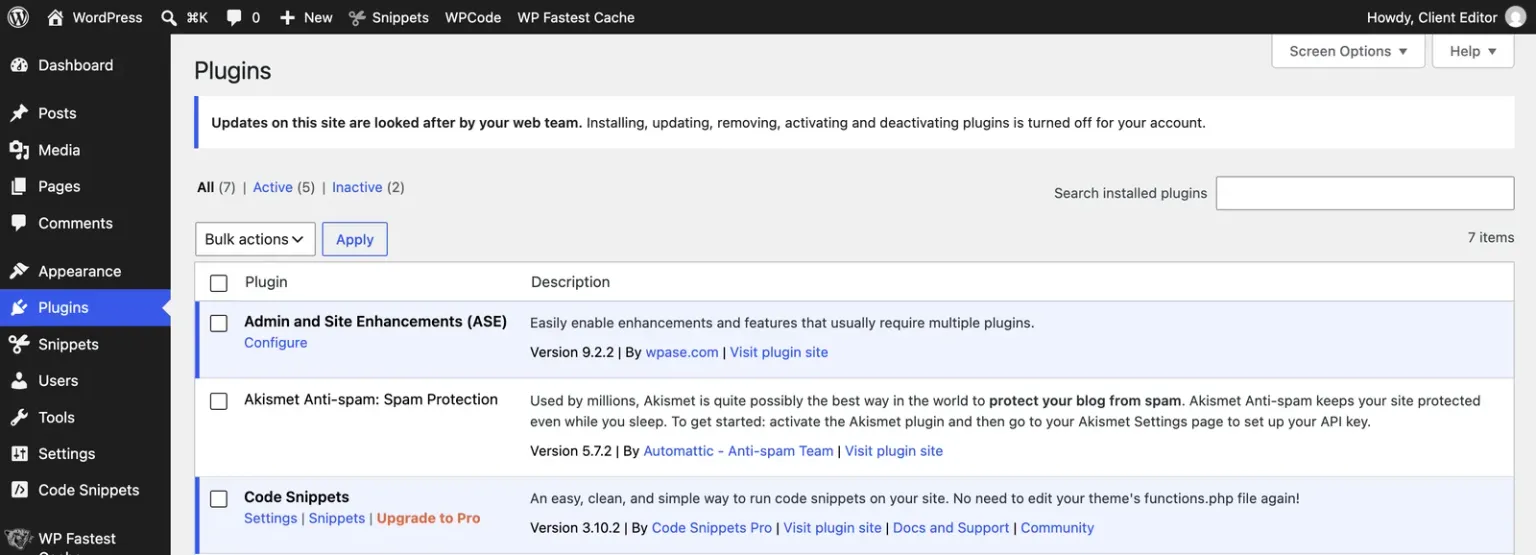
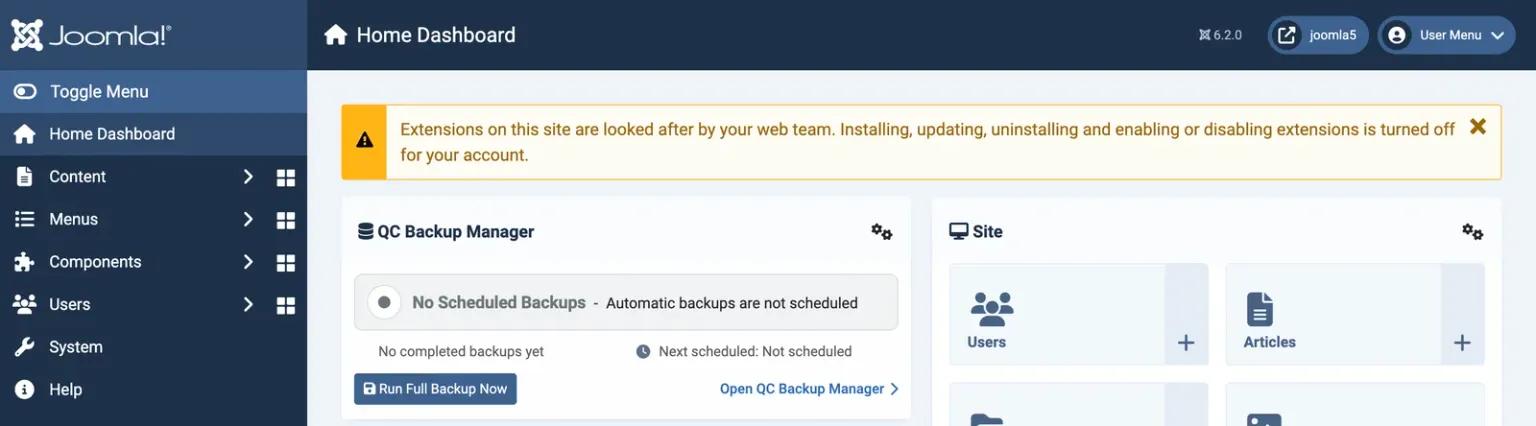
The Joomla wording follows the same pattern: “Extensions on this site are looked after by Your web team. Installing, updating, uninstalling and enabling or disabling extensions is turned off for your account.” The name defaults to your company name and you can change it. The contact is an email address or an https:// page, and leaving it blank removes the link.
What Is Locked on WordPress and on Joomla?
The lock covers every way of changing which code runs on the site: installing, updating, removing and switching plugins, themes and extensions on or off, core updates, and the built-in file editors. It also protects the allowed users, so a locked-out admin cannot edit, delete or demote one of them to get back in.
| Change | WordPress | Joomla 5, 6 and 7 |
|---|---|---|
| Install or upload | Plugins and themes | Extensions |
| Update | Plugins and themes | Extensions |
| Remove | Deleting plugins and themes | Uninstalling extensions |
| Switch on or off | Activating and deactivating plugins | Enabling and disabling extensions |
| The connector | Deactivating the mySites.guru plugin | Disabling the mySites.guru connector plugin |
| Core | Core updates, and installing or updating translations | Joomla updates |
| File editors | Plugin and theme file editors | Template file editor |
| Allowed users | Editing, deleting or demoting one | Editing, blocking, deleting or demoting one |
Joomla locks more than the table shows. The update and update site settings in Global Configuration are locked, so is the Permissions tab in Global Configuration, and the same changes are rejected when they come through the Joomla API with a token.
Rolling back is locked as well. A rollback plugin such as WP Rollback puts an older version in place, which is an update in reverse, so a locked-out WordPress admin cannot run one. Its Rollback links and Roll Back Plugins button are hidden from them, and an attempt is recorded like any other.
What a locked-out admin sees differs a little between the two. On WordPress the buttons, the update counts and the update nags are gone, and the update tests are removed from Site Health. On Joomla the update quick icons are gone, and Extensions and Joomla Update send a locked-out Super User back with the short notice.
Joomla 3 and 4 are not supported. On those sites the row shows N/A and has no switch.
Why DISALLOW_FILE_MODS and Snippets Fall Short
WordPress has a built-in way to stop installs, and it stops too much. DISALLOW_FILE_MODS in wp-config.php, in the documentation’s words, “will block users being able to use the plugin and theme installation/update functionality”. Core checks it in wp_is_file_mod_allowed(), there since WordPress 4.8.0, and map_meta_cap() ties install_plugins, update_plugins, delete_plugins and update_core to the answer.
The constant has no idea who is asking. It blocks the client, and it blocks mySites.guru. It also turns off background automatic updates, because WP_Automatic_Updater::is_disabled() returns true when file modifications are not allowed. A site with the constant set stops getting updates until somebody removes it.
We still recommend the constant where it fits, and our post on stopping plugin installs from the WordPress admin explains when to use it. The constant is rare in practice: 91.8% of the WordPress sites we audit do not set DISALLOW_FILE_MODS, one of the figures in what our site audits reveal. The lock is the choice for the other case: sites where the client keeps admin and you still want updates to run. While the lock is on, the DISALLOW_FILE_MODS check on the Snapshot tab shows OK.
| Approach | Stops the client | Your updates still run | Weak point |
|---|---|---|---|
DISALLOW_FILE_MODS | Yes | No | Blocks mySites.guru and automatic updates too |
DISALLOW_FILE_EDIT | File editors only | Yes | Installs and updates stay open |
| Hiding menus and links | Not really | Yes | The page still opens by its URL |
| Nulling update transients | Hides updates | Hidden from you too | Remote management services cannot read updates |
| Lock Installs & Updates | Yes | Yes | No defence against FTP or file access |
The copy-paste snippets each fail in their own way. DISALLOW_FILE_EDIT only removes the theme and plugin file editors. Hiding the Plugins menu or the deactivate links leaves the page reachable by URL. Snippets that null the update transients hide the updates from you too: the Hide Updates plugin’s changelog for version 1.1 admits its old approach “nulled all values making it impossible for remote management services to read updates”.
Other common patterns break in predictable ways. Capabilities taken away with remove_cap are stored in the database, so a plugin or another admin can add them back. A check on user ID or email alone is beaten by an admin who creates a new user. A User-Agent check trusts a header anyone can set.
Joomla has the opposite problem: there is nothing to configure. A Super User cannot be restricted by ACL, which Akeeba’s Nicholas Dionysopoulos described in 2016 as a “God Mode switch”. The usual fix is moving people into the Administrator group, which is the conversation you were trying to avoid. Lock Installs & Updates needs neither a constant nor a demotion: it blocks only the people you have not allowed.
Pausing is a different tool again. Pause updates stops updates being applied on a site for everyone, you included, which is what a change freeze needs. The lock stops the client and leaves you working.
Pause Updates on One Site, or Snooze One Joomla Extension or WordPress PluginRead the full post
How Does mySites.guru Know a Change Came From You?
mySites.guru is recognised by the connector’s encrypted, authenticated request. It is not recognised by a User-Agent, or by a constant that a browser request can cause to exist, so nothing a client does in a browser can pass for it.
The lock runs inside the mySites.guru connector that is already on the site, so there is nothing extra to install. A locked-out admin cannot switch the connector off to get round it, because activating, deactivating, enabling and disabling the connector is locked along with everything else.
On WordPress the pane has one more option, “Also hide the mySites.guru plugin from the Plugins list”, for clients who would only ask what it is.
The CMS’s own automatic updates are let through as well. That covers the WordPress background updater and the automatic core updates that arrived in Joomla 5.4 and 6.0 in October 2025. If you would sooner those did not run either, those two posts cover turning them off.
Allowed Users, and Why an Email Is Not Enough
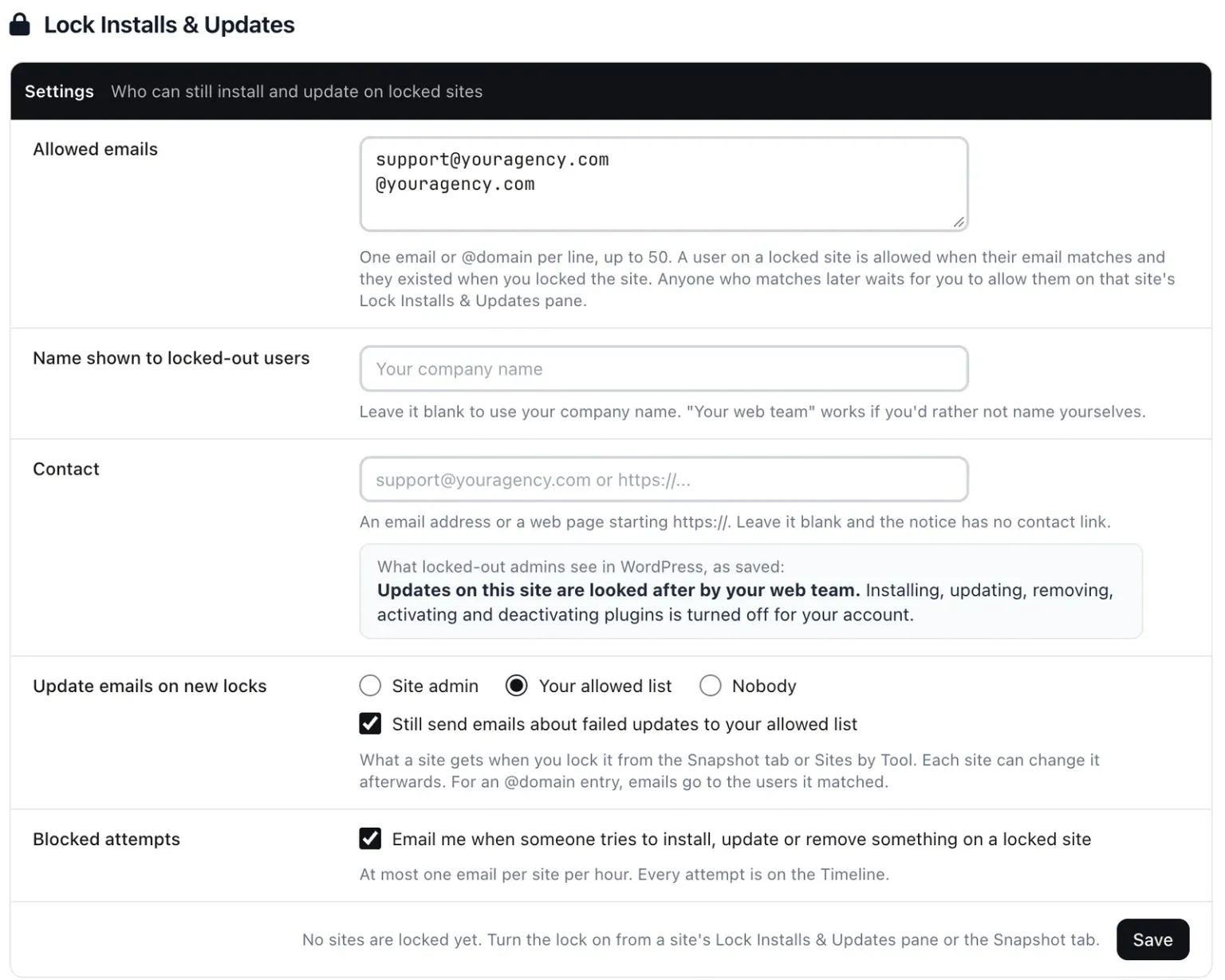
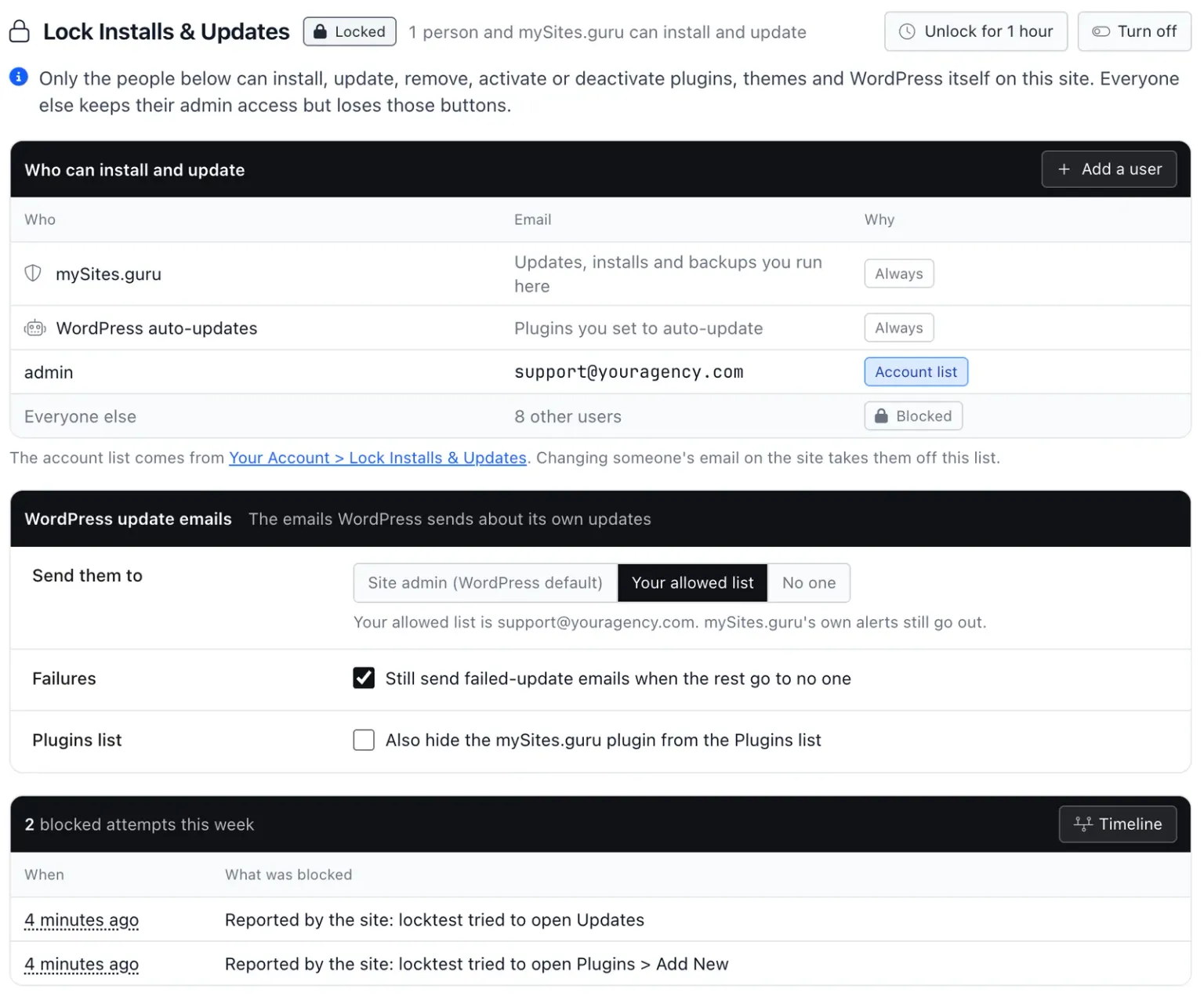
Allowed users come from two places. The first is an account-level list on Your Account > Lock Installs & Updates: one email or @domain per line, up to 50 lines, matched against the users who already exist on a site when you lock it. The second is users you pick on that one site, with Add a user on the pane.
A match is made on user ID and current email together, at the time the lock is applied. If email alone decided it, a client could create a user with an address like anything@youragency.com, or change their own email to one, and be back in.
A matching email on a new user is not enough
A user created after the site was locked is not allowed automatically, even when their email matches your list. They show on the pane as “Allow this user?” and stay locked out until you say yes. Changing someone’s email on the site takes them off the list.
Allowed users are protected from the rest. A locked-out admin cannot edit, delete or demote one on WordPress, and on Joomla cannot block one either. If you are not sure who holds admin accounts on a site before you lock it, the user manager lists them across every site, and we have a separate post on finding rogue admin accounts in Joomla.
How Do I Turn It On for One Site or Many?
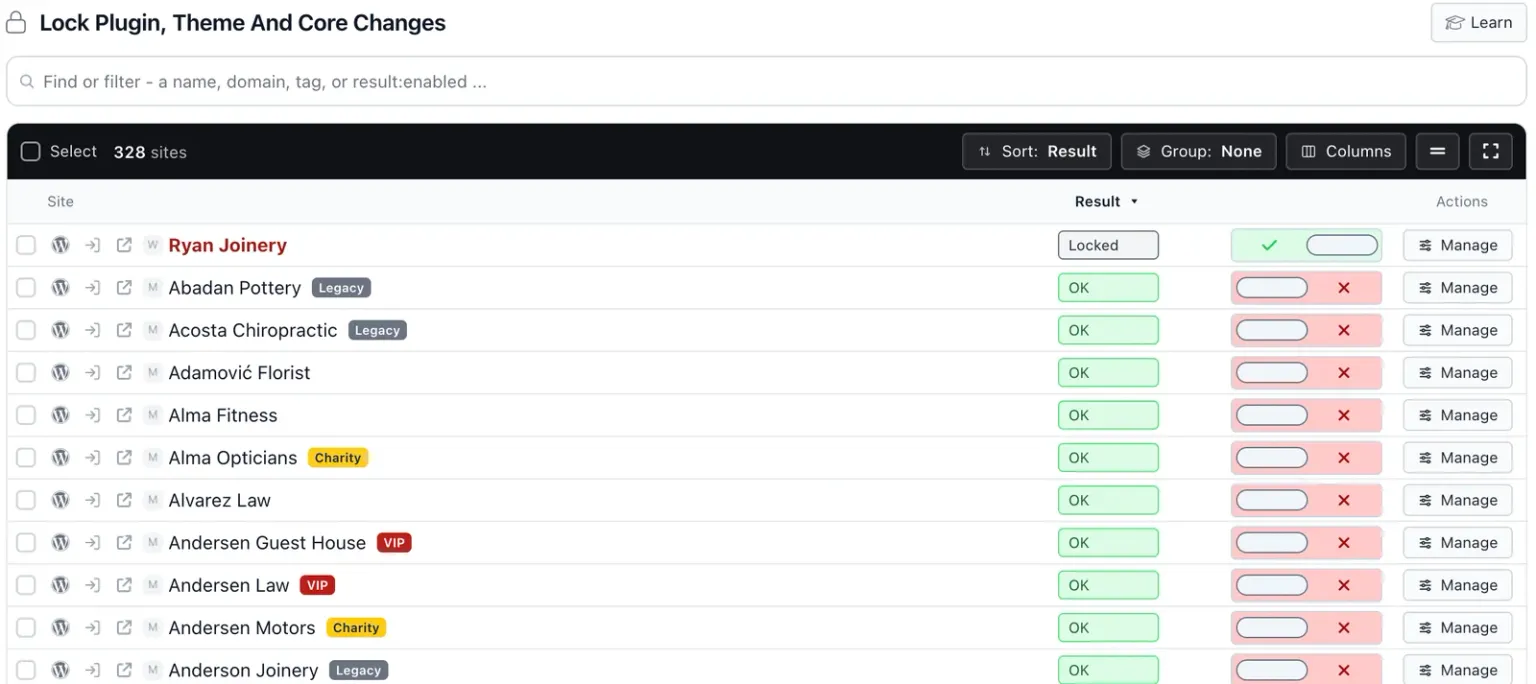
Set your account defaults once, then switch the lock on per site from the Snapshot tab, or for many sites at once from Sites by Tool. The Lock Installs & Updates pane in Manage Site holds the rest: who is allowed, the update emails, and Unlock for 1 hour.
Set the account defaults. On Your Account > Lock Installs & Updates, enter your allowed list, the name and contact shown in the notice, and the default for update emails.
This page is owner only, and saving the list sends it to every locked site.
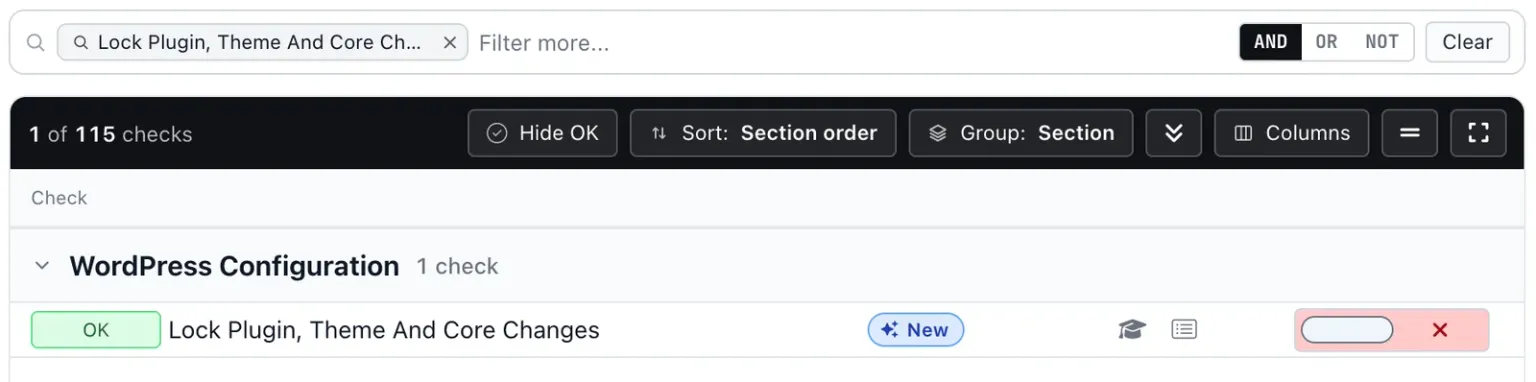
Lock one site. In Manage Site, flip the switch on the Snapshot tab row: Lock Plugin, Theme and Core Changes on WordPress, Lock Extension and Core Changes on Joomla.
Off shows a green OK, because unlocked is the CMS default. On shows a grey Locked pill.
Or lock many. Open the same check in Sites by Tool and use Turn on for the sites you choose.
The same bulk view turns the lock off again.
Check the pane. Open Lock Installs & Updates in Manage Site to see who is allowed on that site and answer any "Allow this user?" prompts.
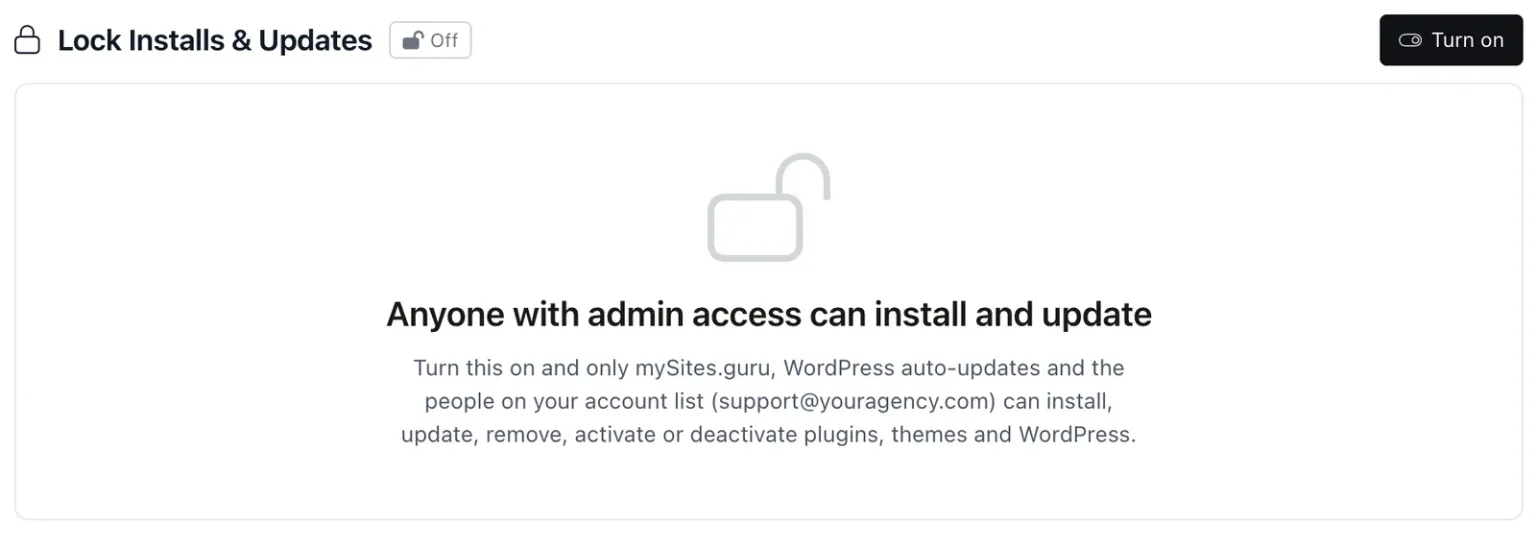
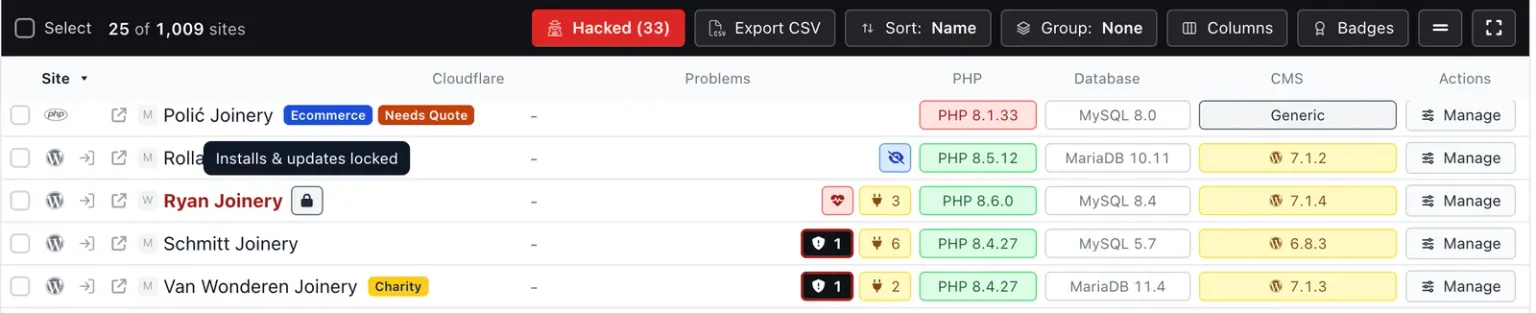
Locked sites get a padlock badge on All Your Sites and in the site header, with the tooltip “Installs & updates locked”. Sites that are not locked have no badge.
If you work with a team, access follows your team permissions. Team members without Manage access to Other tools see the pane read only.
Update Emails and Unlock for 1 Hour
Two settings on the pane deal with the awkward edges: who receives the CMS’s own update emails, and what happens on the day a client has a good reason to install something.
WordPress and Joomla both send emails about updates, by default to the site admin, who on a client site is often the client. Each locked site can send them to one of three places: Site admin (the CMS default), Your allowed list, or No one. With No one you can still have the emails about failed updates sent to your list. On Joomla, sending to the list means one copy to your list in place of one per Super User. The account default for new locks is set on Your Account, and each site can change it.
Unlock for 1 hour is for the exception. It opens the site to every administrator or Super User for an hour, and then the site locks itself again. The relock does not depend on us: it happens when the hour is up even if mySites.guru cannot reach the site. Lock now ends the hour early.
What Do You See After a Blocked Attempt?
Every blocked attempt is recorded on the Timeline, and mySites.guru emails you about it at most once per site per hour. The email can be turned off on Your Account, where the setting reads “Email me when someone tries to install, update or remove something on a locked site”. The pane shows this week’s blocked attempts for that site, and the weekly summary includes them.
The record also tells you something about the client. A client who has tried three times in a week to install something has a need you have not met, and it is better to hear about it from the Timeline than from a support ticket.
Each snapshot also reports what the site is enforcing. If the site disagrees with mySites.guru, for example because the connector was reinstalled or the settings file was lost, the Important tab says so and offers Re-apply.
Updates the CMS applied by itself are labelled in the Update Log as “WordPress itself” or “Joomla itself”, so you can tell them from the ones you ran.
The lock is available to scripts and assistants as well. The MCP server has get_site_lockdown, which returns the state (off, locked, unlocked, drift or unsupported), the allowed and pending users, the email mode and unlock_until, and set_site_lockdown, which takes on, off, unlock and relock. The API snapshot has a lockdown field with enabled and enforced.
What the Lock Cannot Stop
Anyone with FTP or hosting file access is outside any lock that runs inside the CMS. That is true of this one, of DISALLOW_FILE_MODS, and of every snippet above. A client who can edit files on the server can change anything, including the lock’s own settings. If those settings change, the Important tab tells you at the next snapshot.
So the lock is a guard against the well-meaning click, and against a client who is curious more than determined. After fifteen years of looking after client sites, that is the case I would plan for: someone with good intentions and an Update button.
Most sites never need it. Turn it on where a client has broken things before, or where your contract says you look after updates. Everywhere else, leave the row at its green OK.
If you already have an account, the row is on each site’s Snapshot tab. If not, you can create a mySites.guru account and connect a site to try it.
Further Reading
- wp-config.php in the WordPress Advanced Administration Handbook - where WordPress documents DISALLOW_FILE_MODS and what it blocks.
- wp_is_file_mod_allowed() - the core function, in WordPress since 4.8.0, that checks the constant.
- WP_Automatic_Updater::is_disabled() - why background automatic updates stop when file modifications are not allowed.
- Lock down, on the Akeeba support site - Nicholas Dionysopoulos on why a Joomla Super User cannot be restricted by ACL.
- Automatic core updates in Joomla - the Joomla Community Magazine on the automatic updates that arrived in Joomla 5.4 and 6.0.
Frequently Asked Questions
Can I stop a client installing plugins without taking away their admin account?
Which sites does Lock Installs & Updates work on?
How is this different from DISALLOW_FILE_MODS?
Can a client get round the lock by deactivating the mySites.guru plugin?
What if a client really does need to install something?
Does the lock stop someone with FTP access?
 Written and edited by a human, with AI assistance. Our approach to AI