Press Cmd+K, Type a Client's Name, Press Enter
An agency with a few hundred Joomla and WordPress client sites spends a surprising share of its day finding things. A client emails about their shop. You open the dashboard, scroll or filter the sites list, click into the site, then hunt for the tool. Four steps before any real work starts. The fastest route from “a client just emailed” to the right site or tool is to type its name, and that is what the rebuilt mySites.guru command palette is for.
The old palette was a third-party web component that needed all your sites and tools written into each page as a 2.16 MB script, so the dashboard got heavier with each client you added. The new one is our own code, puts 3 KB in the page and fetches its data the first time you open it. Pressing Enter on a site now shows that site’s actions instead of just opening it, so Backup now, Audit now or Admin login is one more keystroke away.
Find any site, tool or setting with one shortcut
Press Cmd+K on a Mac or Ctrl+K on Windows and Linux, on any page of the dashboard, or click the “Search sites, tools and checks” box in the header. The same shortcut again, Esc, or a click outside closes it.
On Windows and Linux every Cmd shortcut uses Ctrl instead: Ctrl+K opens the palette and Ctrl+Enter opens a result in a new tab. You do not have to remember the translation, because the header’s search box hint, the key caps inside the palette, the “next time, press” toast and the keyboard shortcuts page all detect the computer and show “Ctrl” where a Mac sees ”⌘”. The letter shortcuts (s, s s, u q, d and the rest) are identical on every platform.
Start typing and the results arrive in groups, always in the same order: Sites, Tools, Filters, Tags, Help pages, Changelog entries, Blog posts. Filters are the Needs Attention rows from the left menu (Hacked Sites, Vulnerable Plugins, Core Update Needed, No Backup Schedule) and each one shows how many of your sites currently match. Tags are your own site group tags.
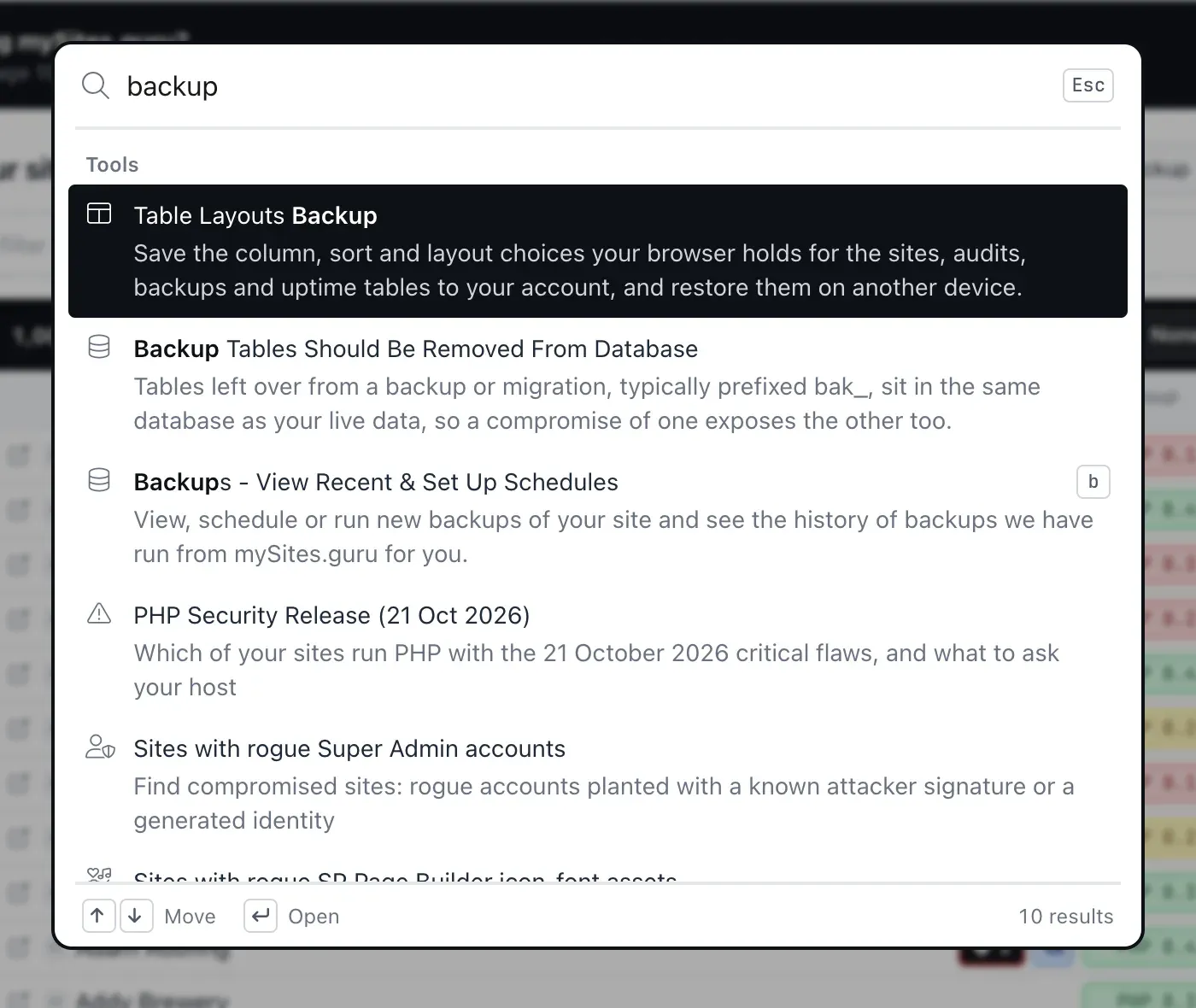
Each tool shows its full description on a second line (up to two lines) and its keyboard shortcut on the right, so the palette doubles as the place you pick up the keys.
Site search matches the site name, the domain and the site’s tag names. Every site you can see is in there, including sites that are paused or not connected, which show a “Paused” or “Not connected” pill; hacked sites get a red “Hacked” pill. Team members see only the sites their allowlist gives them.
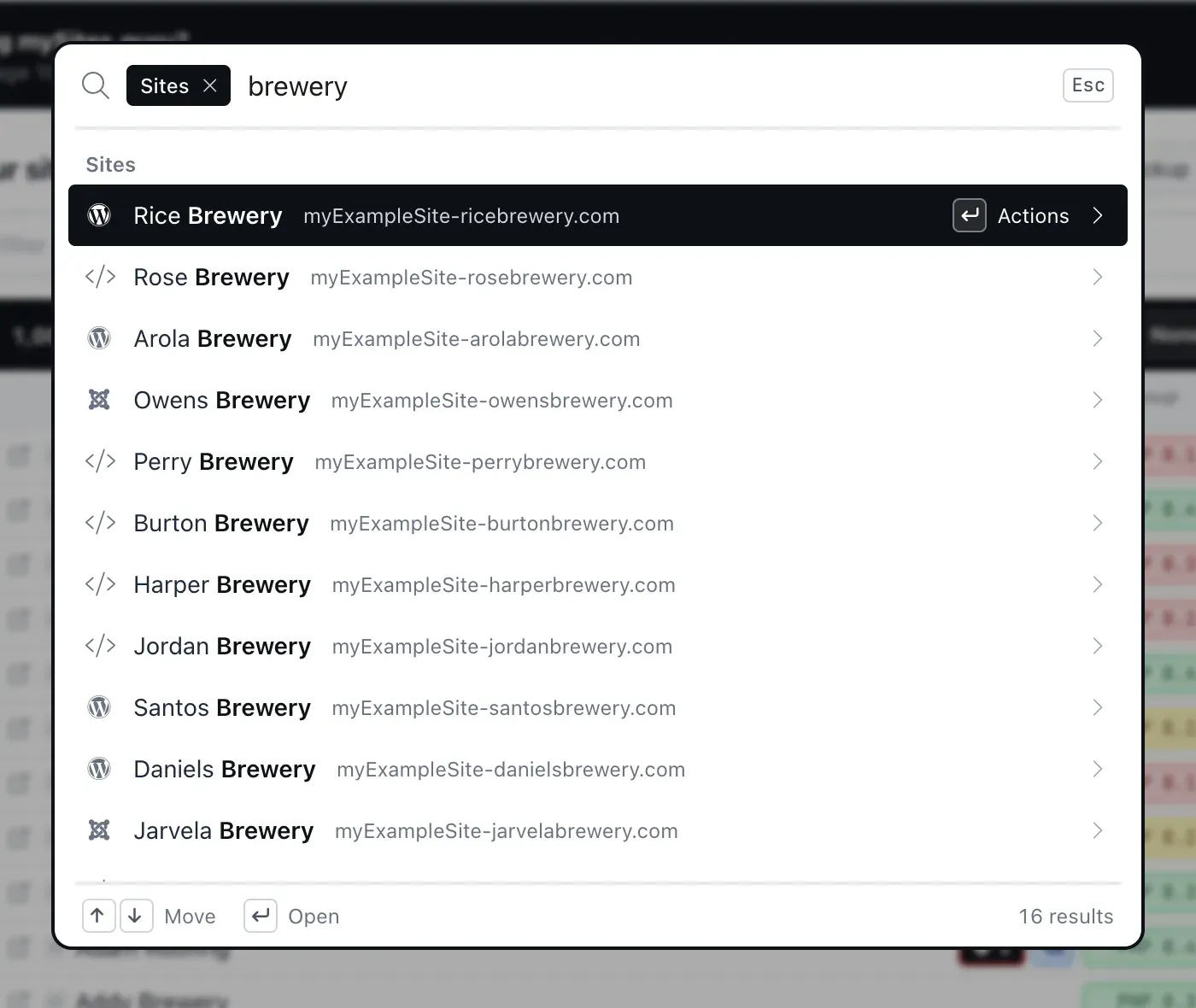
Each group shows up to five results (eight for the first group) and ends with a “See all” row. For sites it opens the sites list filtered to what you typed; for tools it opens the toolset filtered the same way. A search that matches thirty of one client’s sites is one Enter from the filtered list.
Every My Account page is in the palette as well: profile, password, notifications and preferences, activity trail, data export, two-factor authentication, support requests, team members, subscription and invoices, VAT, API clients, Cloudflare, table layouts, and log out. Pages only some accounts can use appear only for those accounts.
Press Enter on a site to act on it
Press Enter (or Tab) on a site and the palette shows that site’s actions instead of navigating: Manage, Visit site, Admin login (Joomla and WordPress only, opens in a new tab), Backup now, Snapshot now, Audit now, Uptime, Open in sites table, Copy URL, Copy site ID. Type to filter the actions. Esc, or Backspace on an empty box, goes back to the results.
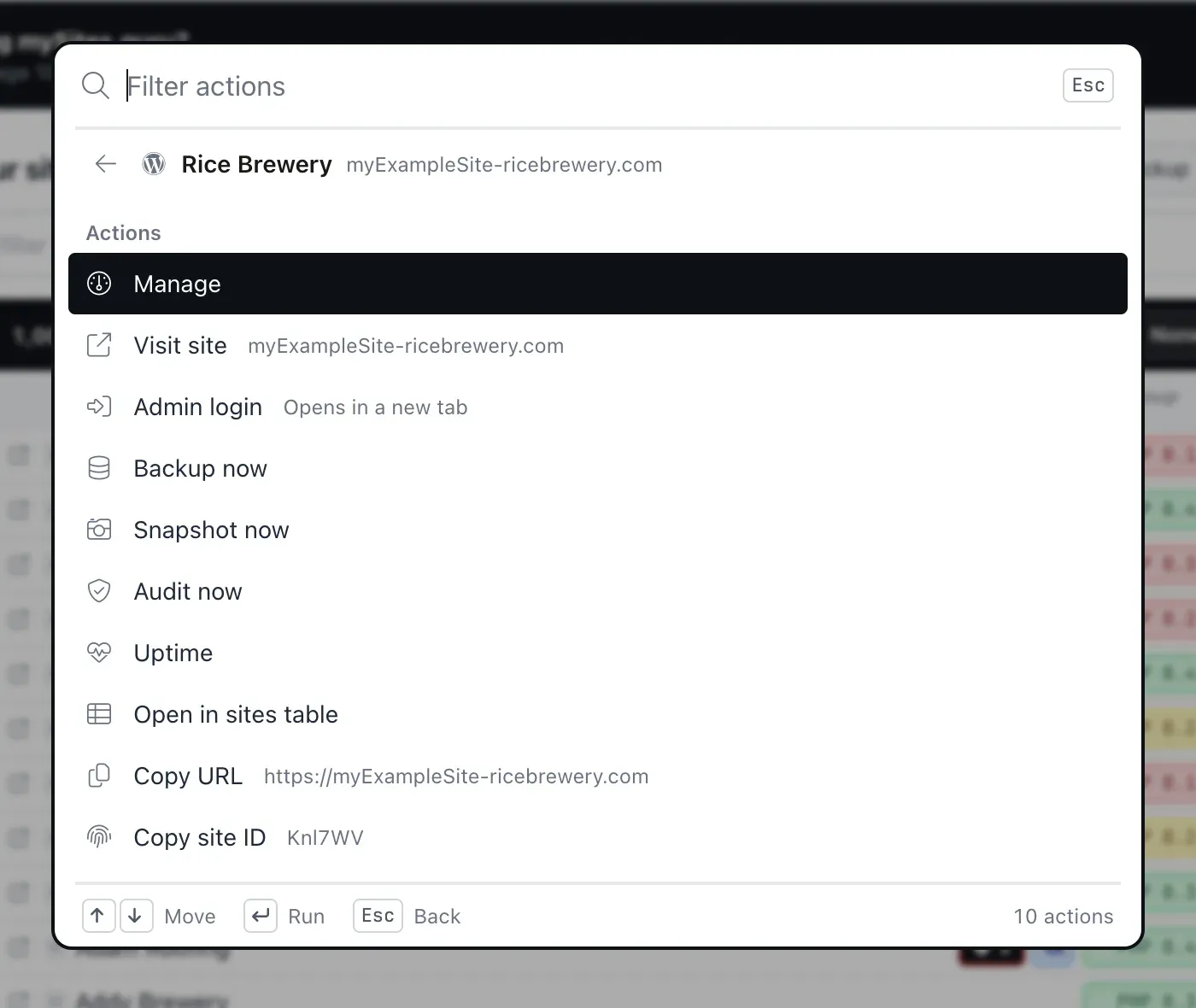
Backup now, Snapshot now and Audit now start that job for that one site straight away. They use the same protected bulk routes as the buttons on the sites list, and you are taken to the Backups list, the sites list or the Audits list with the usual confirmation message. They need an active subscription or trial, and without one the palette shows the subscription prompt. They are not offered for a site that is not connected, because those jobs need a connected site.
The rest of the actions are shortcuts to pages you already know. Admin login signs you into the Joomla or WordPress administrator in a new tab. Backup now queues a backup of just this site. If you are unsure whether you want a snapshot or an audit, the short version is that a snapshot is the quick health check and an audit is the deep one. Uptime opens the site’s uptime history.
Cmd+Enter (Ctrl+Enter on Windows) on any result, or a middle-click, opens it in a new tab. Three clients, three Manage pages in three tabs, without closing the palette between them.
Start with an empty box
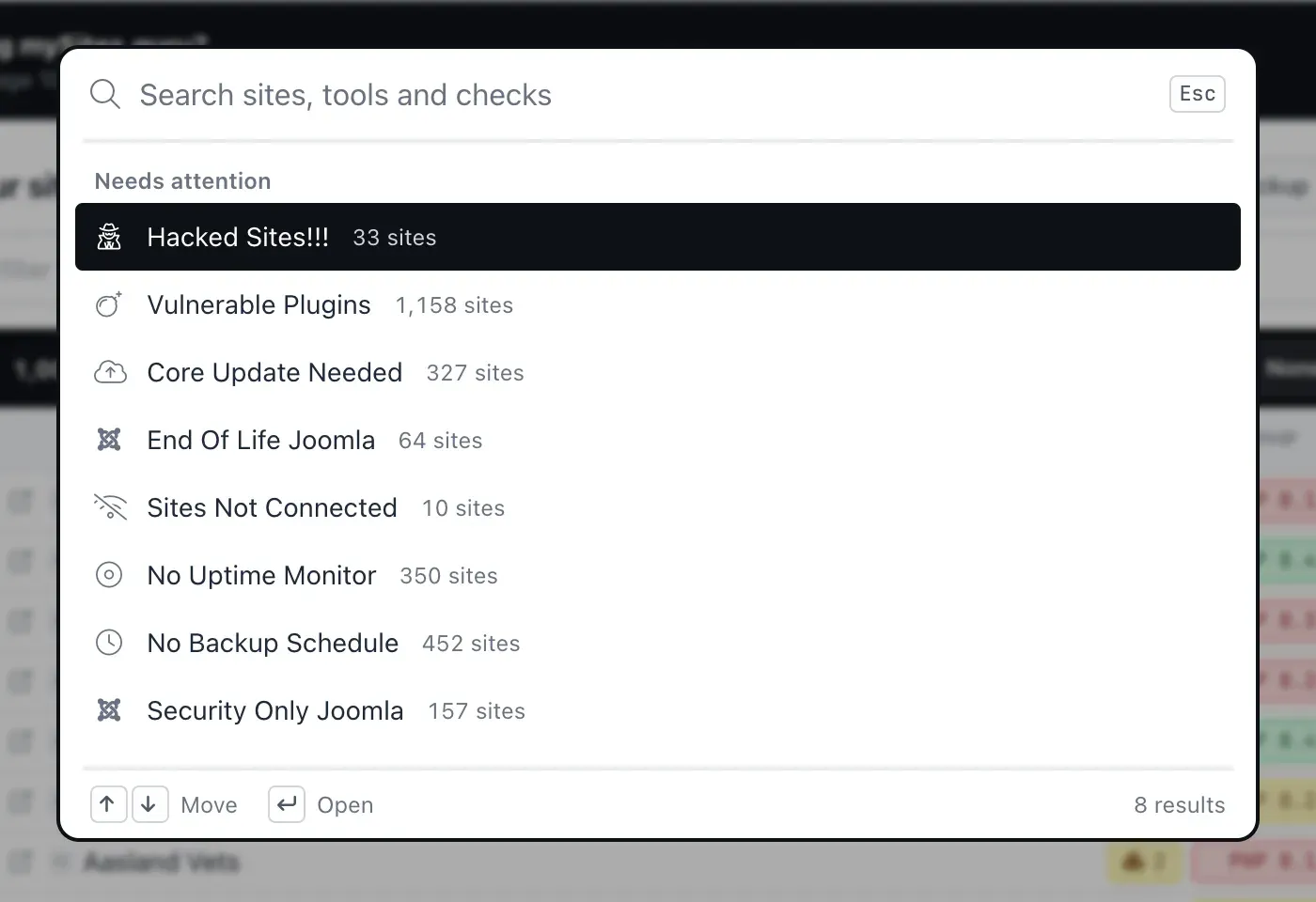
With nothing typed, the palette shows your recent picks first: the last eight sites and tools you opened, remembered per browser. When there have been changelog updates since you last looked, a row below the recents says how many. Then come your Needs Attention filters with their counts. So Cmd+K with nothing typed is a short triage screen: what you were just working on, what changed in the product, and what needs looking at.
Reopen the palette within 30 seconds and it is where you left it: same query, same selected row. Close it by accident mid-search and Cmd+K puts you back.
When you know which group you want, start with a prefix: @ searches only sites, > only tools, # only tags, ? only help. The prefix becomes a chip in the search box, and Backspace on an empty box removes it. The # scope is the quickest way to jump to one client’s group if you tag your sites by client, server or retainer, and tag names also match in ordinary site search, so typing the client’s tag finds their sites even when the domains do not say who owns them.
Two-key shortcuts that finally work
One engine now handles every keyboard shortcut in the app, and one rule makes multi-key shortcuts possible: a key that is a shortcut on its own and also the start of a longer one waits 0.6 seconds for the next key. Press s and pause, you get your sites. Press s s, site screenshots. s s l, SSL expiry. While the engine waits, a small chip in the bottom-right corner shows the keys typed so far.
Before this rebuild, about ten of those multi-key shortcuts could not be reached at all, because the first key fired its own shortcut immediately. u opened updates before u q could become the Update Queue. The shortcuts page listed them; the keys did not deliver them.
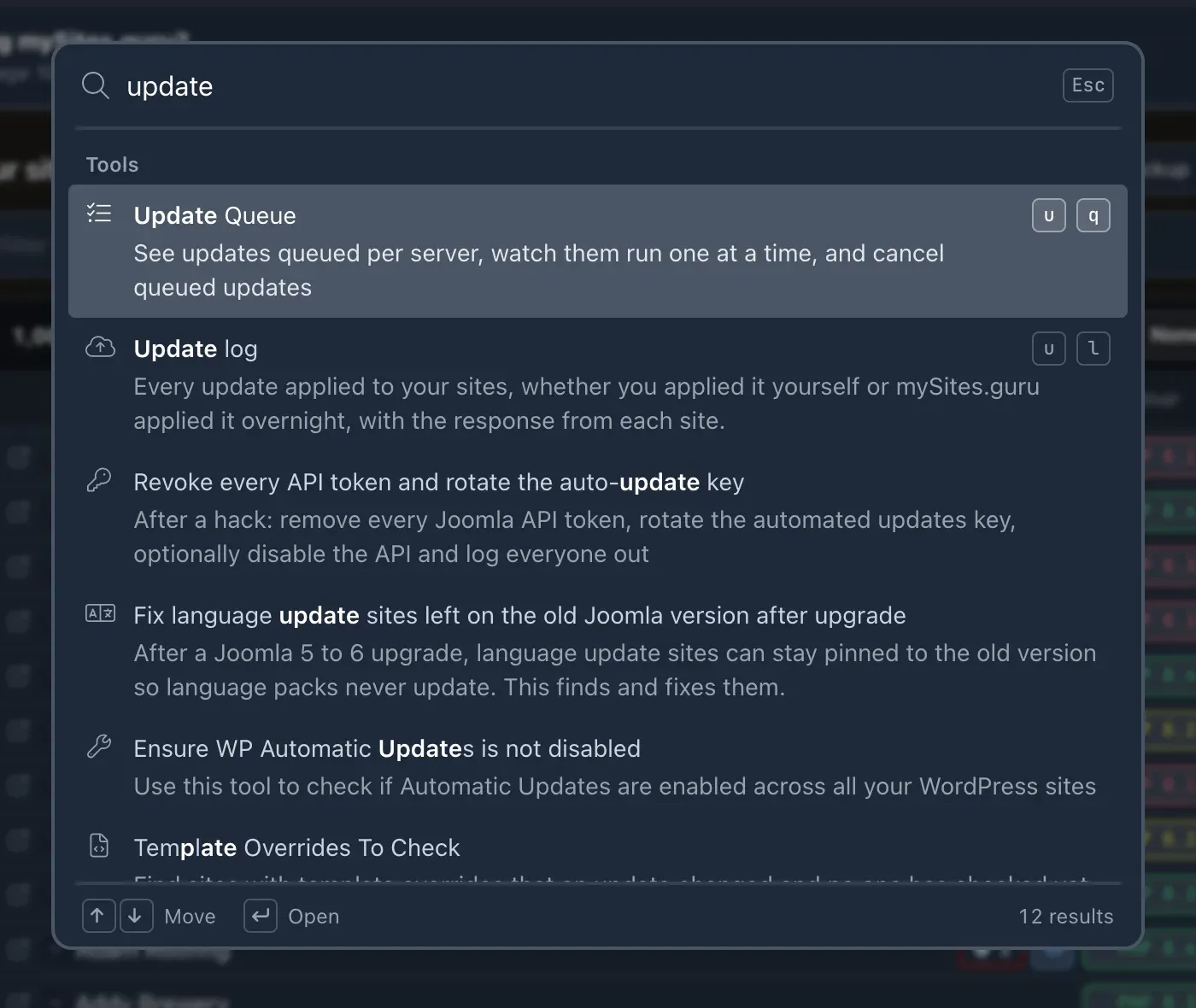
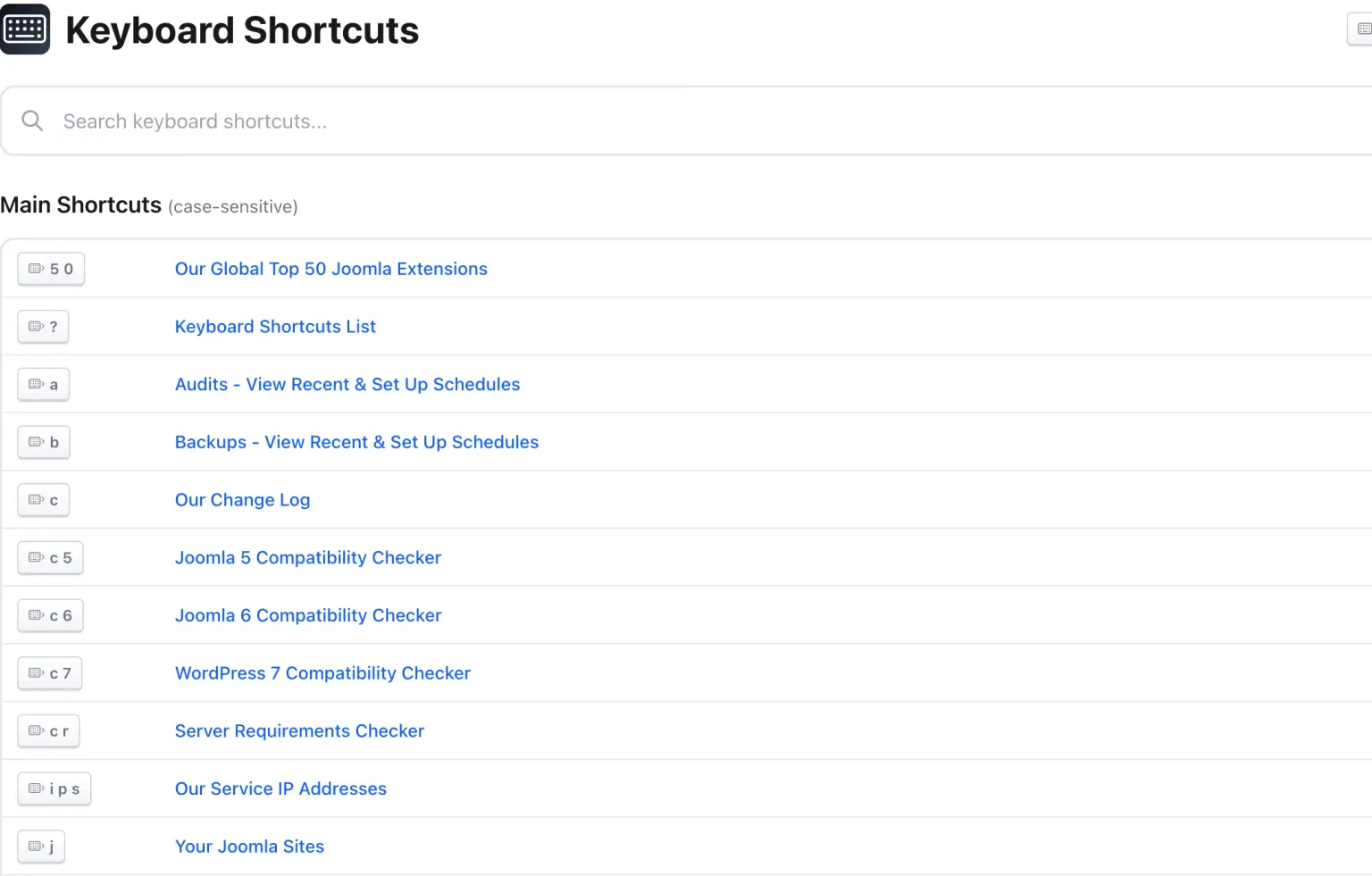
The full set of sequences: s s site screenshots, s s l SSL expiry, u q Update Queue, u l update log, u u m Universal User Manager, c 5, c 6 and c 7 for the Joomla 5, Joomla 6 and WordPress 7 compatibility checkers, c r server requirements, t a g tags, s p y the realtime activity log spy, m u mass upgrade, m i mass remote install, l l auto sign in, 5 0 the top 50 Joomla extensions, and i p s our service IP addresses.
The single keys: s your sites, j Joomla sites, w WordPress sites, a audits, b backups, u updates, v vulnerabilities, c changelog, d dark mode, and ? the keyboard shortcuts page.
Shortcuts never fire while you are typing in a field or while another dialog is open, so a d in a search box stays a d.
The palette teaches itself
People rarely read a shortcuts page before they need it, and a keyboard feature you have not heard of goes unused. So the palette introduces its own features one at a time, in its footer: open in a new tab, the scope prefixes, recents, See all, filtering a site’s actions. Each tip retires for good once you have used the feature, or after it has shown five times, so the footer stops mentioning things you already do.
Two more nudges sit alongside the tips. The highlighted site row always shows “Enter Actions”, because you would not press Enter expecting a menu unless something told you to. And when you pick a tool from the palette that has its own shortcut, a one-time toast tells you the key for next time, so the third time you reach for Backups you type b instead.
Why a 1,000-site Joomla and WordPress account got 2 MB lighter pages
A dashboard should not get slower as an agency adds clients, and the old palette guaranteed that it would. To search all your sites and tools instantly, it put the full list into each page as a script, so page size grew with the size of the account. Ten sites, no problem. A thousand sites, and the All Your Sites page sent a 2.16 MB script before it drew a single row.
Measured on our development server with a test account of 1,007 sites, the All Your Sites page went from about 2.4 MB of HTML to about 227 KB. The new palette keeps only its 3 KB list of keyboard shortcuts in the page and fetches its site and tool data the first time you open it. Its code loads in the background once the page has settled, which is why the first Cmd+K opens in about 30 milliseconds rather than waiting on a download. Each keystroke then searches 1,000+ sites and about 400 tools in about 3 milliseconds, and later opens reuse what the browser already has.
The practical difference is on the pages you open most. The sites list, the audits list, the backups list: every one of them loads faster for an account with hundreds of sites, and none of them pays for a palette you have not opened yet.
The keyboard shortcuts page
Press ? anywhere in the dashboard, or open the keyboard shortcuts help page. It now lists exactly the shortcuts the engine binds for your account, generated from the same source, so the page and the keys cannot disagree. If a shortcut is on the page, it works; if a page only some accounts can use is not available to yours, its shortcut is not listed.
Outside the browser, and in screenshots
The palette is the fastest route inside the dashboard. If you live in a launcher instead, the mySites.guru Raycast extension for Mac reaches your sites from anywhere on the desktop.
Taking screenshots of the palette
Add ?anon=1 to any dashboard URL and Anon Mode anonymises everything the palette shows too. In Anon Mode it shows no recents and remembers nothing in your browser, so a screenshot session leaves no trace of the real site names.
The palette follows light and dark mode, works at phone width, and is built for the keyboard and for screen readers: arrow keys, Home and End move the selection, and every result is labelled. If you already have a morning routine for checking your Joomla sites, Cmd+K with an empty box is the first thing to add to it.
Frequently Asked Questions
How do I open the command palette in mySites.guru?
What is the shortcut on Windows and Linux?
What happens when I press Enter on a site?
Does the palette slow my dashboard pages down?
Where is the full list of keyboard shortcuts?
 Written and edited by a human, with AI assistance. Our approach to AI