Introducing Checklists on mySites.guru
It is the end of the month, and somebody asks whether every care plan client got their monthly work. In most agencies the answer is “probably”. The evidence is a spreadsheet per client called something like care-plan-NOV-final-v3.xlsx, sticky notes and memory.
After 15 years of running client sites, I think the spreadsheet is the smaller problem. A tick is one person’s word about the day they looked. The SSL certificate was valid on the 3rd, and no one goes back on the 20th to see whether the tick is still true.
Checklists is a new feature in mySites.guru that goes after both. You write a list once, start it on every site that needs it, and link items to the checks mySites.guru already runs, so those items tick themselves. It lives on the Checklists page, which you reach from the Checklists row in the left menu, from Cmd-K or All Tools with the hotkey c l, and from a header icon once your account has used it.
Transcript
It’s the end of the month. Did every client site get its care plan? Spreadsheets, sticky notes and memory. Something always slips.
Meet Checklists, in mySites.guru. Write your list once. A monthly care plan, a go-live, a client handover. Then start it on every site that needs it, in one go.
Link an item to a mySites.guru check, like hacked files, and it ticks itself when the check passes. Your team ticks the rest. Deadlines chase the owner by email, and monthly lists start again on their own.
If a site gets hacked, a seventeen-step recovery checklist ticks itself off as you clean up.
Every site done, and you can see it. Checklists. Now in mySites.guru.
Write the list once
A template is a reusable list of items: a monthly care plan, a go-live list, a client handover. It holds up to 60 items, each up to 500 characters.
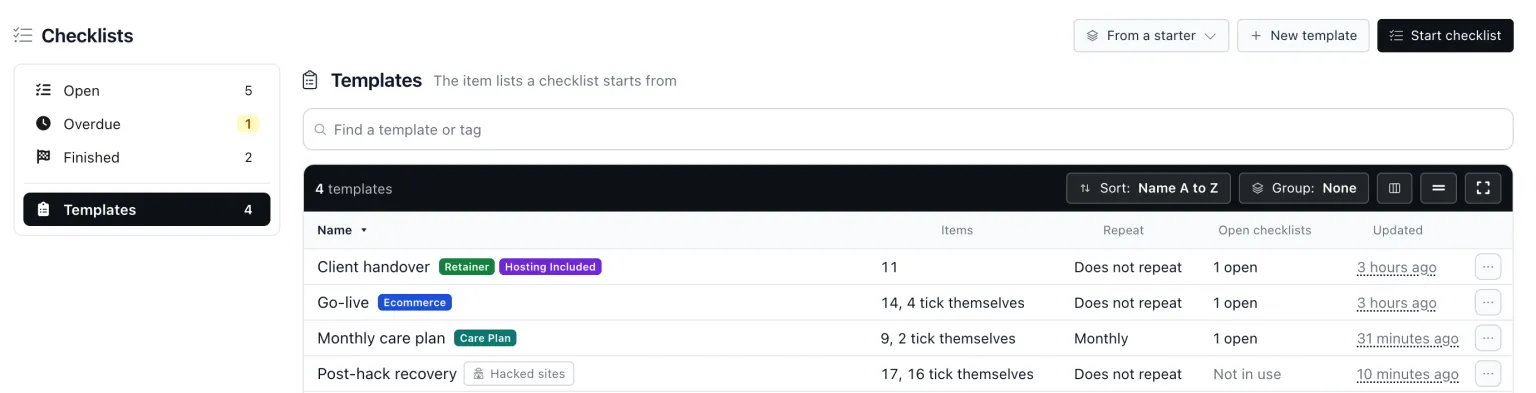
The From a starter menu on the Checklists page copies one of four starter templates with one click:
- Monthly care plan, 9 items, repeating monthly
- Go-live, 14 items
- Client handover, 11 items
- Post-hack recovery, 17 items, 16 of which tick themselves
The Monthly care plan reads: Apply core and extension updates, Backup in the last 7 days, SSL certificate valid for 30+ days, Uptime monitor on, Fresh audit with no hacked files, Contact forms send, Search Console errors reviewed, Home page speed checked, and Monthly report sent to the client.
Go-live and Client handover cover the jobs that go wrong when someone works from memory: “Search engines allowed (robots.txt and the CMS setting)” and “Error display turned off” on one, “Our temporary admin accounts removed or demoted” and “Download keys for paid updates given to the client” on the other. If none of them suits you, New template gives you a blank one.
The template editor has three panes: Details (the name, the default repeat and the tags), Items, and Chase. Items reorder by dragging the grip, or with the up and down arrow keys on it.
If your list already exists in that spreadsheet, Paste a list takes one item per line. Bullets, numbers and [ ] boxes are stripped, and a live count shows how many items will be added.
Start it on every Joomla and WordPress site that needs it
A template can have site tags. Start a tagged template and every connected, not paused site with any of its tags is preselected. In the example recording below, the start page reads “Selected 42 sites tagged Care Plan.” and its footer button reads “Start on 42 sites”. The picker stays editable.
A checklist starts on one site, several, or up to 2,000 at once. The ways in are Start checklist on the Checklists page, a template’s row menu, the Start checklist bulk action on All Your Sites, the Checklists pane on Manage Site, and Start again.
Each started checklist has a name, an owner, a deadline, a repeat and its chase emails. The deadline is a calendar date in the owner’s timezone, and the repeat is weekly, monthly, quarterly or none.
A started checklist keeps its own items
Editing or deleting the template never changes a checklist that is already open. One whose template has gone shows a “Template deleted” tag.
One matrix, every site
The page for a started checklist is a matrix: one row per site, one column per item, and a tick box in every cell.
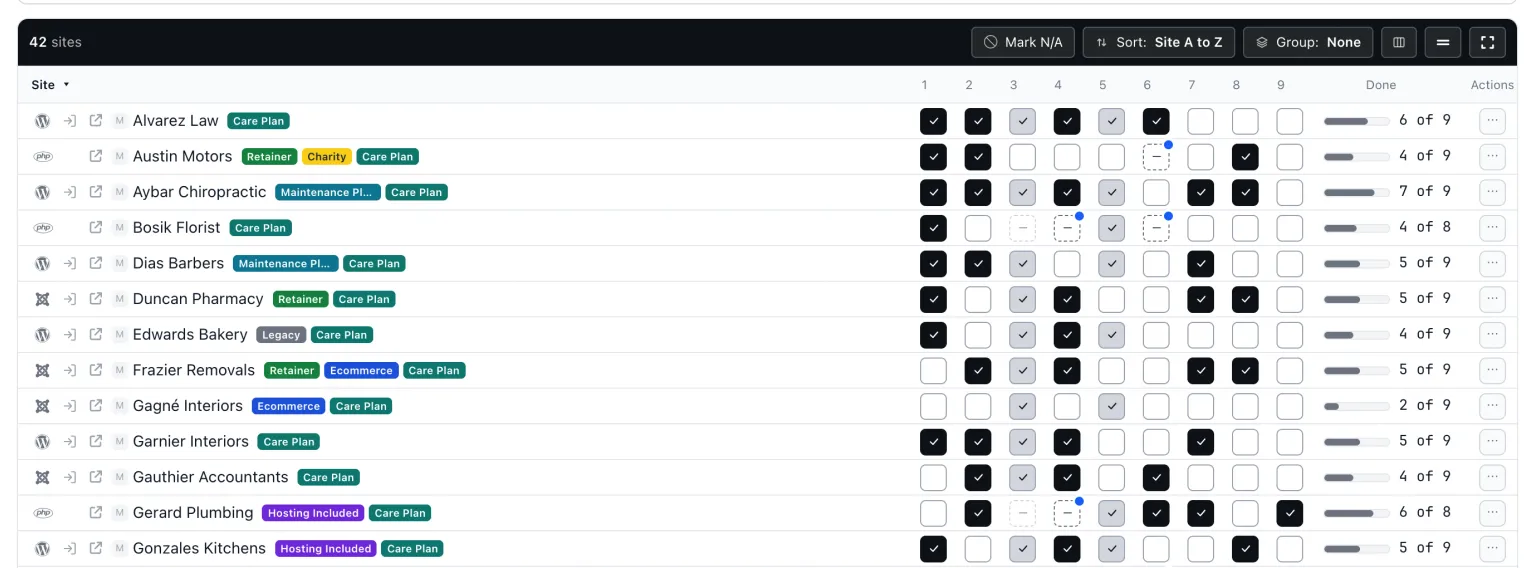
The arrow keys move between cells, Space ticks or unticks, a marks a cell N/A and n opens a note. Notes are per cell, up to 500 characters, and stored encrypted.
Tick all on an item ticks that column, and Tick every item on a site ticks that row. Both offer Undo for 10 seconds. Mark N/A in the table bar is a toggle mode. With more than 12 items, or on a phone, each row expands into its item list.
Progress counts the cells that are done plus the cells a person marked N/A, out of every cell that applies. It reads 100 only when every applicable cell is dealt with, at which point the checklist finishes itself and says how you did: “Finished 2 days early”, “Finished on the deadline” or “Finished 1 day late”. If your own tick is the one that finishes it, you get one burst of confetti, skipped if you prefer reduced motion.
Team members get a Checklists permission: View sees the pages and checklists, Manage edits templates, starts and ticks. A member restricted to some sites sees only those sites’ rows and counts. Each checklist exports to CSV, one row per site and item.
How does a checklist item tick itself?
Each item in a template has a Ticks itself when picker. It lists every mySites.guru Snapshot and Audit check, with a search box. Pick a check, and the item ticks itself on each site when that check reads OK. By hand is the default. Checks whose label never reads OK, version numbers and the like, are left out of the picker.
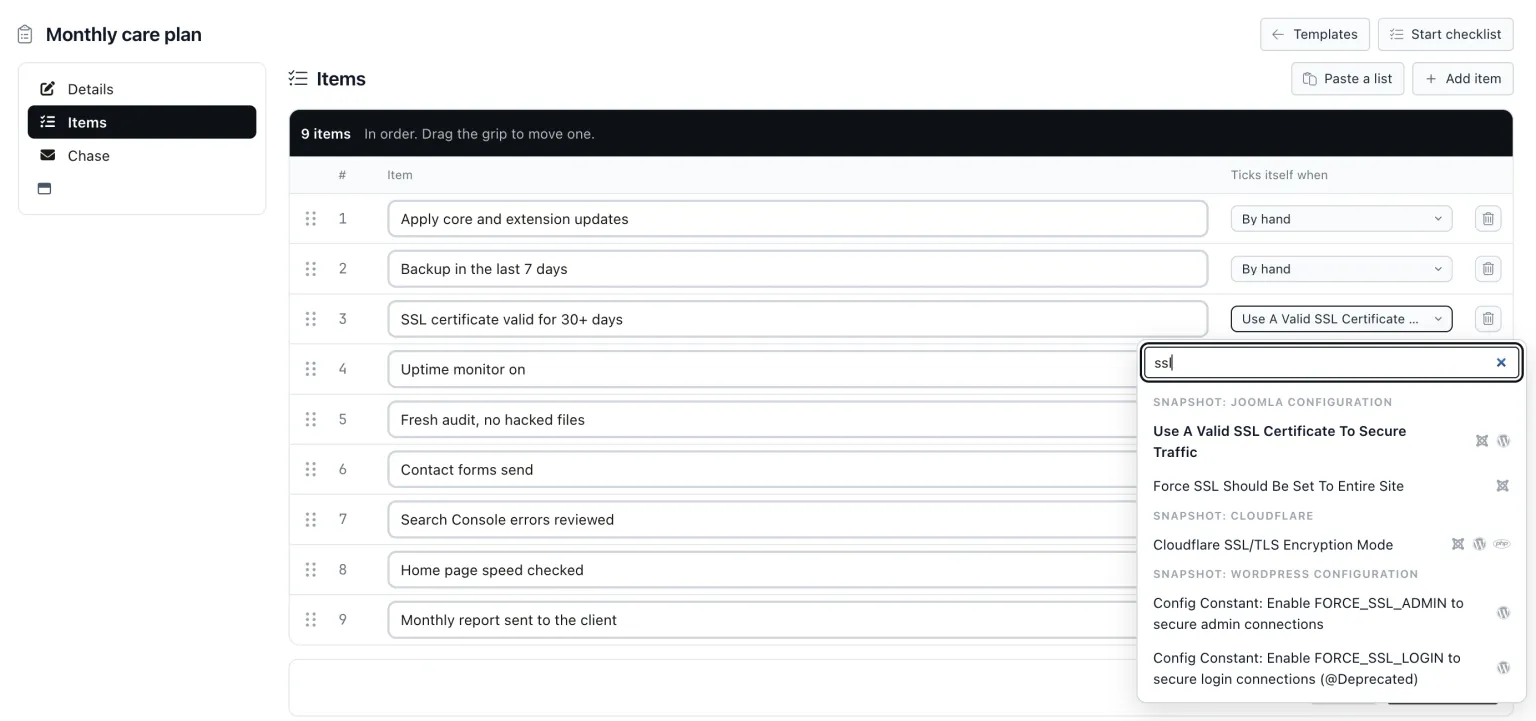
The ticks come from live mySites.guru data at three moments: after a snapshot, when an audit finishes, and when a backup completes. mySites.guru reads its own stored results and never the site’s connector.
If the check goes red later, the automatic tick is removed, and that changes what a tick is worth. The SSL certificate that was fine on the 3rd and lapses on the 20th unticks itself on the 20th. A tick stops being a memory of the day someone looked and becomes a reading mySites.guru keeps re-taking.
A tick a person made is never taken away: it stays, and the page shows the live red evidence beside it. A check that cannot apply to a site, because it is the wrong platform or the tool is missing, marks that cell N/A for mySites.guru and leaves it out of the total.
Some things no check can prove. Whether the contact form sends, whether anyone read the Search Console errors, whether the monthly report went to the client: that is human work and it stays a human tick. The matrix shows both kinds side by side.
Deadlines that chase, lists that repeat
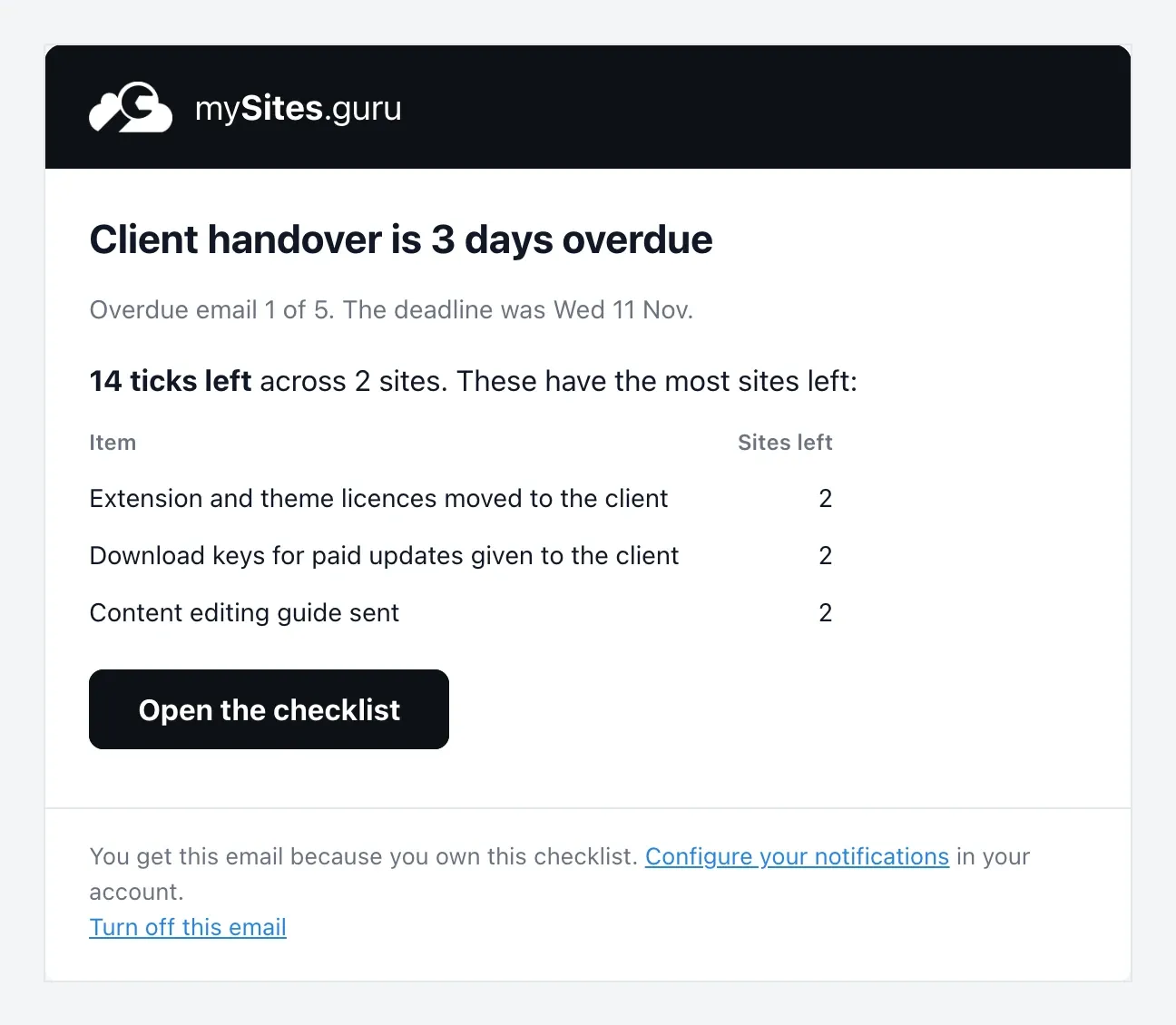
A checklist with a deadline chases its owner by email, from 08:00 in their timezone. There are three stages: a reminder before the deadline (3 days by default, anywhere from 0 to 30), an email on the deadline day (on by default), then overdue emails every few days (every 3 days by default, 5 of them, with a maximum of 10).
Each email lists the items with the most sites left and opens the checklist at the first empty cell. The settings default from the template and can be changed per checklist. One with no deadline is never chased, and the email can be turned off in notification preferences.
The Checklists page has Open, Overdue, Finished and Templates views. Open shows the name, sites, owner, deadline, progress (the example below reads “201 of 367”) and a status: red for “Overdue” with the number of days, yellow from “Due today” to “Due in 3 days”, and “On track” for everything else.
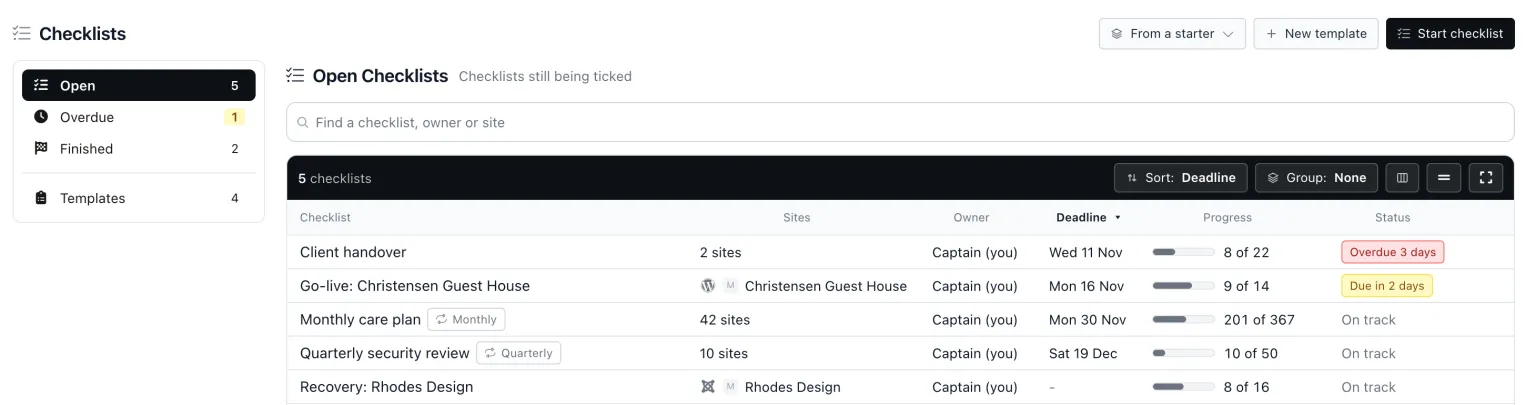
Overdue work shows up where you already look. The site’s row in All Your Sites gets a red “Overdue” pill, and its Manage Site header gets a chip. The Timeline’s Action needed list shows “Checklist overdue” and, up to 3 days ahead, “Checklist due”.
A repeating checklist starts its next copy on its own, either when it finishes or once its deadline passes, due on the next weekly, monthly or quarterly boundary.
Every site has its own Checklists pane
Every Joomla, WordPress and Generic site has a Checklists pane on its Manage Site page. It shows that site’s open checklists with their items, ticked in place, the finished ones folded below, and a Start checklist button.
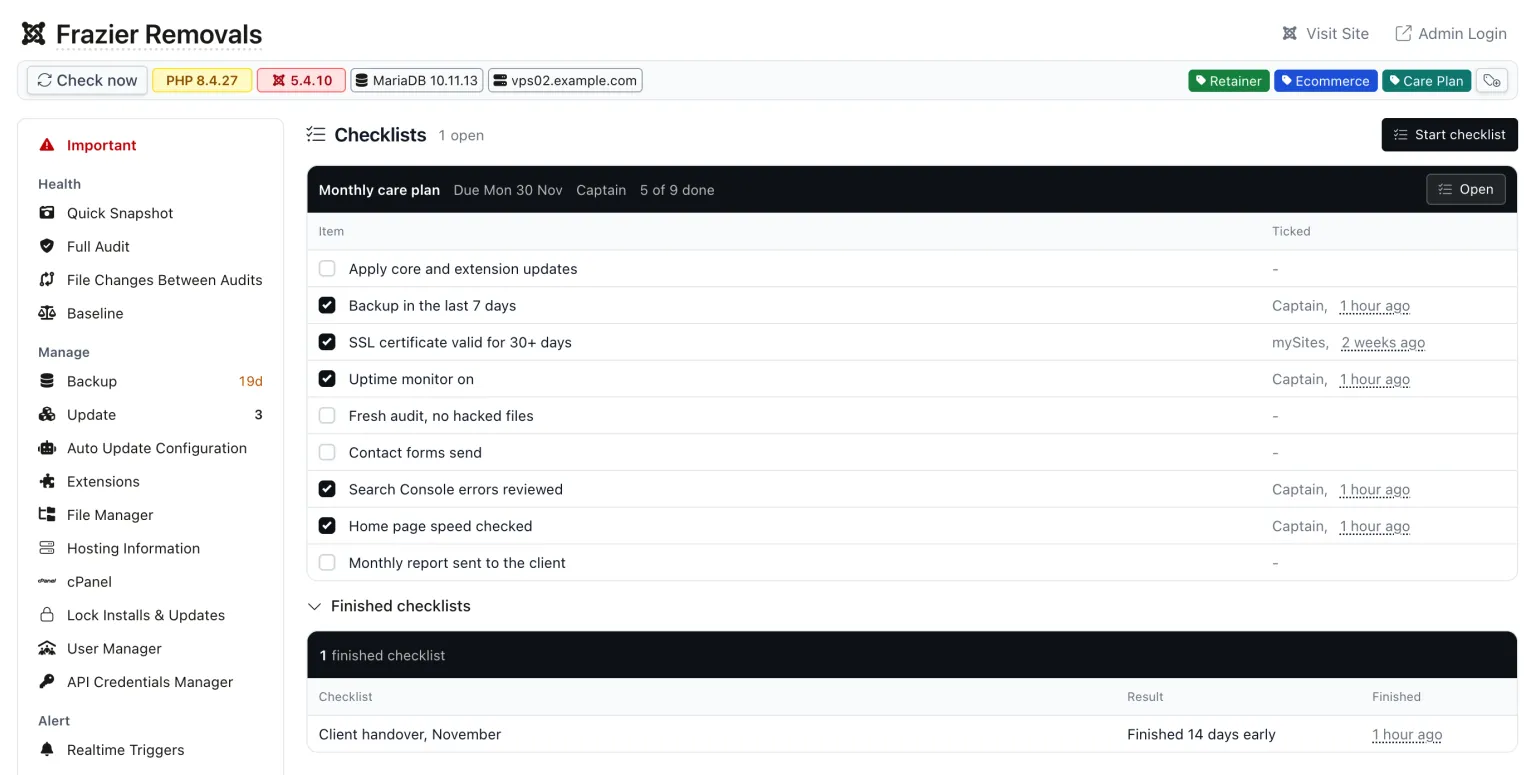
In that example “SSL certificate valid for 30+ days” was ticked by mySites.guru.
What happens when a site is hacked?
A hacked site gets a Start recovery checklist button on the hacked row of its Important tab, and the same offer in its Checklists pane. A site has one open recovery checklist at a time.
The built-in list has 17 steps in order. It opens with Take a forensic backup and Run a fresh audit, works through Clean hacked files, Remove rogue admins, Check cron jobs, Reset admin passwords, Rotate the Joomla secret, Revoke API keys, Refresh core files and Update extensions and core, and ends with Lock installs and updates and a Final clean audit. Cleaning the hacked files is one step of 17, and a site that only gets that step tends to be hacked again.
16 of the 17 steps tick themselves from evidence gathered after the hack. Evidence counts from when the site was flagged hacked, up to 7 days before the checklist started, otherwise from the start.
| Step | Ticks itself when |
|---|---|
| Take a forensic backup | A backup completes |
| Clean hacked files | The audit reads OK for hacked files |
| Remove rogue admins | The snapshot check for rogue admins reads OK |
| Rotate the Joomla secret | The secret is rotated from mySites.guru |
| Lock installs and updates | Lock Installs & Updates is switched on |
| Final clean audit | A final audit has no hacked verdict |
| Change hosting, database and FTP passwords | Never: ticked by hand |
Steps that cannot apply are N/A: Rotate the Joomla secret on a WordPress site, for example, or Purge Cloudflare cache on a site that is not on a connected Cloudflare zone.
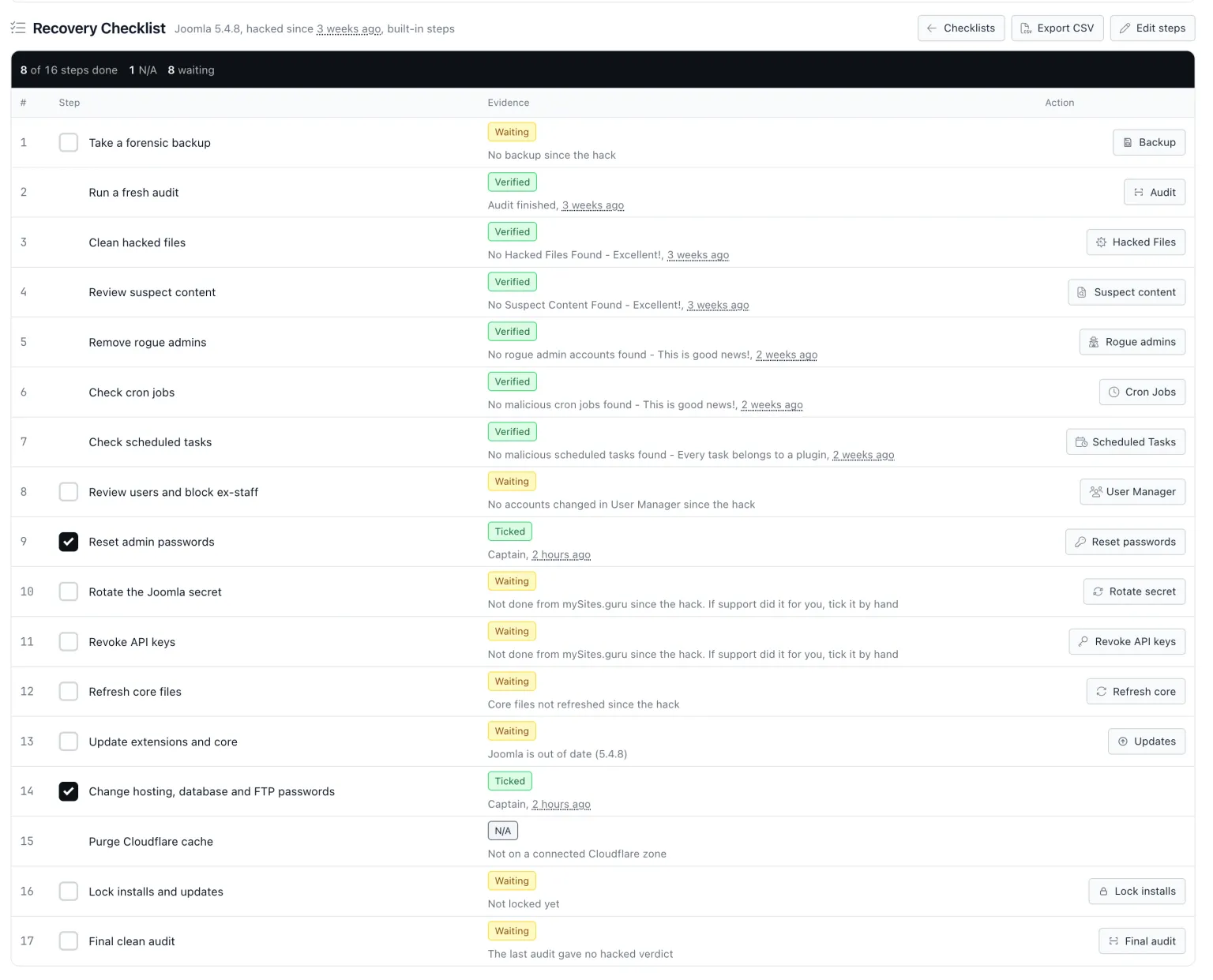
Each step has a state pill. Verified means mySites.guru ticked it from evidence, and Ticked means a person did. Waiting comes with its reason, such as “No backup since the hack” or “Not locked yet”. The other two are N/A and Manual. Beside the pill is a button to the tool that does the step. On the Important tab, the hacked row reads “Recovery checklist: N of M steps done”.
Clean a Hacked Site with Suspect Content and Hacked FilesRead the full post
Make the recovery checklist your own
The recovery checklist is an ordinary template too. Copy the Post-hack recovery starter, or press Edit steps at the top of a recovery page, and you can rename steps, remove them, drag them into a new order and add your own, such as a breach-notification step or “Call the client”. With no template marked for hacked sites yet, Edit steps copies the 17 built-in steps into a new one, marks it and opens its editor. With one already marked, it opens that template.
Marking is a switch on the template named Use when a site is hacked, or Use for hacked sites in its row menu. The marked template shows a “Hacked sites” pill, and every new recovery checklist starts from it. Only one template can be marked, so marking another moves the mark. With none marked, recovery checklists use the 17 built-in steps.
Copied steps keep their evidence links, so a step you renamed still ticks itself from the same evidence. Those evidence checks also appear in the Ticks itself when picker of any template, in a “Recovery evidence” group, each with a one-line hint saying what ticks it. Recovery checklists already open keep their own steps, and the head of each recovery page says where its steps came from: your template (linked), a deleted template, or the built-in steps.
Checklists from the API, or from your AI assistant
Everything above is also in the REST API, under /api/v1/checklists: templates, checklists, cells and checks. POST /api/v1/checklists/templates/{id}/duplicate copies a template and /api/v1/checklists/templates/starters/{key} copies a starter. Two scopes cover it, api:checklists:read and api:checklists:write.
There are eight MCP tools: list_checklist_templates, save_checklist_template, copy_checklist_template, list_checklist_runs, get_checklist_run, start_checklist_run, set_checklist_cell and list_checklist_checks. An AI assistant connected to your account can start a checklist or tick a cell.
Where to start
Copy the Monthly care plan starter, put your care plan tag on it, and start the checklist on the sites that tag selects. Link the items a check can prove and leave the rest by hand.
Frequently Asked Questions
Can a checklist item tick itself in mySites.guru?
How many sites can one checklist cover?
Does editing a template change checklists already started?
Can I change the post-hack recovery checklist?
Who gets the overdue emails?
 Written and edited by a human, with AI assistance. Our approach to AI