Tag Your Sites by Client, Server or Retainer
A site list is a fine way to hold forty sites. You scroll it, you recognise the domains, and when you want a particular one you type part of its name into the search box.
Somewhere past a hundred it stops being a list and becomes a haystack. The question you have is rarely “where is example.com”. It is “which of these belong to Meridian”, or “which of these are on the Frankfurt box being rebuilt this weekend”, or “which of these are on the retainer that includes monthly updates, and which are the ones we only touch when they break”. A list sorted by name answers none of that, so the answer gets kept somewhere else: a spreadsheet, a Notion table, or one person’s memory. All three go stale, and only one of them can hand in its notice.
Tags are how mySites.guru keeps that answer next to the sites themselves, and they were rebuilt this month.
What the rebuilt Tags feature does
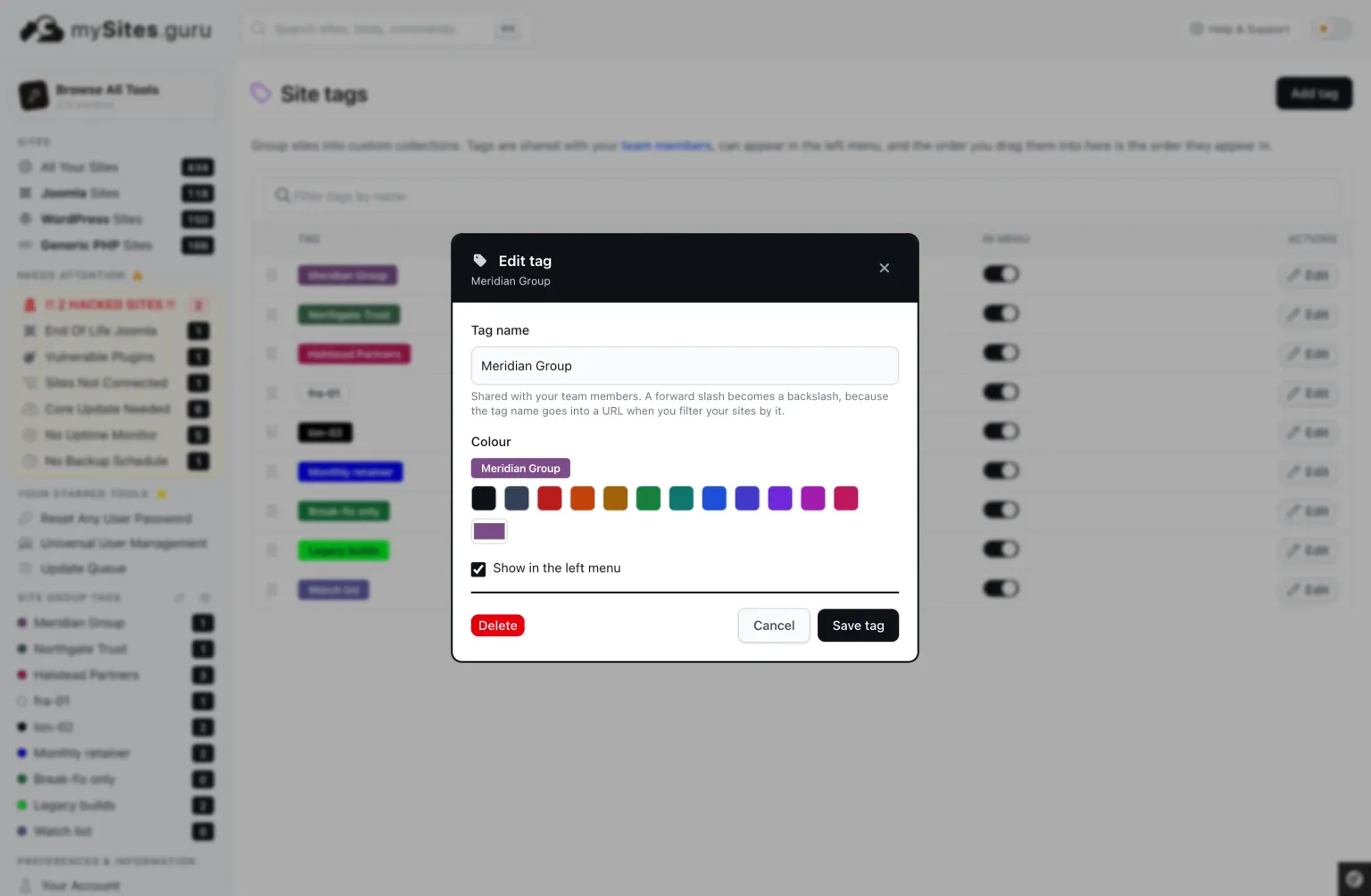
A tag is a name, a colour, and a list of sites. You make them on the mySites.guru tags page at /en/tags/, which is headed Site tags and has an Add tag button in the top right. The dialog that opens asks for three things: a name, a colour from a palette of twelve, and whether the tag should appear in the left menu.
That is the whole model. Everything else is what you can do with it.
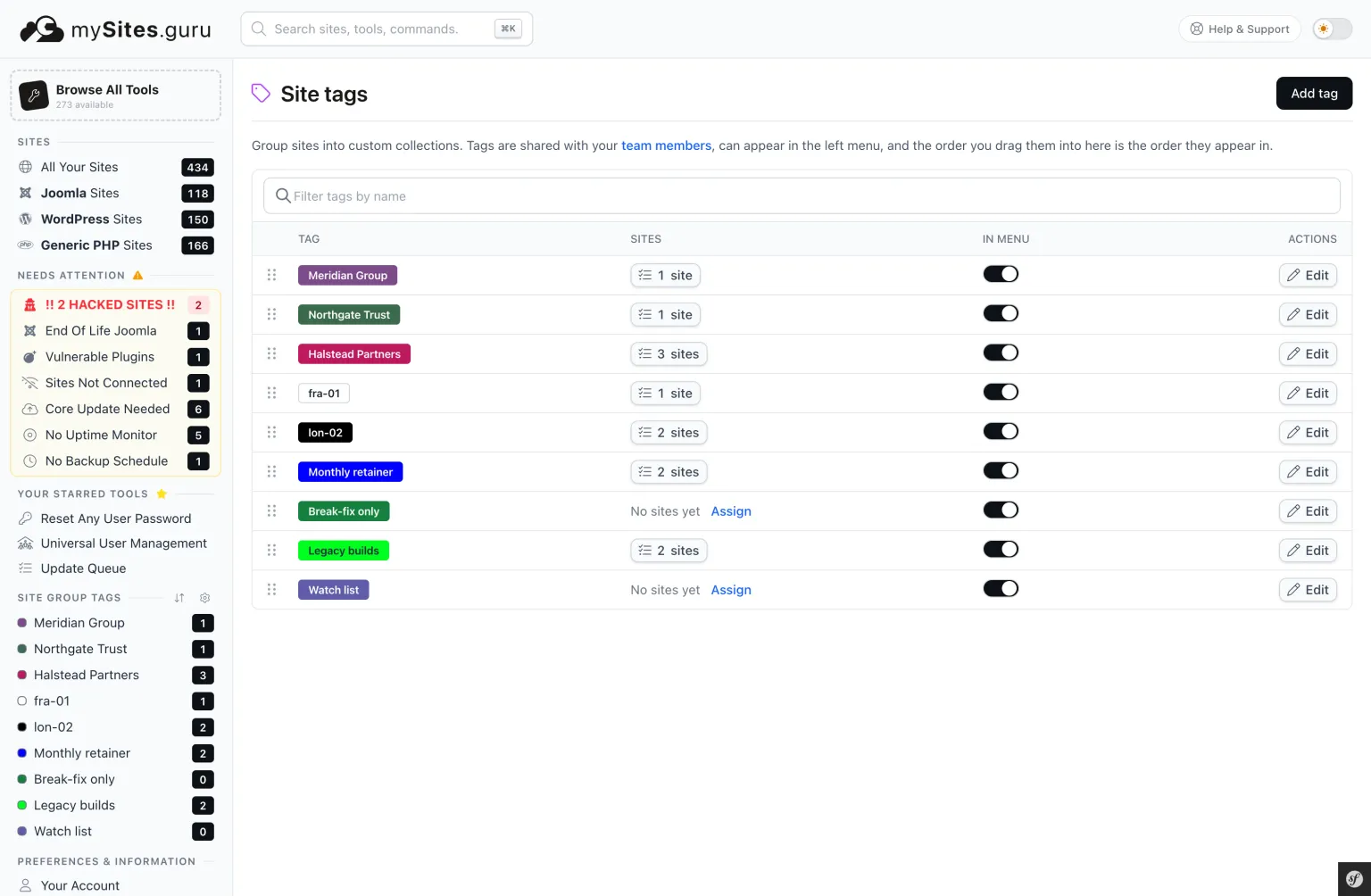
Tags belong to the company, not to your login, so everyone on your team sees the same set. They show up as coloured badges on each row of the sites list, as a section headed Site Group Tags in the left menu of every page, and as pills above the updates list. Wherever they show up, clicking one filters to it.
Where the tags page lives
The left menu section is headed Site Group Tags, and the cog icon beside that heading is the permanent route to the management page. Beside it is a second button, Reorder your tags, which turns the menu itself into a drag list. They used to be one control, which meant the only persistent link to the tags page anywhere in the product armed drag mode instead of navigating. They are now two buttons, each doing the one thing its tooltip says.
Editing one opens this. A name, the twelve-colour palette with a live preview of the badge above it, and the switch that decides whether the tag appears in the left menu.
Tag by the action you will take
A tag earns its place when it changes what you do next, and that one rule decides whether a scheme is still useful in a year. “Meridian” earns it, because before a Meridian call you want their five sites and nothing else. “Frankfurt” earns it, because when that machine gets rebuilt you want its sites and nothing else. “Built in 2021” does not earn it, because there is no Tuesday on which you act on the sites built in 2021.
The failure mode is tagging descriptively instead of operationally: recording what a site is rather than grouping by what you will do to it. Descriptive tags feel productive to create and then sit there. About a third of the tags in mySites.guru have no sites on them at all, which is roughly the shape of that mistake measured across every account.
Four things worth tagging by
These four keep earning their place. Most accounts use two or three of them, and half of the accounts that use tags at all have three or fewer.
- Client
- The commonest and the most useful. One tag per client, applied to every site they own. It scopes a report, a backup run, and the five minutes before a call when you want to know whether anything is broken on their side of the portfolio.
- Server or host
- Group by the machine or the hosting account. When a box needs a PHP bump, a reboot or a migration, the tag tells you what else is affected. It also answers the awkward question during an outage, which is not "is the site down" but "what else is down with it".
- Retainer tier
- What you are paid to do. Monthly updates, quarterly checks, break-fix only. This is the tag that stops you doing forty pounds of unbilled work on a site whose contract does not include it, and it is the one that scopes an automatic update policy sensibly.
- Risk or attention
- The handful you want to look at first: the legacy builds, the ones on an old branch, the ones that got hacked once and have not earned your trust back. Small by design. A tag holding a third of your sites is not a priority list.
Platform is worth a mention and then a warning. Tagging by Joomla or WordPress feels obvious and is almost always redundant, because mySites.guru already knows which platform every connected site runs and the sites list filters on it without your help. Spend the tag on something the system cannot work out for itself.
Should a site have more than one tag?
Yes, and this is where tags beat folders.
A site belongs to one client, sits on one server, and is on one retainer tier, so those three axes cross rather than compete. Tag Meridian, fra-01 and Monthly on the same site and you can ask three different questions of it without ever duplicating anything. A folder structure makes you pick which of those three is the top level, and whichever you pick is wrong for one of the three questions.
mySites.guru accepts up to 50 tags on a single site in one save, which is far more than anyone sensible needs and exists so a bulk paste cannot be trimmed without you noticing. Over that limit the save is rejected and says so, rather than storing the first fifty and discarding the rest.
“tracking php versions and software via tagging. Invaluable to our business.”

Putting sites on a tag without three hundred clicks
There are three ways in, and which one you want depends on whether you are thinking tag-first or site-first.
From the tags page, the site count in each row is a button. Click it and a dialog opens listing every site you can see, with a filter box and Select all and Clear buttons. Tick what belongs, press Save sites, and the tag’s membership is replaced with your selection in one request. The readout under the list is explicit about that: it tells you how many of how many are selected, and that saving replaces what is on the tag.
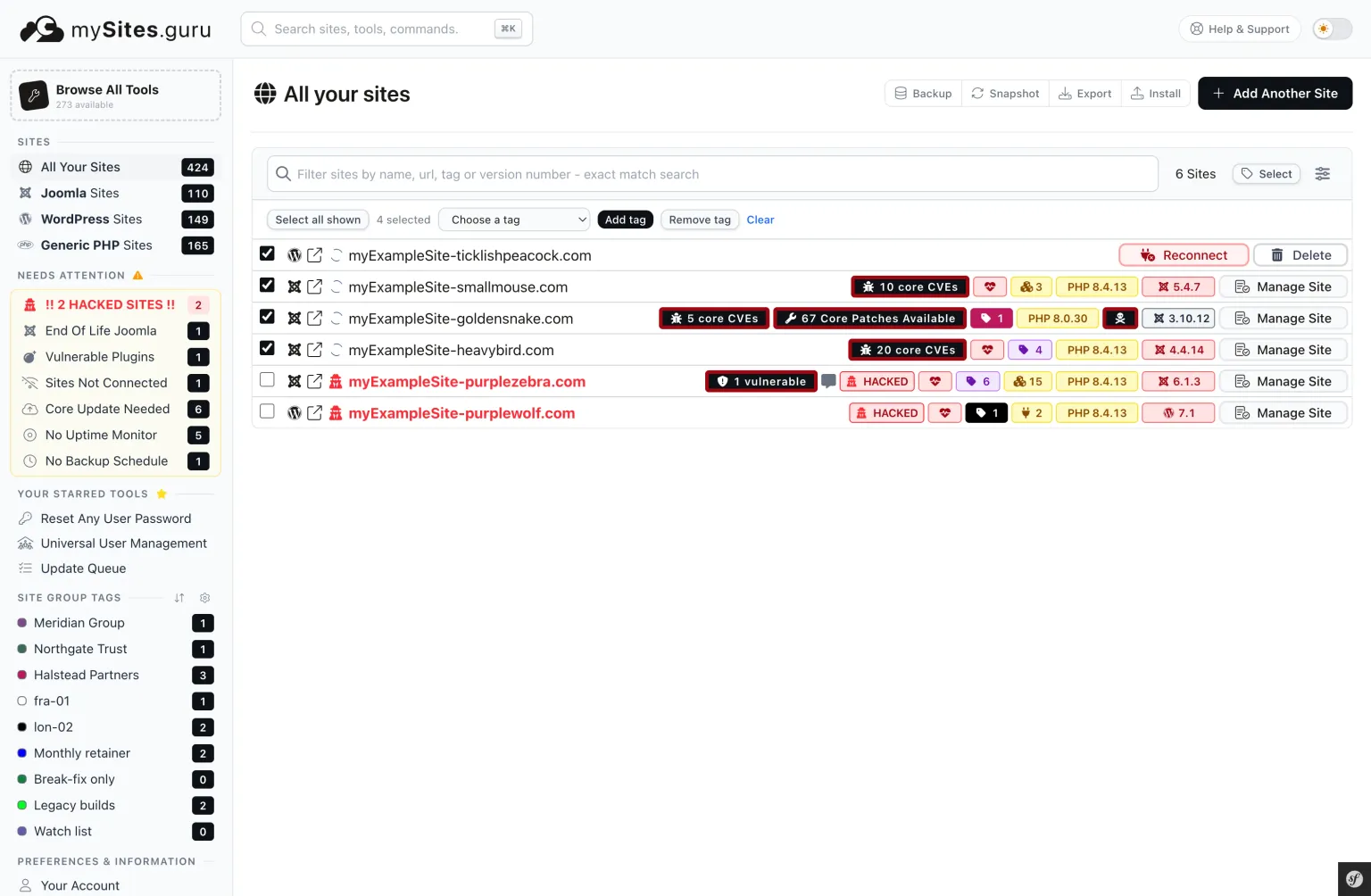
From the sites list, the Select button turns every row into a checkbox. Tick some rows, or press Select all shown, pick a tag from the Choose a tag dropdown, then press Add tag or Remove tag. This is the site-first route, and it is the one to use after you have filtered the list to something interesting, like every site on a given PHP version.
From an individual site’s page, the Add tag button in the header opens a type-ahead. Existing tag names autocomplete; a name that does not exist yet is created when you save.
Add and Remove are two buttons on purpose
A single toggle would be shorter and would also be dishonest. Over a selection where some rows already hold the tag and some do not, one click would add for half of them and remove for the other half, and no button label can describe that truthfully. Two buttons, each doing one thing to every row in the selection.
Every bulk tool takes a tag
This is the part that repays the afternoon you spend tagging, and it is why a tag that only filters one screen is worth much less than one that crosses the whole product.
The search token is [tagged:Name], brackets included, and it works in the filter box at the top of the sites list. You will rarely type it, because clicking a tag anywhere puts it there for you, but it is a text token, so a tag filter is something you can bookmark, share with a colleague, or keep open in a second tab during a maintenance window.
From there:
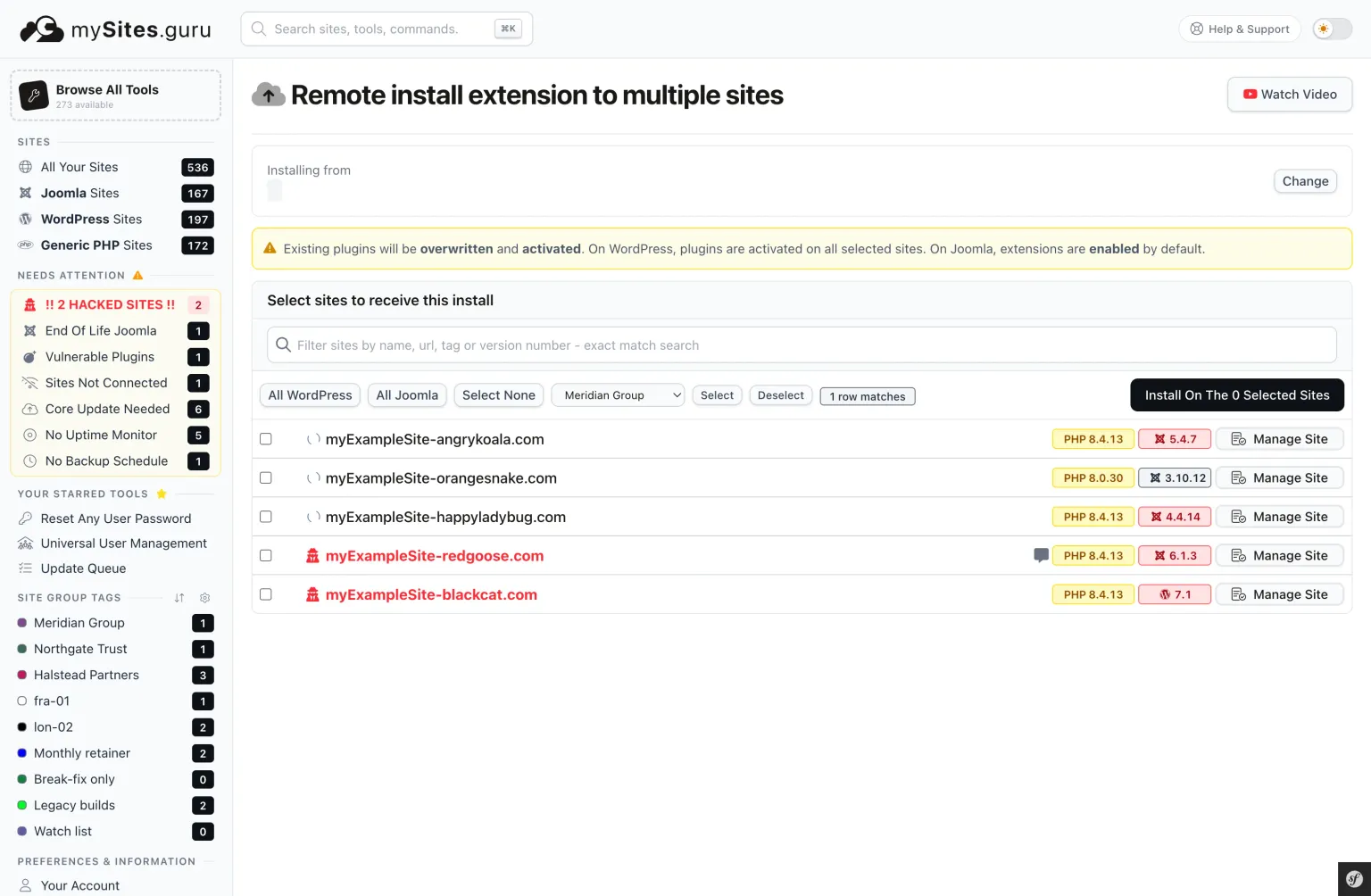
- Mass upgrade. The en-masse upgrade screen has a Select sites by tag dropdown with Select and Deselect buttons, so a rollout is scoped to one client or one server rather than to everything at once. There is a live badge telling you how many rows matched before you commit.
- Remote install. The same control appears in the site picker for installing an extension or plugin across many sites, so “put this plugin on everything Meridian owns” is two clicks rather than a hunt.
- Backups. Filter the sites list to a tag first, then use the button that backs up every site visible below. The filter is the scope.
- Updates. Both updates views have a row of tag pills labelled Tags: showing your ten largest tags. Click one and the pending-updates list narrows to that group, which is the quickest way to answer “is everything of theirs up to date” before you are asked.
- Audits and snapshots. The same filter narrows these too, so a security sweep can be scoped to the tier that pays for security sweeps.
What happens to a tag you stop using?
Tag schemes decay. A client leaves, a server gets decommissioned, a tier gets renamed, and the tag stays behind looking authoritative.
mySites.guru gives you two different answers rather than one. Each row on the tags page has a Show in the left menu switch. Turning it off keeps the tag, its colour and its entire membership, and only takes it out of the sidebar. That is the right move for anything historical: the client you might hear from again, the “hacked in 2024” group you want to be able to reconstitute. The information is still there and the menu stays short.
Deleting is the other answer, and it removes the tag and its membership records only. No site is touched, disconnected or changed; the badge simply stops appearing. Delete asks twice before it does it.
The reason both exist is that hiding and deleting get confused constantly, and the confused version is always the destructive one.
What changed in the rebuild
The previous version of this feature worked, and the way you used it was to drag a site row, by the three dots beside it, onto a tag. That was fine for twelve sites. On a list of several hundred it required you to first filter the list down so that both the site and the tag were on screen at once, which the old documentation cheerfully told you to do.
The rebuild replaced it, and if you used the old one, these are the changes:
- Reordering exists. Tags used to render alphabetically everywhere, which meant naming a tag
1. Prioritywas the only way to get it to the top. Now you drag them into the order you want, on the tags page or in the left menu itself, with the arrow keys as an alternative. Each save gets an Undo for nine seconds. - The menu drag only moves what you can see. The left menu holds only the tags you chose to show there, so a drag in the menu permutes those positions and leaves the hidden ones where they were. The alternative would move tags you cannot see, with nothing on screen to tell you it happened.
- Colours are chosen, not random. New tags used to get a random hex value, which produced the occasional unreadable badge and the occasional two tags in near-identical shades. There are now twelve presets, each one tested to stay legible against its own text in both light and dark mode, plus a colour picker if you want something specific. A tag saved without a colour gets one derived from its name, so the same name always produces the same colour.
- Membership saves once, not once per site. The old assign screen issued one request per site. Getting this right meant fixing the most interesting bug in the rebuild.
The bug worth knowing about if you write PHP
The new dialog originally posted one form field per selected site. PHP’s max_input_vars defaults to 1,000, and it does not error when a request exceeds it: it discards the surplus with no error and gives your script a truncated array. Because a membership save replaces the list, a select-all on a very large tag arrived incomplete and took the tail of that tag off, then reported success. The fix was to send the selection as a single field. The same code now also treats a missing field as a failure rather than as an empty selection, because “the body did not arrive intact” and “the user unticked everything” must never look the same to code whose next act is a delete.
A restricted team member’s save is now bounded by what that member can see, in both directions. If someone has access to three of your sites, saving membership from their account can add or remove those three and cannot touch anything else on the tag.
Tags in the API and in Claude
Tags are readable programmatically, which turns them into a vocabulary rather than a UI feature.
GET /api/v1/tags returns every tag with its slug, name and colour to any token holding the api:tags:read scope, ordered the same way your left menu is. The mySites.guru API covers how to get a token.
The same list is available to AI assistants over MCP through a read-only tool called list_tags, behind the mcp:tags:read scope. That is the piece that makes “queue a backup for every Joomla site tagged client-retainer” a sentence you can say rather than a filter you have to build. The assistant reads your tag names, so you talk about groups of sites using the words you already use internally.
Where to start
If you have never tagged anything, do not tag everything. Make one tag for your largest client, put their sites on it, and use it for a week. If it changes what you click, make the next one.
Tags are part of every mySites.guru subscription, on every plan, for unlimited sites. If you are not a subscriber yet, there is a free month to try it on your own portfolio.
Frequently Asked Questions
What is a site tag in mySites.guru?
How many tags can one site have?
Can my team members see the tags I create?
How do I filter my sites list by tag?
What happens to the sites when I delete a tag?
Can I read my tags from the API or from an AI assistant?
 Written and edited by a human, with AI assistance. Our approach to AI