How to Delete a Site From mySites.guru
It's permanent, and it won't remove our connector plugin or cancel your subscription.
You retire a client site, an agency contract ends, or a test install has outlived its purpose, and now it’s sitting in your mySites.guru Sites list doing nothing but taking up a row. Removing it is a short job, but the confirmation screen is built to slow you down first, and most people get a couple of things wrong about what deleting a site does.
Step by step: deleting a site
1. Open the site’s Manage page
From your Sites list, click into the site you want to remove. That takes you to its Manage page, with the row of tabs (Important, Health, Manage, Alert, Activity, Notes) across the top.
2. Open Config, then Advanced
In the top right of that tab bar is a small pill labelled Config, with a gear icon. Click it, then open the Advanced sub-tab (alongside Site Basics and Connection & Security).

3. Find the Danger Zone
On the Advanced sub-tab is a red-bordered Danger Zone section with one option in it: Delete This Site. Click Delete Site.

4. Type the hostname to confirm
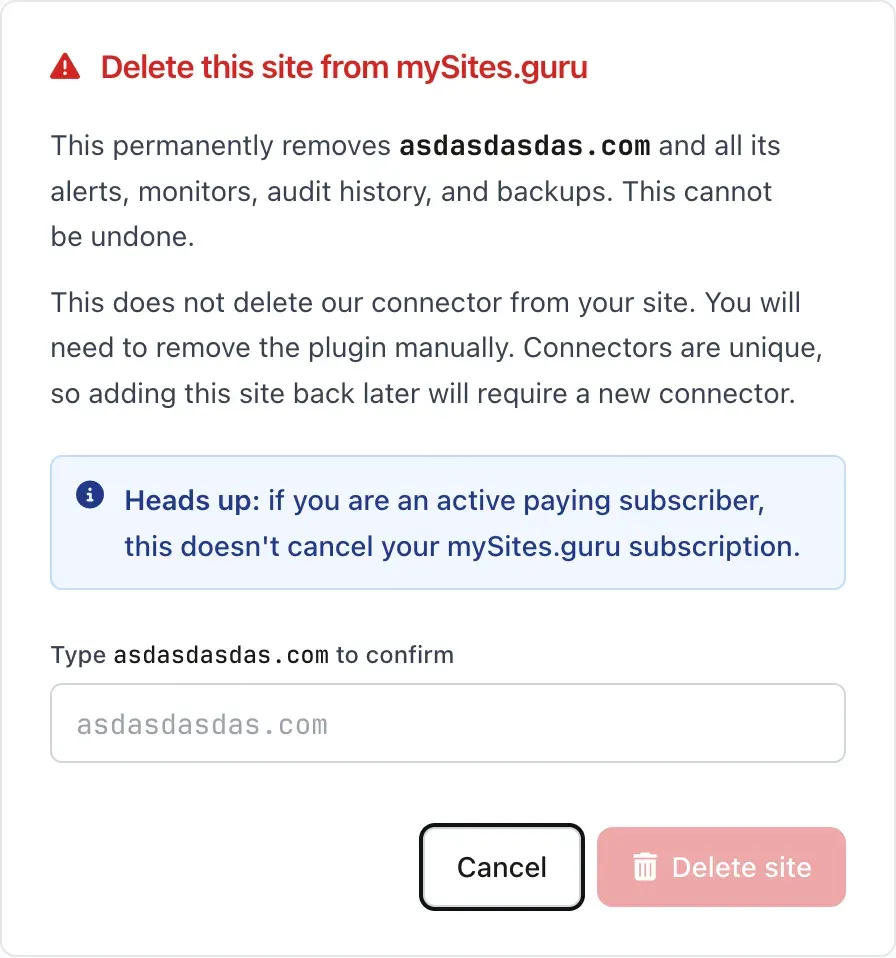
This opens a confirmation screen that spells out what’s about to happen: the site, its alerts, monitors, audit history and backups are all removed, permanently. Underneath, it also states what it will not do (more on that below). Type the site’s exact hostname into the field. The red Delete site button stays disabled, greyed out, until what you’ve typed matches.
Once it matches, a checkmark appears and the button goes live.
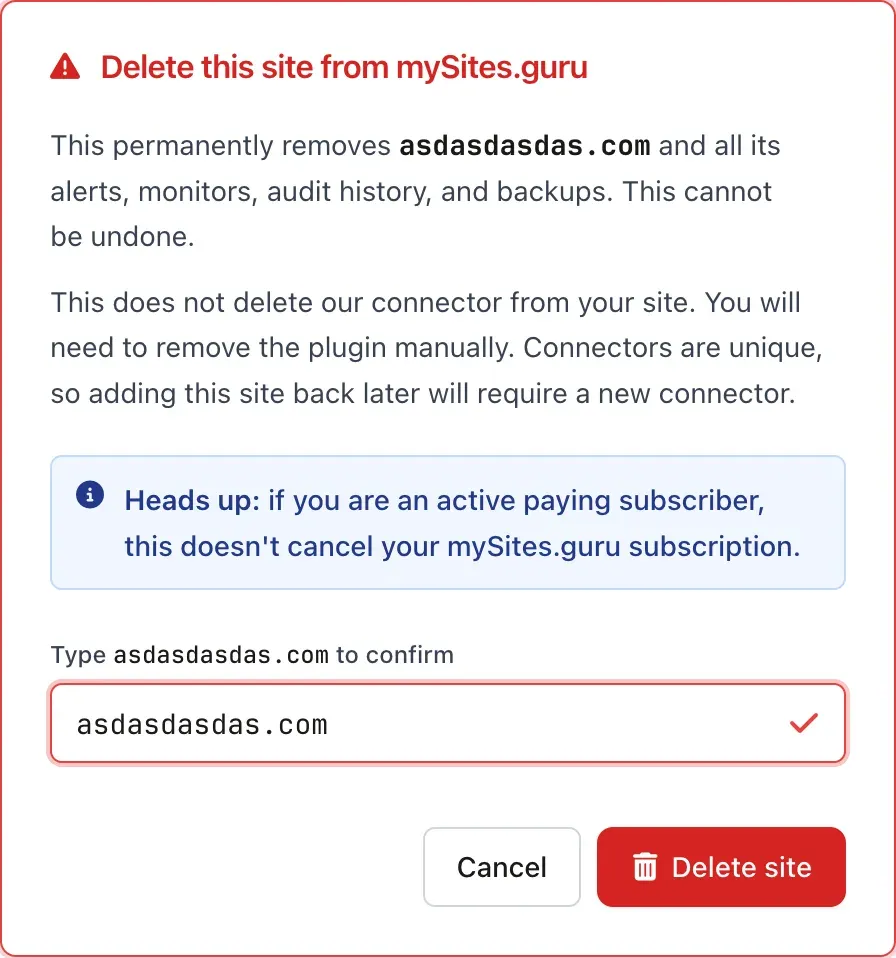
5. Click Delete site
Click it, and the site is gone immediately. You’re returned to your Sites list with a confirmation that it’s been removed.

What deleting a site does not do
Deleting a site doesn't remove the connector plugin or cancel your subscription
Two assumptions catch people out. First, the connector plugin stays installed on your CMS: removing it is your responsibility, done through your site’s own plugin manager, same as any other plugin. Second, deleting a site has no effect on billing. If you’re on a paid plan, your subscription keeps running exactly as it was.
If you’re closing an account down rather than tidying up one site, delete the sites you want gone first, then cancel your subscription separately. Sites left on your account when you cancel just sit there, disconnected but intact, and that’s on purpose: a lot of customers come back after a break, and leaving sites attached means they don’t have to reconnect everything from scratch. It also stops anyone else claiming that domain on their own account in the meantime.
What actually happens when you click delete
This isn’t a soft delete or a status flag. Every site connected to mySites.guru has its own unique encryption key pair, split between our side and the connector plugin on your server. Deleting the site destroys our half of that pair immediately, so we can’t reach your site again even if we wanted to. Add the same domain back later and it arrives as a brand new site with a brand new connector, with no history, because there’s nothing left on our end to link the two.
On the data side, everything specific to that site (alerts, monitors, audit history and backups) comes off the live service straight away. We keep a one-way cryptographic hash of the domain name, which can’t be reversed back into the domain, purely so we can recognise a previously connected domain if fraud or a legal request ever requires it.
Site won’t connect? There’s a shortcut
If mySites.guru currently can’t reach a site at all, you don’t need to go through Config first. The Sites list itself shows a Delete button directly on that row, right next to Reconnect, and both jump straight to the same confirmation screen. That’s worth knowing if you’re working through a disconnected sites count on your dashboard.
It’s also mySites.guru’s own recommended fix when a connector is permanently dead rather than just misconfigured: the reconnect wizard’s diagnosis leads with Delete this site & install a fresh connector, because a dead connector can’t be fixed by retrying. That’s the same delete-then-reconnect pattern used when migrating a site to a newer connector for Joomla 4, and it comes with the same reminder: delete the site in mySites.guru, then go and remove the old plugin from the site too. One without the other leaves half the job done.
Do I need to remove the connector plugin too?
If you want the site completely clear of mySites.guru, yes. Deleting the site here never touches your server, so the plugin (bfnetwork inside a Joomla plugin, or bundled inside the mywpguru plugin on WordPress) is still sitting in your plugins folder afterwards. It’s inert once the site is deleted, since the encryption key it relies on no longer works, but inert isn’t the same as gone. Remove it the same way you’d remove any other plugin: through Joomla’s Extensions manager or WordPress’s Plugins screen.
If you skip this step, nothing breaks. The plugin just sits there doing nothing until your next spring clean.
Further Reading
- Deleting your sites yourself, mySites.guru Terms - the full policy on site deletion, encryption keys and where the connector plugin's files live on disk.
- Data retention on deletion, mySites.guru DPA - what's removed immediately and the narrow, encrypted exceptions we're legally required to keep.
- Managing Plugins, WordPress Developer Handbook - deleting a plugin through wp-admin, for removing the connector afterwards.
- Managing Extensions, Joomla Documentation - uninstalling a plugin through the Joomla administrator.
Frequently Asked Questions
Does deleting a site remove the mySites.guru connector plugin?
Does deleting a site cancel my mySites.guru subscription?
Can I undo deleting a site, or get its history back?
Why do I have to type the hostname to delete a site?
What if my site shows as disconnected and I can't reach the normal delete option?
Do I need to remove the connector plugin from my site as well?
 Written and edited by a human, with AI assistance. Our approach to AI