How to Find and Disable the Guided Tours Plugin on Your Joomla Sites
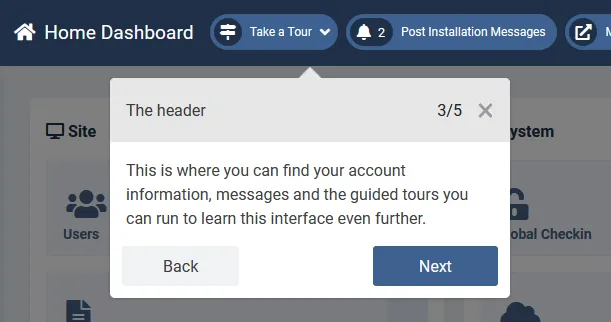
Joomla 4.3.0 introduced the Guided Tours feature: a system plugin, a component and an administrator module that between them walk administrators through common tasks with interactive step-by-step overlays. Tours highlight buttons and fields, show explanatory tooltips, and guide you through workflows like creating an article or configuring user settings. We check whether it is still enabled on every connected site.
It’s a thoughtful addition for people learning Joomla. But on production sites managed by experienced administrators, it’s dead weight.
I’ll cover what the feature actually does under the hood, why all three of its extensions belong disabled on live sites, how to switch them off manually, and how mySites.guru flags them automatically across all your connected Joomla sites.
What Does the Joomla Guided Tours Plugin Do?
The Guided Tours system (plg_system_guidedtours) is a system plugin that loads on every page of the Joomla admin panel. It consists of several parts:
- The system plugin - hooks into every admin page load to inject the tour JavaScript and CSS
- The tours component (
com_guidedtours) - stores and manages tour definitions in the database - The administrator module (
mod_guidedtours) - the Guided Tours dropdown in the admin toolbar - Tour step definitions - JSON-based step sequences that target specific DOM elements on admin pages
- The frontend overlay - the actual interactive UI that highlights elements and shows instructional text
When the plugin is enabled, Joomla loads the tour framework on every single admin page request, regardless of whether anyone is actually running a tour. The JavaScript waits in the background, ready to activate when a user starts a tour from the admin menu.
Joomla ships with several built-in tours covering tasks like:
- How to create an article
- How to create a menu and menu items
- How to create a category
- How to configure global settings
- How to manage users and user groups
Extension developers can also create their own tours to introduce users to their extension’s features. The system is extensible by design.
When Does Joomla Guided Tours Make Sense?
There are legitimate scenarios where leaving the Guided Tours plugin enabled is the right call:
Training new team members
If you’re onboarding new administrators who haven’t used Joomla before, the guided tours provide a structured introduction without needing someone to sit beside them. They can work through the tours at their own pace and get familiar with where things are.
Development and staging environments
On development or staging sites where you’re building out the admin experience, you might want tours enabled to test them or to understand the admin workflows from a new user’s perspective.
Custom client onboarding
If you build Joomla sites for clients and hand over the admin panel, some agencies create custom guided tours that walk clients through the specific workflows they need - publishing blog posts, managing products, or updating contact information. In this case, the tours are part of the deliverable.
Extension developers testing tours
If you’re developing a Joomla extension and building guided tours for it, you obviously need the plugin enabled during development and testing.
Why Should You Disable It on Production Sites?
For the vast majority of production Joomla sites, the Guided Tours plugin should be disabled.
Unnecessary resource loading
Every time an administrator loads any page in the Joomla admin panel, the Guided Tours plugin:
- Executes its PHP system plugin code during the
onAfterDispatchevent - Injects JavaScript files for the tour engine
- Injects CSS for the tour overlay styling
- Loads tour definitions from the database
This happens on every admin page load, not just when someone clicks “Start Tour.” The JavaScript sits idle in the browser, consuming memory and adding to the page’s script evaluation time.
The overhead on a single page load is small, but admin sessions involve dozens or hundreds of page loads, across multiple administrators, and it adds up to wasted bandwidth and processing time for functionality no one is using.
Admin interface clutter
With the component enabled, a “Guided Tours” entry appears in the administrator menu under System, and a matching tile sits on the System dashboard. The plugin is what puts the “Start Tour” button in the toolbar on views that have a tour. For experienced administrators, these are visual noise - one more thing to scroll past, one more menu entry that serves no purpose.
Increased attack surface
The Guided Tours plugin doesn’t have a known vulnerability today. But minimising your attack surface matters regardless.
Every enabled plugin is code that runs on every request. If a security flaw turns up in any of them, every site with that plugin enabled is exposed. The Joomla security team has a good track record, but reducing active plugins to only what you need is basic hardening.
This is the same logic behind disabling other unused Joomla features. If you’re not using it, turn it off. If a vulnerability is found in a component you’re running, you want to already have the smallest possible footprint.
It’s a solved problem for experienced admins
Once you know how to create an article in Joomla, you don’t need an interactive overlay to show you where the “New” button is. The guided tours are designed for first-time users. By the time you’re deploying sites to production, you’re past that stage.
The same applies to your team. If they need guided tours to do their daily work, they need training - not a plugin running on a production server.
How Do You Disable Joomla Guided Tours Manually?
Disabling the plugin through the Joomla admin panel is straightforward:
- Log in to your Joomla admin panel
- Navigate to System in the sidebar menu
- Click Plugins under the Manage section
- Search for “Guided Tours” in the search box
- Click on System - Guided Tours to open the plugin
- Set the Status to Disabled
- Click Save & Close
Alternatively, you can toggle the status directly from the plugin list by clicking the green checkmark icon next to the plugin name to change it to a red X.
You can verify it worked by checking that no tour-related JavaScript loads on admin pages and that no tour starts when you open the Home Dashboard.
What About the Guided Tours Component and Module?
The plugin is one of three extensions, not the whole feature. Joomla has shipped Guided Tours as a plugin, a component and an administrator module since 4.3.0, and a fresh install arrives with all three enabled:
| Extension | What it is | What it puts in front of you |
|---|---|---|
plg_system_guidedtours | The system plugin | Nothing visible. This is the part that actually starts a tour |
com_guidedtours | The component | The Guided Tours entry in the administrator menu and the tile on the Home Dashboard |
mod_guidedtours | The administrator module | The Guided Tours dropdown in the admin toolbar |
Disabling the plugin stops every tour from running, which is why it has always been the fix that matters. What it leaves behind is the menu entry, the dashboard tile and, in principle, the toolbar dropdown, all pointing at a feature that no longer does anything.
Disabling all three
Joomla lets you switch off all three from one screen, because none of them is a protected extension. In the #__extensions table the protected flag on the plugin, the component and the module is 0, which is exactly what puts a Disable button in front of a Super User on Extensions: Manage:
- Navigate to System in the sidebar menu
- Click Extensions under the Manage section
- Search for “Guided Tours”
- Tick the plugin, the component and the module
- Click Disable in the toolbar
All three now read Disabled, the menu entry and the Home Dashboard tile disappear on the next admin page load, and nothing starts a tour.
The module flag makes no visible difference on its own, for what it is worth. mod_guidedtours has checked whether the plugin is enabled since 4.3.0, so the toolbar dropdown already disappears the moment the plugin is off. Switch it off anyway, so that Extensions: Manage reads Disabled across the board and a colleague turning one thing back on cannot resurrect half the feature.
Disable them, never uninstall them. All three are flagged locked in the extensions table, which blocks uninstall while leaving disable perfectly available, and there is no reason to go deleting core Joomla files.
The one combination to avoid on Joomla 5.2 and later
Never disable the com_guidedtours component while leaving the plg_system_guidedtours plugin enabled. On Joomla 5.2 and later, that single combination is worse for your admins than leaving Guided Tours completely alone.
Joomla 5.2.0 moved the call that records a tour as skipped, dismissed or completed. Up to 5.1 it went through com_ajax; from 5.2 it goes to the component itself.
The plugin never checks whether the component is enabled. So with the component off and the plugin on, tours still start exactly as before, but the dismiss button now has nowhere to save to. The request 404s, the admin gets “Something went wrong while saving tour state information!”, the dismissal is never recorded, and the same tour opens again on the next admin page load, and the one after that, indefinitely.
You can reach that state without meaning to. Disable all three, then re-enable the plugin some months later from the Plugins manager because someone wanted a tour back, and you are in it. If the plugin goes back on, the component goes back on with it.
Your tour content is untouched either way
Disabling extensions writes to #__extensions and nothing else. Your tour content lives in #__guidedtours and #__guidedtour_steps, and both are left alone. Re-enable the three and you get back precisely what you had, including tours that arrived with a third-party extension and any you wrote yourself.
The manual approach doesn’t scale
If you manage one Joomla site, the above takes a minute. If you manage ten sites, it’s most of an afternoon coffee break spent on repetitive clicking. If you manage fifty or a hundred sites, you’re spending a meaningful amount of time logging into admin panels just to switch off the same unused feature on each one.
And that’s just the initial disable. What about after Joomla updates? What about new sites you add to your portfolio? What about sites where a well-meaning administrator re-enables it?
The manual approach requires you to remember to check this setting on every site, every time. That’s exactly the kind of repetitive, error-prone task that should be automated.
How mySites.guru detects Guided Tours
mySites.guru checks the Guided Tours status as part of its snapshot process. Every time a snapshot runs on a connected Joomla site (version 4.3.0 or later), the connector reads all three extension rows in one query:
SELECT element, folder, enabled
FROM #__extensions
WHERE (type = 'plugin' AND folder = 'system' AND element = 'guidedtours')
   OR (type = 'component' AND element = 'com_guidedtours')
   OR (type = 'module' AND element = 'mod_guidedtours')
Those three rows are then reported as a single state. Three separate ticks and crosses would tell you less than one answer to the question you actually have, which is whether Guided Tours is still running on this production site and whether it is running in a way that will irritate whoever logs in next.
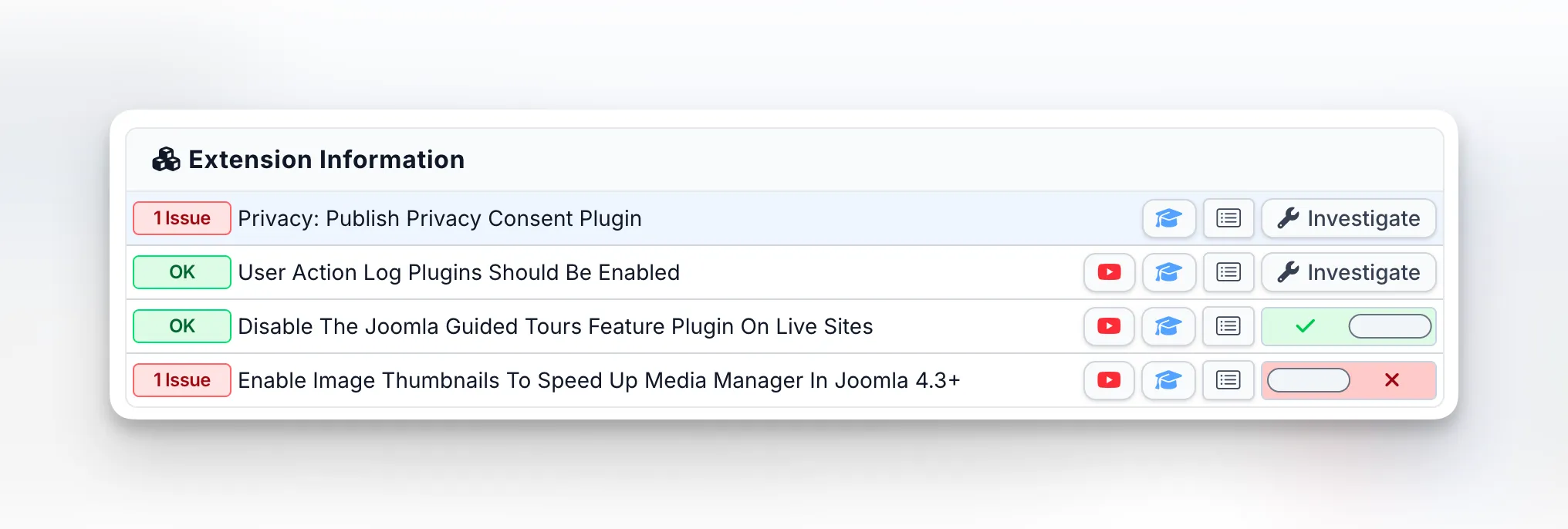
This check runs automatically. You don’t need to remember to look for it. The snapshot result appears in the Extension Information section alongside other plugin checks, showing you at a glance whether Guided Tours needs attention.
The Guided Tours check is part of mySites.guru's broader best practice audit for Joomla sites. It sits alongside checks for debug mode, error reporting, post-installation messages, and other configuration items that should be tightened on production sites.
What the snapshot shows
In the mySites.guru dashboard, the Guided Tours check appears in the Extension Information section of your site’s snapshot. You’ll see one of four states:
- OK - all three extensions are disabled and there is nothing to do
- Issue - the plugin is still enabled, so tours still run on this production site
- Tidy - the plugin is off, so nothing can start a tour, but the component or the module is still enabled and still showing your admins a menu entry or a dashboard tile for a feature that no longer does anything
- Broken - the plugin is enabled and the component is disabled. On Joomla 5.2 and later that is the combination which leaves tours starting with no way to dismiss them, so it is the one to fix first
The check also tracks changes between snapshots. If everything was disabled on the last snapshot and the plugin is now back on (perhaps after a Joomla update or someone re-enabling it), the trend indicator shows the change so you can catch configuration drift immediately.
How Do You Disable Joomla Guided Tours with mySites.guru?
Once the snapshot has flagged Guided Tours on a site, whichever of the four states it reports, you have two ways to fix it.
From the site snapshot
Click on the Guided Tours check in the Extension Information section. mySites.guru shows you the current state and provides a toggle to enable or disable Guided Tours remotely. Click the toggle, and the connector updates all three extension rows in the Joomla database in a single statement, so the site can never be left half done in the broken combination above. It also clears the Joomla caches that would otherwise go on showing the menu entry and the dashboard tile. No need to log into the Joomla admin panel.
The toggle works in both directions. If you need to temporarily re-enable Guided Tours (for training, testing, or onboarding), you can turn it back on from the same interface and disable it again when you’re done, and because all three move together you never end up with the plugin on and the component off.
This is the same pattern used for other Joomla configuration toggles, like hiding post-installation messages or managing extensions.
From the all-sites tool view
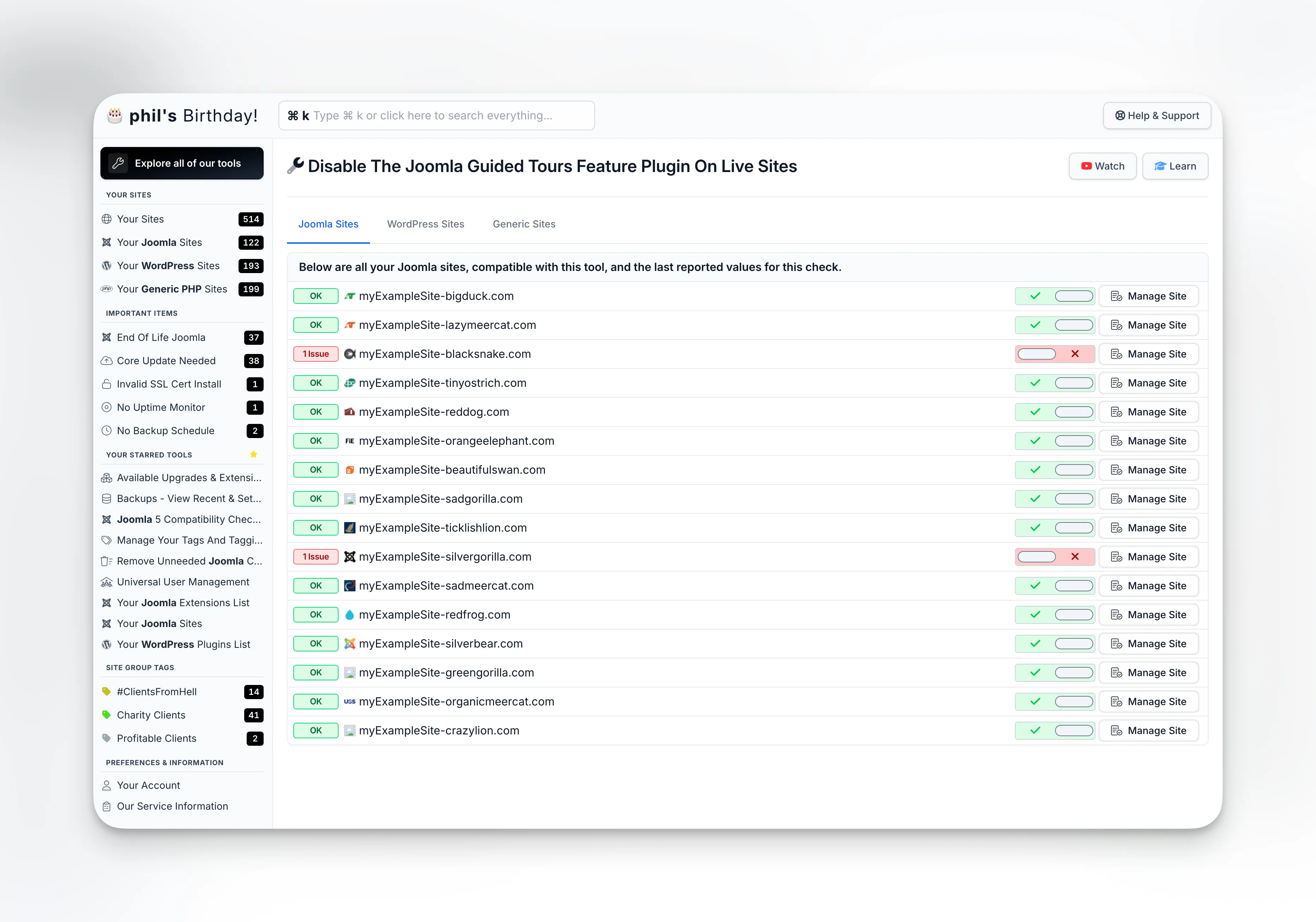
For managing the Guided Tours plugin across your entire portfolio, the all-sites tool view is more efficient. This view lists every connected Joomla site (4.3.0+) and shows the Guided Tours plugin status for each one.
From this single screen you can:
- See which sites have the plugin enabled and which have it disabled
- Sort and filter to find sites that need attention
- Toggle the plugin on or off for individual sites
If you’ve just connected a batch of new Joomla sites to mySites.guru, the all-sites view lets you quickly scan for the Guided Tours plugin and disable it everywhere it shouldn’t be running.
Why Does Plugin Hygiene Matter on Joomla Sites?
The Guided Tours plugin is just one example of a broader principle: production Joomla sites should only run the plugins they actually need.
Joomla ships with a large number of system plugins enabled by default. Many of them are essential - authentication, session handling, content processing. But others are optional features that may not be relevant to every site.
A disciplined approach to plugin management means:
- Auditing what’s enabled - know which plugins are active on each site
- Disabling what’s unused - turn off plugins that don’t serve a purpose on that specific site
- Monitoring for drift - catch it when plugins get re-enabled unexpectedly
- Documenting exceptions - know why a plugin is enabled when the default recommendation is to disable it
mySites.guru automates steps 1 through 3. The extension management tools give you visibility into every extension on every site, and the snapshot checks flag the ones that deviate from best practice. Automatically removing fluff files after Joomla updates is another way to keep your sites lean.
Want to see how your sites score across all best practice checks, not just Guided Tours? Run a free audit on any Joomla site to get a full report covering security, performance, and configuration.
What Other Joomla Plugins Should You Review on Production Sites?
While you’re looking at the Guided Tours plugin, here are other default Joomla plugins worth reviewing on production sites:
System - Debug
The debug plugin displays diagnostic information at the bottom of every page, including database queries, memory usage, and loaded language strings. Essential for development, terrible for production. mySites.guru checks this as part of the best practice audit.
System - Statistics
Sends anonymous usage statistics to the Joomla project. Some site owners prefer to disable this for privacy or performance reasons.
Content - Email Cloaking
If your site doesn’t display email addresses in content, this plugin runs regex on every page output for no reason. Disable it if you don’t need it.
System - Debug Language
Shows untranslated language strings. Only useful during development when you’re building or testing translations.
Content - Load Modules
Allows loading modules within article content using {loadmodule} syntax. If you don’t use this feature, it’s scanning every article unnecessarily.
The principle is always the same: if it’s not serving a purpose on this specific site in production, disable it. Every disabled plugin is one fewer thing to load, one fewer thing to update, and one fewer potential attack vector. The same logic applies to features like Send Copy to Submitter in contact forms - if it’s not needed, it’s just another thing running for no reason.
Which Joomla Versions Include Guided Tours?
The Guided Tours feature was introduced in Joomla 4.3.0, released in April 2023. Version compatibility breakdown:
| Joomla version | Guided Tours status |
|---|---|
| Joomla 3.x | Not available - no action needed |
| Joomla 4.0 - 4.2 | Not available - no action needed |
| Joomla 4.3.0+ | Present and enabled by default |
| Joomla 5.x | Present and enabled by default |
| Joomla 6.x | Present and enabled by default |
mySites.guru’s check only runs on Joomla 4.3.0 and later since earlier versions don’t have the plugin. If you’re managing a mixed portfolio of Joomla 3, 4, and 5 sites, the check automatically applies only to the sites where it’s relevant.
If you’re still running Joomla 3 sites, the Guided Tours plugin isn’t a concern - but you should be thinking about your migration path to Joomla 4 or 5 or considering the Joomla 6 technical requirements for your next upgrade cycle.
Performance impact: how much does it actually matter?
Let’s be honest about the performance impact. Disabling the Guided Tours plugin on a single site isn’t going to cut your page load time in half. We’re talking about a few kilobytes of JavaScript and CSS, plus a small amount of PHP execution time on each admin page load.
But performance optimisation on the admin panel is about the aggregate effect of many small improvements:
- Disable Guided Tours: saves a few KB of JS/CSS per page load
- Disable Debug plugin: saves significant output rendering
- Disable unused content plugins: saves regex processing on every article render
- Disable unused system plugins: saves PHP execution time on every request
Each one is small. Together, they make a noticeably snappier admin experience, especially on shared hosting where server resources are limited and PHP execution time is precious.
For agencies managing dozens or hundreds of sites, this adds up further. If you have 100 Joomla sites and each admin session involves 50 page loads, and each page load saves 20ms from disabling unused plugins, that’s 1 second per session, multiplied by however many admin sessions happen per day across all your sites. Not life-changing, but not nothing either.
The bigger point is discipline: running lean configurations across your portfolio means fewer things to troubleshoot when something goes wrong.
Fitting this into your wider Joomla management workflow
Disabling the Guided Tours plugin is one small piece. The snapshot that detects it also captures dozens of other configuration checks, so run them regularly to keep your data current.
The best practice checks cover debug settings, error reporting, SEF URLs, and more - Guided Tours is one item in that audit. The extension management tools give you a broader view of every extension on every site, not just this one plugin.
If you need to verify the change in Joomla’s admin panel, one-click admin login gets you there without credentials. And just like dismissing post-installation messages across hundreds of sites, the Guided Tours toggle works at scale from the dashboard.
Getting started
If you’re already a mySites.guru subscriber, run a snapshot on your Joomla 4.3+ and Joomla 5 sites and check the Extension Information section for the Guided Tours check. If any sites show it as enabled, toggle it off from the dashboard.
If you’re not yet using mySites.guru, you can run a free audit on any Joomla site to see all the best practice findings, including the Guided Tours plugin status. The audit covers security, configuration, and performance checks - the Guided Tours plugin is just one of many items it reviews.
For a full overview of what mySites.guru offers for Joomla site management, check the features page.
Wrap up
The Guided Tours plugin has its place during onboarding and training. On production sites where everyone already knows Joomla, it’s just extra JavaScript, CSS, and database queries on every admin page load for no benefit.
Disabling it on one site takes thirty seconds. Keeping it disabled across a portfolio of sites, catching it when Joomla updates re-enable it, and maintaining consistent configuration across fifty or a hundred sites - that’s where doing it manually falls apart.
mySites.guru’s snapshot check catches it automatically, flags it, and gives you a one-click toggle. No logging into individual admin panels, no spreadsheet tracking which sites you’ve already fixed.
Further reading
- Guided Tours - Joomla user manual - official docs on what guided tours do and how they work
- A builder’s guide to Guided Tours - Joomla Community Magazine walkthrough on creating custom tours, with CSS selectors and export methods
- Joomla 4.3.0 release announcement - the release that introduced Guided Tours
- Joomla security advisories - official list of disclosed vulnerabilities, useful context for why reducing active plugins matters
- OWASP attack surface analysis - the general security principle behind disabling unused features
This is one of many Joomla-specific tips in our Joomla Agency Handbook.
Frequently Asked Questions
What is the Joomla Guided Tours plugin?
Why should I disable the Guided Tours plugin on production Joomla sites?
Does disabling the Guided Tours plugin break anything in Joomla?
Should I disable the Guided Tours component as well as the plugin?
How does mySites.guru detect whether Guided Tours is enabled?
Can I disable the Guided Tours plugin across all my Joomla sites at once?
Will the Guided Tours plugin come back after a Joomla update?
Is the Guided Tours plugin a security risk?
 Written and edited by a human, with AI assistance. Our approach to AI