How to Remove an Ex-Employee From Every Joomla and WordPress Site
A developer hands in their notice. A freelancer’s contract ends. On the day they go, their accounts are still on the client sites they worked on: some under the agency address, some under the personal address they used before they had one, and one or two that a client set up for them without telling you. Every one of those is a working login on a Joomla or WordPress site you are responsible for.
New on mySites.guru: a staff roster, your email domains plus who has left, and a find that asks every connected Joomla and WordPress site for the accounts that belong to someone who has gone. Universal User Management lists them with a pill saying why each one matched, and the same bulk bar offboards the lot in one batch, with an Undo if you got one wrong.
Why ex-staff accounts outlive the job
Those accounts outlast the job because no one holds the list. The agency knows who left, and each client knows which accounts are on their own site. The person who knew both, the one who set the accounts up in the first place, has just walked out of the door. So this is a finding problem before it is a removal problem, and finding is the part no one budgets for.
Personal addresses make it worse. Staff who joined before the agency had its own domain, and freelancers who never had one, signed up to client sites under whatever address they were using at the time. A search for your domain finds none of those. Clients create accounts too: a site owner adds “the developer” as a Super User during a rebuild, under an address they were given in an email, and no one on your side ever sees it.
The leftovers show up in the data. Across the sites mySites.guru audits, 67.7% of Joomla sites and 52.1% of WordPress sites have accounts unused for 180 days or more, and at the ninetieth percentile a Joomla site has nineteen such accounts. 56.8% of Joomla sites and 68.3% of WordPress sites have more than one account with full control. Not every one of those is a leaver, but an account left untouched for six months is exactly what a leaver’s login looks like.
Tell mySites.guru who works for you
The Staff roster button at the top of the Universal User Management page is where you tell mySites.guru three things: the email domains your agency uses, the addresses of the people who currently work for you, and the personal addresses of people who have left. Current staff are kept off the results, so an account at your domain belonging to someone still employed stays out of the results. Leavers are the personal addresses, the ones no domain search would ever find.
The “Add my team” button pulls in the login addresses of your mySites.guru team members as current staff, so for most agencies the current list fills itself. You can keep up to 20 domains, 2,000 current staff addresses and 500 leaver addresses. Entries are lowercased and trimmed, a leading @ on a domain is stripped, duplicates are removed, and anything invalid is rejected and shown back to you to correct.
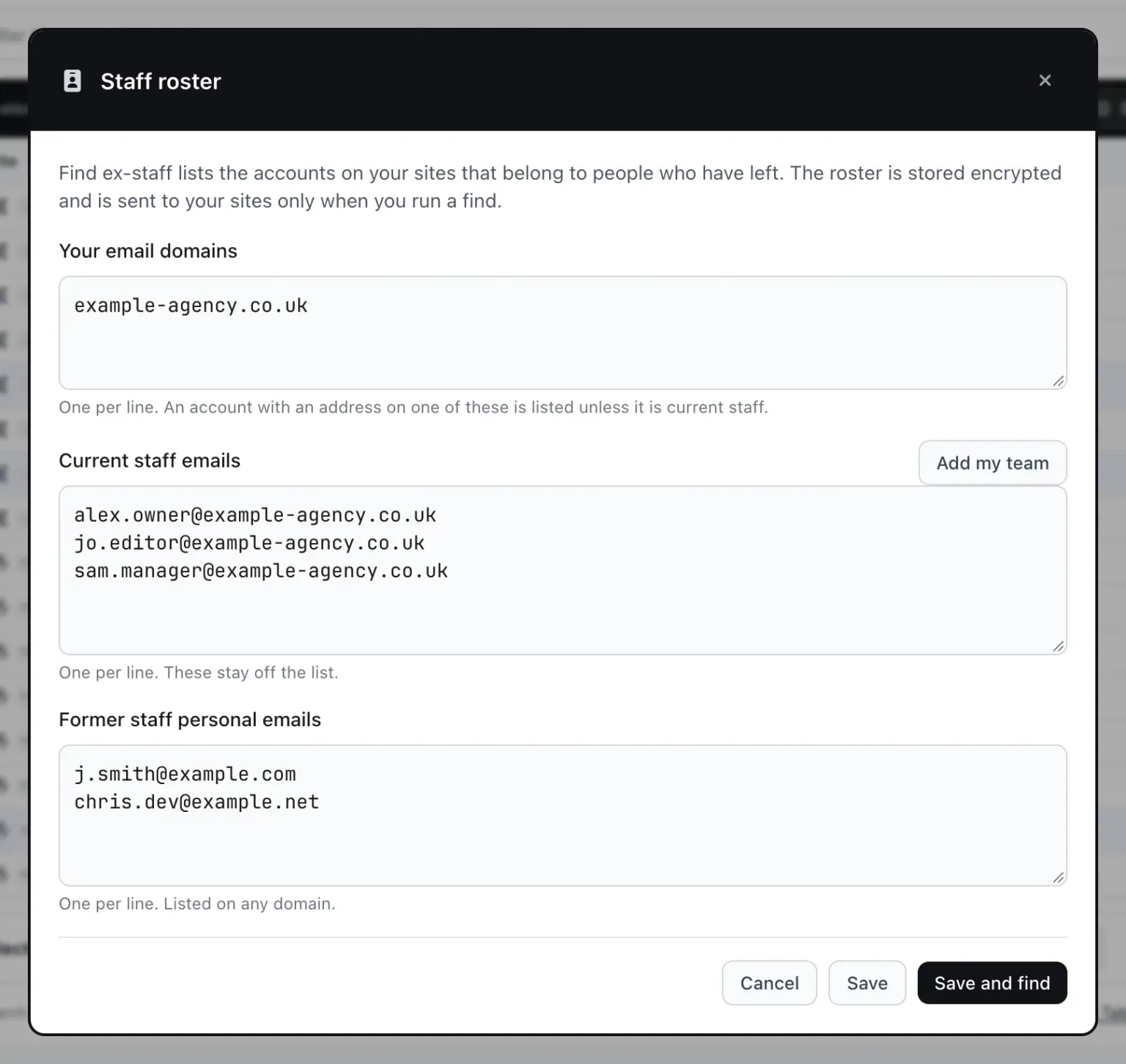
The dialog has Cancel, Save, and “Save and find”, which saves the roster and runs the sweep straight away. The roster is stored encrypted, it is sent to your sites only when you run a find, and the results of a find are not stored. Between finds, the list of who left your company stays with mySites.guru, not on a client’s server.
How do you find every ex-staff account on your Joomla and WordPress sites?
You run one find, and every connected Joomla and WordPress site you can see is asked at once. Each site returns accounts whose email is exactly at one of your domains (an exact @domain match, so a lookalike domain does not count) and not on your current-staff list, plus any account whose email is one of the leaver addresses you listed. Super Users are included, because they are the accounts you most need to see. A site returns up to 500 matching accounts.
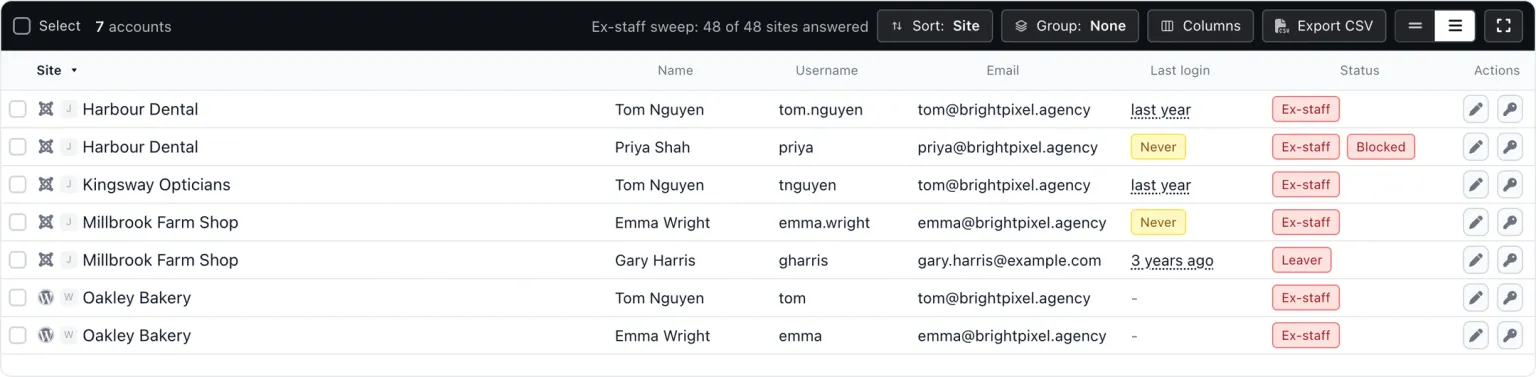
The results stream into the same results table as a normal user search, as each site answers. While it runs, the table reads “Asking your sites” and “Ex-staff accounts appear here as each site answers.” When no site has a match, it says so: “No ex-staff accounts on any of your sites. Checked just now.”
Each row has a pill. “Ex-staff” means an address on one of your staff domains that is not on your current staff list. “Leaver” means a former staff address you listed by hand. The distinction earns its place when you read the results, because an Ex-staff row can be a new starter you have not added to the roster yet, while a Leaver row is someone you have already named.
The quickest way in is Cmd+K (Ctrl+K on Windows), the command palette, and its entry “Find ex-staff accounts”. The description under it in the app reads: “Enter your staff email domains and who has left, then find the accounts they still have on every Joomla and WordPress site”. The normal search box takes one string matched as a partial against username, name and email together, so it is a people search rather than a domain search; the roster sweep is the domain-and-address find. Generic PHP sites are excluded from both, since the connector has no user methods to call on them.
One roster, every site, every address
A domain search finds the accounts you gave people. The roster also finds the ones they gave themselves, under a personal address, years before you had a domain to search for, on every connected Joomla and WordPress site at once.
Offboard them from every Joomla and WordPress site in one batch
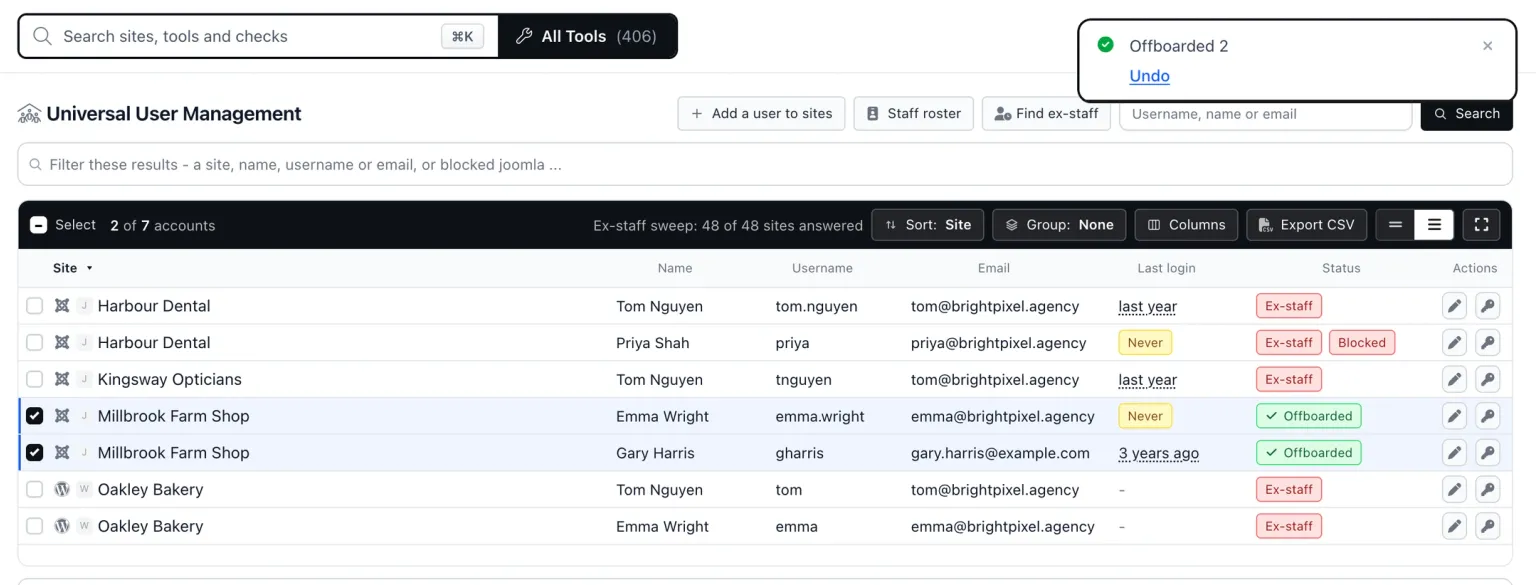
Tick the rows you want gone and the bulk bar appears, the same one a normal search gives you: Change details, Set password, Block, Unblock, Set groups, Offboard, Delete. It works on the ex-staff results unchanged, and one click is one batch across every ticked site. Offboard is the action built for leavers, and there is also a Cmd+K entry, “Offboard a user from many sites”, if you already know who you are removing and want to skip the find.
Run the find, from the roster's "Save and find" button, the Find ex-staff button at the top of the Universal User Management page, or the Cmd+K entry "Find ex-staff accounts".
Tick the accounts you want gone as the sites answer, on as many sites as they appear.
Press Offboard on the bulk bar, which opens a dialog with one row per ticked site, each Joomla row reading that site's own groups live.
A WordPress row needs no pick: it reads "All roles removed (No role)".
Pick the group on each site, or use the "Pick on every site" chips to match a group by name across all of them.
A group's id differs from site to site, so the chips match by name, and nothing is picked for you.
Confirm, then read the result toast, which has an Undo button.
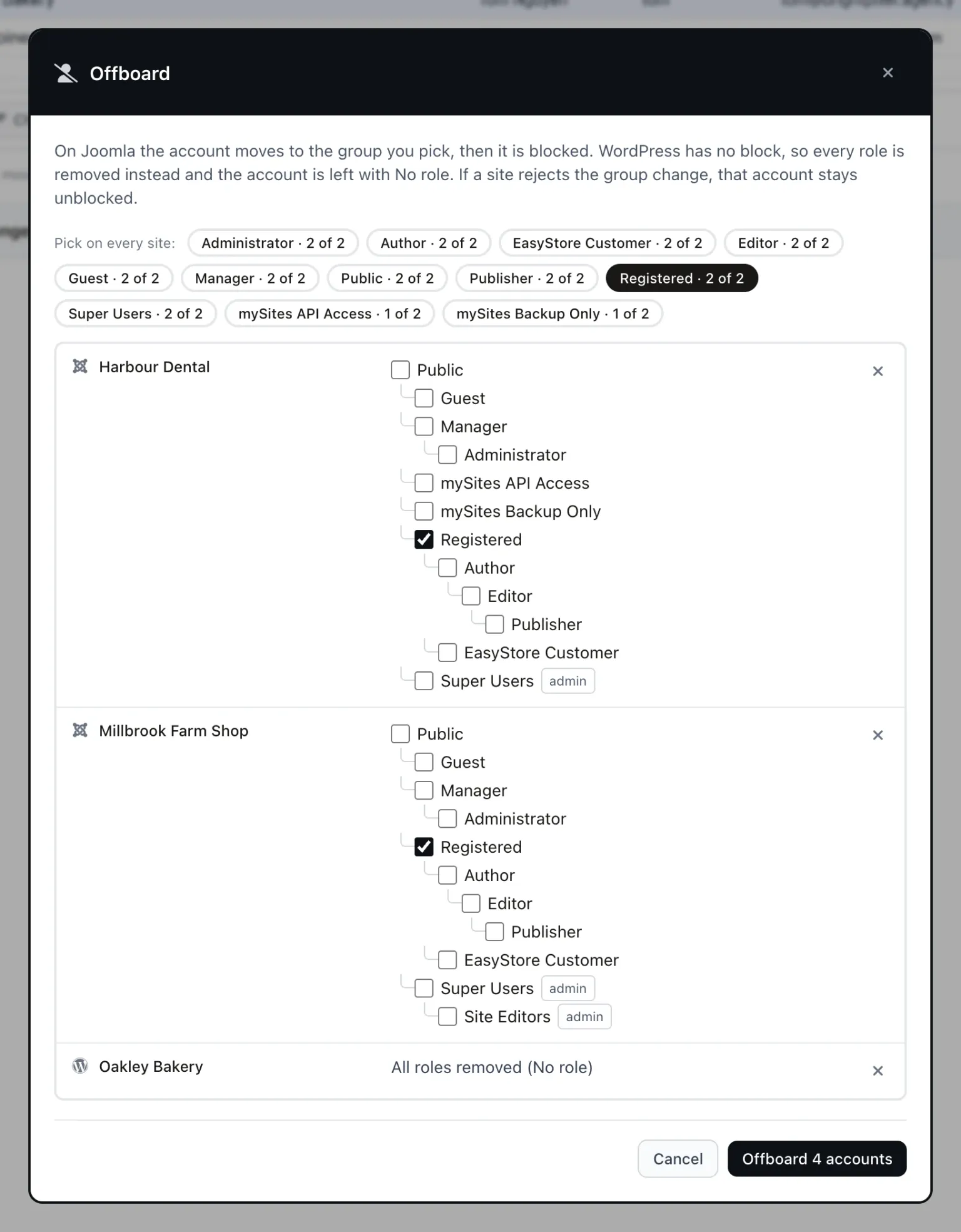
On Joomla, Offboard moves the account into the group you picked and then blocks it, and it blocks only if the group change was actually written. If a site rejects the group change, the account is not blocked either, so it is never left half offboarded with its old groups behind a block. On WordPress, which has no block, Offboard removes every role from the account instead. On both platforms it is one action, one entry in Recent changes, and one Undo.
One guard applies on Joomla: a block that would leave the site with no unblocked Super User is rejected and the site is left as it was. If the leaver was the only Super User on a client site, you find out now, with the site still reachable, rather than at the moment you next need to sign in to it.
Offboard keeps the account (blocked on Joomla, with no role on WordPress) and its content still pointed at it, which is the right end state for most leavers and the one you can reverse. Delete asks for your mySites.guru password; on Joomla, the deleted account’s articles, categories and anything else it created or last edited go to an account you choose (the default is the lowest-id Super User), and Joomla content is never deleted with the account; on WordPress you pick “Give their content to” a user per site, or “Delete their content on every site”. Delete is not covered by Undo, so offboard first and delete later, once no one is going to ask where that writer’s articles went. The reassign post covers what moves and to whom.
Find every ex-staff account and offboard them in one go
Universal User Management asks every connected Joomla and WordPress site for the accounts that belong to someone who has left, and offboards them in one batch with Undo. It is part of the mySites.guru subscription.
What does a block end on Joomla, and what does it leave running?
A block through mySites.guru ends the account’s live sessions on that Joomla site and deletes its remember-me keys, so a remember-me cookie on the leaver’s laptop stops working too. The same happens whenever mySites.guru changes a Joomla account’s groups or sets its password, and it is the behaviour Joomla’s own User Manager has when you block someone there. Live sessions can only be found where Joomla keeps session metadata, which is its default, so a site configured to keep none has no session list to end.
Set password on the bulk bar goes further. It sets a new password on every ticked site and signs out every session those accounts had open, on Joomla and on WordPress. It asks for your own mySites.guru password before it runs, and on Joomla there is an optional “make them choose” tick that requires a reset at next login, which is useful when a successor is taking the account over.
API tokens are separate from sessions, and a password reset does not reach them. On WordPress, application passwords and WooCommerce keys keep working after a password reset; the per-site User Manager has an “API credentials” column that counts them, so you can see which accounts have any. They need their own revocation, on WordPress and on Joomla, and a leaver who used a deploy script or an integration against a client site is the person most likely to have one.
A password reset does not revoke API credentials
WordPress application passwords and WooCommerce keys keep working after the password changes, and Joomla API tokens are separate from sessions. Check the API credentials column and revoke them as their own step.
Undo, and changed since you looked
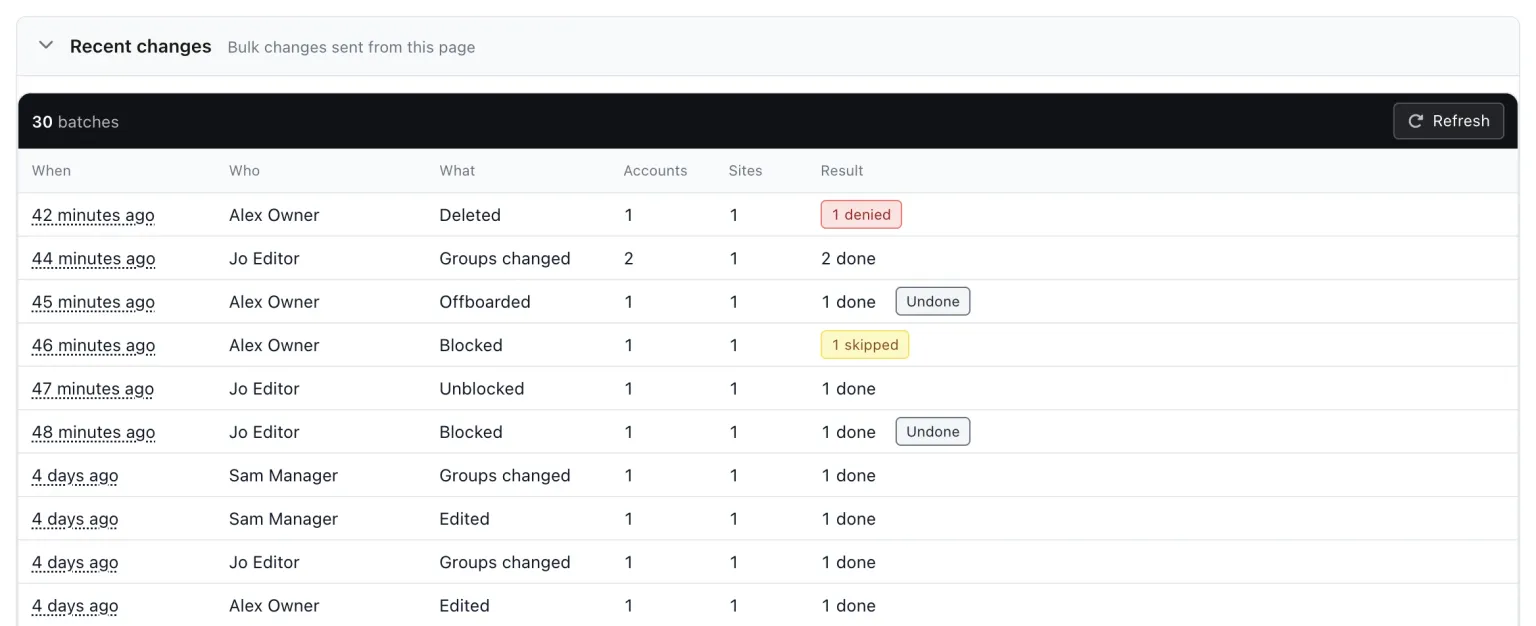
The result toast after a Block, Set groups or Offboard batch has an Undo button. Press it and the toast reads “Undone” with a count of accounts restored, the previous groups go back on every account in that batch, and the accounts that were unblocked before the batch are unblocked again. An account that was already blocked when you ran the batch stays blocked, because Undo puts back what was there, not what you might have wanted.
If you have closed the toast, the “Recent changes” panel on the Universal User Management page lists the last 30 batches, with When, Who, What, Accounts, Sites and Result, each with its own Undo. Undo stays available for 30 days. An account someone has changed since the batch is skipped rather than overwritten, and a batch that has already been undone answers “That change has already been undone.”
The same caution runs the other way, before anything is written. Every site rechecks each account against what you saw in the results: its last login, its blocked state, and for an undo, its groups. If any of that has moved, nothing is written and the row says “Changed since you looked” with a Refresh button. For a leaver this check can tell you something. If their last login moved between your find and your offboard, they signed in after they left, and you want to know that before the row quietly turns green.
Team members can use the bulk bar as well, limited to the sites on their allow-list in mySites.guru, and every batch gets an audit trail entry and a summary email. Whoever ran the offboard, and on which sites, is on record.
Doing it by hand on each Joomla and WordPress site
Without a roster the job is the same on every site. Each Joomla site’s Users list and each WordPress site’s Users screen has a search box, so you sign in to the first site, search for your agency domain, deal with what comes back, then search for each personal address you can remember, then sign out and do the next site. On Joomla you block each account. WordPress has no block, so the nearest thing is removing the role or deleting the account.
It fails at scale because you only find what you search for. A domain search finds nothing under a personal address, and the personal address you cannot remember belongs to the one account you leave behind. Multiply the searches by the number of sites, add the logins, and you are left with no record of what you did and no way to reverse it when a client calls to say their editor cannot sign in.
What else does a leaver still have access to?
Offboarding from the client sites is the biggest piece, and rarely the only one. The rest of the list is short, and each item is its own switch.
- Their mySites.guru team login is a separate thing from their accounts on client sites, and offboarding usually means both, so remove them from your team as well as from the sites.
- Their WordPress application passwords, WooCommerce keys and Joomla API tokens are separate from sessions and passwords, so revoke them on each site where the API credentials column shows any.
- Dormant admin accounts from earlier leavers show up in the Inactive admins check, which lists back-end-capable accounts not seen for 90 days with Block or "Block all dormant" on Joomla and Demote or "Demote all" on WordPress.
- Accounts you did not create at all, the ones no one on your roster ever used, are the job of the rogue admin accounts audit.
- Their replacement goes on every site in one step too, through the Cmd+K entry "Add a user to many sites", choosing the group on each site.
mySites.guru has been looking after agencies’ Joomla and WordPress sites since 2012, and the roster is the newest piece of it. Find ex-staff, Offboard, Undo, Set password, Delete with reassign and the Inactive admins check are all part of the mySites.guru subscription at £19.99 per month for unlimited sites, on every Joomla and WordPress site you connect. The full tour of Universal User Management shows the rest of the bulk bar with screenshots.
Further reading
- One Search Finds That User on Every Site You Manage is the full tour of Universal User Management.
- How to Mass Reassign Joomla Content When Deleting Users covers what happens to a deleted account’s articles, on Joomla and WordPress.
- How to Revoke Every WordPress Application Password After a Hack is the WordPress side of the API credentials step.
- How to Revoke Every Joomla API Token After a Hack is the Joomla side.
- Finding Rogue Admin Accounts Across Every Joomla Site You Manage covers the accounts no one on your roster created.
- Team Members With Site and Feature Permissions covers the mySites.guru side of a leaver’s access.
Frequently Asked Questions
How does mySites.guru know which accounts belong to ex-staff?
Does it find accounts under a personal email address?
What does Offboard do on a Joomla site?
What does Offboard do on a WordPress site?
Can I undo an offboard?
Is the staff roster shared with my client sites?
 Written and edited by a human, with AI assistance. Our approach to AI