Move a Leaver's Joomla and WordPress Content Without Deleting Their Account
A lot of agencies never delete a leaver’s account. They block it. The name stays on the audit trail, the person can come back if the contract is renewed, and nobody has to decide on the spot what happens to five years of articles. Until now that was also the choice that left those articles credited to someone who had left, because the delete was the only moment mySites.guru moved content. The careful agencies, the ones who block, were the ones stuck with it.
The previous post covered how to reassign their content as part of the delete. This one is about the other half of the job, and the three things that are new: a tool that moves content from one account to another on its own, a step where you choose which content moves, and no delete anywhere in the process.
Reassign content without deleting the account
Reassign Content is a tool in mySites.guru that moves everything one account owns on a site to another account on the same site, on as many Joomla and WordPress sites as you tick, and leaves both accounts as they were. It lives at manage.mysites.guru/en/tools/reassign-content, on the All Tools page, and in the command palette as “Reassign content between users”. Typing reassign, author, change author or created by finds it.
Both accounts keep their logins and groups. Nothing is blocked, deleted or checked in. The From account can still sign in tomorrow, and finds the articles credited to the To account. It is one piece of Universal User Management, and the full tour of the user manager covers the blocking, group changes and offboarding that usually happen around it.
Five steps, from sites to results
The tool is a wizard. Each step asks one question, and you cannot reach the step that writes anything without passing the one that shows you what will be written.
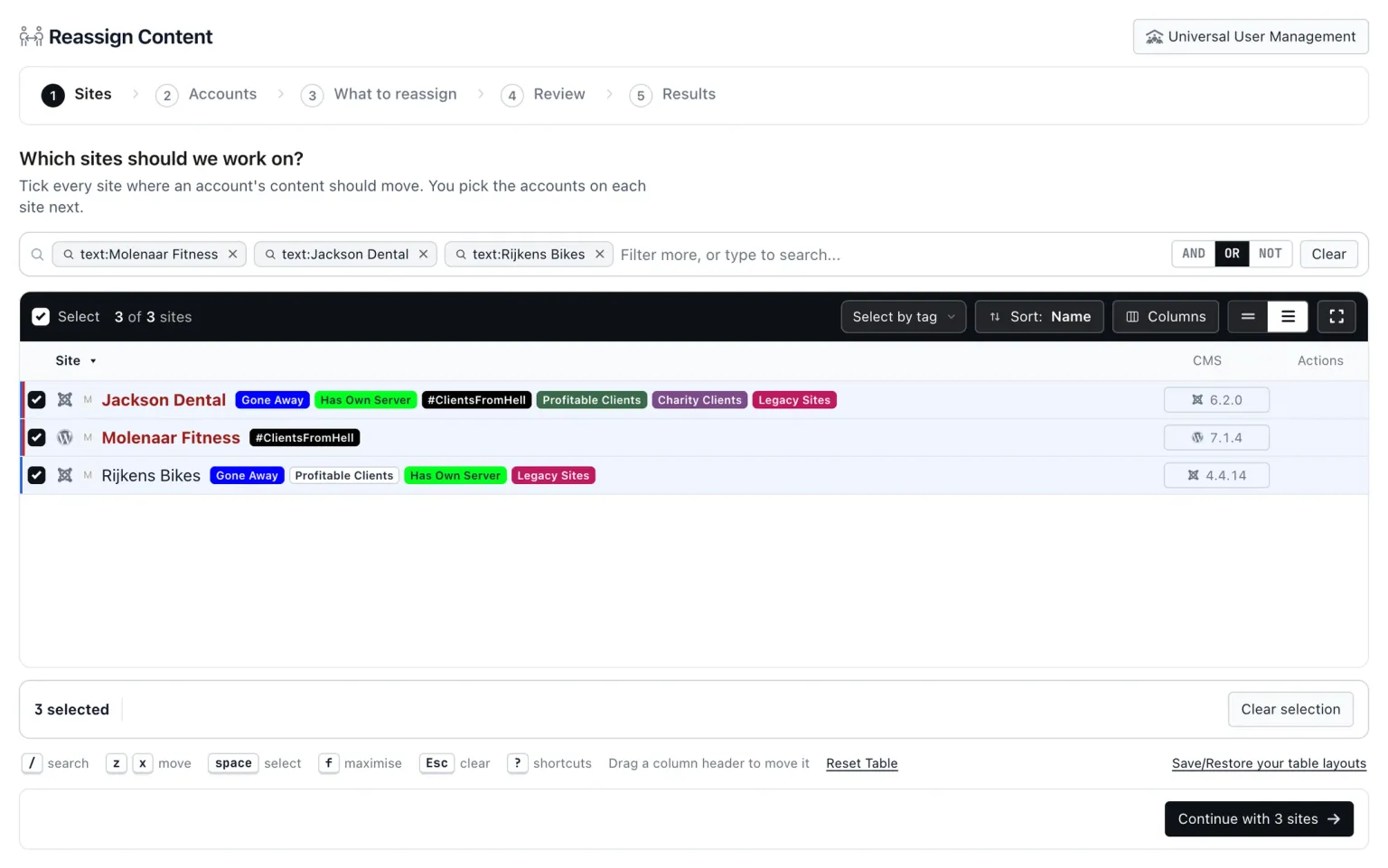
Sites. Tick the Joomla and WordPress sites to work on, mixed is fine, or use Select by tag to tick every site with a tag.
Up to 500 sites per run. The Continue with N sites button stays pinned at the bottom of the window however long the list is.
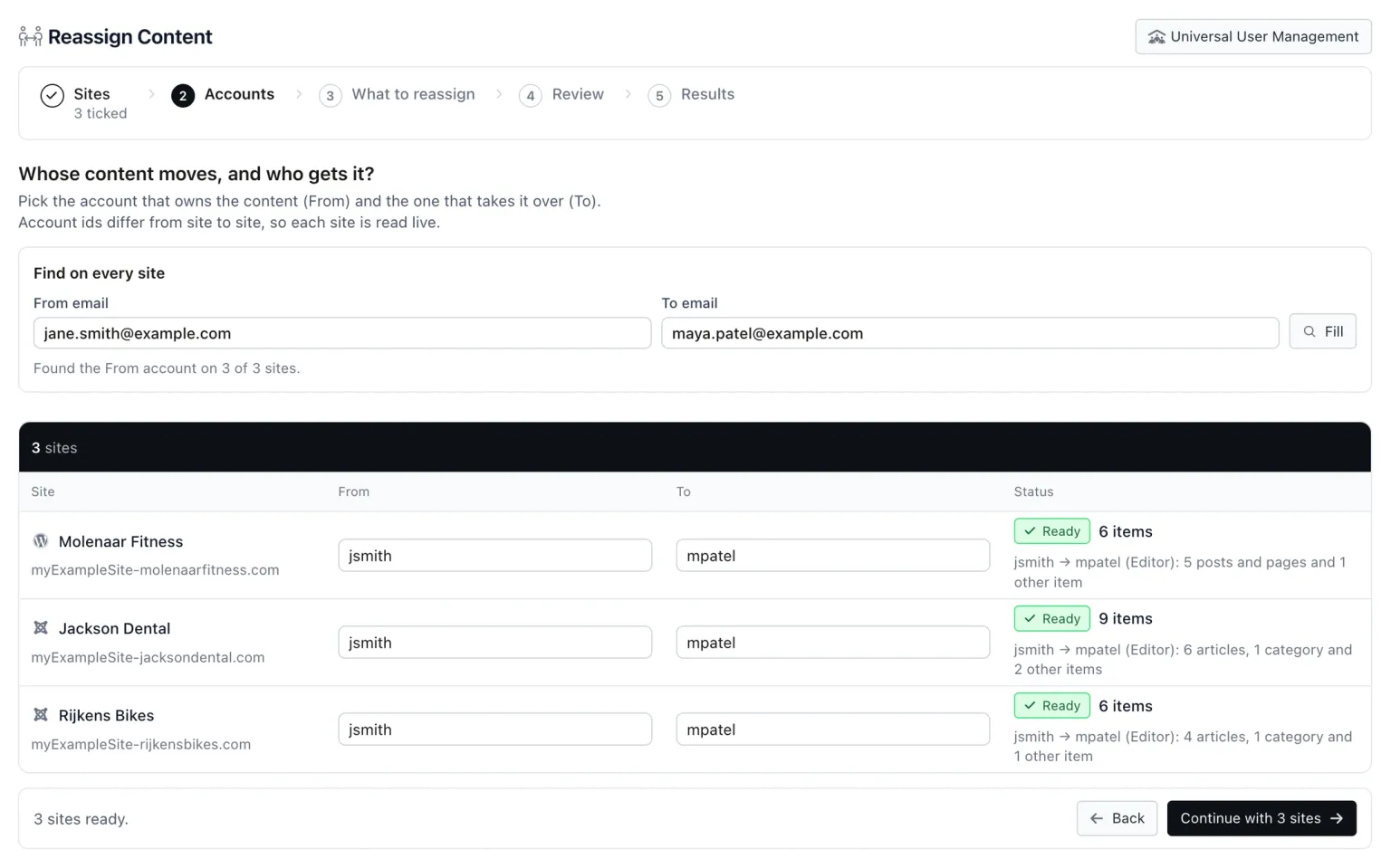
Accounts. Each ticked site gets a row with a From picker and a To picker, read live from that site, because account ids differ from site to site and mySites.guru stores no user list.
Find on every site takes a From email and a To email and fills each row with the account whose email matches exactly. A pick you made by hand is kept.
What to reassign. Every table or post type the From account owns rows in is listed with a count, all ticked. Untick anything that should stay where it is.
Totals update straight away.
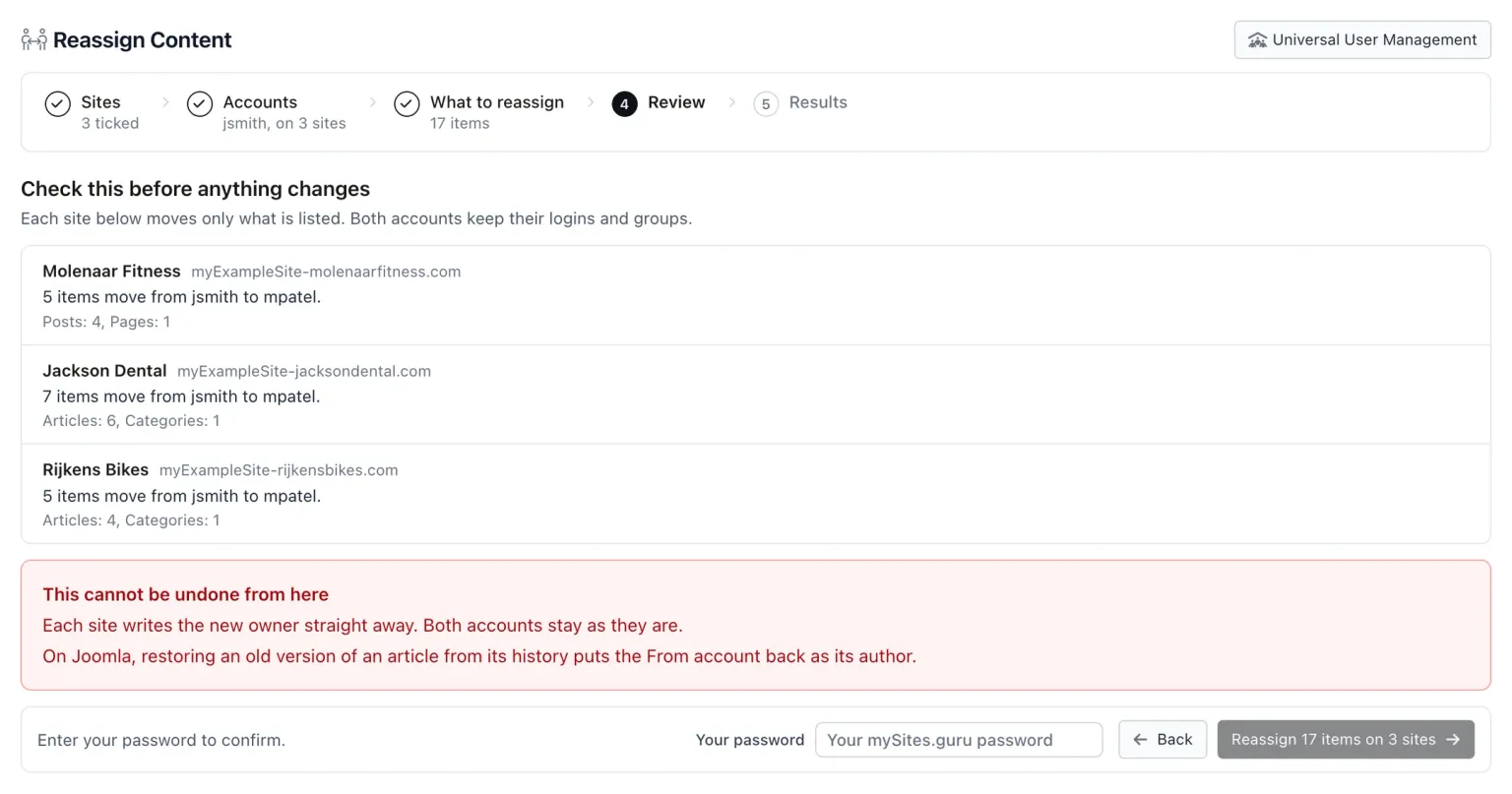
Review. One line per site says how many items move from which account to which, with the sites left out and why. Confirm with your mySites.guru account password.
A wrong password changes nothing.
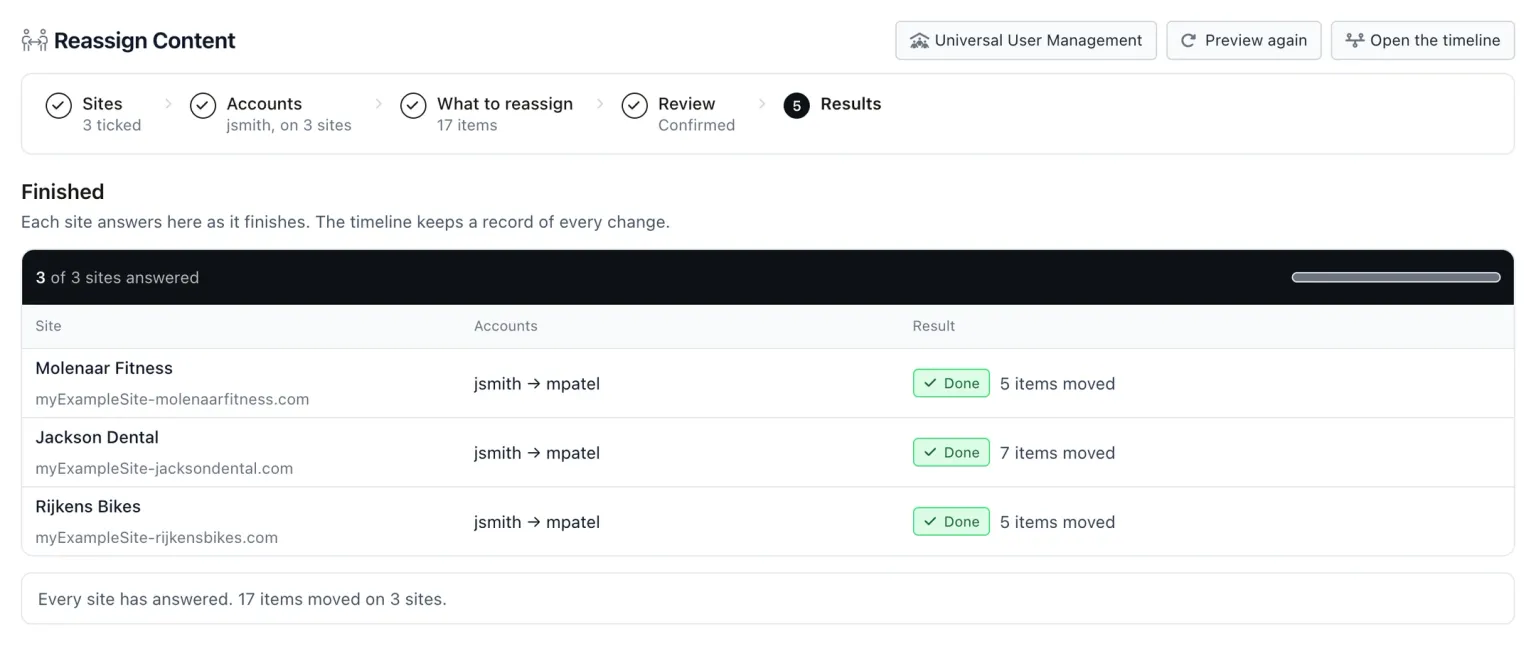
Results. Each site answers live as it finishes, and a finished row reads Done with the number of items moved.
The heading reads Finished once every site has answered.
On the Accounts step, leave To empty and each site suggests its lowest-id unblocked super admin, marked with a Suggested pill, so a run across forty client sites does not mean forty pickers. From and To cannot be the same account. On Joomla the To account must not be blocked, and on WordPress it must be able to edit posts. As soon as a row has both accounts, that site runs a dry run: it counts what would move and writes nothing, and the count appears on the row.
The Review step is the last stop. Besides the one line per site, it has a red box titled “This cannot be undone from here”, and the final button is labelled with the outcome rather than a verb: “Reassign N items on N sites”, with the real numbers from the dry runs. You type your mySites.guru account password and press it.
Results come back site by site as each one finishes. A finished row reads Done with “N items moved”. Every run is recorded on the Timeline and in the User Manager’s Recent changes as “Content reassigned”, so a colleague can see who moved what and when.
Choose what moves, table by table
Step 3, “What to reassign”, is the part the delete never had. It is a grid: one row per table on a Joomla site or per post type on a WordPress site (plus links), one column per site, and every box ticked to start. Untick anything that should stay with the From account and the totals update straight away. The grid can be exported as CSV, which is handy when a client wants to see the list before you press the button.
On Joomla the rows cover every table on the site, core and third-party extensions alike, found by column name: created_by, modified_by, created_user_id and modified_user_id, with Joomla’s UCM equivalents following the articles they belong to. So you will see Articles, Categories, Contacts, Tags, Custom fields, Banners, News feeds and Smart Search filters, and under them the tables of whichever extensions that site runs, by name. On WordPress the rows are Posts, Pages, Links and each custom post type, and what moves is post_author for every ticked type plus the owner of links.
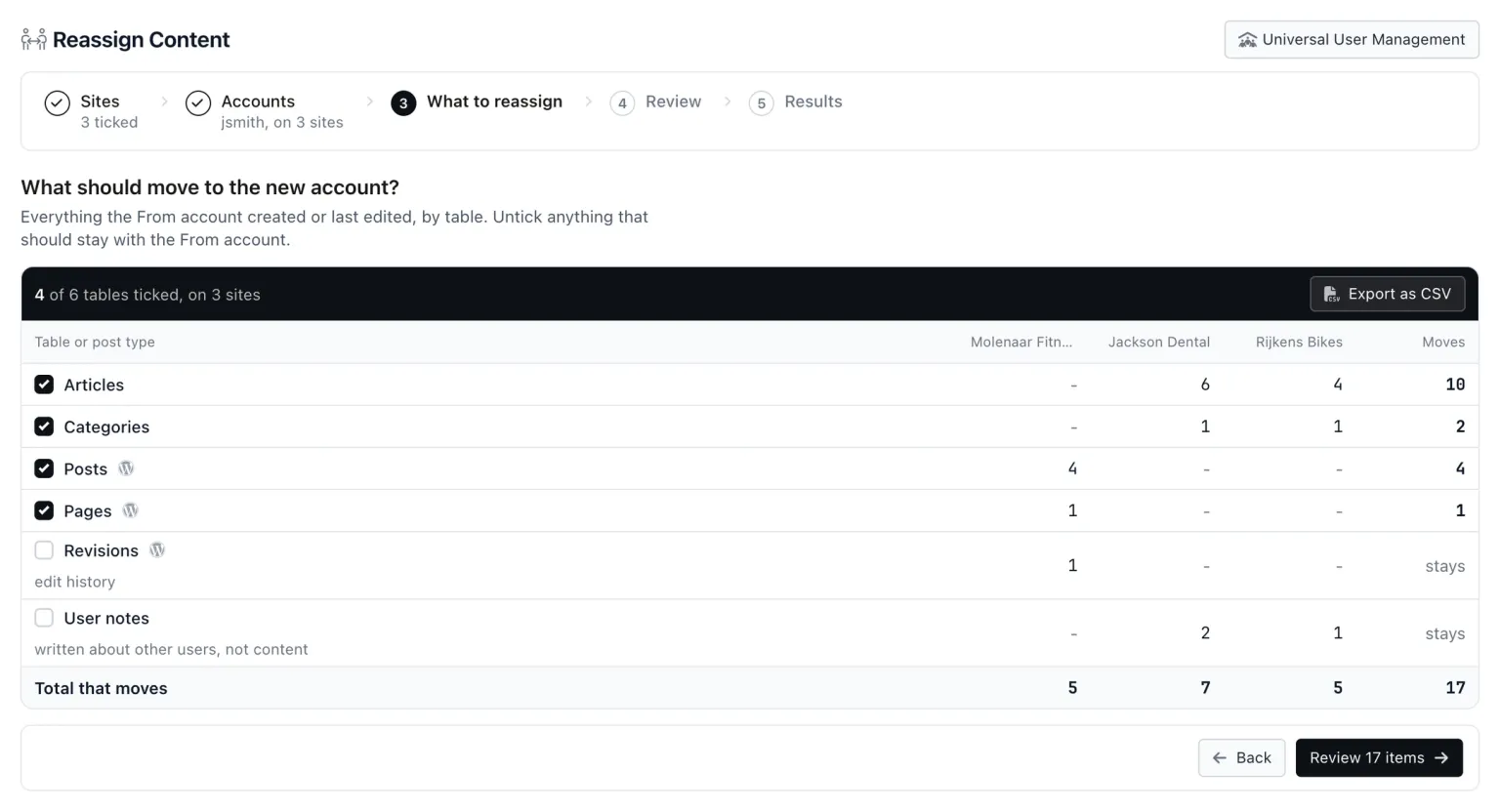
Some rows have a hint under them because what they hold is not really content, and giving it a new owner can mean something you did not intend. Check these before you continue.
| Row | Platform | Why you might untick it |
|---|---|---|
| User notes | Joomla | Written about other users, not content |
| Scheduled tasks | Joomla | Configuration, not content |
| Workflows | Joomla | Configuration, not content |
| Guided tours | Joomla | Configuration, not content |
| Revisions | WordPress | Edit history |
| Privacy requests | WordPress | The person asking, not content |
What stays the same on Joomla and WordPress
Both accounts keep their logins and groups. Nothing is blocked, deleted or checked in. The tool changes the owner column on the rows you ticked and nothing else, which is also why it cannot put things back.
This cannot be undone from here
Each site writes the new owner straight away. Both accounts stay as they are. On Joomla, restoring an old version of an article from its history puts the From account back as its author.
That is the red box on the Review step. The Joomla line matters because Joomla’s article history stores the author with each version, so if someone later restores an older version of a moved article, the From account comes back as its author for that article. The same applies to items the From account still has open for editing: if they have anything checked out, the preview tells you how many, and on Joomla their next save of that item puts them back as its author. The tool does not check anything in for you, because the account is staying and so is their work in progress.
One more thing it does not touch is credentials. Moving content leaves API tokens, application passwords and sessions where they are, so if the person has actually gone, revoke their API tokens as a separate job.
On the Results step a site can come back as Skipped. That happens when the From account changed on the site between the dry run and the write, by being blocked or by logging in, and on a Skipped site nothing moves. Rerun the tool for that site once you have looked at what changed.
Starting from one person on one site
Most of the time the question is smaller than “every site”. A client asks for one writer’s articles to be credited to the new editor on one site. For that, open the site’s User Manager, open the More actions menu on the user’s row, and choose “Reassign their content”. The tool opens with that site ticked and that account already chosen as From, straight on the Accounts step. Pick who gets it, review, confirm.
Deleting still works, with the same choice
If the account really is going, the delete is still there, and it has gained the same choice. In the per-site User Manager’s delete dialog on a Joomla site, a “What to reassign” box lists each table the account owns rows in, with a count, all ticked. Untick one and the preview line updates, reading for example “1 article moves to admin.” An unticked table keeps the deleted account’s id, which is what Joomla core does with all of them when you delete a user there.
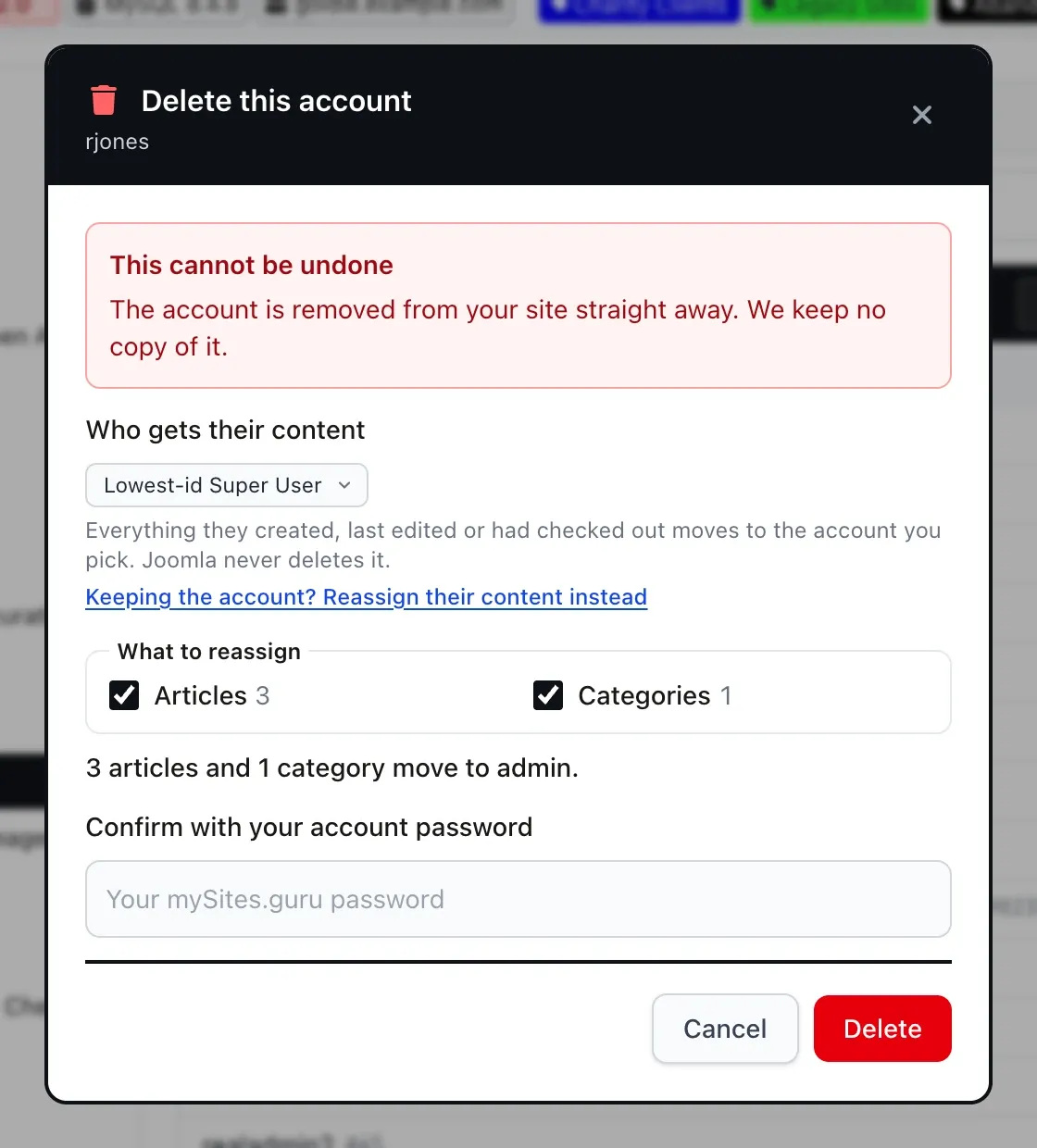
The dialog also links “Keeping the account? Reassign their content instead”, which takes you to the tool above. The companion post on reassigning content as part of the delete covers that dialog, the bulk delete across sites, and what Joomla core does with an author’s articles when the account is removed.
Why don’t core Joomla and WordPress do this?
WordPress core reassigns content at one moment only, the delete. The “Attribute all content to” choice on Users > Delete is the $reassign parameter of wp_delete_user, and it has been there since WordPress 2.0.0. If you want to keep the user, the Posts screen’s Bulk Edit has an Author dropdown, but select-all only covers the posts on the current page, and it is one site at a time.
Joomla core has no reassign at all. The Articles Batch dialog offers language, access level, category, tag and workflow stage, but not author. The one supported route is the “Created By” field on an article’s Publishing tab, one article at a time. A request for a batch author change, issue tracker #45026, was opened on 26 February 2025 and closed on 21 February 2026 without a change being merged.
An agency with one writer on a dozen client sites is therefore looking at a dozen afternoons in the Publishing tab, or SQL on a dozen databases, or deleting an account it wanted to keep. Reassign Content is the fourth option.
Team access, AI assistants and older connectors
- Team members need User Manager access on the site: viewing is enough to see the preview, and managing is needed to apply.
- AI assistants connected over the mySites.guru MCP server get a read-only reassign_content_preview tool, which is the same dry run per site, and there is no MCP tool that applies the change.
- Sites running an older connector are upgraded automatically the first time the tool reaches them, so there is nothing to install first.
- Reassign Content is part of the mySites.guru subscription.
Move a leaver's content and keep their account
Reassign Content moves everything one account owns on your Joomla and WordPress sites to another account, lets you choose what moves, and leaves both accounts as they are. It is part of the mySites.guru subscription.
Further Reading
- wp_delete_user() in the WordPress developer reference - the $reassign parameter behind Attribute all content to, present since WordPress 2.0.0.
- Joomla issue tracker #45026, Batch change authors for articles and categories - the core request for a batch author change, closed without a merged change.
- One Search Finds That User on Every Site You Manage - the full tour of the user manager this tool sits inside.
Frequently Asked Questions
Can I change the author of Joomla articles without deleting the user?
Does Reassign Content work on WordPress sites?
Can I choose which content moves?
What happens to the old account?
Can a reassign be undone?
Can I see what will move before anything changes?
 Written and edited by a human, with AI assistance. Our approach to AI