WordPress and Joomla Ransomware: A File-by-File Recovery List in mySites.guru
Ransomware on a WordPress or Joomla site is a few seconds of damage that leaves a site full of unreadable files. The usual advice is to restore the whole site from a backup, which throws away every change made since that backup was taken, along with the evidence of how the attacker got in. The opposite mistake is worse: delete the wrong encrypted file and it is gone for good.
mySites.guru now has an audit tool called Files Encrypted By Ransomware. It lists every encrypted file on a site and says which of three things to do with each one: delete it, revert it or restore it. It runs on Joomla (3 to 7), WordPress and Generic PHP sites, and it catches both the kit described in this post and the Sorry ransomware, which renames files to .sorry instead.
How mySites.guru fixes ransomware on Joomla and WordPress
Every audit reads the first six bytes of every file of 51 bytes or more, whatever its extension, and flags any file that starts with a known ransomware header. It also flags files whose names end the way ransomware names them, such as .sorry.
Both numbers come from the kit that prompted this, code-named RNSM. It writes the six bytes RNSM followed by 0x02 0x03 at the start of every file it encrypts, and each encrypted file is its original plus exactly 51 bytes. The marker is six bytes, so that is all the audit has to read. A file under 51 bytes cannot be one of its files, so there is no reason to open it.
The header is a better test than the filename for this kit, because most files were encrypted in place, keeping their name and extension, images included. A check that only looked at PHP files, or only at odd extensions, would have missed nearly all of them. A few files were handled differently and written as an .enc copy beside an untouched original, so index.php.enc sits next to a working index.php. You treat the two kinds differently, as the next section shows.
Each encrypted file also counts as a hacked file. It shows on Hacked Files and turns the site red, with none of the judgement call that a suspect file needs before you can call it hacked.
The check runs as part of the audit, on the site’s audit schedule (weekly by default, or daily or monthly if you set it that way), and not in the twice-daily snapshot. A site needs the updated connector, which upgrades itself, and one new audit. A site still on an older connector shows No Data, never a false all-clear.
Delete, revert or restore: the What to do groups
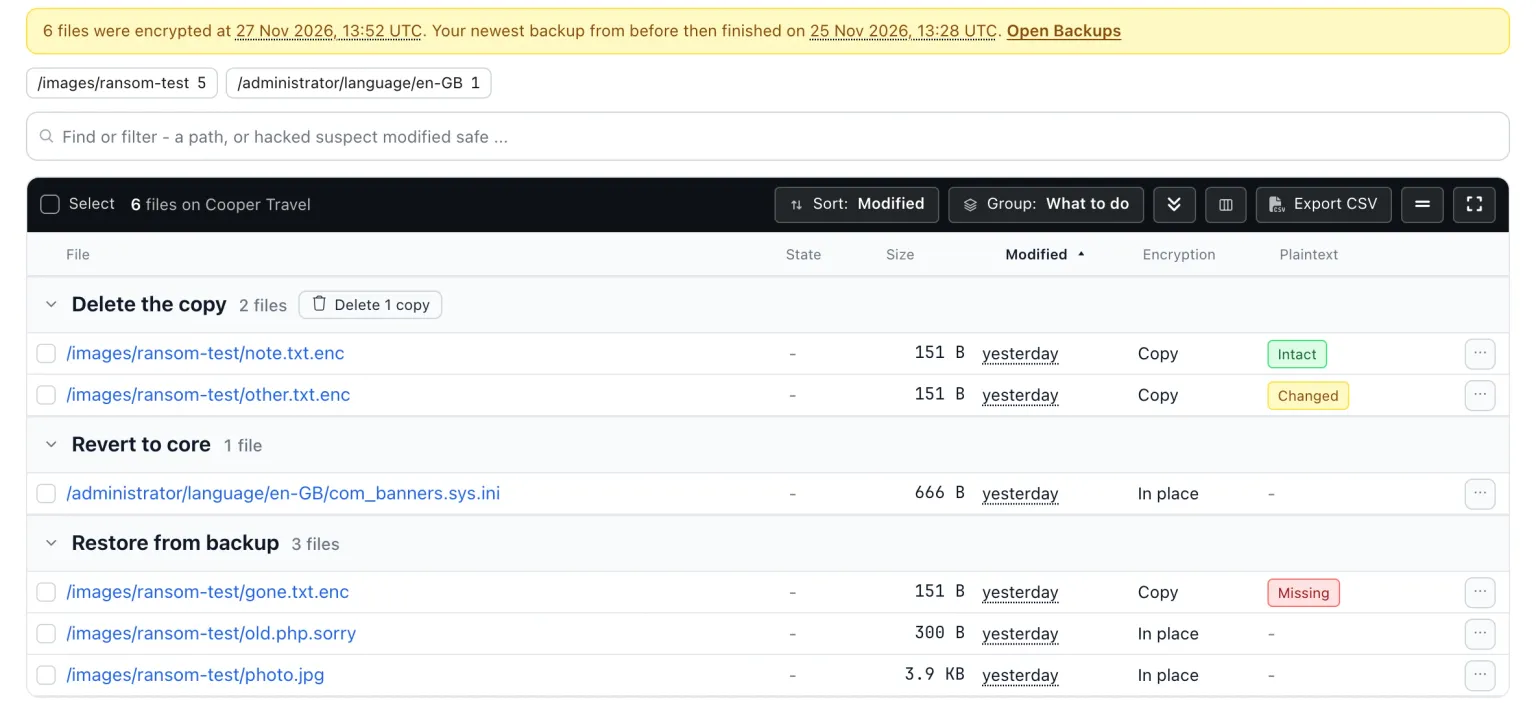
The tool page has one row per encrypted file, and by default it groups them under “What to do”. There are four groups, and each one is an instruction.
“Delete the copy” holds the .enc copies whose original is still there and is not itself encrypted. “Revert to core” holds encrypted files that belong to the CMS itself, and Revert puts back the official file from the release the site runs, so you get the original core file back without needing a backup. Generic PHP sites have no core file list, so that group does not exist for them. “Restore from backup” is everything else. “Restored since the audit” collects files that no longer start with the marker.
The columns include File, State, Size, Modified, Encryption (Copy or In place) and Plaintext. You can regroup the list by Folder, or by Folder (collapsed), and the folder chips above the list filter it down to one folder. If you would rather see a folder for yourself before deciding, open it in the web file manager. Export CSV gives you the whole list to keep with the incident notes.
Any file on the list can be deleted, and that is a permanent delete with no trash to fish it out of. The two exceptions are the site-root configuration.php and wp-config.php, which the tool will not delete. The confirm for an in-place file warns that it cannot be recovered without a backup, and core rows keep their Revert action.
Intact, Changed or Missing
The Plaintext column answers one question about each .enc copy: is the original beside it still good? It gets there by comparing sizes, using the same 51 bytes.
- Intact
- The original is exactly 51 bytes smaller than the copy, so it was not touched and the copy is safe to delete.
- Changed
- The original has changed size, so check it before you delete anything.
- Missing
- The original is gone or is encrypted too.
The header of the Delete the copy group has a button labelled with the count, for example “Delete 1 copy”. It deletes only the copies whose original is Intact and leaves the Changed ones for you to check. If no copy is Intact, there is no button. The confirm lists every file before anything is deleted, so you see exactly what goes before you confirm.
Restore from a backup last, after the investigation
Restoring a site from a backup is rarely the right first move after a hack, which is why how to fix a hacked site calls it a last resort. A restore overwrites the evidence: the modified files and their timestamps, the logs, and the backdoor or upload that let the attacker in. That trail is what anyone doing the forensics needs to work out how the site was hacked. A restore also puts back the same hole, so a site restored today can be encrypted again tomorrow.
Ransomware does not change that order. Take a backup of the site as it is now, encrypted files and all, then work out how the attacker got in before you put anything back. Read the server and access logs, check Hacked Files and Suspect Content for the way in, and use the encryption time the tool gives you as the moment to search the logs around.
Once that investigation is done, an encrypted file is a different problem from a hacked one. There is no injected line to strip out, because the original contents are gone. Deleting the Intact copies and reverting core files deals with part of the list without any backup. For the rest, restoring those files from a backup is disaster recovery, and it is the only way to get them back. Where you can, restore just those files rather than rolling back the whole site, so the clean-up you have already done stays in place.
Which backup predates the encryption?
When every encrypted file changed within six hours, the tool tells you. A notice gives the encryption time and names the newest mySites.guru backup that finished before it, with a link to Backups. On our test site it reads: “6 files were encrypted at 27 Nov 2026, 13:52 UTC. Your newest backup from before then finished on 25 Nov 2026, 13:28 UTC. Open Backups”.
The tool treats a tight cluster of modified dates as one run, with one clear “before” to measure a backup against. When the dates are spread wider than that, there is no single moment to measure a backup against, and any backup it picked would be a guess. In that case the notice says so and names no backup: “7 files are encrypted, with dates too far apart to say when, so we cannot pick a backup for you.”
The pointer has a limit you should know about. It only knows backups run through mySites.guru, which means Akeeba Backup and All-in-One WP Migration runs. It does not consult Akeeba’s own archive list or your host’s backups, and either may hold older copies, so check them too.
Whichever backup you use, restore before you delete. An encrypted file is useless as it stands, but once you delete it, it is gone unless you have a backup of it. Get the good copy back first, then clear up.
The write probes: fox_ files before the encryption
Before it encrypted anything, the kit tested whether it could write to the site. It wrote zero-byte files into template folders, each named fox_ followed by eight hex characters and .php, for example templates/cassiopeia/fox_1a2b3c4d.php.
An empty file does nothing by itself, so it is easy to overlook, but it is evidence that someone was able to write files to the site, and it can be there before a single file is encrypted. mySites.guru flags these probes by name, anywhere on the site, on Joomla and Generic PHP sites. WordPress audits do not see zero-byte files, so the probes are not flagged on WordPress.
If an audit turns up probes or encrypted files and you are not sure what you are looking at, send us the site’s details and we will take a free look.
Seeing it across every Joomla and WordPress site
On All Your Sites, an affected row gets a red RANSOMWARE pill in place of the HACKED pill, and a Ransomware quick filter cuts the list down to just those sites. Compare all sites shows the same check across all the sites you manage.
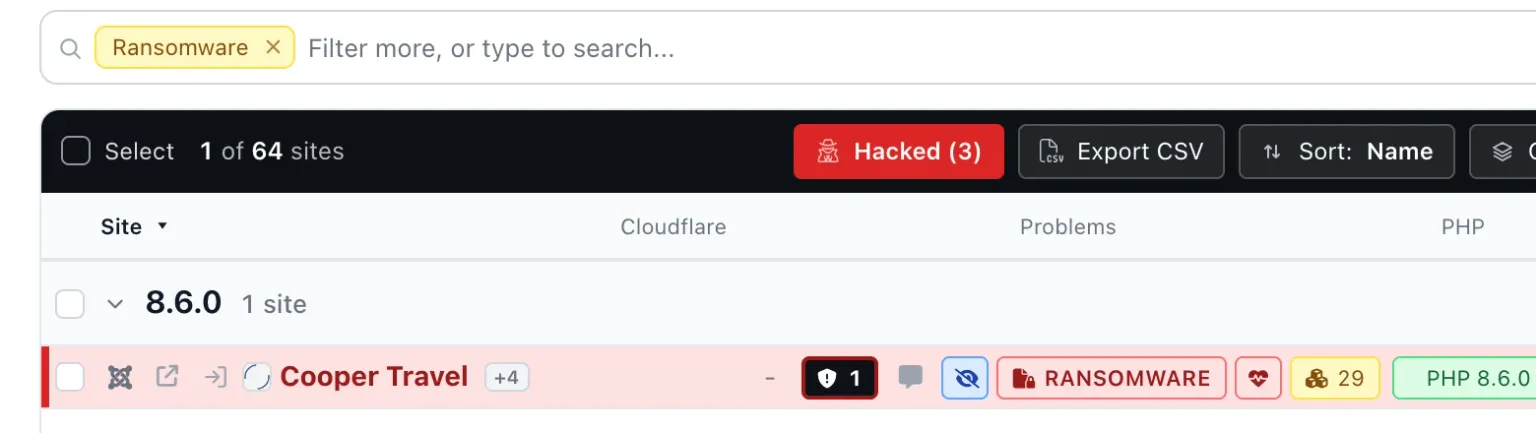
On the site itself, the tool is listed on the red hacked card under Confirmed, beside Hacked Files. Your timeline gets a “Ransomware found” row as well.
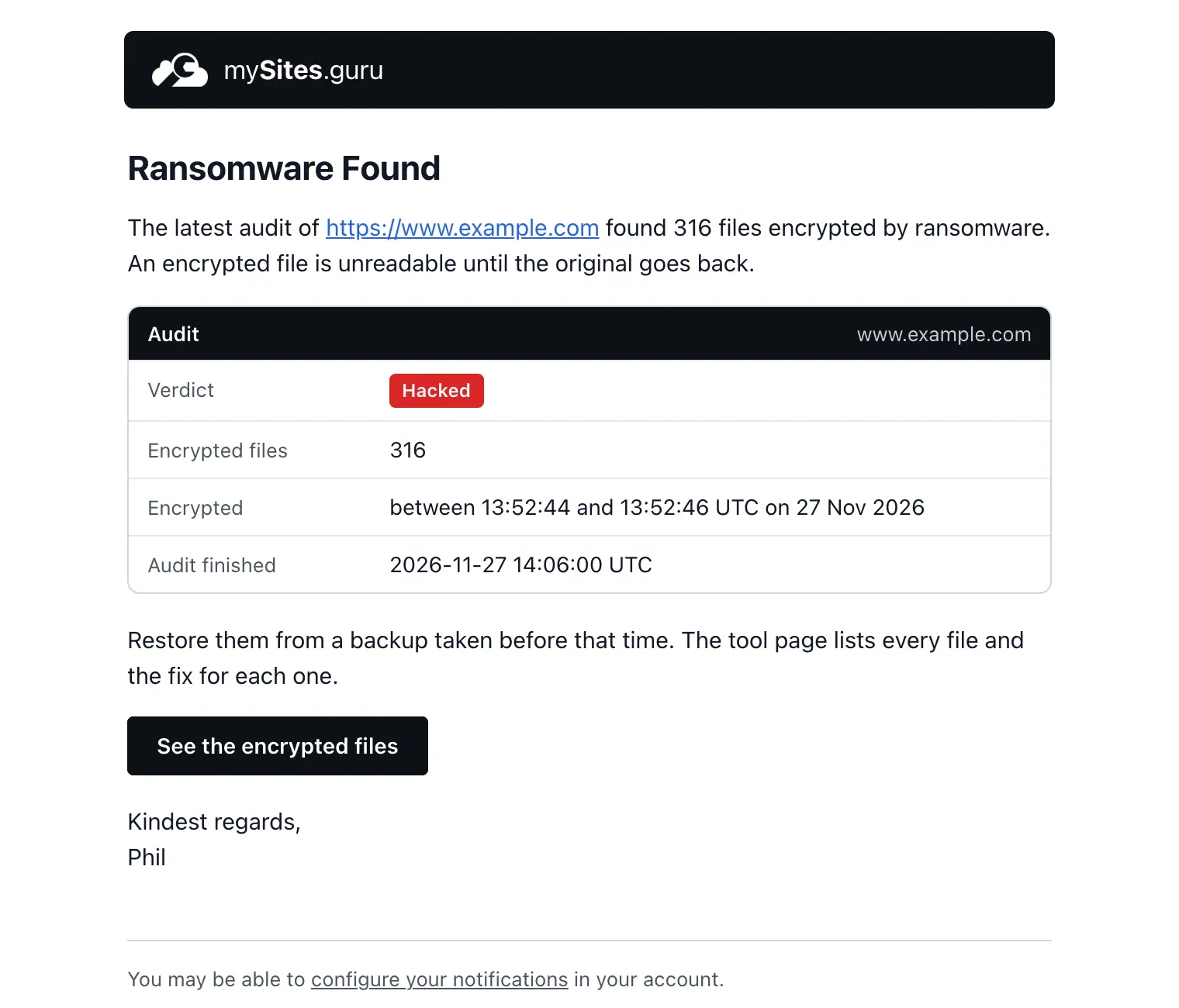
You should not have to be looking at the dashboard to find out, so there is an email too. Its subject is “Ransomware found on” followed by the site address, and it is sent once: when an audit finds encrypted files on a site whose previous audit found none. When the encryption was a single run, the email names the window it happened in, and its one button is “See the encrypted files”. It sits in the security group of the email alerts, is on by default and can be turned off in your email preferences. The usual site hacked email still goes out as before.
Ransomware files over the API and MCP
The same list is on the REST API, under the api:audits:read scope, with an optional limit parameter:
GET /api/v1/sites/{hashId}/ransomware-filesThe response has a summary and a list of files. The summary gives the total, the first and last encryption times, whether it was a single run, the restore point and a count for each recovery group. Each file has its path, size, original size, modified time, marker (rnsm or sorry), mode (copy or inplace), recovery group, plaintext state and whether it is a core file.
If you manage your sites from Claude, the MCP tool list_site_ransomware_files takes a site’s hashId and an optional limit and returns the same payload.
Recovering a WordPress or Joomla site after ransomware
Once the investigation is done, the About card on the tool page sets out the order. The first two steps need no backup, so they shrink the job before you open one.
Delete. Delete the
.enccopies whose original is Intact.Revert. Revert the encrypted core files to the official ones.
Restore. Restore everything else from a backup taken before the attack.
Secure. Change every password for the site, its hosting and its database, then run a new audit.
Those four steps come after the investigation described above, never instead of it. Ransomware on a site means someone was able to write files to it, and until you know how, they can do it again, so the way in, usually among the hacked files and backdoors the same audit reports, has to be found and closed. The new audit at the end is what tells you the list is empty.
If you would rather hand the whole incident over, fix.mysites.guru is a fixed £120 per incident, usually done the same day, and screened first so you are not charged if it cannot be fixed.
Clean a Hacked Site with Suspect Content and Hacked FilesRead the full post
How this shows up in real life
On 27 November 2026 a mySites.guru customer’s Joomla site was hit by this ransomware kit. It tested the template folders with its empty fox_ files, then started encrypting. Most of the encrypted files were overwritten in place, under their own names, and a few were left as .enc copies beside untouched originals.
We built the detection the next day. It now runs in the audit on Joomla, WordPress and Generic PHP sites, so a site hit by the same kit gets a list of every damaged file with an instruction beside each one.
Further Reading
- Spotting .sorry Ransomware on Your cPanel Hosts: the ransomware that renames files instead of marking them.
- How to fix a hacked Joomla or WordPress site: the full clean-up, start to finish.
- Find hacked files and backdoors in Joomla and WordPress: working out how the attacker got in.
- Suspect Content vs Hacked Files: why one list needs your judgement and the other does not.
Frequently Asked Questions
What does Files Encrypted By Ransomware flag?
Is an .enc copy safe to delete?
Can mySites.guru decrypt the files?
Does it work on WordPress as well as Joomla?
Which backup should I restore after ransomware?
 Written and edited by a human, with AI assistance. Our approach to AI