Articles In A Missing Category

A Joomla article whose category was deleted drops out of every category list and blog on the site. Find those articles and give each one a category.
How the missing category check works
During each snapshot your site looks for articles that are not in the trash and whose category is not an article category that exists. That covers an article whose category was deleted, one with no category at all, and one pointing at a category that belongs to another component, such as a contacts category.
If the site cannot report this, for example because its connector is older than the check, the row shows No Data rather than a pass.
Articles that no list shows
Joomla shows articles through their category: category lists, blog layouts and most modules all start from one. An article whose category has gone is still published, but almost nothing on the site lists it. It stays reachable only through a direct link or a menu item that opens it on its own, so it tends to go unnoticed until someone looks for it.
Every article has a category
Every article that is not in the trash belongs to an article category that exists.
Fixing the articles
- Open the site in mySites.guru, go to the Snapshot tab and click Investigate on the Articles In A Missing Category row.
- Each row shows the article, the category number it points at (or No category), and whether it is published, unpublished or archived.
- Click Edit on an article. It opens that article’s edit screen in the Joomla administrator, already signed in.
- Choose a category that exists and save.
- The next snapshot picks up the change.
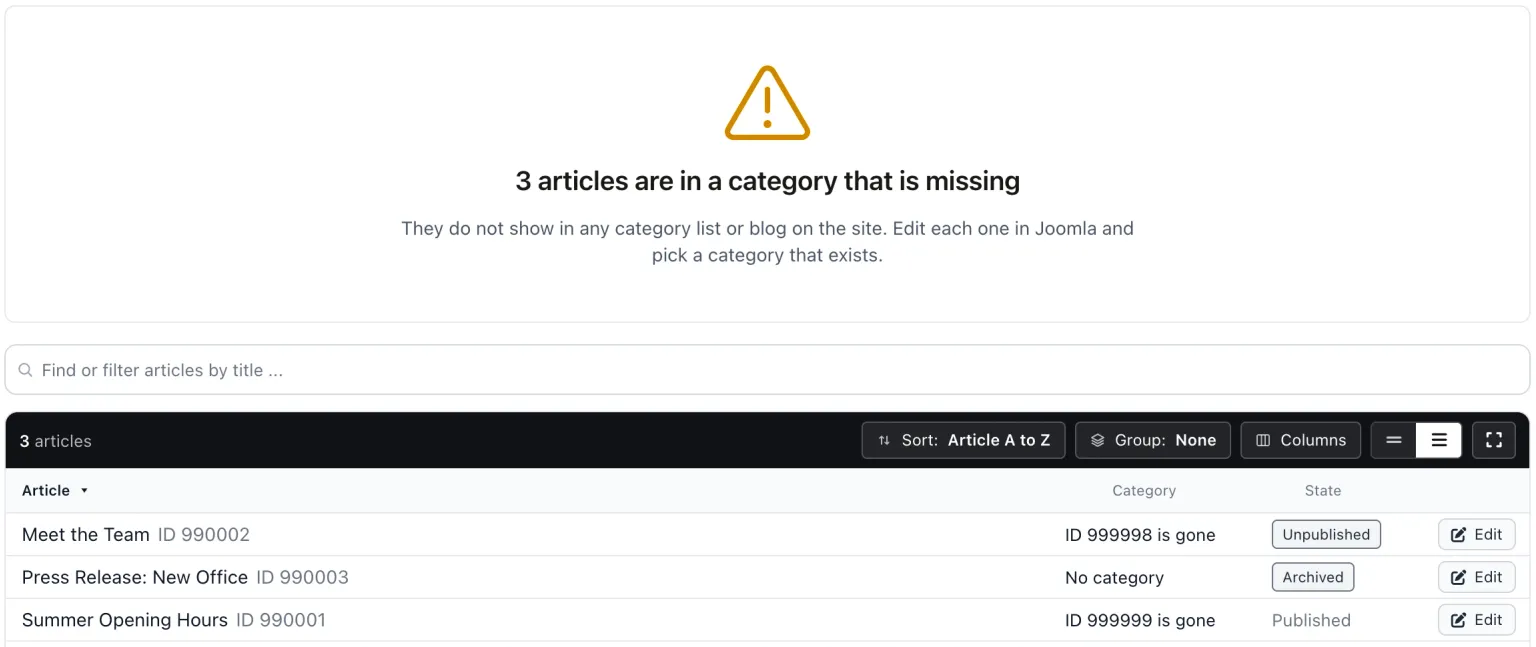
The list is read only, because the right category for each article is your call.
Deleted categories often leave other traces. The orphaned asset rows check finds permission rows that outlived the content they belonged to.
Articles In A Missing Category
mySites.guru checks every connected site for this automatically and flags it the moment it appears. These run twice a day on every connected site.
Frequently Asked Questions
How can an article end up without a category?
Are trashed articles counted?
Why does mySites.guru not fix them for me?
 Written and edited by a human, with AI assistance. Our approach to AI