Items Left Checked Out
Joomla locks an article, module or menu item while someone edits it, and a closed tab never releases the lock. Find stale locks and check them in.
How the checked out items check works
During each snapshot your site looks at every table with its own prefix that has both a checked_out and a checked_out_time column. Those are the same tables Joomla’s own Global Check-in looks at. Views are ignored, and so is any table whose checked_out column holds text instead of a user number, because that is not a Joomla lock.
The row on the Snapshot tab shows how many items are held. It only turns into a warning when something has been held for more than 24 hours, measured on your site’s own database clock rather than ours. A held row with no usable time counts as old. A site whose connector cannot report this shows no value instead of an OK.
Why locks pile up
Joomla locks a row while someone edits it, so two people cannot overwrite each other. The lock is released when they press Save and Close or Close. If they close the tab, lose their connection or log out first, nothing releases it, and the item stays locked for everyone else until someone checks it in by hand.
On a site with several editors the locks build up over months. The first sign is usually an editor who cannot open an article that no one seems to be working on. Joomla’s edit screen will not open an item checked out by someone else, so the person who notices is often the one least able to fix it.
No locks older than a day
No row has been locked for over 24 hours. Recent locks still show in the count, because someone may be editing right now, but they do not raise a warning.
Checking items in from mySites.guru
- Open the site, go to the Snapshot tab, and click Investigate on the Items Left Checked Out row.
- Rows are grouped by type: Articles, Categories, Modules, Menu items, Contacts, and third-party tables by name. Each row shows who holds it and for how long.
- Check in one row, tick several and press Check in selected, or use Check in older than 24 hours or Check in all. A row that is checked in fades out where it is, without a page reload.
- The page also says whether Joomla’s scheduled Global Check-in task exists on that site and is enabled. On Joomla 5 and later, set one up so the problem stops coming back.
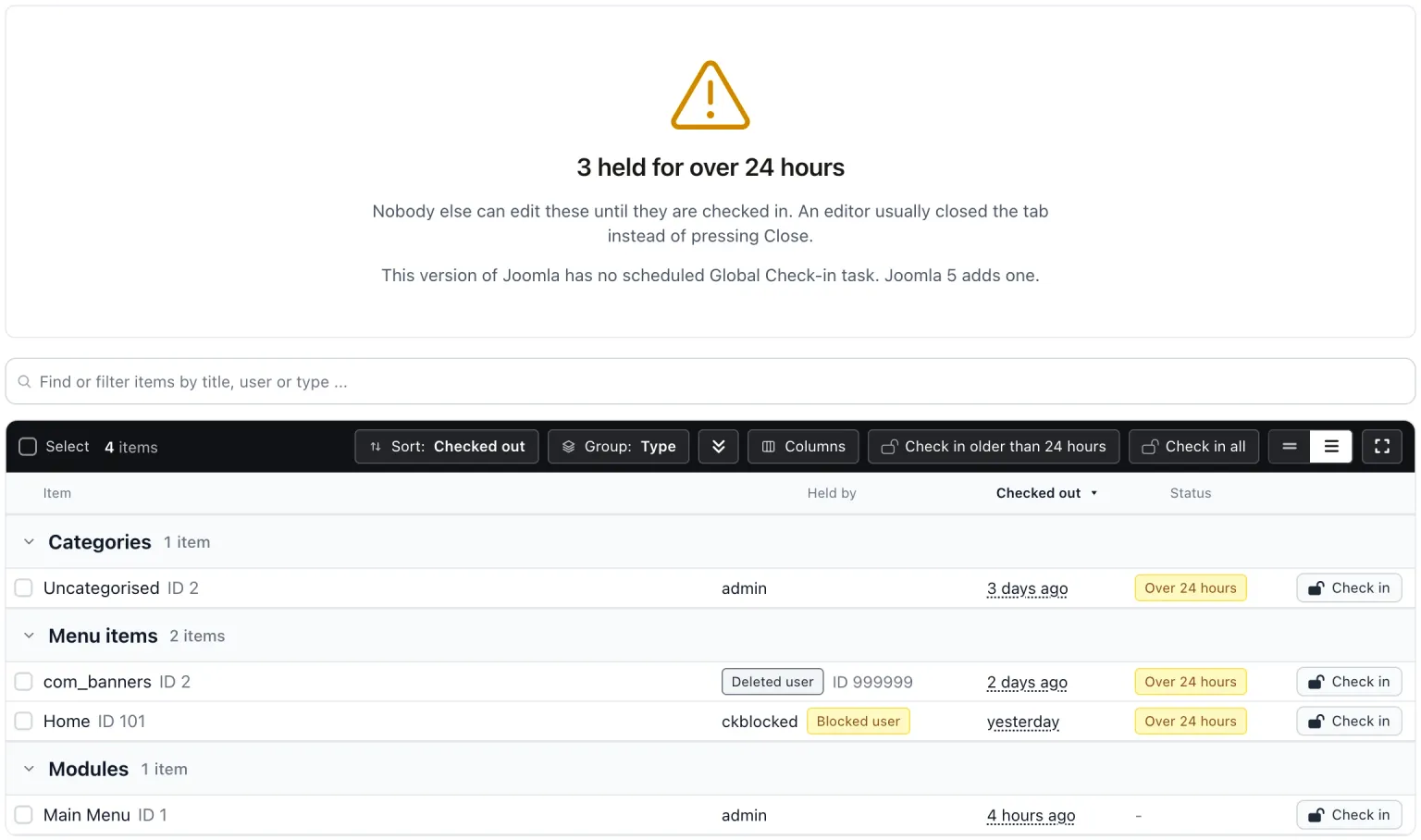
A link on the page signs you in to the site’s own Global Check-in screen if you would rather do it in Joomla.
Doing it in Joomla
Open System, then Global Check-in under Maintenance, tick the tables and press Check-in. In mySites.guru, the tool finder lists every site with stale locks at once, so you do not have to open each administrator in turn.
Set up Joomla’s Global Check-in task
Joomla 5.0 and later include a scheduled task that checks items in for you. It comes from the Task - Global Check-in plugin. Joomla 3 and 4 do not have it.

- In the Joomla administrator, open System, then Scheduled Tasks.
- Press New and pick Global Check-in from the list of task types. If it is not listed, enable the Task - Global Check-in plugin first.
- Give the task a title.
- Under Execution Rule, choose how often it runs: an interval in minutes, hours, days or months, or a cron expression. Once a day is plenty for most sites.
- Under Task Parameters, set Minimum Period Before Checkin (hours). The task only checks in items that have been held for longer than this. The default is 1 hour. Set it to 24 to match the warning on mySites.guru, so an item someone is still editing is left alone.
- Save.
The task works on every table with your site’s prefix that has both a checked_out and a checked_out_time column, the same tables this check counts. Scheduled tasks only run when something triggers them. By default Joomla’s Lazy Scheduler does that on site visits, and you can switch to a web cron or a server cron in the Scheduled Tasks options. If a task stops running, scheduled tasks stuck locked is the check to look at.
The Investigate page in mySites.guru then shows the task as set up and enabled.
This check sits beside the rest of the database integrity checks, including items left in the trash.
Items Left Checked Out
mySites.guru checks every connected site for this automatically and flags it the moment it appears. These run twice a day on every connected site.
Further Reading
Frequently Asked Questions
Is it safe to check in an item someone else has open?
Why does a deleted or blocked user still hold items?
Can Joomla check items in automatically?
 Written and edited by a human, with AI assistance. Our approach to AI