Hacked Files Hiding in a Joomla tmp Folder Outside Your Site
Moving Joomla’s tmp folder outside public_html is common hardening advice, and it is easy to follow and forget. Then came CVE-2026-48907, the profile import flaw in the JCE extension, which YesWeHack’s write-up shows staging its upload in Joomla’s configured tmp path.
Put those two together and you get a Joomla site that is hacked while its audit says it is clean. That is the case that started this work: mySites.guru flagged a customer’s Joomla site as hacked, with JCE droppers on it, while the Hacked group of the same site’s Full Audit read OK. The droppers were in a tmp_path outside the site, and the audit had never walked that folder. It does now, and there is a new tool to view and clean what it finds.
How the JCE Flaw Uses Joomla’s tmp Folder
CVE-2026-48907 is an unauthenticated remote code execution flaw in the profile import of JCE (Joomla Content Editor), a Joomla extension. The import task checks the CSRF token but not whether the visitor is signed in, and it scores 10.0 on CVSS. Versions 1.0.0 to 2.9.99.4 are affected. Version 2.9.99.5 fixes it, and 2.9.99.6 adds hardening and is the one Widget Factory recommends.
YesWeHack published the detail on 12 June 2026: the upload is staged in Joomla’s configured tmp path, where a crafted .xml.php file can then be requested and run. CISA added the flaw to its Known Exploited Vulnerabilities catalog on 16 June 2026, as The Hacker News reported.
Updating JCE does not remove rogue profiles or files that were already dropped. If the tmp folder is somewhere nobody looks, those files stay. Our JCE hack writeup covers the attack itself and the cleanup after it.
A New mySites.guru Tool to Find, and Fix, the JCE Profiles Hack (June 2026)Read the full post
A New Hacked Check for Joomla’s tmp Folder
The Full Audit has a new row in its Hacked group on Joomla sites: Check The Tmp Folder Outside Your Site. Its description in the app reads “Joomla can keep its tmp folder outside your site, where it writes uploads and installs and FTP cannot see them. We audit the files in it and let you view and delete them.”
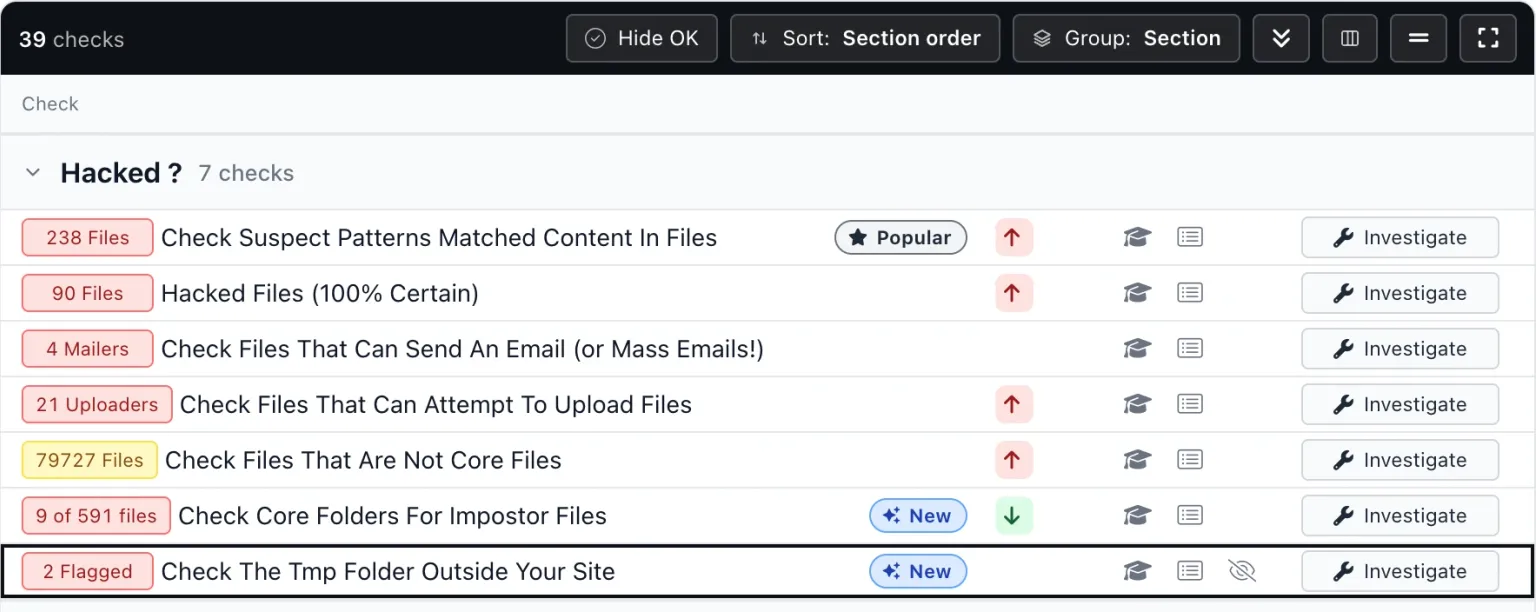
The row has three states.
- OK
- The tmp folder is inside the site, so its files are already in the audit.
- Outside
- A warning: the tmp folder is outside the site.
- 2 Flagged
- That many audited files in the folder are hacked or suspect, and they are also listed in Hacked Files and Suspect Content.
The files get the full audit treatment. Every file sitting directly in the tmp_path folder is added to the audit’s file list and scanned like any other file, by the same engine: hacked file signatures, suspect patterns, dropper names and AI analysis.
Only the top level of the folder is read, not its sub-folders. Anything found appears in Hacked Files and Suspect Content and counts there, so the totals you already watch now include this folder. The difference between those two lists is explained in the post below.
Suspect Content vs Hacked Files: Two mySites.guru Tools, One Big DifferenceRead the full post
The Joomla tmp Folder Tool: View, Download, Delete
The Investigate page behind the row lists the files in the folder with their size and modified time, and a pill for what the audit made of each one.
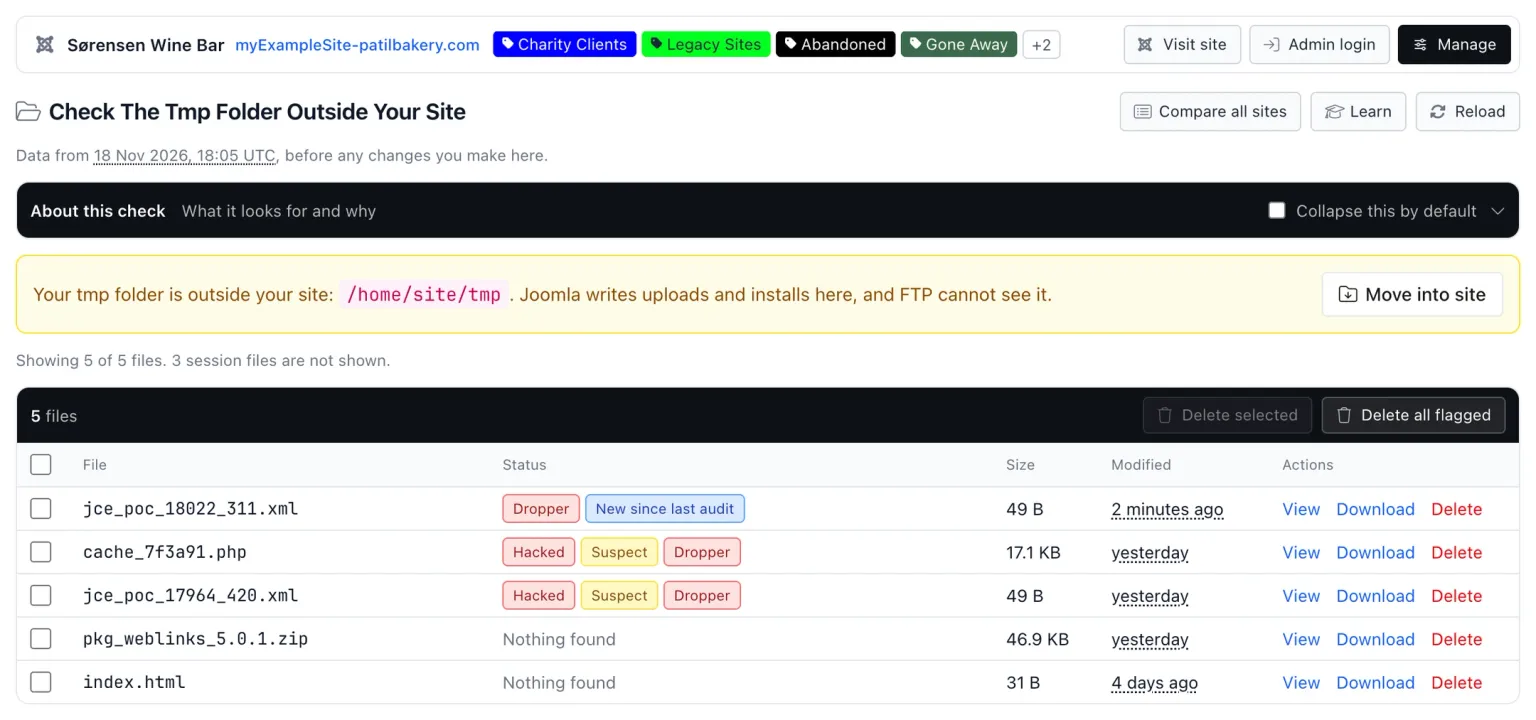
Hacked, Suspect and Dropper are the audit’s verdicts. Not audited yet marks a file the last audit did not scan, and New since last audit marks one that has appeared since. In the screenshot, jce_poc_18022_311.xml has two pills: it is a dropper, and it arrived after the last audit ran.
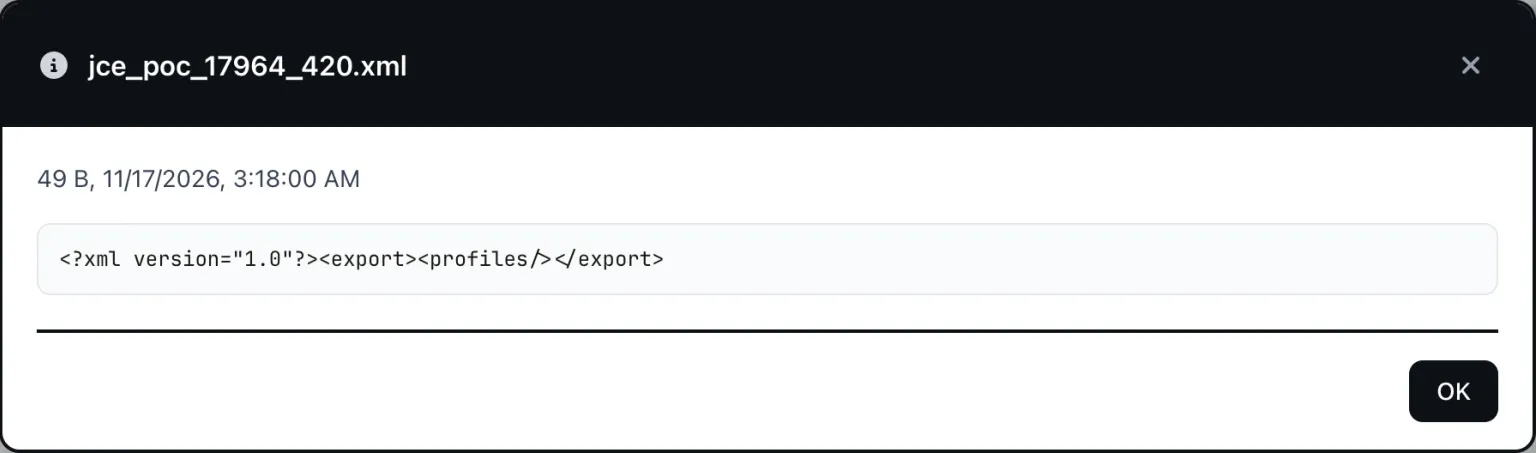
Each file has View, Download and Delete. View shows the first 1 MB of the file in a dialog, which is enough to see what a dropper is without pulling it down to your own machine. A binary file tells you to use Download instead.
Above the list are three head buttons: Delete selected, Delete all flagged and Move into site. Delete all flagged is the one you will use on a hacked site, since it deals with every file the audit flagged in one go.
Team permissions follow the audit. A team member needs View access to Audits to see the list, and Manage access to Audits to view, download, delete or move anything.
The page needs the updated connector, and connectors update themselves. A site still on an old connector shows a “connector is too old” message on the tool page until it catches up.
Do Joomla tmp Folder Hits Show in Hacked Files?
Yes. Hits from the tmp folder are listed in Hacked Files and Suspect Content alongside everything else the audit found, with paths that start with /../ because they sit outside the site.

From Hacked Files you can view, download and delete these files. You cannot edit them, revert them or open them in the File Manager, because those three are limited to the site folder.
Should Joomla’s tmp Folder Live Outside the Site?
My answer is no. Keep it inside the site, where it gets audited.
Most Joomla sites already do. Of the Joomla sites mySites.guru checked in the 90 days to 18 November 2026, 88.7% keep both their tmp and log folders in Joomla’s default locations. The other sites have moved one or both, and those are the sites this check is for.
The advice to move it is well meant. Akeeba’s documentation advises against using the shared system /tmp and in favour of a private folder only your site can reach. It is a reasonable position from people who know Joomla well.
What that advice leaves out is the cost. A folder outside the web root is outside every FTP-based cleanup and every scanner that only reads the docroot. So when something does get dropped there, it survives a cleanup that everyone involved believes is finished. That is exactly what happened in the case above. There is a configuration cost too: the Joomla Security Checklist points out that if you move the log and temp paths, open_basedir has to cover the new paths.
Move into site is the button for this. It sets tmp_path to the tmp folder inside the site and log_path to administrator/logs, then takes a new snapshot. Moving the folder back inside the site is also what our Learn More page for the check recommends, and it matches the older snapshot check, Logs/tmp Folder Locations Should Exist At Default Locations.
Move into site changes the log path too
Both settings change together: tmp_path goes to the tmp folder inside the site and log_path goes to administrator/logs. If you moved the logs folder on purpose, check it after the move.
You do not have to wait for a Full Audit to find out which sites are affected. Every snapshot now records whether tmp_path is outside the site, and the Important tab shows a warning row, “Tmp folder is outside your site”, with an Open tmp folder button. The dropper row on the hacked card has the same button.

What the Joomla Audit Skips, and Why
The audit is deliberately cautious about a folder it does not own. A tmp folder outside the site can be a private folder, or it can be the server’s shared /tmp holding every site’s files.
- Only regular files owned by the site's PHP user are listed, so symlinks and other users' files are skipped, because a shared server
/tmpholds every site's files. - Session files named
sess_*are skipped and counted, which is why the tool page says how many are not shown. - File names that cannot be read safely are skipped.
- An audit scans up to 500 files from the folder, newest first, while the tool page lists up to 2,000 and marks the ones the last audit did not scan.
- A
tmp_paththat points at a site or home folder is not listed or audited at all: a public_html or www folder, a folder holding configuration.php or index.php, a dot folder, or a folder with a .ssh folder in it. - A symlinked
tmp_path, or one that holds the site itself, is refused in the same way, and the tool page says so and offers the move.
One limit is worth knowing before you press Delete. Where PHP runs as one shared user for every site on the server (mod_php), the owner filter cannot tell one site’s files from another’s. On a server like that, read the list before deleting from it.
How Do I Check a Joomla tmp Folder by Hand?
Start in the Joomla administrator. Open System, then Global Configuration under Setup (or go straight to administrator/index.php?option=com_config). The Server tab has a field called Path to Temp Folder, which holds tmp_path. The Logging tab has Path to Log Folder, which holds log_path. Both take an absolute path on the server.
Read the help text on the temp folder field while you are there. Joomla says it stores files there temporarily to install or update extensions and to upload files, and it tells you not to use the system-wide temporary folder, such as /tmp, for security reasons. The log folder’s help text says the same about /tmp.
If either path is not inside your site folder, Global Configuration will not show you what is in it. You need SSH or your host’s file manager, because FTP usually cannot reach a folder outside the account’s web root. Then work through it in this order:
Confirm the setting on disk. Run
grep tmp_path configuration.phpin the site root and read the linepublic $tmp_path = '...';. It should match Path to Temp Folder in Global Configuration, and it is the only place to read it if you cannot sign in to the administrator.List the folder. Run
ls -laon that path so you see hidden files, dates and owners.Look for droppers. Check for
.phpfiles, files namedjce_poc_*.xml, and anything ending.xml.php.Tell the real JCE file from the fake. A genuine JCE profile export is named
jce_editor_profile_<Y_m_d>.xml, while the attack's dropper is namedjce_poc_*.xml.Check the owner column. On a shared
/tmp, files owned by another user belong to another site and are not yours to delete.
Joomla unpacks uploaded extension packages in this folder, and failed installs leave files behind, so expect some harmless clutter. A tmp path copied from another server causes its own trouble, as the File Checksum Failed post shows. If you run Akeeba Admin Tools, its Clean Temp feature deletes everything in the temp folder except index.html, index.htm, web.config and .htaccess.
Every Joomla Site at Once, the API and MCP
The check is a normal audit row, so it has a Sites by Tool view that lists the sites with the tmp folder outside the site across all your Joomla sites. WordPress has no tmp_path setting, so there is nothing to check there.
The same four actions are in the API under /api/v1/sites/{hashId}/tmp-folder. A GET on that path lists the files with the api:audits:read scope. GET .../tmp-folder/file?name=, POST .../tmp-folder/delete and POST .../tmp-folder/move need api:audits:write. The MCP tools are list_site_tmp_files, get_site_tmp_file, delete_site_tmp_files and move_site_tmp_folder.
Find out what is in your Joomla tmp folder
Connect a Joomla site and run a Full Audit. It scans the files in the tmp folder along with the rest of the site, wherever that folder lives, and you can view and delete what it finds from one page.
Further Reading
- YesWeHack on the JCE profile import flaw - the researcher write-up, including how the upload is staged in Joomla's configured tmp path.
- The Hacker News on the CISA listing - coverage of CVE-2026-48907 being added to the Known Exploited Vulnerabilities catalog.
- Akeeba Backup documentation on temporary and output directories - why not to use the shared system /tmp, and the case for a private folder only your site can reach.
- Akeeba Admin Tools documentation for Clean Temp - what the feature deletes from the temp folder and the four file names it keeps.
- Joomla Security Checklist, Joomla Setup - the note that open_basedir must cover the log and temp paths if you move them.
Frequently Asked Questions
Where is the Joomla tmp folder set?
Why would a scan miss hacked files in a Joomla tmp folder?
Does updating JCE remove files an attacker already dropped?
What does Move into site change?
Does this check run on WordPress sites?
 Written and edited by a human, with AI assistance. Our approach to AI